Kinsta Launches Integrated File Manager, Revolutionizing WordPress Site Management and Enhancing Security

Kinsta has unveiled its new MyKinsta file manager, a significant advancement designed to eliminate long-standing inefficiencies and critical security vulnerabilities inherent in traditional WordPress site administration. This integrated tool allows users to browse, edit, upload, move, copy, delete, and manage WordPress files directly within their hosting dashboard, bypassing the need for external FTP clients and addressing the security risks associated with WordPress-based file manager plugins. The launch marks a pivotal shift towards more streamlined, secure, and accessible file management for Kinsta’s clientele.
The Enduring Challenge of WordPress File Management
For decades, managing files on a WordPress site has often been characterized by a workflow fraught with friction. The scenario is familiar to many: a critical site issue arises late at night, requiring a quick fix like deactivating a problematic plugin. The typical response involves opening an FTP client like FileZilla, only to realize SFTP credentials were never saved, necessitating a scramble for server details, configuring a new connection, enduring the delay as the directory tree loads, and finally executing a simple task such as renaming a single folder. This five-minute setup for a five-second task has been a persistent frustration, highlighting an archaic workflow that has seen minimal evolution over the past two decades despite rapid advancements in web technology. The sheer number of steps involved not only consumes valuable time but also introduces potential points of error, especially under pressure.
Beyond the sheer inconvenience, the traditional reliance on external FTP/SFTP clients presents its own set of challenges. While indispensable for heavy-duty operations like bulk migrations, automated deployments, or syncing thousands of files, their setup overhead for routine, minor adjustments is disproportionate. Moreover, the secure handling and storage of SFTP credentials themselves can be a concern, particularly for teams or agencies managing multiple client sites.
A Critical Look at WordPress File Manager Plugins and Their Security Implications
In the absence of integrated hosting solutions, many WordPress users have turned to file manager plugins installed directly within their WordPress dashboards. These plugins offer a seemingly convenient alternative, allowing file manipulation without leaving the wp-admin interface. However, this convenience comes at a severe security cost. The history of such plugins is marred by significant vulnerabilities, making them a high-risk proposition for any website owner.
A prominent example that underscores this danger is the zero-day vulnerability discovered in the WP File Manager plugin in 2020. This widely used plugin, affecting over 700,000 WordPress sites, suffered from a critical flaw that allowed unauthenticated attackers to upload PHP webshells directly to the server without requiring any login credentials. The vulnerability was assigned a CVSS score of 10.0, the maximum possible severity rating, indicating an extreme risk. Wordfence, a leading WordPress security firm, reported that the issue was actively exploited in the wild on the very day it was disclosed, leading to widespread compromises. This incident served as a stark reminder of the inherent dangers of empowering plugins with such extensive file system access within the WordPress environment.
The core issue is not merely isolated to "bad code" in a single plugin; rather, it’s a systemic problem with the category itself. Any plugin requiring read, write, and delete permissions across an entire WordPress installation gains significant power. When operating within WordPress, such powerful tools inherit the platform’s entire attack surface. If an attacker manages to bypass WordPress’s authentication layer, a file manager plugin becomes an ideal target, providing them with direct access to critical server files, potentially leading to complete site compromise, data theft, or the injection of malicious code. This fundamental architectural vulnerability makes WordPress-based file managers a persistent security headache for site administrators.
Kinsta’s Integrated Solution: The MyKinsta File Manager
In direct response to these pervasive challenges, Kinsta has developed its hosting-level file manager, seamlessly integrated into the MyKinsta dashboard. This approach entirely sidesteps the security pitfalls of WordPress-based plugins by operating outside the WordPress installation itself. Protected by Kinsta’s robust account credentials and infrastructure, it adds nothing to the site’s attack surface, offering a significantly more secure method for file management.
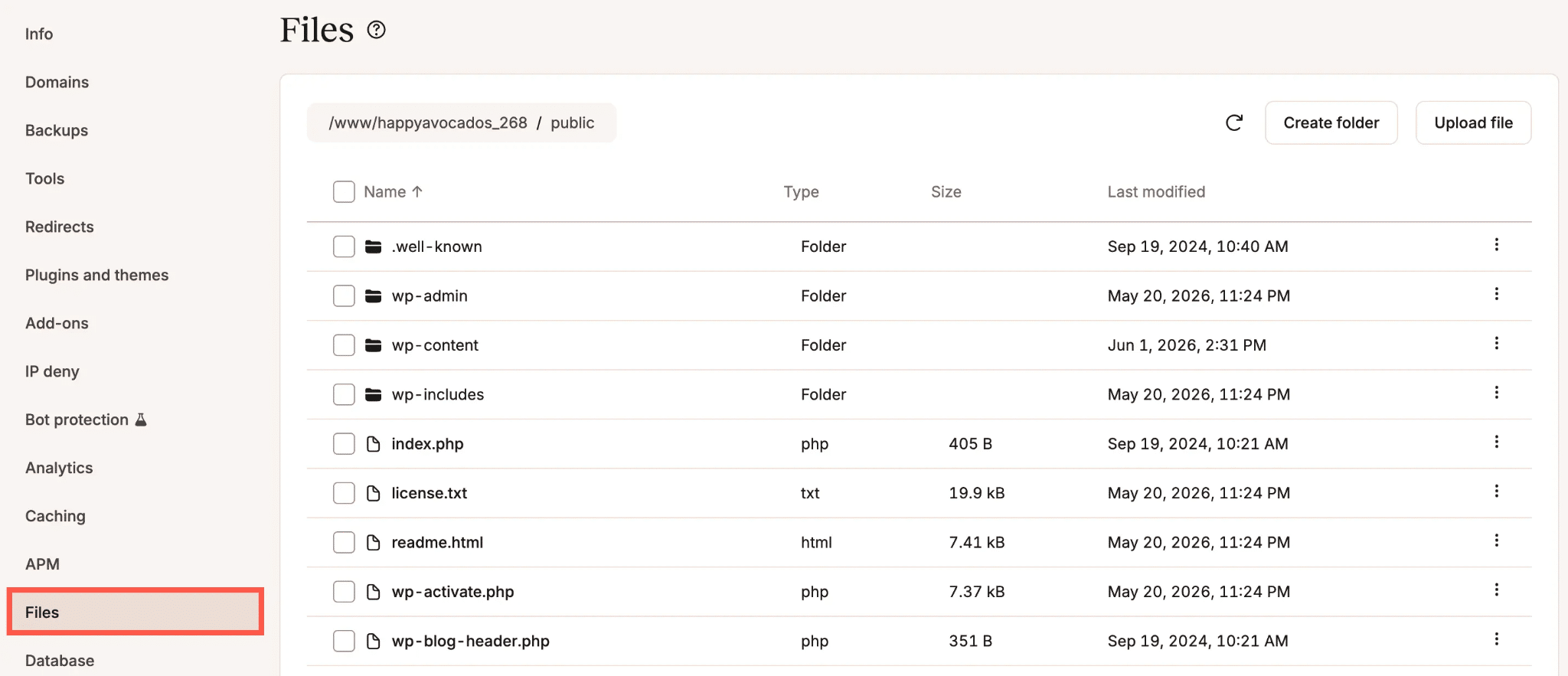
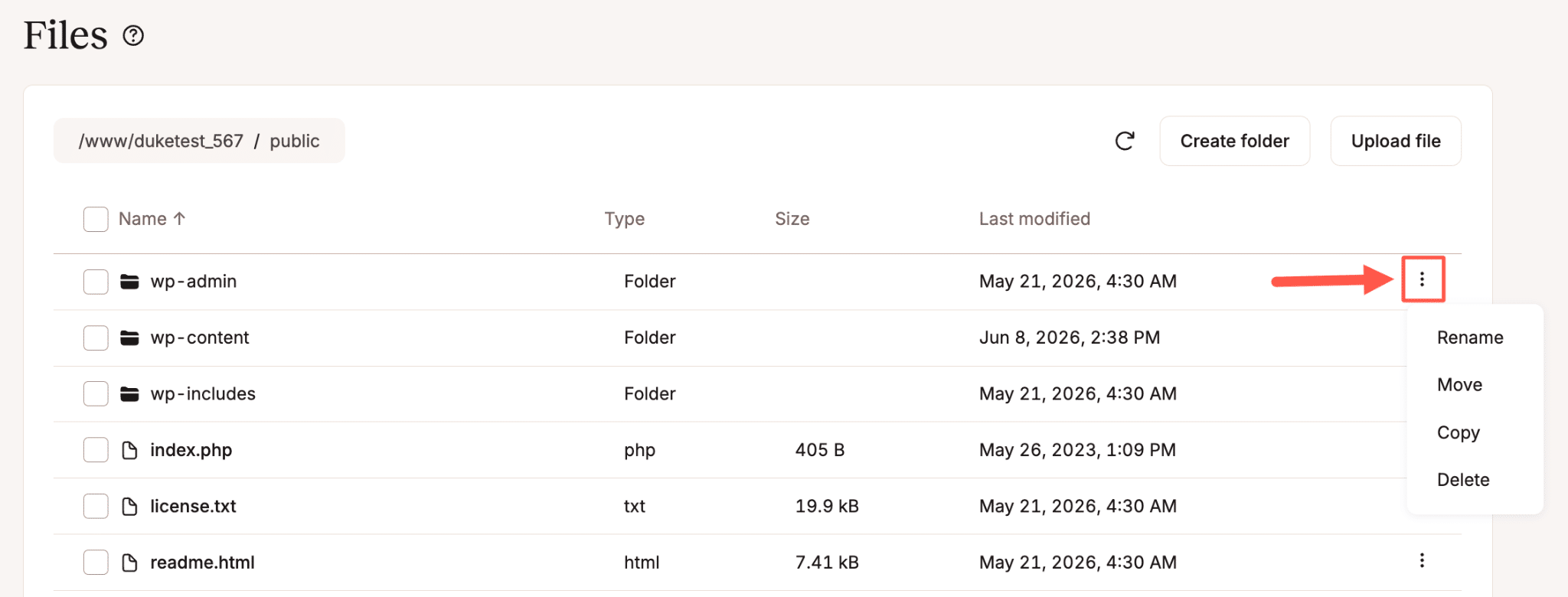
Accessing the file manager is straightforward: users navigate to the "Sites" section in the MyKinsta sidebar, select the desired environment, and click the "Files" tab. By default, it opens at the public directory, where WordPress typically resides in Kinsta installations, or at the root directory if it has been customized. The interface is designed to mimic a standard desktop file browser, promoting intuitive navigation. Users can click folders to open them, utilize breadcrumbs for upward navigation, and access a "kebab menu" (three-dot icon) next to any file or folder to reveal a comprehensive suite of options.
The MyKinsta file manager provides a full spectrum of functionalities previously requiring external clients or risky plugins:
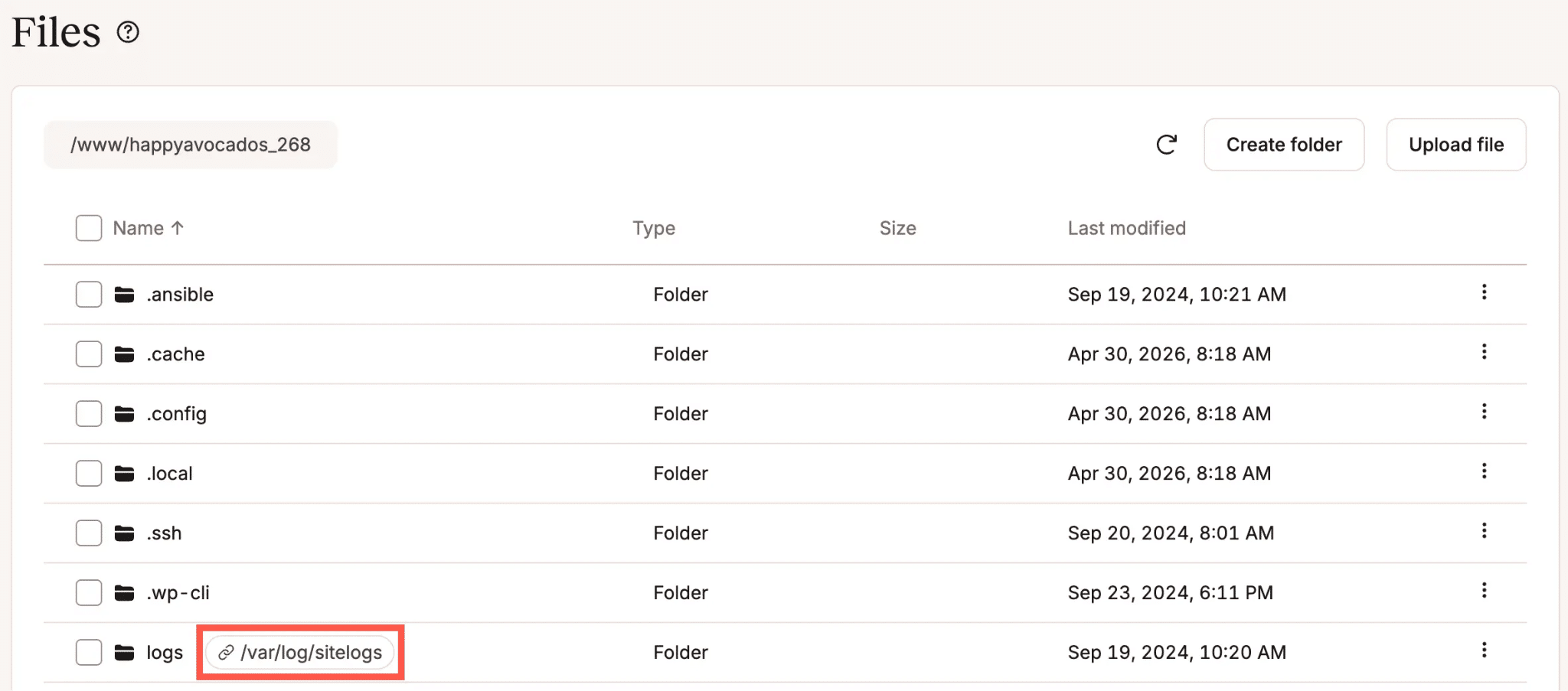
- Browsing and Navigation: Users can effortlessly traverse their file system, with symlinks clearly displayed alongside regular files and directories, indicating their respective targets.
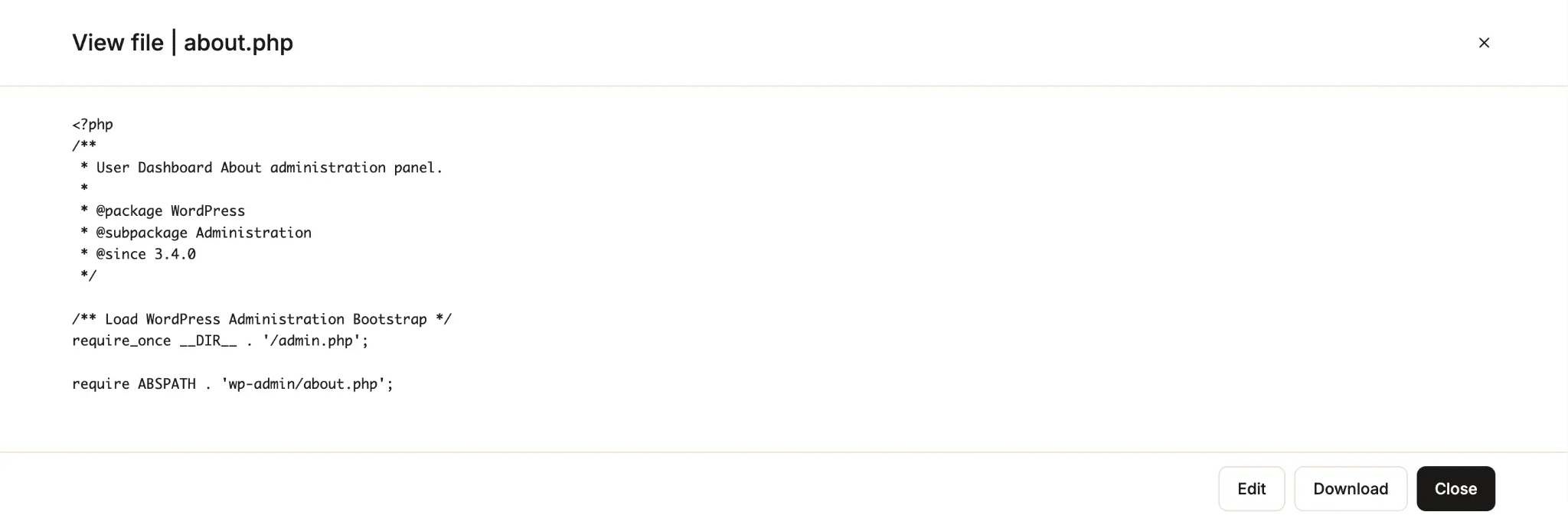
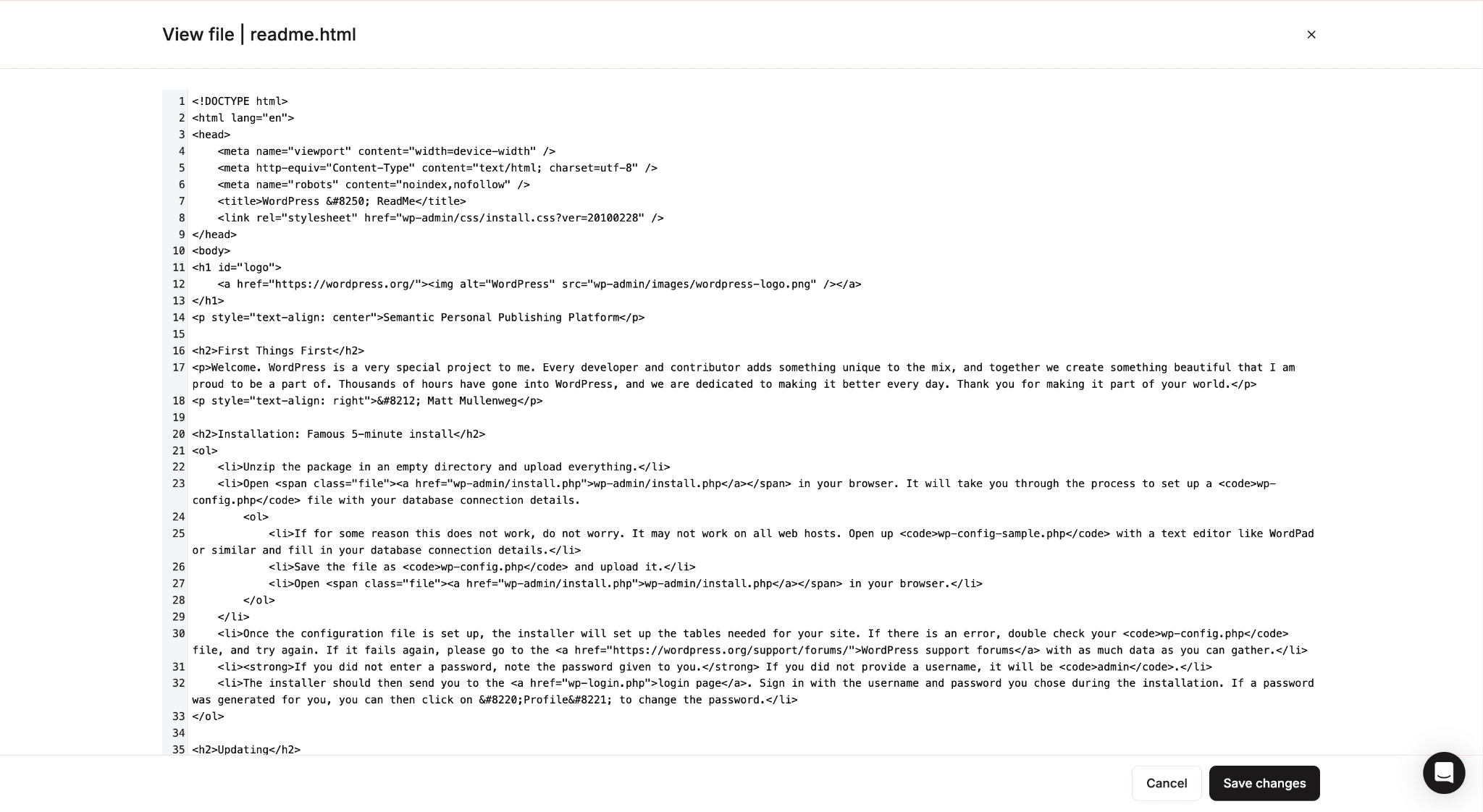
- Viewing and Editing Files: The built-in editor supports all common text-based file types, including PHP, HTML, CSS, JavaScript, JSON, XML, YAML, and SQL. Files can be opened in read-only mode for quick inspection or directly in edit mode. The editor features numbered lines, a crucial aid for debugging and referencing specific code sections. Changes take effect immediately upon saving.
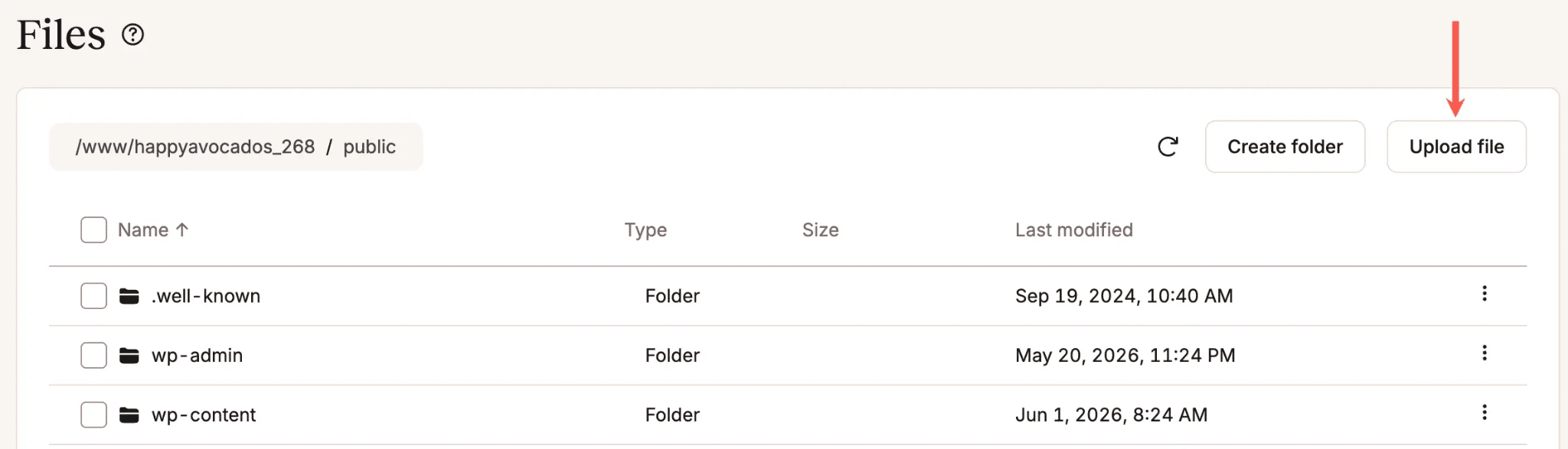
- Uploading Files: Multiple files can be uploaded simultaneously from a user’s computer to any selected folder, streamlining the process of adding new assets or components.
- Downloading Files: Individual files can be downloaded directly to the user’s computer via the web browser, adhering to browser-specific download settings.
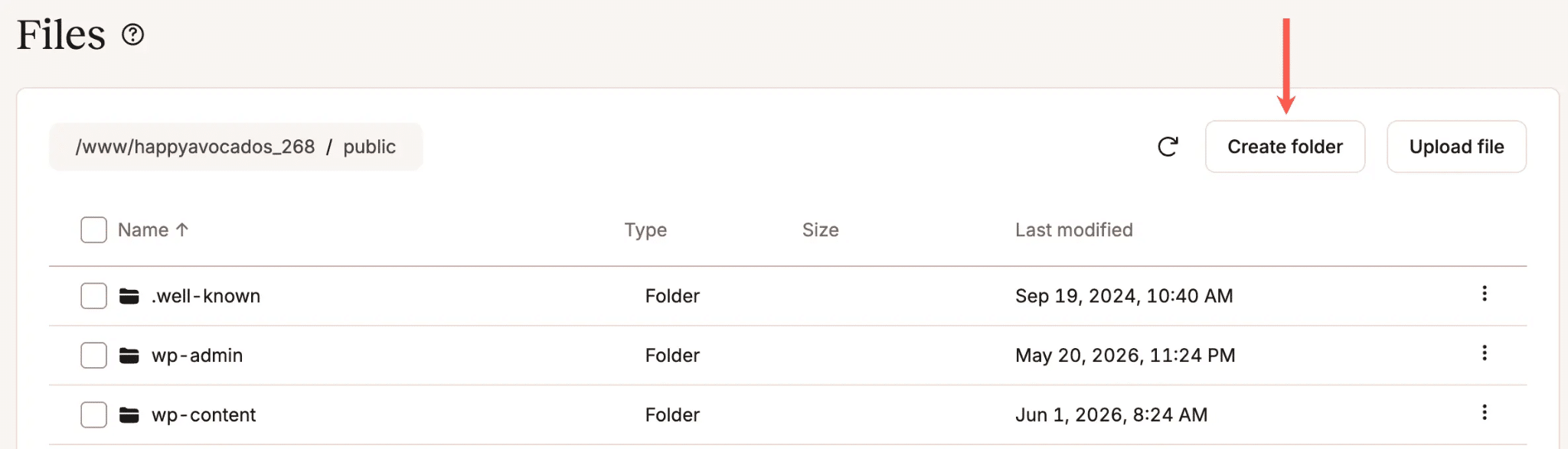
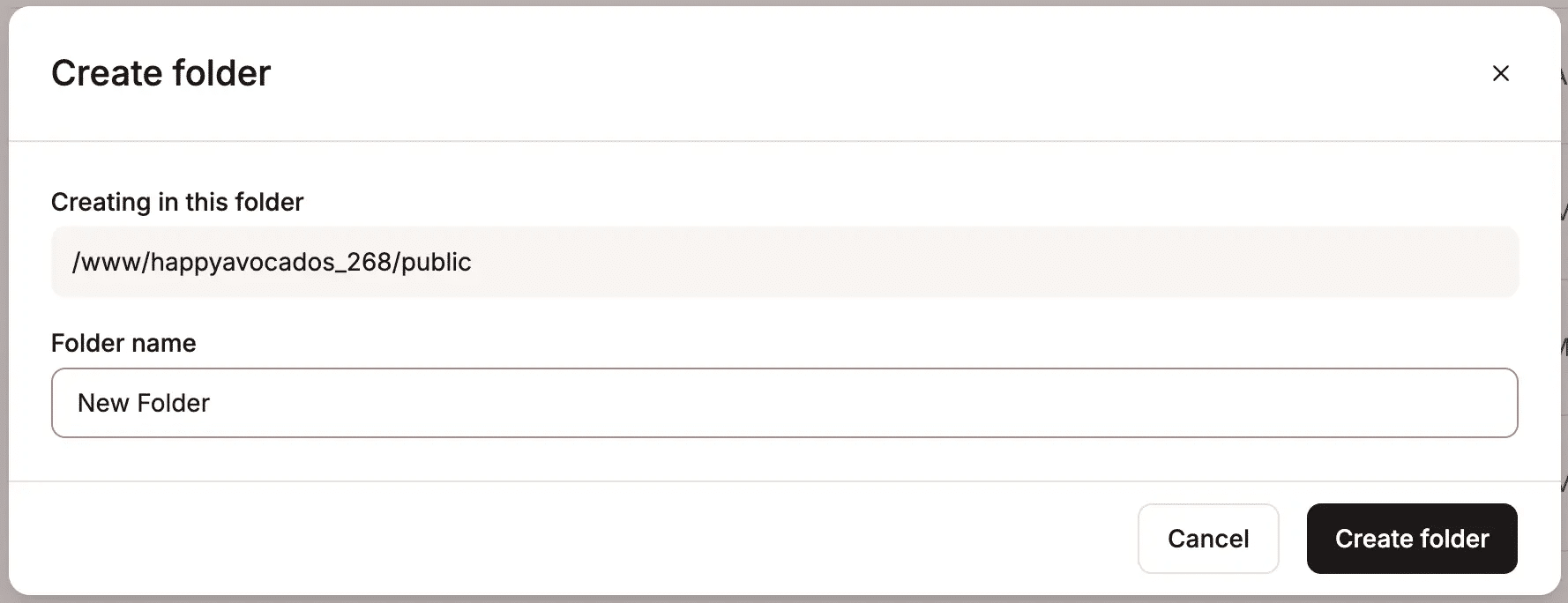
- Creating Folders: New directories can be created with ease, ensuring an organized file structure.
- Renaming, Moving, and Copying: These operations are executed via the kebab menu, allowing users to efficiently organize their files and folders. Kinsta advises caution when renaming or moving files that WordPress, plugins, or themes might reference by exact path, recommending a backup before structural changes.
- Deleting Files and Folders: The deletion process includes a confirmation dialog, particularly for non-empty folders, emphasizing the permanent nature of the action. Users are strongly advised to back up data as there is no recycle bin or undo function.
- Bulk Operations: A highly efficient feature, allowing users to select multiple files and folders for simultaneous moving, copying, or deleting. This significantly speeds up cleanup and reorganization tasks across mixed file types within a directory.
- Symlink Management: Symlinks can be renamed, moved, copied, and deleted, with all operations affecting only the link itself, leaving the original file or folder untouched.
Enhanced Security and Operational Transparency
A cornerstone of the MyKinsta file manager’s design is its inherent security. By existing outside the WordPress core, it is insulated from common WordPress vulnerabilities. Access is solely governed by Kinsta account credentials, which are typically secured with multi-factor authentication and robust security protocols. This architecture minimizes the attack surface for potential threats, providing a safer environment for file operations.
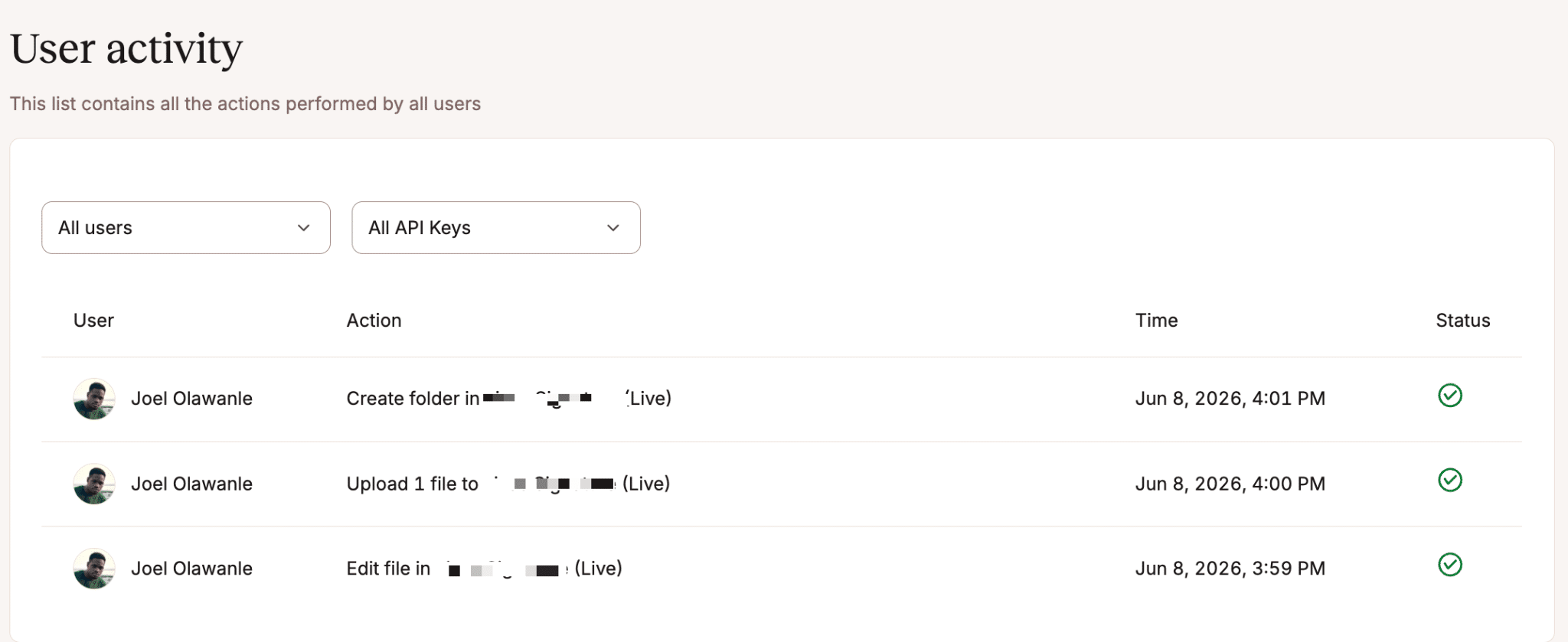
Furthermore, Kinsta has integrated a comprehensive activity log within the MyKinsta dashboard. Every action performed through the file manager—be it a file upload, edit, rename, or deletion—is meticulously recorded. This log details who made the change and precisely when it occurred, accessible under "User activity." For teams, agencies, or environments with multiple users accessing a site, this feature is invaluable. It provides unparalleled transparency, enabling administrators to trace back any changes that might lead to site issues, facilitate debugging, and ensure accountability across the board. This level of auditing is a critical component of modern web operations, particularly in professional and agency settings.
Practical Applications: Streamlining Everyday WordPress Tasks
The practical benefits of the MyKinsta file manager extend across numerous real-world scenarios, saving considerable time and reducing stress for WordPress site administrators:
- Fixing a Broken Site When
wp-adminis Inaccessible: This is perhaps one of the most critical use cases. A faulty plugin update, a syntax error in a theme file, or a misconfiguration can render the WordPress dashboard entirely inaccessible. In such emergencies, the file manager becomes a lifeline. Users can navigate directly towp-content/plugins/, locate the problematic plugin’s folder, and rename it. WordPress interprets a renamed plugin folder as a missing plugin and automatically deactivates it, bringing the site back online almost instantly, all without ever needing an FTP client. - Editing
wp-config.phpor.htaccess: These two files are central to any WordPress installation, controlling database credentials, debug settings, security keys, permalink structures, and access rules. They are frequently edited for customization or troubleshooting. The built-in editor provides a safe and immediate way to make necessary changes, with numbered lines aiding precision, and updates taking effect instantly upon saving. - Tweaking a Theme File: For quick adjustments to
functions.php, template files, or CSS, users can navigate towp-content/themes/your-theme/, open the relevant file, and edit it directly. While Kinsta reiterates the best practice of using child themes for permanent modifications to avoid overwrites during theme updates, the file manager offers an efficient solution for temporary fixes or minor stylistic changes. - Removing a File That Should Not Be There: Whether it’s a partial file from a failed upload, an exponentially growing log file, or a backup script writing to an incorrect directory, rogue files can consume server space or cause unexpected issues. The file manager enables swift identification and deletion of such files, often in under a minute.
- Checking and Downloading Error Logs: While MyKinsta offers a dedicated "Logs" tab for current
error.logandaccess.logfiles, the file manager provides access to the fulllogsdirectory. This includes rotated log files going back several days,cache-purge.logfiles, and compressed.gzarchives. This granular access is invaluable for forensic debugging, especially when tracking down issues that began days prior, allowing users to view logs directly or download them for sharing with developers or Kinsta’s support team. - Uploading a Custom Plugin or Theme Manually: For private or custom-built plugins and themes not available in the WordPress directory, the file manager offers a reliable method for direct upload to
wp-content/plugins/orwp-content/themes/. This is often more stable and efficient than using the WordPress dashboard uploader, particularly for larger files.
Distinguishing Between Tools: When SFTP/FTP Still Reigns
While the MyKinsta file manager handles the vast majority of everyday file management tasks with unprecedented ease, Kinsta acknowledges that dedicated SFTP/FTP clients retain their place for specific, heavy-duty operations. Tasks such as bulk migrations, highly automated deployments, or the syncing of thousands of files across environments are still best handled by these specialized tools, which are optimized for large-scale data transfer and complex scripting. The file manager is designed to complement, not entirely replace, these powerful clients, focusing on efficiency and security for routine administrative needs.
Broader Implications for Managed WordPress Hosting
The introduction of the MyKinsta file manager is more than just a new feature; it represents a significant step forward in the evolution of managed WordPress hosting. By integrating such a critical tool directly into its dashboard, Kinsta is not only enhancing its user experience but also setting a new standard for what users should expect from their hosting providers. This move underscores a commitment to streamlining workflows, enhancing security, and providing an all-enone platform for site management.
The increasing complexity of WordPress sites, coupled with the ever-present threat of cyberattacks, necessitates intelligent, integrated solutions. Kinsta’s file manager addresses these needs head-on, reducing the cognitive load on site administrators and allowing them to focus on content creation and business growth rather than wrestling with cumbersome file management processes. As web development continues to accelerate, the demand for such cohesive and secure tools will only grow, positioning Kinsta at the forefront of innovation in the managed hosting space.
In conclusion, the MyKinsta file manager has effectively eliminated many of the trade-offs traditionally associated with WordPress file management. It is not an additional tool to install or configure; it is an intrinsic part of the same dashboard used for managing backups, staging environments, DNS, and performance. This integration ensures that critical file access is always just one click away, ready to address incidents, client requests, or late-night fixes with unparalleled speed and security. This pivotal development fundamentally changes how WordPress site owners and developers can respond to critical moments, making their operations smoother, safer, and significantly more efficient. Users are encouraged to explore this new functionality by navigating to Sites > [site name] > Files within their MyKinsta dashboard or to contact the Kinsta support team for any questions.