WordPress Ecosystem

WordPress File Permissions: Everything You Need to Know

The digital landscape is fraught with security challenges, and for the vast majority of websites powered by WordPress, proper file permissions stand as a critical, yet often overlooked, bulwark against malicious intrusions and operational failures. Understanding and correctly configuring these permissions is not merely a technical detail; it is a fundamental aspect of maintaining a secure, functional, and reliable online presence. Whether you are troubleshooting a vexing error message, hardening your site against potential threats, or simply aiming to deepen your understanding of WordPress mechanics, mastering file permissions is indispensable. This comprehensive guide will illuminate the intricacies of WordPress file permissions, outlining their structure, highlighting best practices, detailing methods for modification, and identifying common pitfalls, all aimed at ensuring your website operates smoothly and securely.

The Foundation of Digital Security: Understanding File Permissions

At its core, a website is a collection of files and directories residing on a server. Just as physical documents in an office might have different access levels – some visible to everyone, some editable only by specific staff, and some restricted to management – digital files on a server operate under a similar system. This system is known as file permissions. Originating from Unix-like operating systems, these permissions dictate who can perform what actions on a given file or directory.

WordPress File Permissions: Everything You Need to Know 

For a dynamic platform like WordPress, which powers over 43% of all websites on the internet, this mechanism is particularly vital. WordPress constantly interacts with its file system: saving new posts, uploading media, caching data, and updating core files, themes, and plugins. The web server (commonly Apache or NGINX) also needs to read and execute various scripts to render your site to visitors. File permissions create a delicate balance: they must be permissive enough for WordPress and its components to function correctly, yet restrictive enough to prevent unauthorized access or manipulation by malicious actors. When this balance is disrupted, either too loose or too restrictive, the consequences can range from minor annoyances to catastrophic security breaches or complete website downtime.

Deciphering the Permission Code: Types, Groups, and Notations

To effectively manage WordPress file permissions, one must first grasp the underlying principles of how these permissions are structured and represented. This involves understanding the types of actions allowed, the groups of entities that can be granted these permissions, and the common notation systems used to express them.

Types of File Permissions: Defining Actions

There are three primary types of permissions that can be assigned to any file or directory:

WordPress File Permissions: Everything You Need to Know 
  • Read (r): This permission allows an entity to view the contents of a file or list the contents of a directory. For files, it means the ability to open and read the data within. For directories, it enables listing the files and subdirectories contained within it. Without read access, a user or process cannot even see what’s there.
  • Write (w): This permission grants the ability to modify, create, or delete a file. For directories, it means the power to create new files or subdirectories, delete existing ones, or rename them within that directory. Write access is crucial for dynamic components of WordPress, such as uploading images or updating plugins.
  • Execute (x): For files, this permission allows the file to be run as a program or script. For directories, it enables traversing into the directory, meaning one can access its contents if combined with read permissions. The web server needs execute permissions on directories to navigate them and find the files it needs to serve.

Permission Groups: Defining Entities

These three permission types are assigned to distinct groups, determining "who" can perform "what" action:

  • User (Owner): This refers to the individual user or process that owns the file or directory. In a WordPress context, this is typically your hosting account’s user or, more critically, the web server user (e.g., www-data for Apache, nginx for NGINX) that executes WordPress processes. The owner usually has the most extensive permissions.
  • Group: This applies to a specific group of users or processes that share common access rights to the file or directory. On shared hosting environments, this might be a group of users under the same hosting account. In more complex server setups, different services might belong to specific groups.
  • Others (World): This category encompasses everyone else who is not the owner and does not belong to the defined group. This is the broadest and most vulnerable category, as any public user or unauthenticated process falls under "others." Permissions for this group should almost always be the most restrictive to prevent widespread security vulnerabilities.

Symbolic and Numeric (Octal) Notation

File permissions are commonly represented in two ways:

  • Symbolic Notation: This uses the letters r, w, and x (or - for no permission) for each of the three permission types, grouped by User, Group, and Others. For example, rwxr-xr-- means:
    • User: Read, Write, Execute (rwx)
    • Group: Read, Execute (r-x)
    • Others: Read only (r--)
  • Numeric (Octal) Notation: This is arguably the more prevalent method for setting permissions in practical scenarios. Each permission type is assigned a numerical value:
    • Read (r) = 4
    • Write (w) = 2
    • Execute (x) = 1
    • No permission = 0
      These values are summed for each group (User, Group, Others) to form a three-digit number. Using the rwxr-xr-- example:
    • User: 4 (r) + 2 (w) + 1 (x) = 7
    • Group: 4 (r) + 0 (-) + 1 (x) = 5
    • Others: 4 (r) + 0 (-) + 0 (-) = 4
      Thus, the numeric notation for rwxr-xr-- is 754. This concise representation allows for quick and precise permission assignments.

The Peril of Misconfiguration: Why Incorrect Permissions Are a Major Threat

The seemingly abstract concept of file permissions becomes starkly real when misconfigured, opening doors to a multitude of security vulnerabilities and operational disruptions. The sheer scale of WordPress’s adoption means that insecure configurations can have widespread implications, impacting millions of websites globally. According to various security reports, misconfigurations, including improper file permissions, consistently rank among the top reasons for website compromises.

WordPress File Permissions: Everything You Need to Know 

Security Vulnerabilities: An Open Invitation to Attackers

  • Unauthorized Access and Modification: When files or directories are too permissive (e.g., world-writable), attackers can exploit this to inject malicious code, upload backdoors, or deface your website. Imagine your wp-config.php file, which contains critical database credentials, being writable by "others" – a hacker could easily read and modify it, gaining full control over your database and potentially your entire site.
  • Privilege Escalation: A seemingly minor misconfiguration on one file can be a stepping stone. An attacker might gain limited access through an exploit and then leverage overly permissive files to escalate their privileges, gaining deeper control over your server, not just your WordPress installation.
  • Data Breaches: Access to sensitive data, such as user information, payment details, or proprietary content, can occur if database files or backup archives are left with lax permissions. This can lead to severe reputational damage, legal liabilities, and financial losses.
  • Malware Injection and SEO Penalties: Compromised permissions can allow attackers to inject malware, spam links, or phishing scripts into your website. Search engines like Google actively scan for such malicious content. If detected, your site could be blacklisted, leading to a drastic drop in search rankings, loss of organic traffic, and a warning label for visitors, severely impacting your online visibility and credibility.

Operational Disruptions: Breaking Functionality

Conversely, overly restrictive permissions can equally cripple a website, preventing legitimate processes from functioning.

  • Website Errors and Downtime: If core WordPress files or theme/plugin directories lack sufficient read or execute permissions for the web server, your site might display errors like a "403 Forbidden" page, "500 Internal Server Error," or the dreaded "White Screen of Death" (WSOD). These errors render your site inaccessible, leading to lost visitors and revenue.
  • Functionality Loss: WordPress relies on write permissions for various essential tasks. If the wp-content/uploads directory isn’t writable, you won’t be able to upload images or media. Plugins might fail to save settings, create cache files, or perform their intended functions if their directories lack necessary permissions. Themes might not apply changes, and contact forms could fail to send messages.
  • Update Failures: WordPress core, themes, and plugins frequently release updates for security patches, bug fixes, and new features. Without proper write permissions to their respective directories, these updates will fail, leaving your site vulnerable to known exploits and hindering its performance and functionality. This stagnation can quickly degrade the security posture and user experience of your site.

The implications of incorrect file permissions extend beyond technical glitches, directly impacting a website’s security, performance, user trust, and business continuity. A proactive approach to understanding and maintaining correct permissions is therefore not optional but imperative for any WordPress site owner.

Establishing Best Practices: Safeguarding Your WordPress Installation

Navigating the complexities of file permissions requires adherence to established best practices. These guidelines, often echoed by the WordPress community, security experts, and hosting providers, are designed to strike the optimal balance between functionality and robust security.

WordPress File Permissions: Everything You Need to Know 

The Principle of Least Privilege (PoLP): A Guiding Security Philosophy

A cornerstone of information security, the Principle of Least Privilege (PoLP) dictates that every user, program, or process should be granted only the minimum set of permissions necessary to perform its legitimate function, and no more. For WordPress, this means:

  • Web Server User as Owner: In most secure configurations, the web server user (e.g., www-data for Apache, nginx for NGINX, or a specific user provided by your host) should be the owner of most WordPress files and directories. This user is the one that executes PHP scripts and processes requests. Granting ownership to this user ensures WordPress can write where it needs to, while limiting the power of other potential system users.
  • Avoid Root Ownership: Unless explicitly required for highly specific server-level configurations (which is rare for standard WordPress files), core WordPress files and directories should never be owned by the root user. If a hacker gains access to a root-owned file, they could potentially compromise the entire server, not just your website. Any unexpected change in file ownership to root should be a major red flag indicating a potential security incident.
  • Granular Permissions: Apply PoLP by carefully setting permissions for each file and directory. Don’t simply grant broad permissions "just in case."

Recommended Permission Levels: The WordPress Standard

While configurations can vary slightly depending on your hosting environment, the official WordPress documentation and general security consensus recommend the following permission levels as a secure baseline:

  • Directories: 755 (rwxr-xr-x)
    • Owner (7): Read, Write, Execute (full control for the web server user).
    • Group (5): Read, Execute (allows other legitimate server processes to navigate).
    • Others (5): Read, Execute (allows visitors to access public content).
      This setting is suitable for all directories within your WordPress installation, including wp-content, wp-includes, and wp-admin, and their subdirectories. It allows the web server to create/delete files within them and navigate, while preventing arbitrary users from writing to your directory structure.
  • Files: 644 (rw-r–r–)
    • Owner (6): Read, Write (allows the web server to read and modify files).
    • Group (4): Read (allows legitimate server processes to read files).
    • Others (4): Read (allows visitors to read public files like index.php or style.css).
      This applies to all general WordPress files. It prevents unauthorized users from modifying your PHP scripts or other crucial files, while ensuring the site functions normally.
  • wp-config.php: 640 (rw-r—–) or 600 (rw——-)
    • This file contains sensitive database credentials and other critical configurations. It requires stricter permissions.
    • 640: Owner (rw), Group (r), Others (no access). The group permission here might be useful if your web server runs under a specific group that needs to read this file.
    • 600: Owner (rw), Group (no access), Others (no access). This is the most restrictive and often preferred, ensuring only the file owner (typically the web server user) can read and write to it.
    • Never set wp-config.php to 644 or higher, as this would expose your database credentials to "others."

The Absolute Prohibition: Never Use 777

Setting any file or directory permissions to 777 (rwxrwxrwx) is universally condemned in the WordPress and broader web security community. This permission grants full read, write, and execute access to the owner, group, AND others.

WordPress File Permissions: Everything You Need to Know 
  • The Danger: It effectively opens your website to anyone on the internet, allowing them to upload malicious scripts, modify core files, inject malware, or even delete your entire site. While it might seem like a quick fix for a permission-related error, it’s akin to leaving your front door wide open in a bad neighborhood. A savvy attacker can easily leverage a single 777 file to gain a foothold and compromise your entire server.
  • Avoid at All Costs: There is almost never a legitimate reason to use 777 on a production WordPress site. If a plugin or theme instructs you to do so, consider it a red flag and seek alternative solutions or contact their support for clarification.

When to Change Permissions (and When Not To)

In most cases, if you use a reputable hosting provider and install WordPress correctly, file permissions should be set appropriately by default. You generally shouldn’t need to manually adjust them unless:

  • You are troubleshooting a specific error message clearly indicating a permission issue.
  • You are performing a security audit and find insecure permissions.
  • You have migrated your site, and permissions were not retained correctly.

Avoid making changes if you are unsure of the implications. If you encounter persistent permission problems, especially on shared hosting, it’s often best to contact your hosting provider’s support team. They can provide specific recommendations for your server environment or even adjust the permissions for you.

The Indispensable Safety Net: Regular Backups

Before attempting any manual changes to file permissions, it is paramount to create a complete backup of your entire WordPress website, including both its files and database. Modifying permissions incorrectly can instantly render your site inaccessible or introduce critical security flaws. A recent and reliable backup serves as an essential safety net, allowing you to quickly restore your site to a working state if something goes awry. Utilize your host’s backup services, dedicated WordPress backup plugins, or perform manual backups via FTP and phpMyAdmin.

WordPress File Permissions: Everything You Need to Know 

Practical Steps: Modifying WordPress File Permissions

Having understood the theoretical underpinnings and best practices, it’s time to explore the practical methods for changing file permissions. Several tools and interfaces are available, catering to different levels of technical expertise and hosting environments.

1. Via cPanel or Hosting Dashboard

Most web hosting providers offer a control panel, with cPanel being the most common, or a custom dashboard. These interfaces typically include a File Manager that provides a user-friendly way to modify permissions.

  • Steps:
    1. Log in to your hosting account’s cPanel or custom dashboard.
    2. Navigate to the "File Manager" section.
    3. Browse to your WordPress installation directory (often public_html).
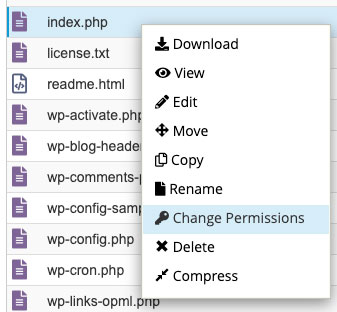
    4. Right-click on the specific file or directory whose permissions you wish to change.
    5. Select "Change Permissions" or a similar option from the context menu.
    6. A dialogue box will appear, allowing you to set permissions by checking boxes for Read, Write, and Execute for User, Group, and Others, or by directly entering the three-digit numeric value (e.g., 755, 644).
    7. For directories, you might have an option to "Recurse into subdirectories." Use this with extreme caution, as applying a single permission set recursively to an entire directory can lead to issues if specific files or subdirectories require different settings. It’s often safer to apply permissions individually or in smaller batches.
    8. Click "Change" or "Save" to apply the new permissions.

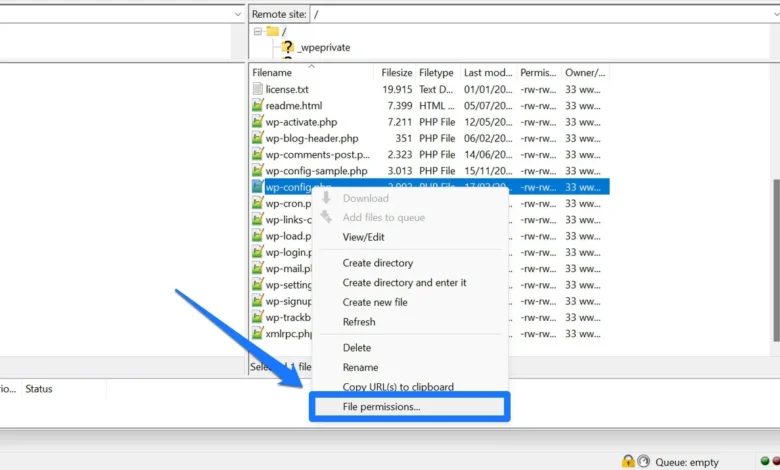
2. Using FTP/SFTP Clients

FTP (File Transfer Protocol) or SFTP (SSH File Transfer Protocol) clients like FileZilla, Cyberduck, or WinSCP provide a direct interface to your server’s file system. This method is widely used and offers good control.

WordPress File Permissions: Everything You Need to Know 
  • Steps:
    1. Install and launch an FTP/SFTP client.
    2. Connect to your server using your FTP/SFTP credentials (hostname, username, password, port). These are usually provided by your hosting provider.
    3. Navigate to your WordPress root directory on the remote site panel.
    4. Locate the file or folder you want to modify.
    5. Right-click on the selected file or directory.
    6. Choose "File permissions…" or "Change permissions…" from the context menu.
    7. A "Change file attributes" dialogue box will appear. You can either:
      • Enter the numeric value (e.g., 755 for directories, 644 for files) directly into the "Numeric value" field.
      • Tick the checkboxes for "Read," "Write," and "Execute" under "Owner," "Group," and "Public" (Others).
    8. For directories, you’ll usually see an option like "Recurse into subdirectories" or "Apply to all files and subdirectories." Again, exercise extreme caution if using this option, and understand the implications of applying permissions broadly.
    9. Click "OK" to apply the changes.

3. Through SSH/Command Line

For advanced users and server administrators, SSH (Secure Shell) access provides the most powerful and precise control over file permissions. This method is typically faster for bulk changes and offers direct command-line execution.

  • Steps:
    1. Access your server via SSH using a terminal (Linux/macOS) or an SSH client like PuTTY (Windows).
    2. Use the cd command to navigate to your WordPress installation directory. For example: cd /var/www/html/yourwebsite.com/public_html
    3. To change permissions for a single file, use the chmod command:
      chmod 644 wp-config.php (sets read/write for owner, read for group/others)
    4. To change permissions for a single directory:
      chmod 755 wp-content (sets read/write/execute for owner, read/execute for group/others)
    5. To recursively set permissions for all files and directories within a specific path (use with extreme caution and after a backup):
      • For all directories: find . -type d -exec chmod 755 ;
      • For all files: find . -type f -exec chmod 644 ;
        (Replace . with the specific path if not in the current directory).
    6. You can also change ownership using the chown command (e.g., chown www-data:www-data wp-content). This is an advanced operation and should only be performed if you fully understand your server’s user and group configurations.

4. Leveraging Security Plugins

For users who prefer a more GUI-driven approach within the WordPress dashboard, certain security plugins offer functionalities to scan for and fix insecure file permissions.

  • Examples: Plugins like All-In-One Security (AIOS), Wordfence, or Sucuri Security often include a "File Permissions" or "System Info" section.
  • Functionality: These plugins can typically:
    • Scan your site for files and directories with insecure or incorrect permissions.
    • Highlight discrepancies from recommended WordPress permissions.
    • Provide a one-click option to "Fix" or "Apply Recommended Permissions."
  • Convenience vs. Control: While convenient, relying solely on plugins means you might not fully understand why certain permissions are set or the underlying server configurations. It’s always beneficial to have a basic understanding of manual methods even if you use a plugin.

Regardless of the method chosen, always double-check the permissions after making changes and verify that your website continues to function as expected.

WordPress File Permissions: Everything You Need to Know 

Common WordPress File Permission Errors and Their Resolution

Despite best efforts, permission errors can occasionally surface, leading to perplexing issues on your WordPress site. Recognizing these common errors and understanding their root causes is the first step toward effective troubleshooting.

1. "Installation Failed" or "Unable to Create Directory"

  • Symptoms: During WordPress installation, plugin/theme installation, or media uploads, you might encounter messages indicating that WordPress cannot create directories (e.g., wp-content/uploads) or write files.
  • Cause: WordPress lacks the necessary write permissions for the directory where it’s attempting to create new folders or files. This often happens if the parent directory (e.g., wp-content or even the main WordPress root directory) has overly restrictive permissions for the web server user.
  • Resolution: Ensure that your main WordPress directory and its subdirectories (especially wp-content) are set to 755. For files, ensure 644. Specifically, check wp-content/uploads and its parent wp-content.

2. Media Upload Issues / "Couldn’t Write to Disk"

  • Symptoms: You cannot upload images, videos, or other media files to your WordPress Media Library. The upload process might fail with a generic "HTTP error" or a more specific "Unable to create directory wp-content/uploads" or "Couldn’t write to disk" message.
  • Cause: The wp-content/uploads directory (and its year/month subdirectories) does not have sufficient write permissions for the web server.
  • Resolution: Verify that the wp-content/uploads directory is set to 755. If it contains subdirectories (e.g., 2024/03), ensure they also inherit 755 permissions. If using an FTP client, you can often apply 755 recursively to the uploads directory.

3. "Forbidden" (403 Error)

  • Symptoms: When trying to access your website, specific pages, or the admin dashboard, you receive a "403 Forbidden" error message. This indicates that the server is denying access to the requested resource.
  • Cause: This error often arises when the web server lacks read or execute permissions for crucial files or directories. Common culprits include the index.php file, the .htaccess file, or the main WordPress directory itself.
  • Resolution: Check the permissions for your index.php file and any .htaccess files in your WordPress root directory, ensuring they are 644. Verify that the main WordPress installation directory is 755. If the error persists, it might also be related to incorrect ownership or server-level configurations, warranting a check with your hosting provider.

4. White Screen of Death (WSOD)

  • Symptoms: Your entire website, or sometimes just the admin area, appears as a blank white page with no error messages. This is one of the most frustrating WordPress errors.
  • Cause: While WSOD can be caused by various issues (e.g., PHP memory limits, conflicting plugins/themes), incorrect file permissions on critical core files can also trigger it. If WordPress cannot read or execute essential files like wp-config.php, theme files, or core PHP scripts, it simply fails to render anything.
  • Resolution: Begin by checking the permissions of your wp-config.php file (aim for 640 or 600). Then, recursively ensure all directories are 755 and all files are 644 within your main WordPress installation. If the WSOD is linked to a specific plugin or theme, check the permissions of its respective directory within wp-content/plugins or wp-content/themes.

5. Plugin or Theme Update Failures

  • Symptoms: When attempting to update WordPress core, a plugin, or a theme from the dashboard, the update process fails, often reporting an inability to create files or extract packages.
  • Cause: WordPress requires write permissions to

Related Articles

Leave a Reply

Your email address will not be published. Required fields are marked *

Back to top button
VIP SEO Tools
Privacy Overview

This website uses cookies so that we can provide you with the best user experience possible. Cookie information is stored in your browser and performs functions such as recognising you when you return to our website and helping our team to understand which sections of the website you find most interesting and useful.