The modern web ecosystem places a premium on efficiency, storage optimization, and rapid page loading times. For millions of website administrators utilizing WordPress as their Content Management System (CMS), media management remains a critical operational hurdle. Every time a digital graphic or photograph is uploaded to the WordPress media library, the core platform automatically triggers a multi-tier generation process, creating numerous cropped and resized variants of the original file. While designed to provide responsive scaling for diverse user interfaces and high-definition displays, this default behavior frequently results in severe server bloat, unnecessary storage consumption, and bloated database backups.
To address these inefficiencies, developers and site administrators are increasingly adopting strategies to control, limit, or entirely disable automated image resizing. Understanding the technical architecture behind these processes allows webmasters to reclaim server resources, optimize performance, and streamline routine backup schedules without compromising visual presentation.
Evolution of Media Handling and the Core Image Size Ecosystem
Since its inception, WordPress has evolved from a simple blogging platform into a robust application framework capable of powering complex enterprise websites, e-commerce networks, and digital portfolios. Central to this evolution is the automated handling of uploaded media. When a user uploads an image file, WordPress core analyzes the file and executes background routines to produce a standardized suite of secondary assets.
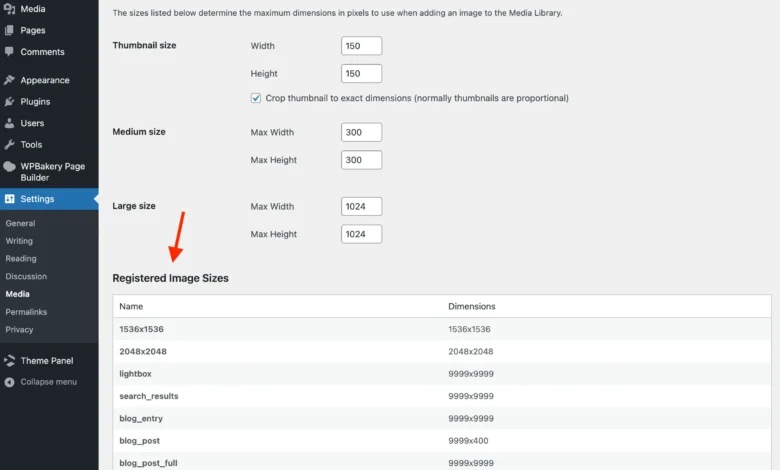
Historically, this suite included simple thumbnail, medium, and large dimensions designed to fit standard theme layouts. However, as web technology advanced to accommodate high-pixel-density (HDPI) and Retina displays, the platform expanded its default specifications. Modern installations of WordPress generate up to seven distinct pre-set dimensions by default for a single uploaded file. These include standard thumbnails (150×150 pixels), medium resolutions (300×300 pixels), medium-large responsive variants (768 pixels wide), large layouts (1024×1024 pixels), and high-resolution scaling assets measuring 1536×1536 pixels and 2048×2048 pixels. Furthermore, if an uploaded graphic exceeds the platform’s established safety thresholds, an additional scaled master version is produced.

Beyond these core system specifications, the proliferation of third-party themes and plugins significantly compounds the issue. Classic themes often register custom image dimensions tailored explicitly to their proprietary grid layouts. Similarly, plugins governing specialized functionalities—such as real estate listings, directory services, e-commerce product catalogs, learning management systems, and advanced page builders—frequently register their own unique image sub-sizes. Consequently, a single high-resolution upload can easily spawn a dozen or more derivative files hidden within the server directory.
The Big Image Size Threshold and Performance Implications
A pivotal architectural update arrived with WordPress 5.3, which introduced the Big Image Size Threshold. Set by default to 2560 pixels along either the horizontal or vertical axis, this parameter acts as a maximum boundary for newly uploaded master files. When an administrator uploads an oversized photograph—such as a 6000-pixel digital camera capture—WordPress automatically scales the original asset down to the 2560-pixel limit before generating any secondary derivative sizes.
While this mechanism protects entry-level servers from crashing due to memory exhaustion when processing massive files, it presents distinct challenges for professional photographers, graphic designers, and enterprise publishers who require pristine, uncompressed master archives. Conversely, leaving this threshold unchecked on standard informational sites guarantees the continuous generation of heavy server files that consume storage quotas and extend the duration of automated security backups.
Industry data indicates that digital media assets frequently account for over 60 percent of a typical website’s total disk usage. On high-traffic publishing platforms or e-commerce stores with tens of thousands of catalog items, unoptimized image sub-sizes can waste tens or even hundreds of gigabytes of server storage. This accumulation directly impacts cloud hosting overhead, increases backup transfer times, and complicates server migrations.
Technical Solutions: Controlling and Disabling Automated Sub-Sizes
Mitigating media bloat requires a calculated approach that balances front-end responsive requirements with back-end resource conservation. While the WordPress administration dashboard provides rudimentary controls via the Settings > Media panel—allowing administrators to zero out the default thumbnail, medium, and large dimensions—these interface options do not prevent themes, plugins, or core responsive sizes from generating auxiliary files.

To achieve total administrative control, developers rely on targeted code snippets implemented within a site’s functions.php file or deployed as a lightweight, independent custom plugin. By leveraging WordPress core hooks and filters, administrators can intercept the media upload workflow entirely.
Intercepting the Intermediate Image Generation Process
The most efficient programmatic method involves hooking into the intermediate_image_sizes_advanced filter. This native filter controls the array of image sizes scheduled for generation during an upload event. By returning an empty array via this filter, WordPress is instructed to bypass the creation of all secondary sub-sizes, ensuring that only the original uploaded file (or the scaled master file, if constrained by the threshold) is committed to the server directory.
// Return an empty list of image sizes to generate on upload
add_filter( 'intermediate_image_sizes_advanced', '__return_empty_array' );
In scenarios where certain responsive sizes must be preserved while eliminating others, developers can modify the filtering logic to selectively unset specific array keys—such as targeting legacy thumbnail or medium dimensions while retaining specific layout parameters required by a custom theme.
// Exclude specific image sizes from being generated on upload
add_filter( 'intermediate_image_sizes_advanced', function( $sizes )
    $sizes_to_exclude = [
        'thumbnail',
        'medium',
        'large',
        'medium_large',
    ];
    foreach ( $sizes_to_exclude as $size_to_exclude )
        unset( $sizes[ $size_to_exclude ] );

    return $sizes;
 );
For rigorous debugging and auditing, developers frequently implement temporary administrative interfaces to inspect all registered image sub-sizes currently active on a given installation. By querying the wp_get_registered_image_subsizes() function, administrators can populate custom data tables within the WordPress dashboard, identifying undocumented dimensions introduced by poorly optimized third-party plugins or legacy themes.
Remediation and Cleanup of Legacy Server Assets
Implementing code-based restrictions halts the generation of future derivative images, but it leaves existing server files intact. On established websites, thousands of legacy cropped images may still reside within the uploads directory and remain indexed within the database attachment metadata.
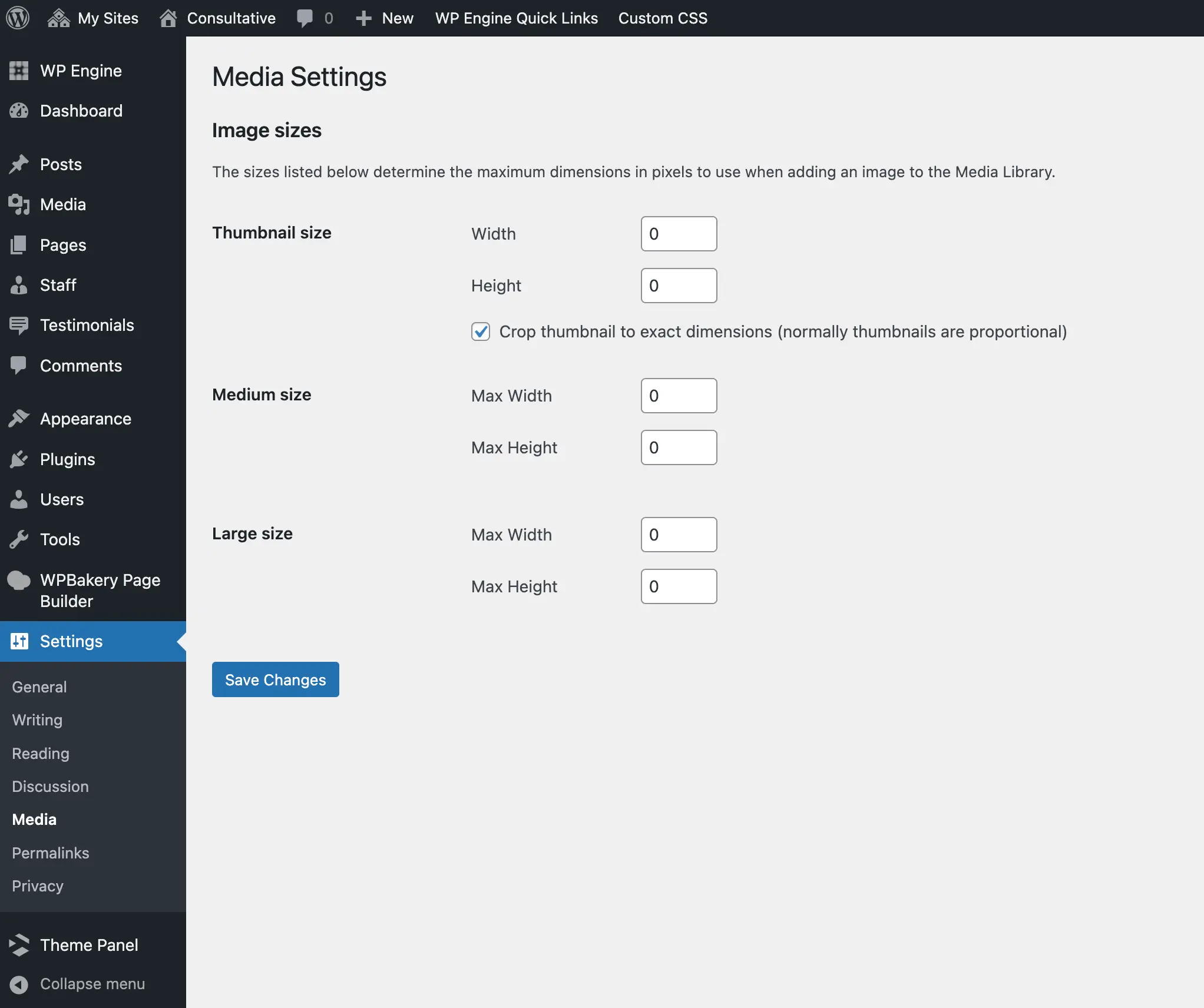
Industry best practices strongly discourage manual deletion via command-line interface (CLI) utilities unless paired with corresponding database metadata updates, as orphaned file paths can lead to broken references and administrative errors. Instead, specialized maintenance plugins—such as Force Regenerate Thumbnails—provide a controlled execution environment. These utilities systematically parse attachment metadata, purge obsolete file variants from the server, and regenerate only those assets dictated by current system parameters. Prior to executing any large-scale media sanitization, database and file-system backups are universally recommended to safeguard against data corruption.
Broader Implications for Site Maintenance and SEO
The decision to disable or restrict automated image resizing carries distinct implications for website performance and search engine optimization. From an infrastructure perspective, minimizing redundant file generation drastically reduces input/output (I/O) operations on storage drives, accelerates cloud backup creation, and lowers hosting tier requirements.
However, webmasters must carefully evaluate front-end presentation. Disabling native responsive image scaling means that browsers may be forced to download oversized master files for smaller UI containers unless alternative responsive CSS techniques or manual asset optimization are enforced. Modern web standards increasingly emphasize next-generation image formats (such as WebP and AVIF) alongside explicit CSS dimension styling to maintain optimal Core Web Vitals scores without relying on server-side micro-cropping.
As web hosting economics and performance benchmarks tighten, proactive media management remains an essential competency for WordPress professionals. By utilizing precise programmatic controls, site administrators can maintain lean, high-performing digital environments tailored precisely to their operational demands.