The landscape of web development has irrevocably shifted, with local development environments becoming an indispensable component of any modern developer’s toolkit. These insulated environments allow developers to build, test, and iterate on websites and applications on their personal computers before deploying them to live servers. This methodology offers myriad advantages, including enhanced speed, the ability to work offline, a secure sandbox for experimentation, and a significant reduction in the risks associated with direct live server modifications. However, the abundance of choices in this crucial category can present a dilemma, offering both a blessing in flexibility and a curse in decision fatigue. Among the myriad options available, two free and widely adopted solutions frequently emerge in discussions: Local and XAMPP. This analysis aims to provide a comprehensive, objective comparison of these two popular platforms, dissecting their core functionalities, installation processes, user experiences, and overall suitability for various development needs.
Historical Context and Evolution of Local Development Environments
The necessity for local development environments arose from the inherent limitations and risks of developing directly on live web servers. Early web development often involved uploading files via FTP to a remote server, making immediate testing cumbersome and prone to errors that could impact a live site. The advent of local server stacks, allowing developers to simulate a complete web server environment on their desktops, revolutionized this workflow.
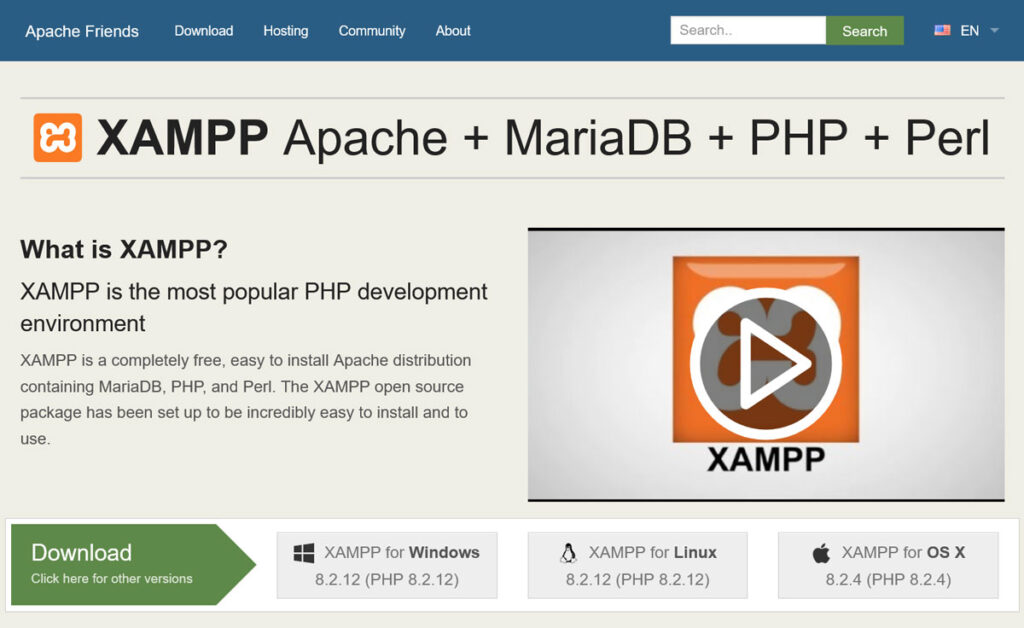
XAMPP, a portmanteau of Apache, MariaDB (formerly MySQL), PHP, and Perl, emerged as a pioneering force in this evolution. Developed by Apache Friends, XAMPP has a long-standing history, establishing itself as a robust, open-source cross-platform web server solution. Its philosophy centers on providing a comprehensive, modular package that equips developers with the fundamental components required for virtually any PHP-based web project. Its enduring presence has cemented its status as a go-to for those seeking direct control over their server stack, appealing to a broad audience from students learning server management to seasoned developers building custom applications.
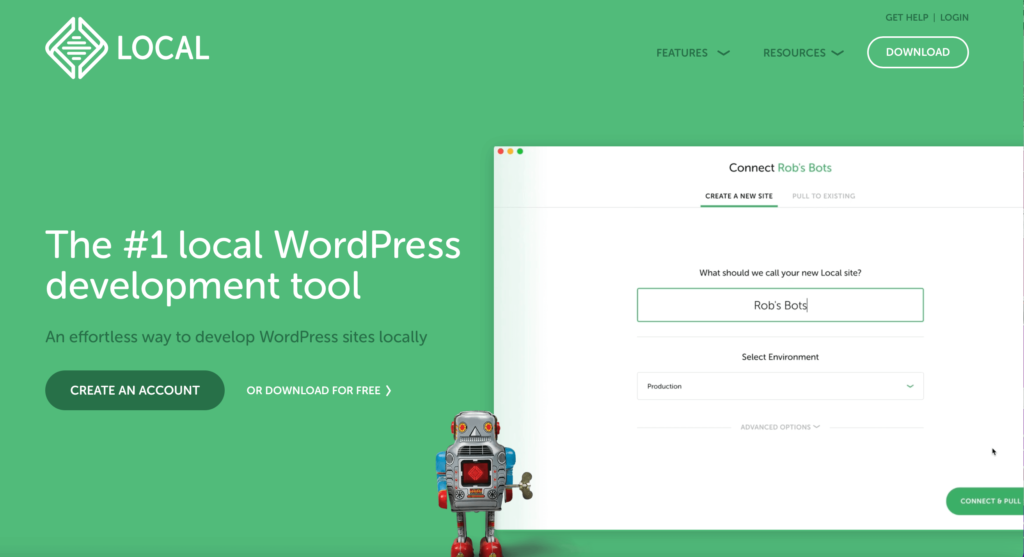
In contrast, Local, initially developed by Flywheel and later acquired by WP Engine, represents a more modern, opinionated approach, specifically tailored for WordPress development. Its emergence reflects a growing demand for streamlined, intuitive tools that abstract away much of the underlying server complexity, allowing WordPress professionals to focus on design and functionality. Local’s development path is indicative of a trend towards specialized tools that cater to the unique ecosystem of a particular CMS, offering deep integrations and performance optimizations specific to WordPress.
Installation and Initial Configuration: A Contrast in Approaches
The initial setup process for any development tool significantly influences its adoption, particularly for new users. Local and XAMPP, while both free, diverge notably in their installation and configuration methodologies.
XAMPP: The Traditional Server Assembly
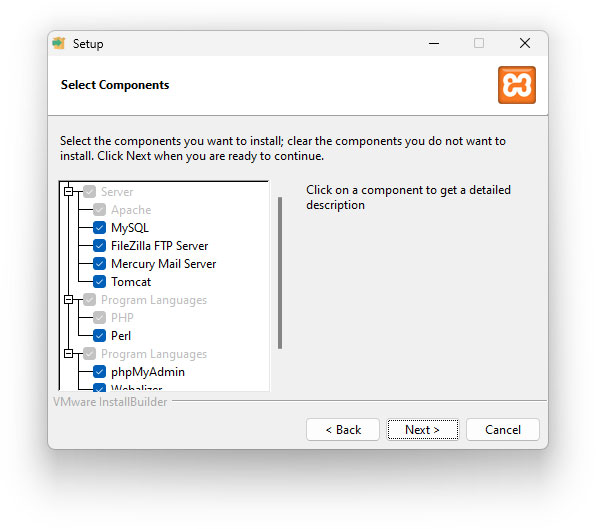
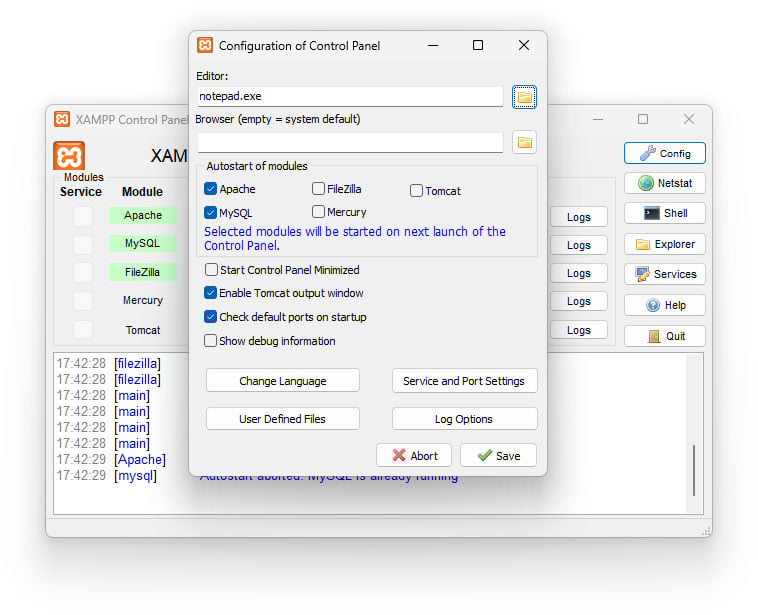
To initiate development with XAMPP, users typically navigate to the Apache Friends official website and download the installer compatible with their operating system (Windows, macOS, Linux, or Solaris). The installation wizard then guides the user through selecting specific components. This often includes Apache (the web server), MariaDB (the database server), PHP (the scripting language), and Perl, along with supplementary tools like phpMyAdmin for database management and Fake Sendmail for local email testing. This granular selection offers developers a degree of control over their server environment, allowing them to install only what is necessary for their projects. Post-installation, the XAMPP Control Panel becomes the central hub, where users manually start and stop individual services such as Apache and MySQL. This hands-on approach, while requiring a basic understanding of server components, provides valuable insight into how a web server stack operates. The process, while straightforward for those with technical inclinations, can be perceived as more involved for absolute beginners.
Local: The WordPress-Optimized Onboarding
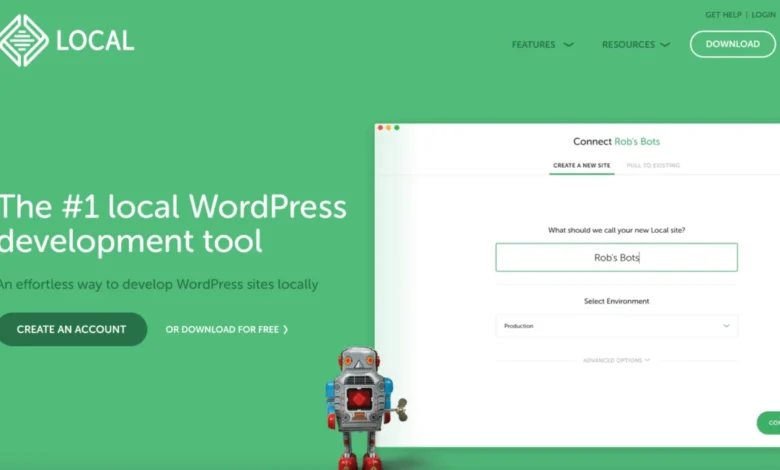
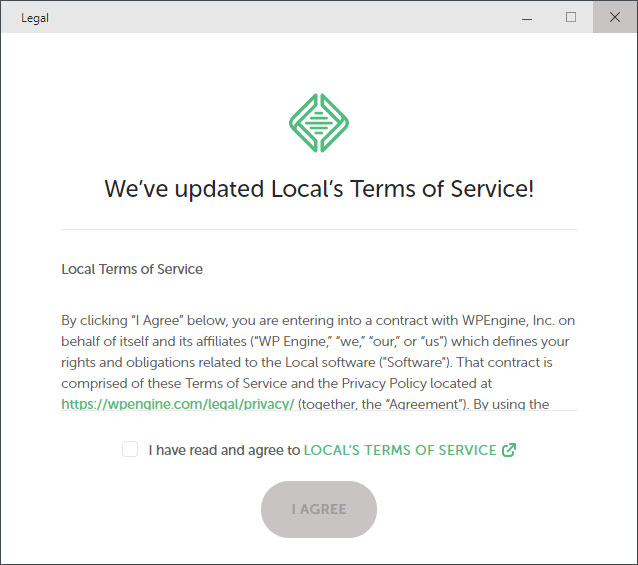
Local’s installation experience is designed for simplicity and speed, particularly for WordPress users. The process begins by downloading the application from the Local website. The installer is highly intuitive, akin to installing any standard desktop application, with minimal prompts. Upon the first launch, Local handles much of the underlying server configuration automatically, often requiring only basic agreements to terms and conditions. This streamlined onboarding aims to reduce the technical barrier to entry, allowing developers to quickly move from installation to creating their first WordPress site. The design philosophy here is to abstract away complex server setup, making the environment immediately accessible and functional for its target audience.
Establishing Development Sites: Workflows Compared
Once the core environment is installed, the next critical step is provisioning a new development site. This is where the specialized nature of Local truly shines in contrast to XAMPP’s general-purpose approach.
Local: One-Click WordPress Provisioning
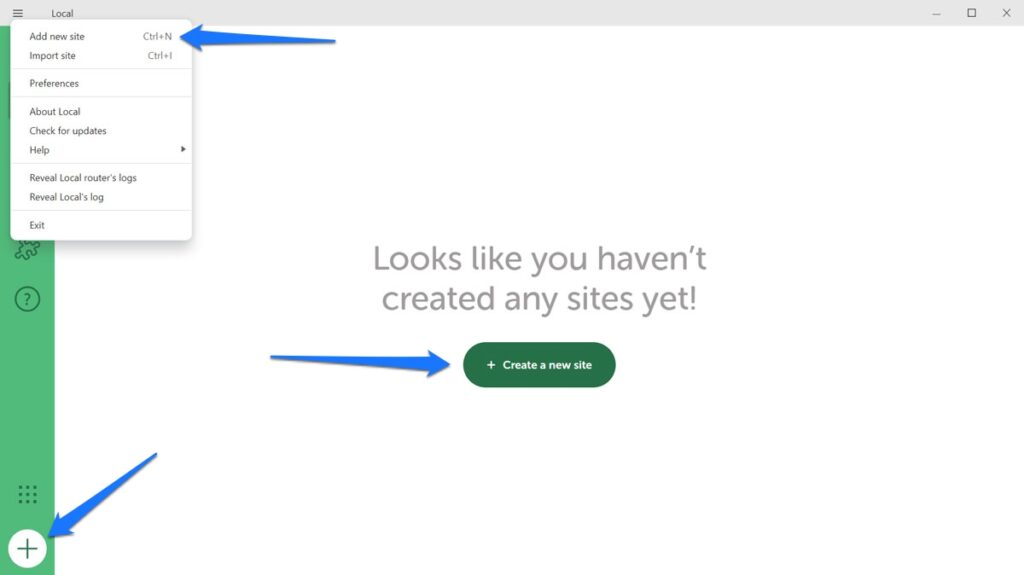
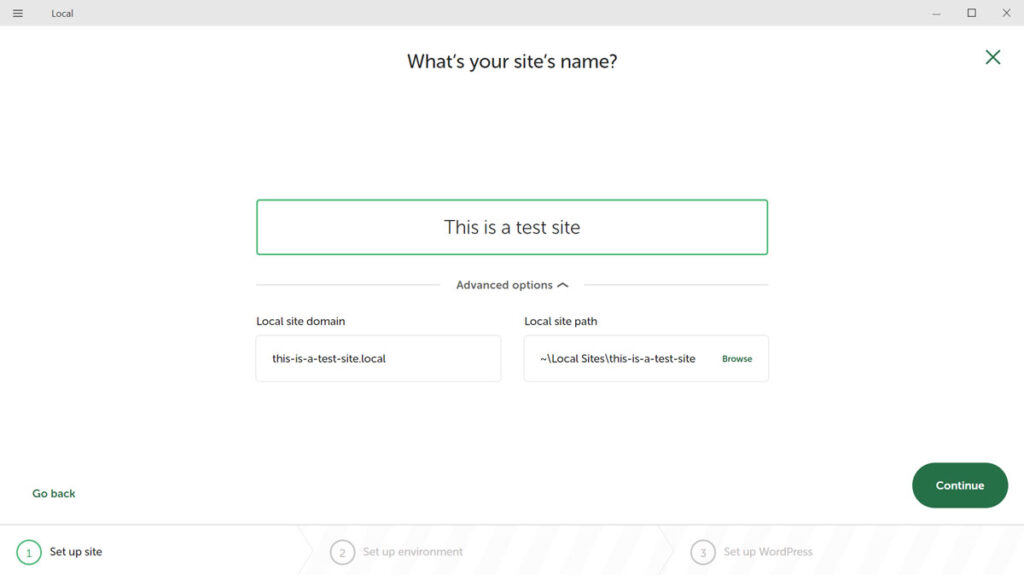
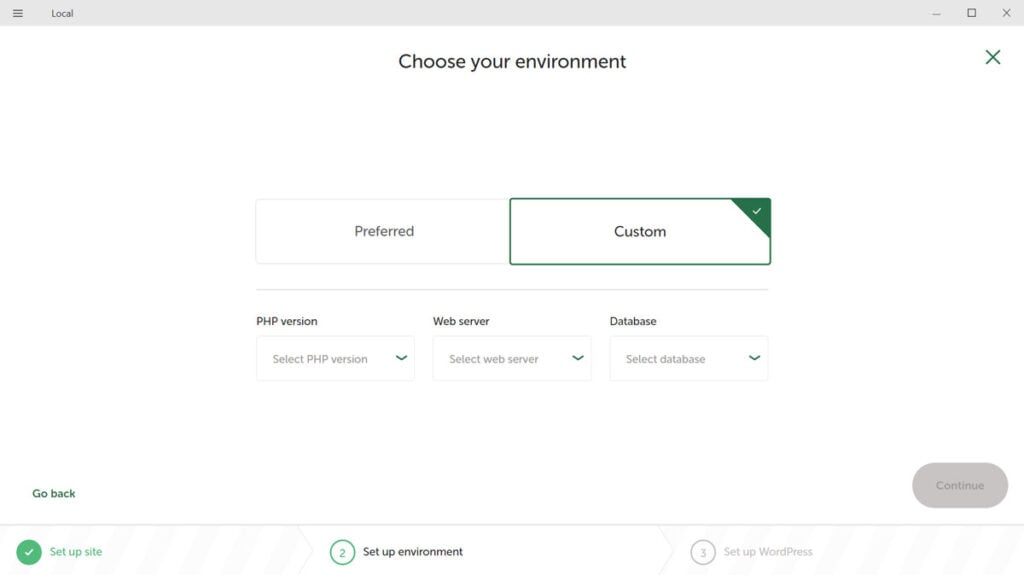
Local is engineered for rapid WordPress site creation. Developers initiate a new site with a single click on a "Create a New Site" button within the application’s user interface. The wizard then prompts for basic details such as the site name, which Local automatically uses to generate a local domain and file path. Users can then choose between a "Preferred" setup (which uses recommended, stable versions of PHP, web server, and MySQL) or a "Custom" setup, offering more granular control over these versions. Crucially, Local automatically downloads and installs WordPress, configures the database, and sets up the necessary server settings. The user merely needs to input administrative credentials for the WordPress dashboard. This entire process is highly automated, allowing a new WordPress instance to be ready for development in a matter of minutes. This automation significantly enhances developer productivity, especially for those who frequently start new WordPress projects.
XAMPP: Manual Server-Side Construction
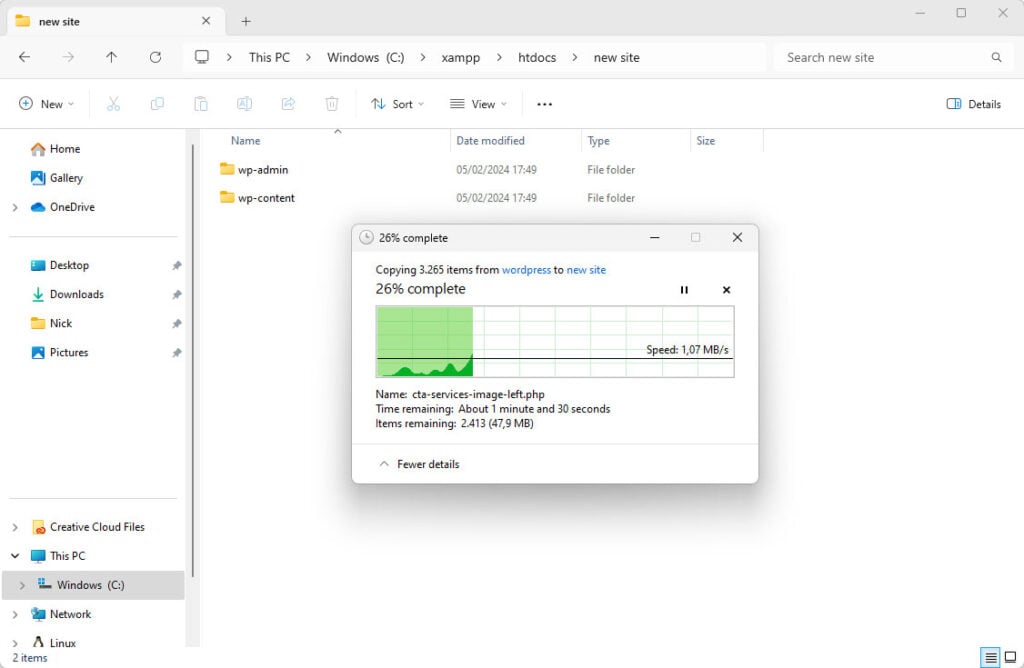
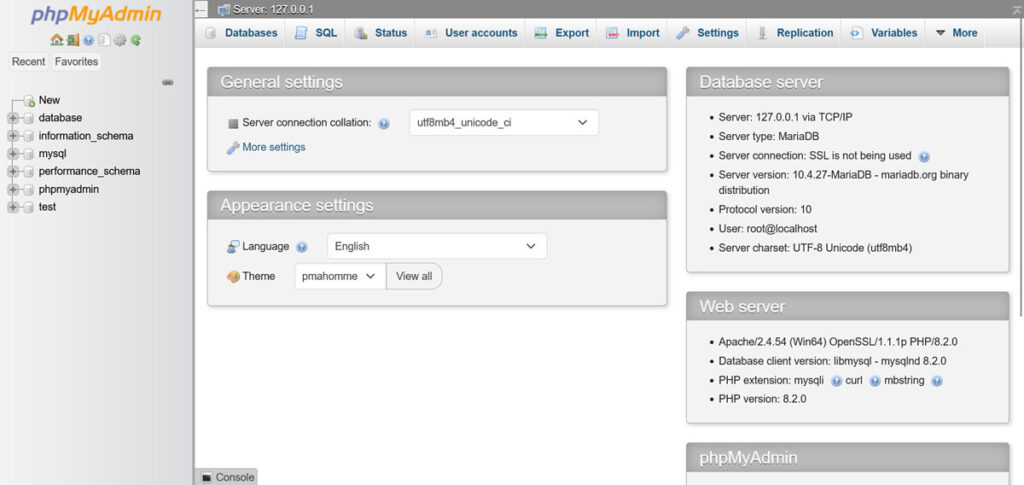
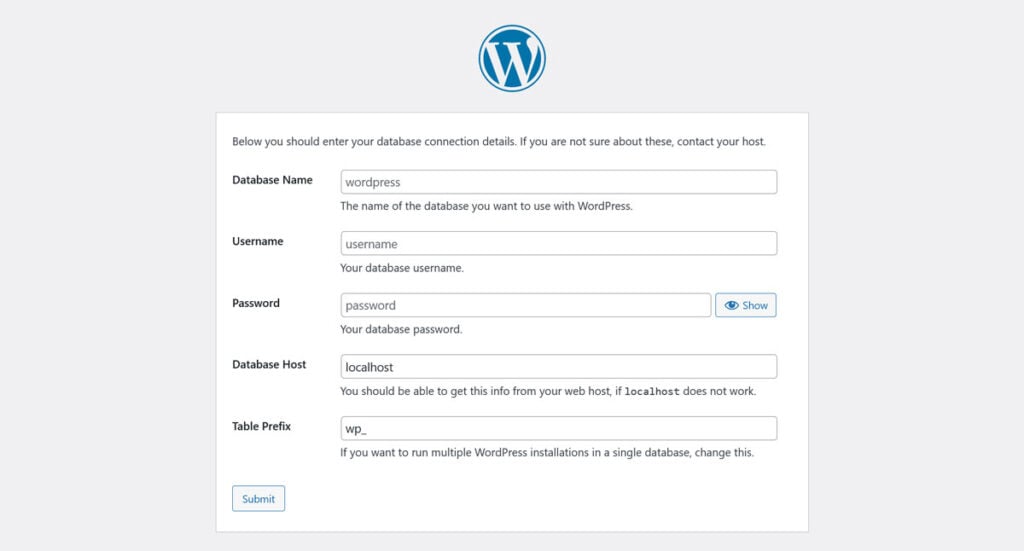
Creating a new site in XAMPP is a fundamentally manual process, reflecting its role as a foundational server stack rather than a CMS-specific tool. After ensuring Apache and MySQL services are active via the XAMPP Control Panel, the developer must manually download the WordPress installation files from wordpress.org. These files are then unzipped and placed into the htdocs directory of the XAMPP installation, typically within a subfolder named after the project. The next step involves creating a new database for the WordPress installation. This is accomplished by accessing http://localhost/phpmyadmin in a web browser, where the developer creates a new database and a user with appropriate permissions. Finally, the developer navigates to http://localhost/your_site_name in the browser, triggering the standard WordPress installation wizard. During this wizard, the database credentials (name, user, password) configured in phpMyAdmin are entered. While this multi-step process offers complete transparency and control over each component, it is considerably more time-consuming and requires a deeper understanding of server and database management compared to Local’s automated workflow.
Migrating Existing Projects: Ease of Transfer vs. Granular Control
The ability to import or migrate existing websites for local development is a common requirement. Both platforms facilitate this, but with differing levels of automation and integration.
Local: Integrated Import Mechanisms
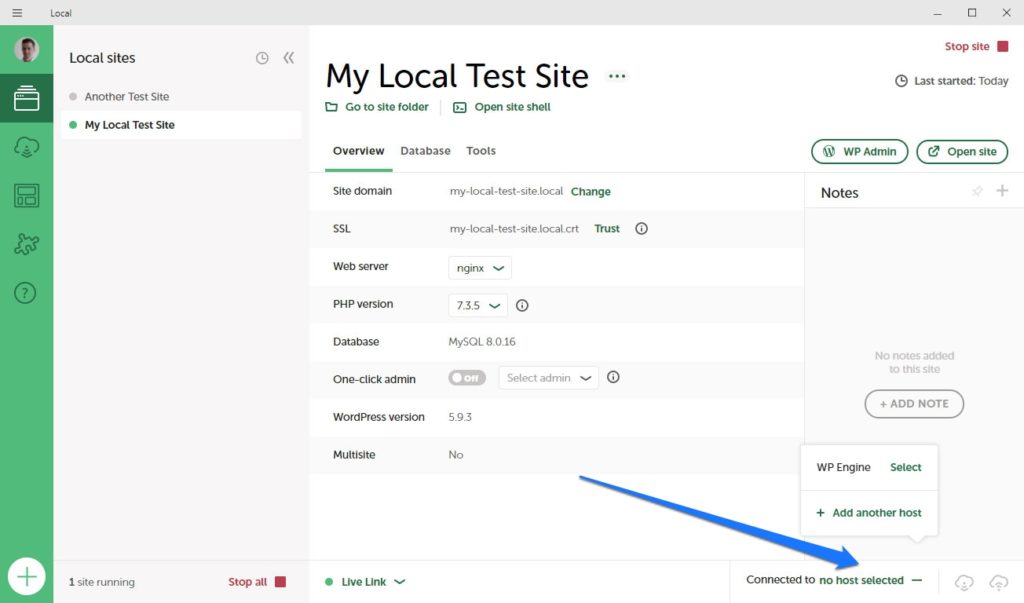
Local offers highly integrated and user-friendly options for importing existing sites. For users with hosting accounts on WP Engine or Flywheel (the creators of Local), a "Connect" feature provides seamless synchronization. Developers can log into their hosting accounts directly from Local’s interface, allowing for one-click pull/push of sites between the live server and the local environment. This includes a "MagicSync" tool that intelligently synchronizes only modified files, accelerating updates.
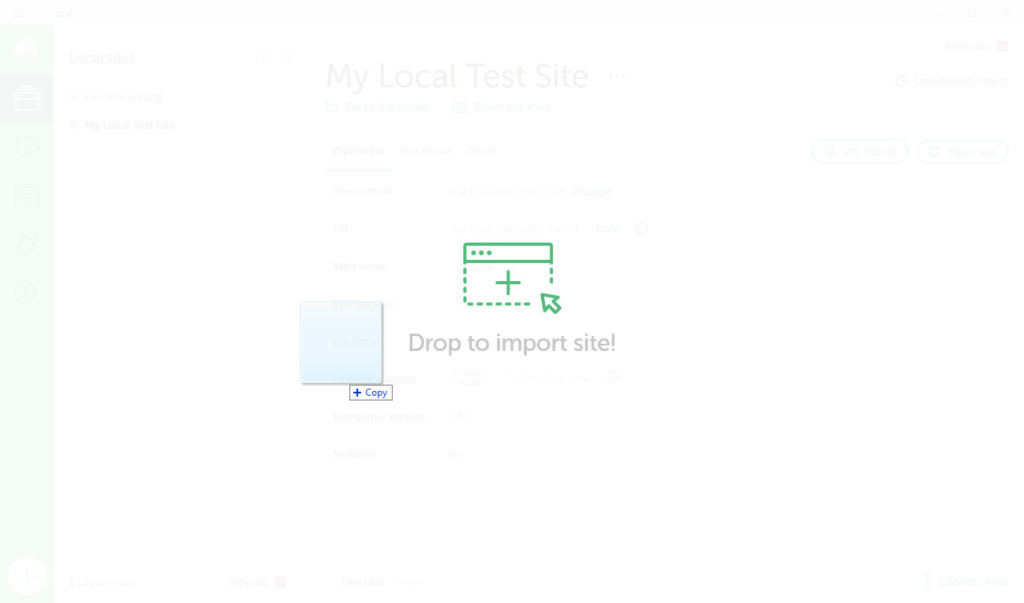
For sites hosted elsewhere, Local provides a straightforward manual import. Developers typically need a .zip archive containing the site’s SQL database file and the wp-content folder. This .zip file can then be dragged and dropped directly into the Local application, or imported via a dedicated option. Local intelligently unpacks these files, sets up the necessary server environment, and imports the database, largely automating the process of getting an existing WordPress site running locally. This abstraction significantly reduces the potential for migration errors and speeds up the setup of complex projects.
XAMPP: The Hands-On Migration
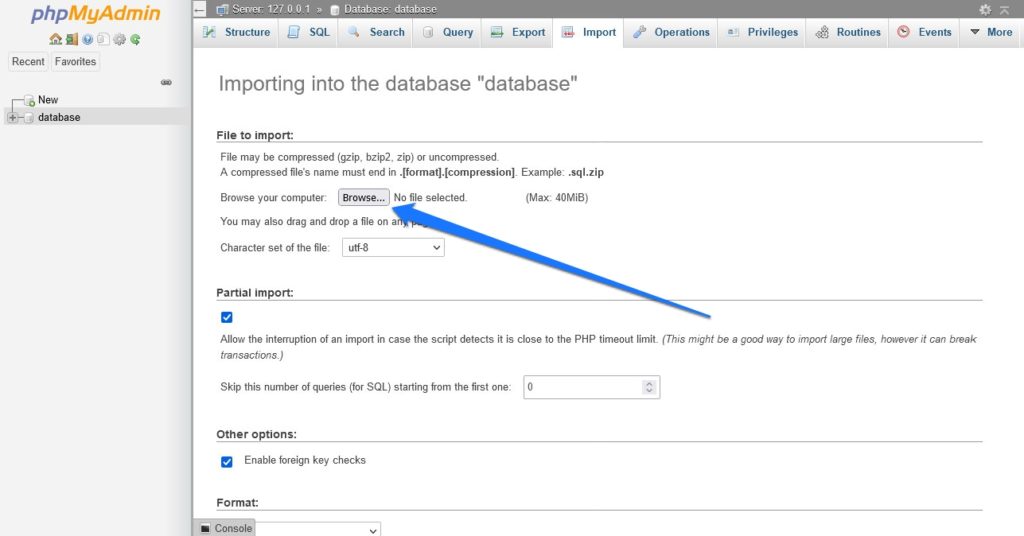
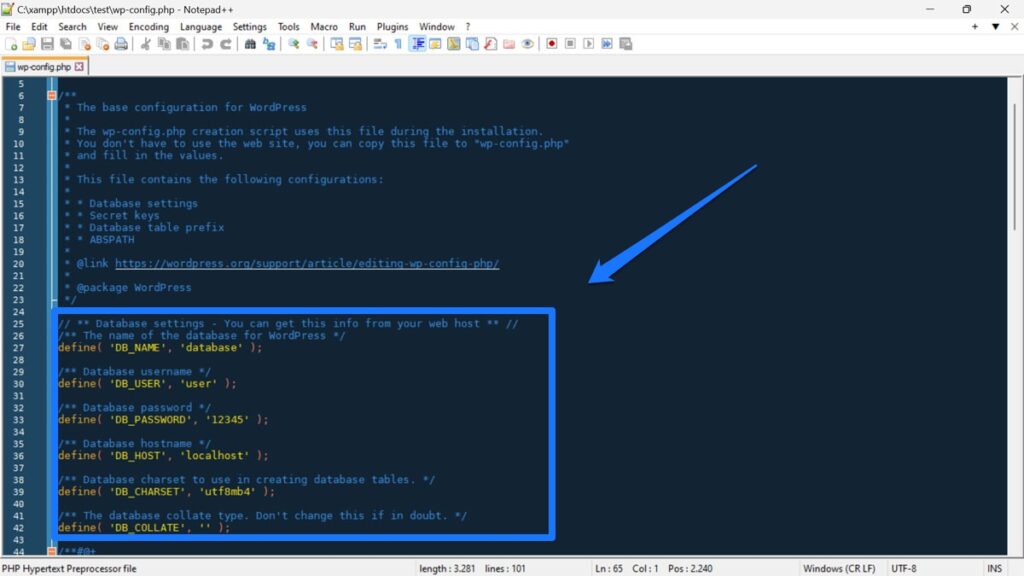
Migration into XAMPP is a more hands-on, multi-step operation. The process begins with preparing the WordPress site for migration, typically by exporting its database (as an .sql file) and compressing the WordPress core files, especially the wp-content directory. Once XAMPP is running, the developer must first create a new database via phpMyAdmin. The exported .sql file is then imported into this newly created database. Next, the compressed WordPress files are extracted into a subfolder within XAMPP’s htdocs directory. A crucial step involves editing the wp-config.php file within the extracted WordPress installation to match the new database name, user, and password configured in XAMPP. Finally, the site’s URL and home URL within the imported database must be updated to reflect the local localhost address. This can be done directly via phpMyAdmin using SQL queries, or more conveniently, by utilizing a WordPress migration plugin (such as All-in-One WP Migration or Duplicator) that automates the search-and-replace for URLs and handles file/database transfers. This method provides developers with complete control over every aspect of the migration, making it suitable for complex custom setups or non-WordPress applications, but it demands a higher level of technical proficiency and attention to detail.
User Interface and Developer Experience: A Design Philosophy Divide
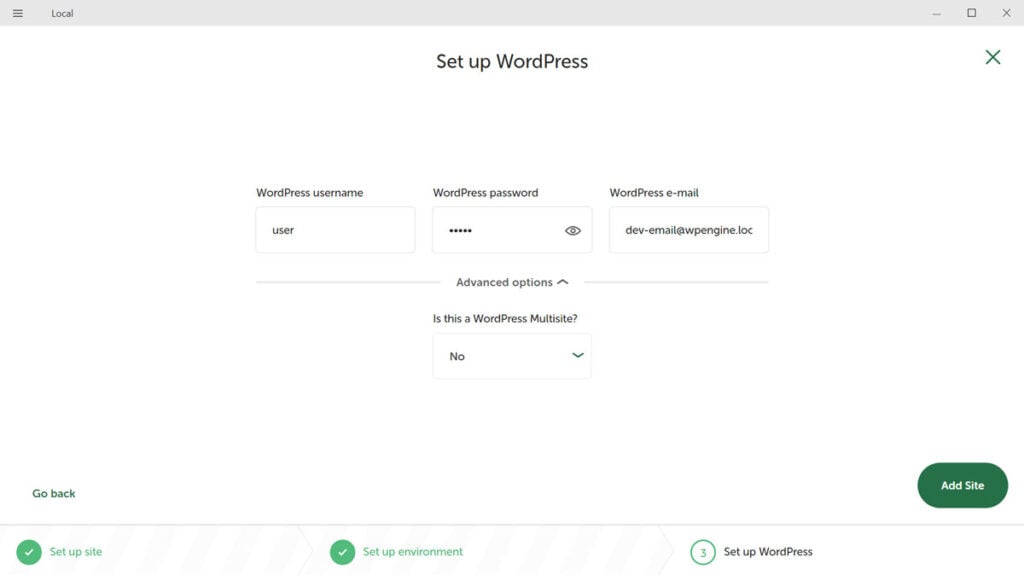
The user interface (UI) and overall user experience (UX) are pivotal in determining the daily efficiency and enjoyment of a development tool. Local and XAMPP reflect distinct design philosophies in this regard.
Local: The Modern, WordPress-Centric Dashboard
Local boasts a modern, intuitive graphical user interface (GUI) designed with WordPress developers in mind. The application is typically divided into three primary sections: "Sites" (listing all local WordPress installations), "Blueprints" (reusable site configurations), and "Add-ons" (for extending functionality). For each individual site, Local provides a clean overview pane offering quick access buttons to the WordPress admin dashboard, the live site URL, and the site’s file directory. Configuration options for PHP version, web server type (Apache or Nginx), and database are readily accessible and modifiable with a few clicks. The UI is visually appealing and prioritizes ease of use, minimizing the need for command-line interactions for common tasks. Features like one-click SSL, Live Links for sharing, and MailHog for email testing are integrated directly into the site’s management panel, making them easily discoverable and operable. Right-clicking on a site in the list reveals additional functionalities such such as cloning, exporting, and deleting sites, or saving them as blueprints for future projects. This integrated approach creates a highly cohesive and efficient development environment for WordPress.
XAMPP: The Functional Control Panel
XAMPP’s user interface is more utilitarian and traditional, centered around its Control Panel. This panel serves as the primary interface for starting and stopping the various server modules (Apache, MySQL, etc.). It provides status indicators, log access, and configuration buttons for each service. Beyond this, XAMPP largely relies on external tools and direct file system interaction. Database management is handled through phpMyAdmin, a web-based utility accessed via the browser. Customizing PHP settings or Apache configurations requires direct editing of configuration files (e.g., php.ini, httpd.conf). While functional, XAMPP’s interface is less about abstracted website management and more about direct server component control. It does not offer site-specific dashboards or WordPress-centric shortcuts. This design appeals to developers who prefer a more direct, hands-on approach to server management and are comfortable with command-line interfaces or editing configuration files. The learning curve for XAMPP’s interface is steeper for those unfamiliar with server administration concepts.
Features and Functionality: Beyond the Core Stack
Beyond the basic provisioning of a local server, both Local and XAMPP offer a suite of features that enhance the development workflow, albeit with different focuses.
Local: WordPress-Optimized Toolset
Local’s feature set is deeply integrated with WordPress development needs.
- Server Flexibility: Allows seamless switching between Apache and Nginx web servers and different PHP versions on a per-site basis, crucial for testing site compatibility across various hosting environments.
- One-Click SSL: Provides free, trusted SSL certificates for local sites, enabling secure HTTPS testing without complex manual setup.
- Live Link: A standout feature that generates a publicly accessible, shareable URL for a local site, allowing clients or collaborators to view progress without requiring site deployment or complex tunneling software.
- Blueprints: Enables developers to save a fully configured WordPress site (including themes, plugins, and content) as a "blueprint" to quickly spin up new projects with a predefined starting point.
- Add-ons: An extensible architecture supporting various add-ons for enhanced functionality, such as Image Optimizer, Link Checker, and Xdebug integration for advanced debugging.
- MailHog: An integrated tool for capturing and inspecting emails sent from the local WordPress site, preventing accidental live email dispatches during testing.
- SSH Access: Provides secure shell access to the local site’s environment for advanced command-line operations.
These features collectively make Local an incredibly powerful and efficient environment for professional WordPress developers, directly addressing common pain points and streamlining workflows.
XAMPP: A General-Purpose AMP Stack
XAMPP, as a general-purpose solution, provides a foundational set of tools without specific CMS optimizations.
- Cross-Platform Compatibility: Its ability to run on Windows, macOS, Linux, and Solaris offers broad accessibility across diverse development environments.
- Core Components: The inclusion of Apache, MariaDB, PHP, and Perl provides a robust and flexible web server stack suitable for a wide array of PHP-based applications, not just WordPress.
- phpMyAdmin: A standard, web-based tool for comprehensive database administration, allowing users to manage databases, tables, users, and permissions.
- Fake Sendmail: Included for basic local email sending, allowing developers to test email functionalities within their applications.
- Additional Tools: Often bundles other components like Webalizer (for web server log analysis), Mercury Mail Transport System (a mail server), and Tomcat (for Java servlet execution), expanding its utility beyond basic PHP development.
XAMPP’s strength lies in its modularity and versatility, offering a solid foundation for developers who require a standard AMP stack for various projects or who prefer to manually configure and integrate additional tools.
Support and Community: Lifelines for Developers
The availability of robust support and an active community can significantly impact a developer’s experience, especially when troubleshooting issues.
Local: Comprehensive and Integrated Support
Local benefits from a strong, centralized support ecosystem.
- Official Documentation: An extensive knowledge base provides detailed guides, tutorials, and troubleshooting articles.
- Community Forum: An active forum where users can seek assistance, share insights, and engage directly with Local’s development team and other users.
- Direct Support: For users with WP Engine or Flywheel hosting, direct customer support is often available, leveraging the close integration between Local and these hosting providers.
- In-App Support Access: Convenient links to support resources are often integrated directly within the Local application, making it easy for users to find help when needed.
This comprehensive support structure, coupled with its WordPress-centric design, makes Local particularly appealing to developers who value accessible assistance and a community focused on their specific development needs.
XAMPP: Community-Driven and Decentralized
XAMPP’s support structure is more decentralized and community-driven, reflecting its open-source nature.
- Apache Friends Forum: The official Apache Friends forum is a vibrant, global community resource. It features sections in multiple languages and provides a platform for users to ask questions, share solutions, and discuss various aspects of XAMPP usage.
- Extensive Third-Party Resources: Due to its long history and widespread adoption, XAMPP has accumulated a vast amount of third-party tutorials, guides, and troubleshooting articles across the internet. A simple web search often yields numerous solutions for common issues.
- Global User Base: The diverse, global user base surrounding XAMPP contributes to a rich pool of shared knowledge, making it possible to find solutions for a wide range of development scenarios.
While XAMPP lacks the integrated, product-specific support found in Local, its large and active community, combined with abundant online resources, ensures that developers can generally find answers to their questions, albeit often requiring more self-directed research.
Implications for Developer Workflows and Project Scope
The choice between Local and XAMPP carries significant implications for a developer’s workflow and the types of projects they undertake.
For WordPress developers, Local’s specialized features directly translate into increased efficiency and a more pleasant development experience. The one-click installation, seamless migration tools (especially with WP Engine/Flywheel), and integrated features like Live Link and MailHog drastically reduce setup time and streamline common development tasks. This allows developers to dedicate more time to actual coding and design, rather than wrestling with server configurations. Local’s environment is highly optimized for WordPress, ensuring compatibility and performance tailored to the CMS.
Conversely, XAMPP’s general-purpose nature makes it a versatile choice for a broader spectrum of web development projects. While it requires more manual intervention for WordPress setup and management, this hands-on approach provides developers with a deeper understanding of the underlying server stack. This can be invaluable for learning server administration, debugging complex issues, or working with custom PHP applications, other frameworks, or even integrating different server-side technologies. XAMPP’s flexibility means it can serve as a foundational local server for diverse projects, where the specific conveniences of a WordPress-focused tool might not be a priority. The learning curve for XAMPP, while steeper initially, equips developers with a more fundamental knowledge of web server components.
Concluding Analysis: Tailoring the Tool to the Task
Both Local and XAMPP stand as commendable, free local development solutions, each with distinct strengths catering to different developer needs and project requirements. The ultimate determination of which tool is "better" hinges entirely on the individual’s context.
Local, with its highly intuitive interface, one-click WordPress installation, and a rich array of WordPress-specific features like Live Link, Blueprints, and tight integration with managed WordPress hosts, unequivocally presents itself as the superior choice for the vast majority of WordPress developers. Its design philosophy prioritizes efficiency, ease of use, and a streamlined workflow tailored to the WordPress ecosystem. For beginners entering the WordPress development space, or seasoned professionals seeking to maximize productivity, Local offers a compelling and modern solution that abstracts away much of the underlying server complexity.

XAMPP, on the other hand, remains an exceptionally powerful and flexible tool for developers who require granular control over their server environment, work with a diverse range of PHP-based applications beyond WordPress, or simply prefer a more hands-on approach to server management. Its cross-platform compatibility and comprehensive bundling of Apache, MariaDB, PHP, and Perl provide a robust, unopinionated foundation. While its manual setup and management processes demand a higher level of technical involvement, this offers invaluable learning opportunities and unparalleled flexibility for custom configurations.
In essence, if the primary focus is WordPress development, particularly with an emphasis on speed and a user-friendly experience, Local is the more advantageous option. If the need is for a versatile, general-purpose web server stack that offers maximum control and is adaptable to various PHP projects, XAMPP continues to be an excellent and reliable choice. The decision, therefore, is not about one tool being inherently superior, but rather about aligning the tool’s capabilities with the specific demands of the developer and their projects.