WordPress Ecosystem

WordPress File Permissions: Everything You Need to Know

Ensuring the correct configuration of file permissions is a fundamental, yet often overlooked, aspect of maintaining a secure and functional WordPress website. Whether encountering perplexing error messages related to insufficient access or simply seeking to fortify a site’s defenses, understanding and properly managing these permissions is paramount for any WordPress administrator. File permissions act as the digital gatekeepers of a website, meticulously controlling who (or what) can read, write, or execute specific files and directories. This intricate system is designed to lock down critical components of a site, simultaneously granting necessary operational access to WordPress itself, its myriad plugins, themes, and other scripts. However, misconfigurations can lead to a cascade of issues, ranging from minor functional glitches to severe security vulnerabilities, underscoring the critical need for a clear understanding of their mechanics and best practices.

The security landscape for content management systems (CMS) like WordPress is increasingly complex, with malicious actors constantly probing for weaknesses. Given that WordPress powers over 43% of all websites on the internet, according to W3Techs data, it represents a significant target. A substantial portion of website vulnerabilities stem not from inherent flaws in the software, but from misconfigurations at the server level, including improperly set file permissions. These settings are a direct inheritance from Unix-like operating systems, which form the bedrock of most web hosting environments. They establish a granular control mechanism, dictating how different "users" interact with files and directories. When these controls are too lax, they create gaping holes for hackers; when too restrictive, they can cripple a website’s functionality, leading to a frustrating user and administrative experience. This article will delve into the intricacies of WordPress file permissions, outlining their underlying principles, the severe dangers posed by incorrect settings, recommended best practices, and practical methods for their adjustment, all within a framework of robust site management.

Deconstructing File Permission Levels: The Foundation of Digital Access

At its core, WordPress file permission management is an application of fundamental Linux permissions. A brief overview of these concepts is essential to grasp the nuances of securing a WordPress installation effectively.

Types of Permissions: Read, Write, Execute

Every file and directory on a Linux-based server can be assigned three primary types of permissions:

WordPress File Permissions: Everything You Need to Know 
  • Read (r): This permission allows a user or group to view the contents of a file or list the contents of a directory. For files, it means the ability to open and read them. For directories, it means the ability to see which files and subdirectories are present.
  • Write (w): This permission grants the ability to modify, save, or delete a file. For directories, it means the ability to create new files or subdirectories within it, as well as rename or delete existing items.
  • Execute (x): For files, this permission allows the file to be run as a program or script. For directories, it enables a user to traverse into the directory (i.e., cd into it) and access its contents, provided they have read permission as well.

Defining Permission Groups: User, Group, Others

Permissions are not applied universally but are assigned to specific categories of users, ensuring a hierarchical control structure:

  • User (u): This refers to the owner of the file or directory. Typically, this is the account that created the file, often your hosting account’s primary user or the web server user.
  • Group (g): This refers to a collective of users who share specific access rights to the file or directory. On many web servers, the web server process (e.g., Apache, NGINX) runs under a specific group.
  • Others (o): This category encompasses all other users on the system who are neither the owner nor part of the designated group. For a public-facing website, "others" effectively includes anyone accessing your site via the internet.

Within the WordPress ecosystem, the concept of "user roles" (like Administrator, Editor, Subscriber) provides a layer of application-level control, but these operate above the fundamental file system permissions. File permissions determine what the underlying web server and PHP processes, which execute WordPress code, are allowed to do.

Symbolic vs. Numeric Notation: A Dual Language

File permissions are commonly expressed in two distinct notations:

  • Symbolic Notation: This uses the letters r, w, and x for read, write, and execute permissions, respectively. A dash (-) signifies the absence of a permission. These are presented in three sets of three, corresponding to User, Group, and Others. For instance, rwxr-xr-- indicates:

    WordPress File Permissions: Everything You Need to Know 
    • User: Read, Write, Execute (rwx)
    • Group: Read, Execute (r-x)
    • Others: Read only (r--)
  • Numeric Notation (Octal): This is the more prevalent method for setting permissions due to its conciseness. Each permission type is assigned a numerical value:

    • Read (r) = 4
    • Write (w) = 2
    • Execute (x) = 1
    • No permission = 0

These values are summed for each group (User, Group, Others) to form a three-digit octal number. Using the rwxr-xr-- example:

  • User: 4 (r) + 2 (w) + 1 (x) = 7
  • Group: 4 (r) + 0 (-) + 1 (x) = 5
  • Others: 4 (r) + 0 (-) + 0 (-) = 4
    Therefore, the numeric notation for rwxr-xr-- is 754.

WordPress Specific Considerations

While the Linux principles apply directly, WordPress environments introduce specific contexts:

  • Web Server User: The critical entity often needing specific permissions is the web server user (e.g., www-data for Apache, nginx for NGINX, or a specific user provided by your host like lsphp). This user needs appropriate permissions to serve pages, write to upload directories, and execute PHP scripts.
  • Directory vs. File Permissions: Directories generally require execute permissions to allow traversal, while regular files typically do not. This leads to common distinctions in recommended numeric values.
  • wp-config.php: This file contains sensitive database credentials and is a prime target for attackers. It requires especially stringent permissions.

The Perils of Misconfigured File Permissions

The consequences of incorrect file permissions extend far beyond mere inconvenience, posing significant risks to website stability, security, and data integrity.

WordPress File Permissions: Everything You Need to Know 

Security Vulnerabilities

  • Unauthorized Access and Data Exposure: If sensitive files, such as wp-config.php, have overly permissive read access (e.g., 644 or 777), attackers could potentially read your database credentials, gaining direct access to your WordPress database. This can lead to complete site compromise, data theft, and even server-level exploits.
  • Malware Injection: Allowing write access to directories or files for "Others" (e.g., 777 on wp-content/uploads) is an open invitation for attackers to upload malicious scripts, backdoors, or defacement content. These scripts can then be executed, leading to SEO spam, phishing attempts, or even the complete destruction of your site. In 2023, Sucuri’s annual report indicated that 61% of infected websites were running WordPress, with misconfigurations playing a significant role in initial access vectors.
  • Privilege Escalation: A seemingly minor misconfiguration on one file can be exploited by a sophisticated attacker to gain deeper access, eventually escalating their privileges to control your entire server.
  • Website Defacement: Attackers can modify your website’s public-facing content, replacing it with their own messages or advertisements, severely damaging your brand reputation and trust.

Functional Breakdown and Performance Issues

  • "Error Establishing a Database Connection": If wp-config.php lacks proper read permissions for the web server user, WordPress cannot access database credentials, rendering the site inoperable.
  • Image Upload Failures: When the wp-content/uploads directory has insufficient write permissions, WordPress cannot save newly uploaded media files, leading to broken images and a hindered content creation process.
  • Plugin/Theme Update Failures: Updates often require WordPress to write new files and modify existing ones. Restrictive permissions can prevent these updates, leaving your site running outdated software with known vulnerabilities.
  • "White Screen of Death" (WSOD): This infamous WordPress error can often be traced back to core file permission issues, where WordPress is prevented from loading essential components.
  • Performance Degradation: In some cases, overly restrictive permissions can force the web server to perform additional checks or fail to cache resources properly, leading to slower load times and a poor user experience.

The line between robust security and operational functionality is incredibly fine. Setting permissions too loosely invites disaster, while setting them too tightly guarantees a broken website.

WordPress File Permission Best Practices: A Strategic Approach

Proactive management and adherence to established best practices are crucial for leveraging file permissions as a security asset rather than a liability.

Exercise Caution: "If It Ain’t Broke, Don’t Fix It"

The most important rule is to avoid altering file permissions unless absolutely necessary. Most reputable WordPress hosting providers automatically configure appropriate permissions upon installation. If your site is functioning correctly and you’re not encountering specific permission-related errors, leave them alone. Uninformed changes can swiftly lead to site breakage or open new security holes. If a permission issue arises, especially on shared hosting, consulting your host’s support team is often the safest first step, as they have specific knowledge of their server environment.

Adhering to Recommended Permission Levels

The WordPress Codex, the official documentation, provides general recommendations for file and directory permissions. These are widely accepted standards, though slight variations might exist based on specific hosting configurations (e.g., FastCGI vs. mod_php):

WordPress File Permissions: Everything You Need to Know 
  • All Files: 644 or 640
    • 644 (rwx r-x r-x): Owner can read/write, Group and Others can only read. This is a common and generally safe default.
    • 640 (rwx r-x r–): Owner can read/write, Group can read, Others have no access. This can be more secure on some setups, particularly if the web server runs under the "Group."
  • All Directories: 755 or 750
    • 755 (rwx r-x r-x): Owner can read/write/execute, Group and Others can read/execute. This allows the web server to traverse directories and serve files.
    • 750 (rwx r-x r–): Owner can read/write/execute, Group can read/execute, Others have no access. Similar to 640 for files, this can enhance security by restricting "Others."
  • wp-config.php: 440 or 400
    • 440 (r– r– —): Owner can read, Group can read, Others have no access. This is highly recommended to prevent unauthorized reading of sensitive database credentials.
    • 400 (r– — —): Only the Owner can read, Group and Others have no access. This is the most restrictive and often preferred for maximum security on wp-config.php. It’s crucial that the web server user is the owner or belongs to the group with read access in this scenario.

It’s important to remember that these are general guidelines. Some advanced setups, especially those involving specific caching plugins or security configurations, might require slightly different permissions for certain directories or files.

The Principle of Least Privilege: A Cornerstone of Security

A fundamental tenet of cybersecurity, the "Principle of Least Privilege" (PoLP), dictates that every user, program, or process should be granted only the minimum necessary permissions to perform its intended function, and no more. Applied to WordPress, this means:

  • No Root Ownership: Granting "root" ownership (full control over the entire server) to WordPress files is an extreme security risk. If a hacker compromises a file owned by root, they could gain control over the entire server. Most files should be owned by your specific hosting user account or the web server user (e.g., www-data or nginx).
  • Limited Write Access: Only directories that need to be written to by WordPress (like wp-content/uploads, wp-content/cache, or during updates) should have write permissions for the web server user. Core WordPress files and other static content should primarily be read-only for the web server.
  • Careful with chmod: When manually adjusting permissions, always apply PoLP. Resist the temptation to make files more permissive than necessary "just in case."

The Imperative of Regular Backups

Before initiating any changes to file permissions, particularly across multiple files or directories, performing a complete backup of your WordPress website and its database is not merely a recommendation; it is an absolute necessity. Modifying permissions carries an inherent risk of inadvertently breaking functionality or rendering your site inaccessible. A recent backup serves as an invaluable safety net, allowing for a swift and complete restoration of your site to its previous, functional state should any unforeseen issues arise. This practice mitigates potential downtime and data loss, reinforcing the proactive approach to site management.

The Unforgivable Sin: Never Use 777

Setting file or directory permissions to 777 (rwxrwxrwx) grants full read, write, and execute permissions to everyone – the owner, the group, and all others. This is an egregious security blunder that should be avoided at all costs. While it might seem like a quick fix for a permission-related error, it is akin to leaving your front door wide open in a bustling city.

WordPress File Permissions: Everything You Need to Know 

A 777 permission on any file or directory, even seemingly innocuous ones, creates a critical vulnerability. It allows:

  • Arbitrary File Uploads: Attackers can upload malicious scripts, web shells, or malware directly to your server.
  • Code Execution: Once uploaded, these malicious files can be executed, giving attackers control over your site, database, and potentially other sites on the same server.
  • Site Defacement and Data Manipulation: Attackers can modify or delete any content, inject spam, or steal sensitive information.

Security experts and WordPress developers universally condemn the use of 777 permissions. Any hosting provider that suggests 777 as a solution should be viewed with extreme skepticism. Always seek more secure, targeted solutions based on the Principle of Least Privilege.

Practical Methods for Changing WordPress File Permissions

When the need arises to adjust file permissions, several methods are available, catering to different technical comfort levels and hosting environments. Regardless of the method chosen, always proceed with caution and refer to the recommended permission levels.

1. cPanel or Hosting Dashboard File Manager

Most web hosting providers offer a control panel, such as cPanel, Plesk, or a custom-built dashboard, which includes a graphical file manager. This is often the most user-friendly method for beginners:

WordPress File Permissions: Everything You Need to Know 
  • Access: Log in to your hosting account and navigate to the "File Manager" section.
  • Locate Files: Browse to your WordPress installation directory (often public_html or www).
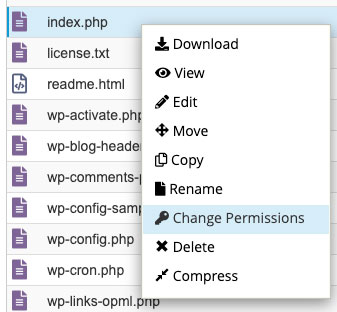
  • Change Permissions: Right-click on the desired file or folder, select "Change Permissions" (or a similar option).
  • Apply Permissions: A dialog box will appear, allowing you to tick boxes for read, write, and execute for User, Group, and Others, or to directly enter the three-digit numeric value (e.g., 755).
  • Recursive Application: Some file managers offer an option to "Recursively apply to subdirectories and files." Use this with extreme caution, and only when you are certain of the desired outcome for an entire tree structure.

2. FTP/SFTP Client

For those comfortable with file transfer protocols, an FTP or SFTP client like FileZilla provides a visual interface for managing files and permissions:

  • Connect: Install an FTP/SFTP client and connect to your web server using your hosting credentials (hostname, username, password, port). SFTP (SSH File Transfer Protocol) is generally preferred over plain FTP due to its encrypted connection, enhancing security.
  • Navigate: Once connected, navigate to your WordPress root directory.
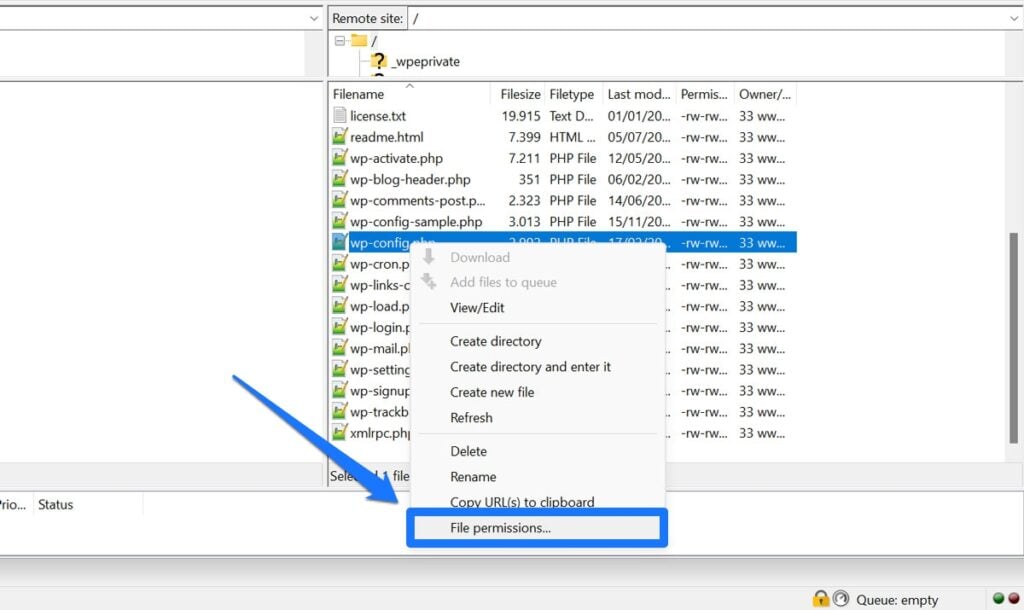
  • Access Permissions: Right-click on the file or folder you wish to modify and select "File permissions…" from the context menu.
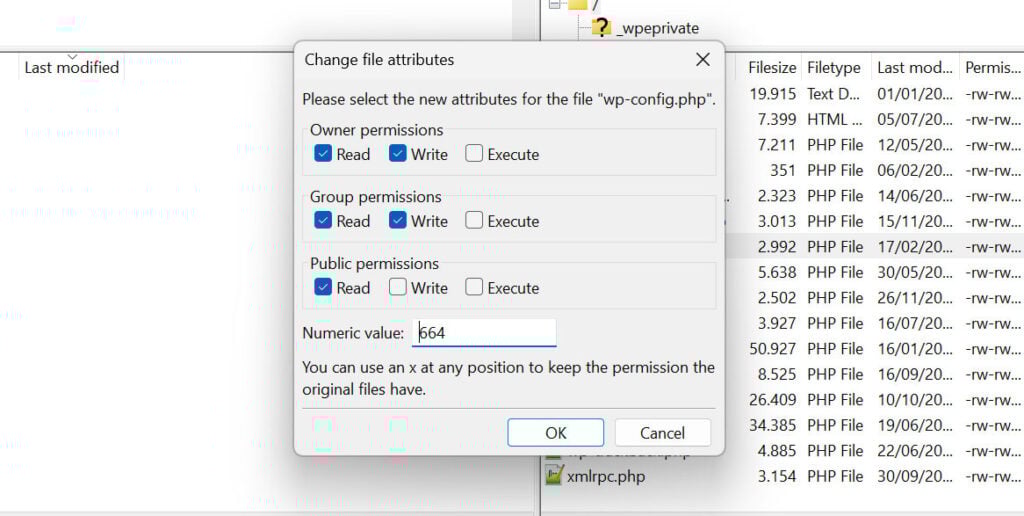
  • Set Permissions: A "Change file attributes" dialog will appear. You can either enter the numeric value (e.g., 644 or 755) directly or select the appropriate read, write, and execute checkboxes for Owner, Group, and Public (Others).
  • Apply Recursively: For directories, there is often an option to "Recurse into subdirectories." You can choose to apply permissions to all files and directories, or only to directories, or only to files within the selected folder. This is a powerful feature but requires careful consideration.

3. SSH/Command Line Interface

For advanced users and server administrators, using SSH (Secure Shell) provides the most powerful and efficient way to manage file permissions, especially for bulk operations or on headless servers. This method requires a basic understanding of Linux commands:

  • Access SSH: Connect to your server via SSH using a terminal application (e.g., PuTTY on Windows, built-in terminal on macOS/Linux). Your hosting provider will supply SSH credentials.
  • Navigate: Use the cd (change directory) command to move into your WordPress installation’s root directory. For example: cd public_html.
  • Change Permissions (Files): To change permissions for a single file, use the chmod command:
    chmod 644 wp-config.php
  • Change Permissions (Directories): To change permissions for a directory, similarly:
    chmod 755 wp-content/uploads
  • Recursive Changes: To apply permissions recursively to an entire directory structure, use the -R flag. This is particularly useful for setting default permissions for all files and directories within a WordPress installation:

    # Set directories to 755
    find . -type d -exec chmod 755  ;
    
    # Set files to 644
    find . -type f -exec chmod 644  ;

    These commands should be executed from the WordPress root directory. The find command locates all directories (-type d) or files (-type f) and then executes the chmod command on each found item. Extreme caution is advised when using recursive commands.

    WordPress File Permissions: Everything You Need to Know 

4. WordPress Security Plugins

Certain WordPress security plugins offer a convenient way to scan and fix file permission issues directly from your WordPress dashboard. Plugins like "All-In-One WP Security & Firewall (AIOS)" often include a "File Permissions" scanner that identifies files and directories with insecure permissions and provides a one-click option to reset them to recommended values.

  • Installation: Install and activate a reputable security plugin from the WordPress plugin directory.
  • Scan: Navigate to the plugin’s security dashboard and look for a "File Permissions" or "System Scan" feature.
  • Review and Fix: The scan will typically highlight files/directories with non-standard or insecure permissions. The plugin may then offer a button to "Fix Permissions" or "Apply Recommended Permissions."
    While convenient, it’s still advisable to understand the changes being made and to have a backup before initiating automated fixes.

Common File Permission Errors in WordPress and Their Resolutions

Understanding the common error messages associated with file permissions can significantly expedite troubleshooting.

  • "Error establishing a database connection": While this error can stem from various issues (incorrect database credentials, database server down), incorrect permissions on wp-config.php (preventing the web server from reading it) is a frequent cause. Resolution: Ensure wp-config.php has permissions of 440 or 400.
  • "WordPress failed to write to disk. This is usually due to file permissions.": This message often appears when trying to upload media, install themes, or update plugins. It directly indicates that WordPress lacks the necessary write permissions for the target directory. Resolution: Check permissions for wp-content/uploads (for media), wp-content/themes, wp-content/plugins and their respective subdirectories. They should generally be 755.
  • "Installation failed: Could not create directory.": Similar to the "failed to write to disk" error, this indicates WordPress cannot create new directories during plugin/theme installation or update processes. Resolution: Verify wp-content/themes and wp-content/plugins directories have 755 permissions.
  • "You don’t have permission to access / on this server": This generic server error (HTTP 403 Forbidden) can occur if the root directory of your WordPress installation or its index file (index.php) has overly restrictive permissions, preventing the web server from accessing them. Resolution: Ensure the WordPress root directory has 755 permissions and index.php has 644.
  • White Screen of Death (WSOD): While the WSOD has numerous potential causes (plugin conflicts, PHP memory limits), incorrect permissions on core WordPress files or crucial plugin/theme files can prevent PHP from executing necessary scripts, leading to a blank page. Resolution: Systematically check permissions for core WordPress directories (wp-admin, wp-includes) and their files (755 for directories, 644 for files).

Proceeding with Diligence: The Ongoing Imperative

File permissions are a critical, often invisible, layer of defense for any WordPress website. Their correct configuration is not a one-time task but an ongoing aspect of diligent site administration. A small oversight can unravel carefully constructed security measures, exposing your site to a multitude of threats, from data breaches and malware infections to complete operational shutdowns.

By understanding the foundational principles of Linux file permissions, embracing the Principle of Least Privilege, adhering to recommended permission levels, and strictly avoiding dangerously permissive settings like 777, administrators can significantly enhance their website’s resilience. The ability to identify and rectify common permission errors using various tools—from hosting control panels and FTP clients to the command line and dedicated security plugins—empowers site owners to maintain both security and functionality. Always remember that a comprehensive backup strategy is your ultimate safeguard when venturing into these sensitive server settings. With careful attention and a proactive approach, WordPress file permissions can effectively serve their intended purpose: securing your digital assets while enabling the dynamic functionality that makes WordPress so powerful.

Related Articles

Leave a Reply

Your email address will not be published. Required fields are marked *

Back to top button
VIP SEO Tools
Privacy Overview

This website uses cookies so that we can provide you with the best user experience possible. Cookie information is stored in your browser and performs functions such as recognising you when you return to our website and helping our team to understand which sections of the website you find most interesting and useful.