Online retailers frequently face the challenge of guiding customers through extensive product catalogs, a hurdle that often leads to cart abandonment when visitors cannot easily locate items suited to their specific needs. Product quizzes have emerged as a highly effective solution, offering a personalized and engaging path for shoppers to discover relevant products while simultaneously enabling businesses to capture valuable lead data. This guide will explore the strategic importance of product quizzes in the WordPress ecosystem and detail the implementation process using two prominent plugins: WPForms and Thrive Quiz Builder.
The E-commerce Conundrum: Overwhelm and Opportunity
In today’s competitive digital marketplace, online stores are often brimming with diverse product offerings. While variety is generally seen as a strength, it can paradoxically become a barrier when consumers are overwhelmed by choice. Studies indicate that a significant percentage of online shoppers abandon their purchases due to difficulty finding what they need or feeling that the shopping experience is impersonal. Research by Accenture found that 91% of consumers are more likely to shop with brands that provide relevant offers and recommendations, underscoring the critical need for personalized engagement. Product quizzes directly address this by acting as a digital personal shopper, asking a series of short, interactive questions to understand individual preferences before delivering tailored recommendations. This not only streamlines the discovery process but also transforms a potentially frustrating search into an enjoyable and interactive experience.
Beyond Sales: The Dual Advantage of Product Quizzes
The utility of product quizzes extends far beyond immediate sales conversions. They are powerful tools for lead generation and email list segmentation, two cornerstones of sustainable e-commerce growth. By integrating an email capture step, businesses can secure visitor contact information, allowing for targeted follow-up marketing. This "zero-party data"—information explicitly provided by the customer—is invaluable, enabling highly personalized communication that traditional demographic data cannot match. For instance, a coffee bean retailer might use a quiz to categorize customers into preferences like "Smooth & Chocolatey," "Bold Espresso," or "Fruity & Light." Post-quiz, these segmented lists can receive highly relevant content, such as brewing tips, complementary product suggestions, refill reminders, or exclusive coupon codes, significantly boosting customer lifetime value and reducing churn.

Strategic Benefits for Modern Online Businesses

Implementing a product quiz in WordPress offers a multitude of strategic advantages:

- Enhanced User Experience and Engagement: Quizzes are inherently interactive and enjoyable, fostering a positive brand impression. They keep users engaged longer on the site, reducing bounce rates and improving overall site metrics.
- Increased Conversion Rates: Personalized recommendations have a direct correlation with higher conversion rates. By guiding users to products that genuinely fit their needs, businesses can significantly improve the likelihood of a purchase. Statistics show that personalization can boost sales by 10-15%.
- Robust Lead Generation and Segmentation: Quizzes are highly effective lead magnets. The email capture mechanism allows businesses to grow their subscriber lists with pre-qualified leads, segmented by their stated preferences. This enables hyper-targeted email marketing campaigns, which boast significantly higher open and click-through rates than generic broadcasts.
- Valuable Customer Insights: The answers provided in a quiz offer rich qualitative data about customer preferences, pain points, and motivations. This information can inform product development, marketing messaging, and overall business strategy.
- Reduced Returns and Improved Customer Satisfaction: When customers receive recommendations perfectly aligned with their expectations, they are more likely to be satisfied with their purchase, leading to fewer returns and positive reviews.
- Brand Differentiation and Loyalty: In a crowded market, offering a unique and helpful shopping experience can set a brand apart, fostering stronger customer relationships and repeat business.
Prerequisite: Crafting Effective Quiz Outcome Pages
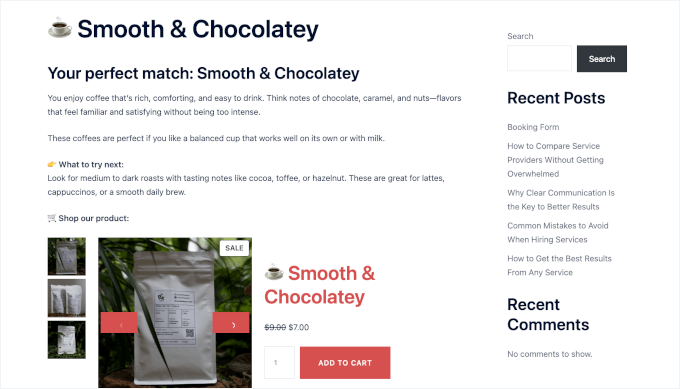
Before embarking on quiz creation, a crucial foundational step is the design of "outcome" or "results" pages. These are custom landing pages on your website to which users are redirected after completing the quiz. Their importance cannot be overstated, as they deliver the final personalized product recommendation and serve as a direct call-to-action for purchase.
A general rule dictates one results page per potential quiz outcome. If a quiz yields three distinct recommendations, three separate, tailored pages are required. Each page should be meticulously designed, focusing on a single, clear recommendation without distractions. Essential elements include:
- A concise, congratulatory headline announcing the result.
- A brief explanation of why this product/category is ideal, reinforcing the user’s choices.
- High-quality images or videos of the recommended products.
- Clear calls-to-action (CTAs) to "Shop Now," "Learn More," or "Add to Cart."
- Optional supplementary content like related tips, complementary products, or a limited-time discount code.
These pages should be created in WordPress (e.g., via Pages » Add New Page) and optimized for conversion, ensuring a seamless transition from quiz completion to potential purchase.
Implementation Pathway 1: Streamlined Quizzes with WPForms
For online store owners seeking a dependable and user-friendly method to create product quizzes and build targeted email lists, WPForms stands out as a premier choice. As a leading WordPress form builder, its dedicated Quiz Addon simplifies the creation of sophisticated product recommendation quizzes. Its robust integration with popular email marketing services, such as Constant Contact, facilitates effortless list growth and segmentation. WPBeginner, a trusted authority in WordPress, attests to WPForms’ flexibility, utilizing it for various internal forms and surveys.
Required Tools for WPForms Method:
- WPForms Pro (or higher) with the Quiz Addon.
- An active Constant Contact account (Standard plan or higher for automated follow-up sequences).
Detailed Implementation Steps (WPForms):
-
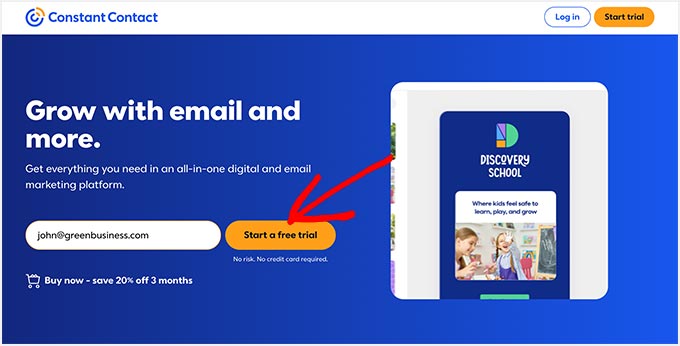
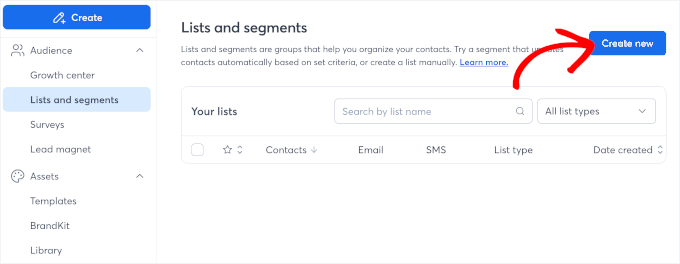
Constant Contact Account Setup: Prior to configuring WordPress, ensure your Constant Contact account is prepared. Sign up if you haven’t already. Crucially, create a distinct email list for each anticipated quiz outcome (e.g., "Smooth & Chocolatey Coffee," "Bold Espresso Lovers," "Fruity & Light Enthusiasts"). These clearly named lists will be automatically populated by WPForms. Access this via
Audience » List and segmentsin Constant Contact.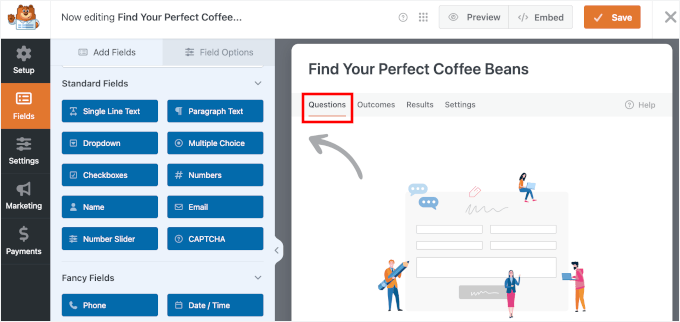
-
WPForms Pro and Quiz Addon Installation:
- Obtain WPForms Pro from the official website.
- In your WordPress dashboard, navigate to
Plugins » Add New, thenUpload Plugin. Upload the WPForms .zip file, install, and activate. - Go to
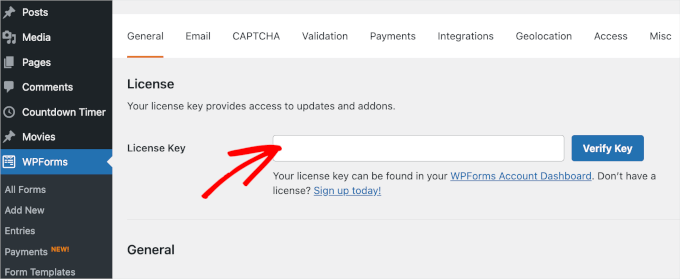
WPForms » Settingsand enter your license key to unlock premium features. - Proceed to
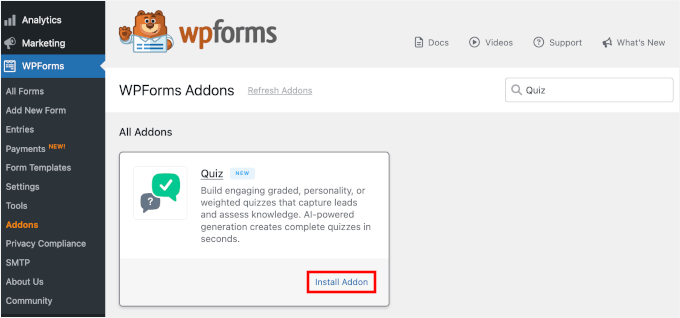
WPForms » Addons, locate the "Quiz Addon" using the search function, and click "Install Addon." This activates the quiz functionalities within the form builder.
-
Building the Product Quiz:
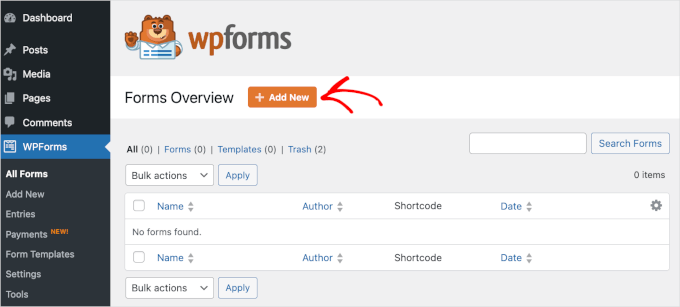
- From your WordPress admin area, go to
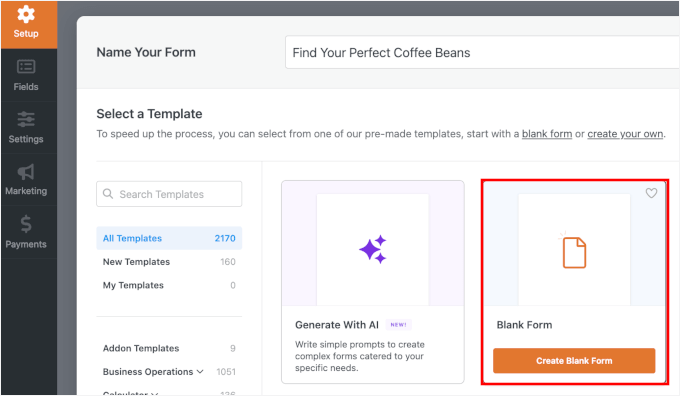
WPForms » Add New. - Name your form (e.g., "Find Your Perfect Coffee Beans") and select "Create Blank Form."
- Inside the form builder, navigate to
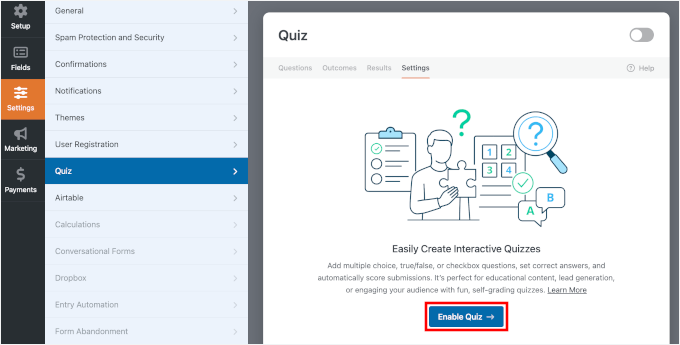
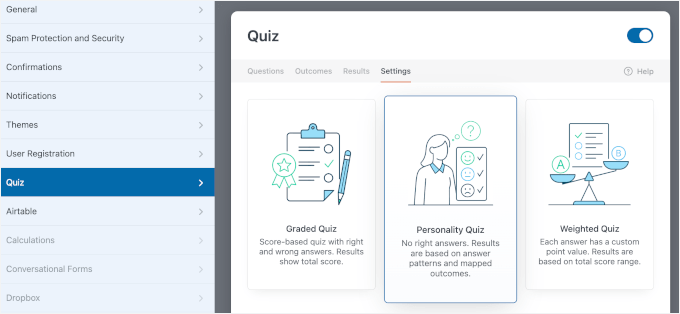
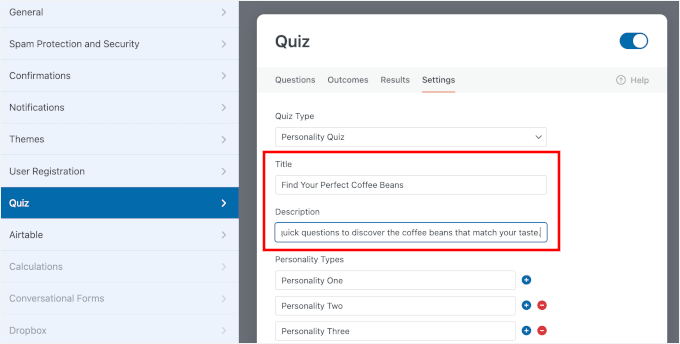
Settings » Quizand enable "Quiz Mode." Choose "Personality Quiz" as the type, as it aligns with outcome-based recommendations. Save your form. - Add a title and a concise, engaging description for your quiz.
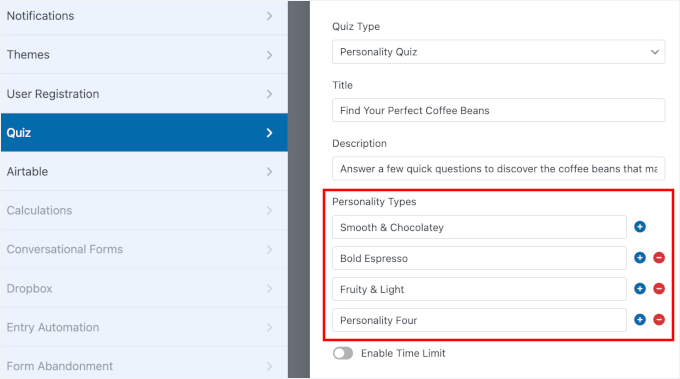
- Define your "Personality Types" (which are your quiz outcomes/product categories) under the Quiz settings. Aim for 3-5 clear results.
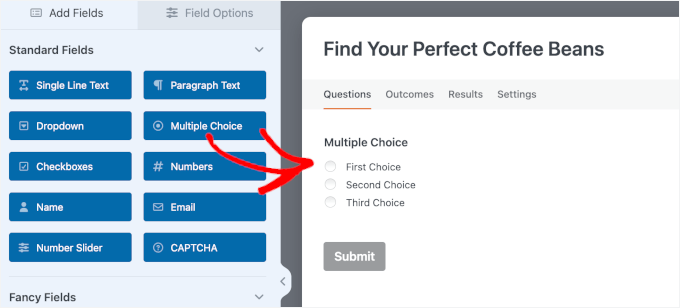
- Switch to the "Questions" tab. Drag "Multiple Choice" fields from the left panel into your form.
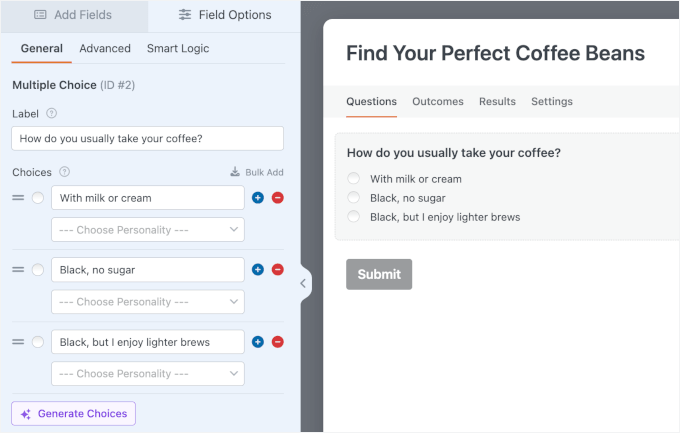
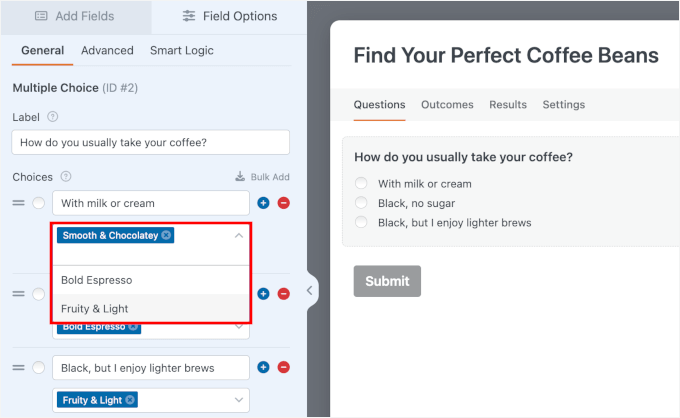
- For each question, add the question text and answer choices. Critically, map each answer choice to its most relevant "Personality Type" using the dropdown menu next to it. Double-check all mappings to ensure accuracy.
- From your WordPress admin area, go to
-
Implementing Multi-Page Structure and Lead Capture:
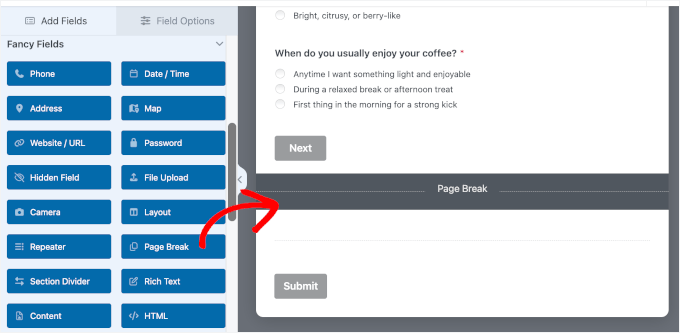
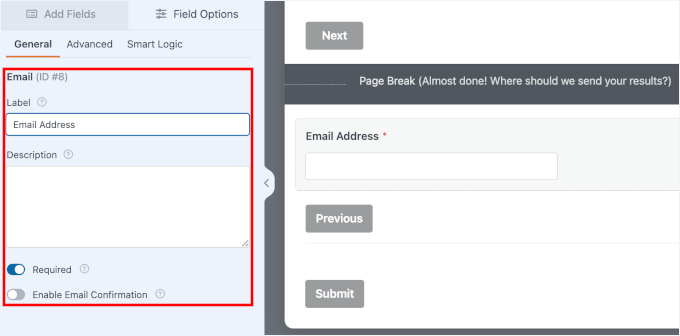
- Introduce "Page Break" fields to structure your quiz into a step-by-step flow. Place one after all your questions but before the email capture.
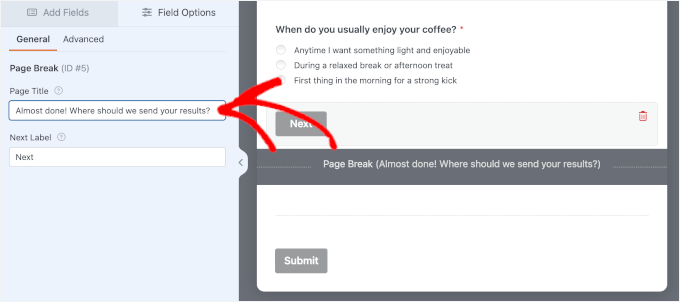
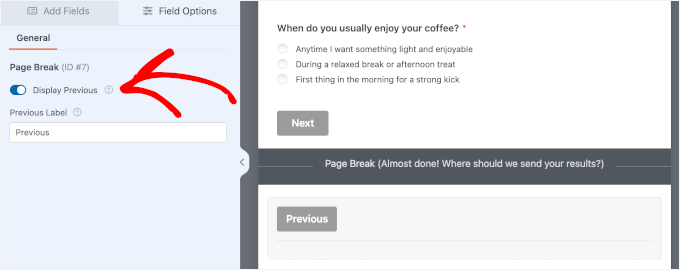
- Customize the "Page Break" title (e.g., "Almost done! Where should we send your results?"). Optionally, enable a "Previous" button for user navigation.
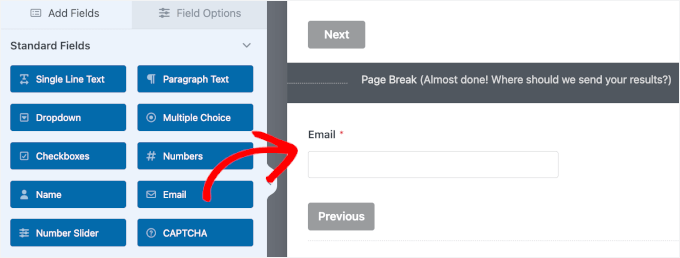
- Drag an "Email" field directly below the page break. Make it "Required" to ensure lead capture.
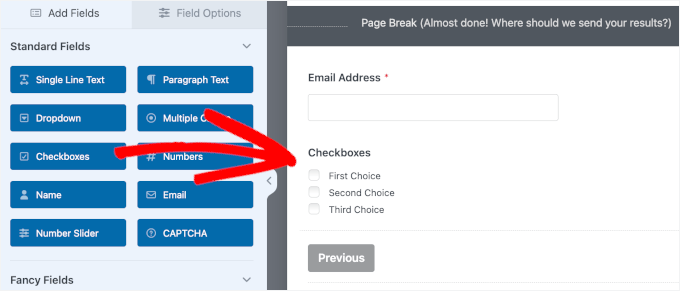
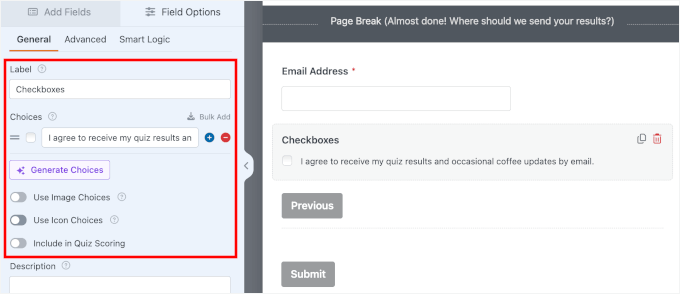
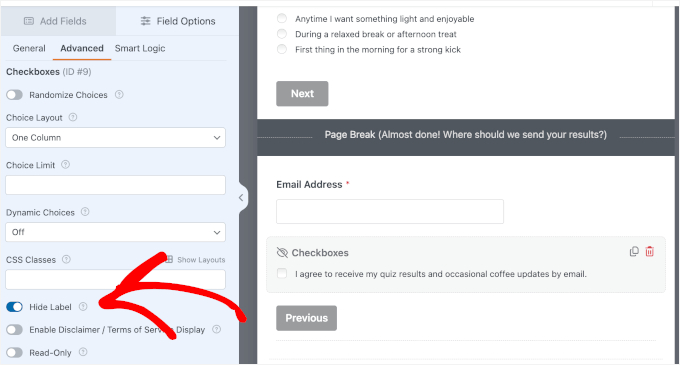
- Add a "Checkboxes" field for privacy consent (e.g., "I agree to receive my quiz results and occasional coffee updates by email."). Make this also "Required" and ensure "Include in Quiz Scoring" is toggled off. You may hide the label for a cleaner look.
-
Configuring Quiz Outcomes:
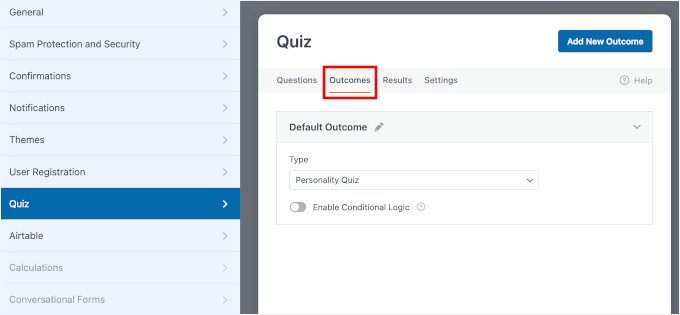
- In the form builder, navigate to the "Outcomes" tab.
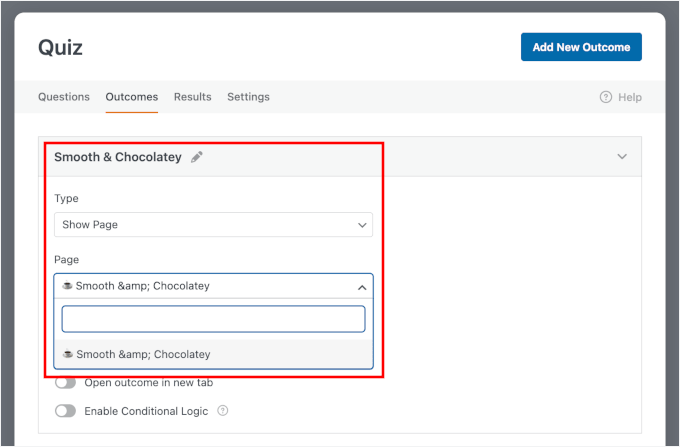
- Edit the "Default Outcome" to match one of your personality types. Select "Show Page" as the outcome type and choose the corresponding dedicated results page you created earlier.
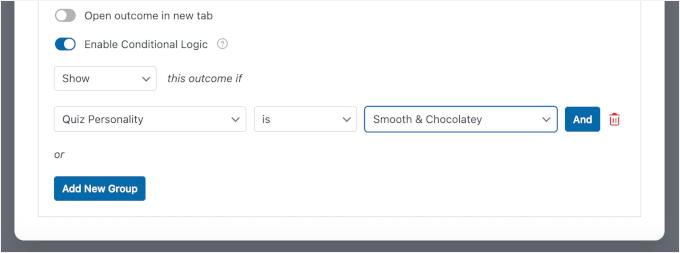
- Enable "Conditional Logic" for this outcome, setting a rule like "Show this outcome if Quiz Personality is Smooth & Chocolatey."
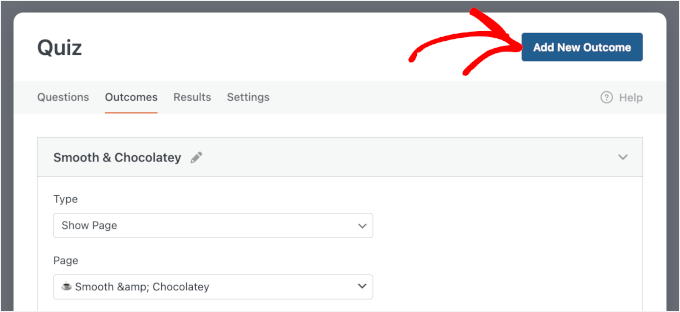
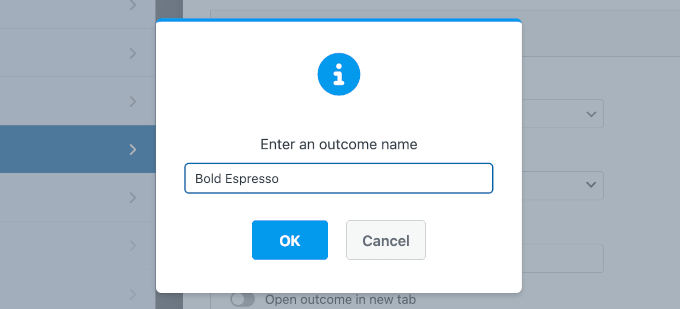
- Click "Add New Outcome" for each remaining personality type. Name each outcome, assign its respective results page, and configure conditional logic to ensure it displays only for its matching quiz result.
-
Connecting to Your Email Marketing Service (Constant Contact):
- Within the form builder, go to
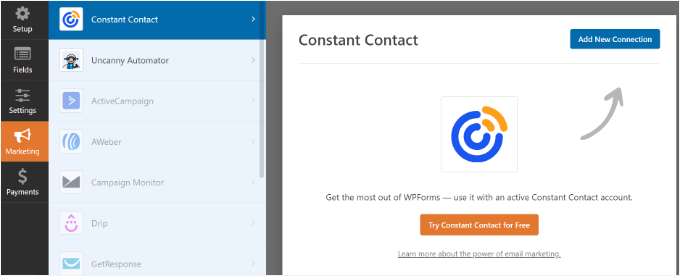
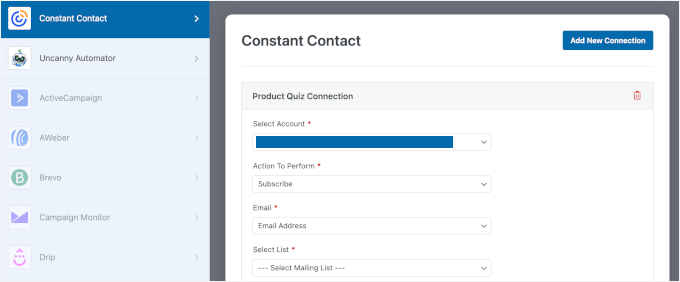
Marketing » Constant Contact. Click "Add New Connection." - Create a separate connection for each quiz outcome. For each connection, provide a descriptive name (e.g., "Smooth & Chocolatey List"), select the corresponding Constant Contact list, and map the email field.
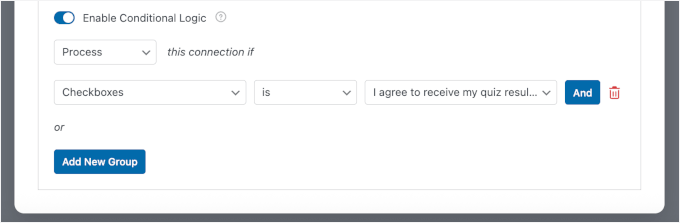
- Crucially, enable "Conditional Logic" for each connection. Set the condition to process only if the quiz result matches that specific outcome’s personality type (e.g., "Process this connection if Quiz Personality is Smooth & Chocolatey"). Also, add a condition to process only if the consent checkbox is checked. This ensures subscribers are automatically added to the correct, consented list.
- Within the form builder, go to
-
Embedding the Quiz on Your WordPress Site:
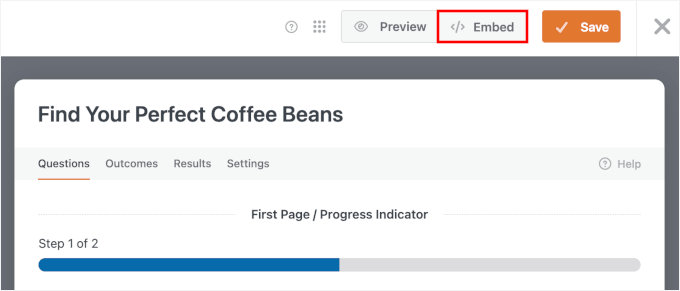
- Click the "Embed" button in the WPForms builder.
- Choose "Create New Page" (recommended for a dedicated quiz experience) and name it. WPForms will automatically embed the quiz into the new page using the block editor.
- Adjust styling options in the "Form Settings" panel to match your site’s design. Alternatively, copy the shortcode from
WPForms » All Formsand paste it into any page/post using a Shortcode block.
-
Post-Deployment Verification and Automation (Optional):
- Thorough Testing: Preview the page and meticulously test the quiz end-to-end for every possible outcome. Verify that questions load correctly, page breaks function, the email field is required, and the correct outcome page displays. Check for validation errors (e.g., invalid email).
- Constant Contact Verification: Confirm that test subscribers are correctly added to their respective Constant Contact lists.
- Automated Email Sequences: (Requires Constant Contact Standard plan or higher). In Constant Contact, navigate to "Campaigns" and create automated email series. Set the trigger for each series to "when a new contact joins a specific list" (i.e., your quiz outcome lists). Craft unique follow-up emails for each segment, including product links, exclusive offers, and related content.
- Advanced Automation with Uncanny Automator (Bonus): For complex integrations beyond email, Uncanny Automator (a premium plugin) can connect WPForms to dozens of other tools. This allows for actions like adding users to a CRM, registering them for a webinar, or updating a Google Sheet based on quiz results, without requiring any code.
Implementation Pathway 2: Interactive Funnels with Thrive Quiz Builder
For businesses prioritizing a highly interactive, visually rich quiz experience with advanced branching logic and built-in conversion funnels, Thrive Quiz Builder is an excellent choice. Part of the Thrive Themes Suite, this powerful plugin offers features like image-based answers, progress bars, and a one-question-per-screen layout, providing a more polished and immersive user journey.
Required Tools for Thrive Quiz Builder Method:
- Thrive Themes Suite subscription, including Thrive Quiz Builder.
- An email marketing service (optional, as Thrive can capture emails to WordPress user roles).
Detailed Implementation Steps (Thrive Quiz Builder):
-
Thrive Quiz Builder Installation:
- Purchase a Thrive Themes Suite subscription.
- Download the Thrive Product Manager plugin from your Thrive Themes dashboard.
- In WordPress, go to
Plugins » Add New, upload, install, and activate Thrive Product Manager. - Navigate to the new
Product Managertab in WordPress, log into your Thrive Themes account, and install Thrive Quiz Builder. - Once installed, click "Go to the Thrive Themes Dashboard," then "Quiz Builder Dashboard."
-
Setting Up a New Product Quiz:
- In the Quiz Builder Dashboard, click "Add New."
- Select "Build from scratch" as the quiz type.
- Provide a clear name for your quiz (e.g., "Find Your Perfect Skincare Routine").
- Choose "Category" as the quiz evaluation type. This is crucial for product recommendation quizzes, as answers will map to specific product categories.
- Add your quiz outcomes (categories) by typing them into the "Add a new category" field (e.g., "Hydration Boost," "Anti-Aging Regimen," "Acne Solution"). Leave "Don’t display feedback" selected and save.
- Return to the dashboard and click "Choose a Quiz Style" to select a pre-designed template that aligns with your brand’s aesthetic.
-
Adding Product Quiz Questions and Branching Logic:
- From the main Quiz Structure, click "Manage" in the "Question" section to open the quiz manager.
- Click "Add Question." Enter your question text and multiple-choice answers. For each answer, assign it to the most relevant category.
- Repeat this process for all your primary questions.
- In the quiz manager, connect your questions by clicking and dragging from one question to the next to define the quiz flow.
- For advanced personalization, implement "branching logic." Add follow-up questions (
Add Question) that appear only if a specific answer to a previous question is chosen. Connect these branched questions to their appropriate categories and subsequent quiz steps. This allows for highly refined recommendations. - Save and exit the quiz manager.
-
Configuring the Opt-In Gate:
- In the Quiz Structure section, click "+ Opt-in Gate." This inserts an email capture step between the last question and the results page.
- Click "Manage" on the Opt-in Gate element, then click on its default name to edit it.
- Click the pencil icon to open the Thrive Visual Editor for the opt-in form.
- Customize the text, imagery, and call-to-action on the opt-in gate.
- Click the email capture block to open its configuration panel. Click "Add Connection."
- Connect to your preferred email marketing service (e.g., ActiveCampaign, SendGrid) and follow the prompts. Alternatively, choose "WordPress account" to register users as subscribers on your site.
- Enable Thrive’s built-in "Spam Prevention" to protect your list.
- Save your work.
-
Setting Up the Quiz Results Page:
- In the quiz structure, choose the "URL Redirect" option for the results page. This allows you to direct users to specific custom landing pages based on their quiz outcome.
- On the subsequent screen, assign a unique URL (your pre-designed outcome page) to each quiz category. Ensure all categories have a corresponding redirect.
- (Optional: If you prefer a simpler, in-quiz results display, choose "Results Page" instead of "URL Redirect" in the quiz structure. Then, click "+ Create a Social Share Badge," choose a template, and customize it in the Thrive Visual Editor. Use the
[tqb_quiz_result]dynamic tag to automatically display the user’s specific result. This is more suitable for graded quizzes focusing on shareability, rather than detailed product recommendations.) - Save your work.
-
Creating an Engaging Splash Page:
- To enhance engagement, add a splash page. In the Quiz Structure, select "+ Splash Page."
- Click "Manage" on the new splash page element, then click its default name to edit.
- Click the pencil icon to open the Thrive Visual Editor.
- Design a captivating introductory screen using text, images, or video. Craft a compelling call-to-action to encourage users to start the quiz.
- Apply a background image or other styling elements to align with your brand.
- Save your work.
-
Embedding the Quiz on Your WordPress Site:
- From your Thrive Quiz Builder dashboard, copy the quiz’s shortcode.
- Create a new page in WordPress (or open an existing one) where you wish to embed the quiz.
- In the block editor, add a "Shortcode" block and paste your quiz shortcode. (If using Thrive Theme Builder, you can add the quiz directly as a Thrive element.)
- Preview the page to thoroughly test the quiz flow, ensuring questions, opt-in gate, and redirects function correctly. Verify email capture and user role assignment if applicable.
- Once satisfied, "Publish" (or "Update") the page.
FAQs About Building Product Quizzes in WordPress
- Do I need coding skills? No. Both WPForms and Thrive Quiz Builder feature intuitive visual builders, eliminating the need for coding.
- Which method is better for a WooCommerce store? WPForms excels for straightforward lead-capture quizzes with robust email marketing integration. Thrive Quiz Builder is superior for highly interactive, visually complex quizzes with branching logic and integrated funnels.
- Can I embed the quiz on any WordPress page? Yes, quizzes can be embedded on any page or post, or given a dedicated landing page.
- Can I use an email marketing service other than Constant Contact? Yes. WPForms integrates with all popular email marketing tools, allowing flexibility for services like Brevo (formerly Sendinblue), Mailchimp, ActiveCampaign, and more.
- How many quiz outcomes are optimal? While there’s no strict limit, 3-5 outcomes generally provide the best balance between personalization and simplicity, ensuring accurate recommendations without overcomplicating the user experience.
Conclusion: The Future of Personalized Product Discovery
Product quizzes represent a powerful evolution in e-commerce, moving beyond static product listings to offer dynamic, personalized shopping journeys. By leveraging robust WordPress plugins like WPForms and Thrive Quiz Builder, businesses of all sizes can transform passive visitors into engaged customers and valuable leads. The ability to gather zero-party data, segment audiences effectively, and deliver tailored recommendations not only drives immediate sales but also builds long-term brand loyalty and provides actionable insights for continuous improvement. As consumer expectations for personalization continue to rise, integrating interactive product quizzes into your WordPress site is no longer just an advantage but a strategic imperative for sustained online success.