Optimizing WordPress Media Management: Strategies to Prevent Unnecessary Image Cropping and Reduce Server Load

Whenever an image is uploaded to a WordPress site via the media library, the platform automatically generates and stores multiple additional versions of that image. If these extra image sizes are not utilized by the website’s design or functionality, they become a significant drain on valuable storage space and contribute to the increasing size of server backups. This article delves into the inherent mechanisms of WordPress image handling, identifies the implications of unchecked image proliferation, and provides actionable, code-based solutions to prevent the creation of superfluous image sizes, thereby enhancing site performance, reducing hosting costs, and streamlining backup processes.
The practice of WordPress creating multiple image sizes upon upload is rooted in a design philosophy aimed at ensuring optimal display across diverse devices and screen resolutions. This feature, while beneficial for responsiveness, has evolved to a point where redundancy often outweighs utility, particularly as modern themes and plugins introduce their own custom image dimensions. By default, WordPress generates several standard image sizes in addition to the original uploaded file. These include thumbnail (typically 150×150 pixels), medium (300×300 pixels), and large (1024×1024 pixels), whose exact dimensions can be configured within the WordPress admin panel. Beyond these user-defined sizes, the platform also incorporates medium_large (768×0 pixels, designed for responsive layouts and HDPI displays), 1536x1536 pixels and 2048x2048 pixels (specifically for retina and higher-resolution screens). Furthermore, an automatically scaled version, identified by a -scaled suffix, is created if the original image exceeds a predefined "big image size threshold" (defaulting to 2560 pixels on its longest side). The full size represents either the original uploaded image or its scaled version, whichever is largest. This means that a single image upload can trigger the generation and storage of up to seven or more additional versions on the server, even before accounting for any custom sizes defined by active themes or plugins.
The cumulative impact of this automatic generation on web infrastructure is substantial. Consider a typical WordPress site with several hundred, or even thousands, of images. If each upload results in seven additional files, a media library of just 1,000 images could translate to 8,000 files in total. This rapid proliferation directly consumes server storage, potentially pushing websites beyond their allocated hosting limits and necessitating upgrades or incurring additional costs. For instance, shared hosting plans often cap storage at 10-50 GB; a media-heavy site can quickly exhaust this, even if only a fraction of the generated image sizes are ever displayed. Beyond storage, the sheer volume of files significantly impacts backup efficiency. Larger media libraries mean longer backup durations, increased bandwidth consumption during data transfer, and bulkier backup archives. This not only strains server resources during the backup process but also prolongs the recovery time in the event of a disaster, making site restoration more complex and resource-intensive. While direct frontend performance is primarily influenced by serving appropriately sized images and caching, a bloated backend media library can also lead to slower loading times within the WordPress admin area and increased server load during media processing tasks.
The problem is frequently exacerbated by the extensive ecosystem of WordPress themes and plugins. Many legacy and even contemporary themes, particularly non-block themes, often forgo the default core image sizes in favor of registering their own custom dimensions that are meticulously tailored to their specific design layouts. Similarly, plugins, especially those designed for displaying posts, creating custom post types, or managing complex data like directories, events, real estate listings, e-commerce products, or learning management system (LMS) content, routinely register new image sizes. These custom sizes, while sometimes necessary for specific functionalities, often overlap or duplicate the purposes of existing core sizes, leading to further redundancy. This means a website could be creating an even greater number of image versions, contributing significantly to server bloat and expanding backup file sizes exponentially. Site administrators and developers are therefore advised to consult the documentation of their active themes and plugins to identify and, where possible, disable or modify any unnecessary additional image sizes, as many well-coded solutions offer such configuration options.

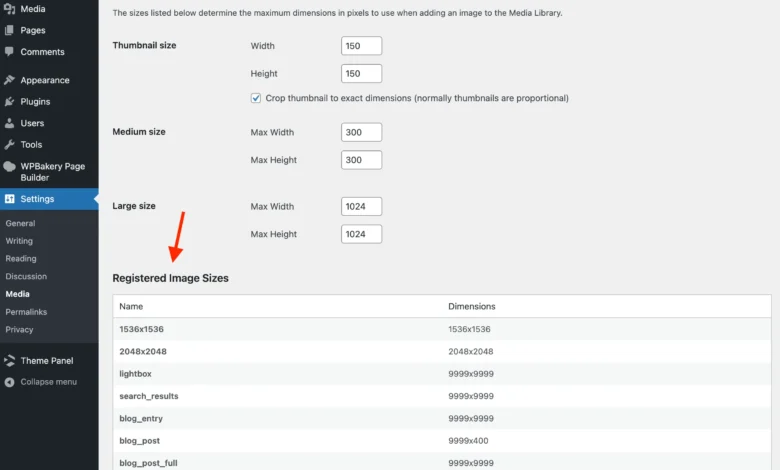
Identifying the full scope of image sizes registered on a WordPress site can be challenging, as the platform lacks a native graphical user interface for this purpose. While several third-party plugins can assist, developers can leverage code-based solutions for a more direct approach. A "quick and dirty" method involves temporarily inserting a code snippet into the functions.php file (or a custom plugin) that outputs a list of all registered image sizes directly onto the live site’s header. This provides an immediate, albeit temporary, overview:
// Display all defined image sizes at the top of the site inside a <pre> tag
add_action( 'wp_head', function()
    echo '<pre>';
    foreach ( (array) wp_get_registered_image_subsizes() as $size => $dims )
        $width = $dims['width'] ?? 0;
        $height = $dims['height'] ?? 0;
        echo "$size: $widthx$heightn";

    echo '</pre>';
 );
For a more permanent and integrated solution, a refined snippet can be added to display a table of all defined image sizes directly within the Settings > Media panel of the WordPress administration area. This allows administrators to quickly audit image sizes whenever a new plugin is activated or a theme is changed, ensuring ongoing awareness of generated image dimensions:
// Add a table of image sizes to the Settings > Media admin page
add_action( 'admin_init', function()
    add_settings_section(
        'dummy_registered_image_sizes_info',
        esc_html__( 'Registered Image Sizes', 'text_domain' ),
        function()
            echo '<table class="wp-list-table widefat fixed striped">';
            echo '<thead><tr><th>' . esc_html__( 'Name', 'text_domain' ) . '</th><th>' . esc_html__( 'Dimensions', 'text_domain' ) . '</th></tr></thead><tbody>';
            foreach ( (array) wp_get_registered_image_subsizes() as $size => $dims )
                if ( ! in_array( $size, [ 'thumbnail', 'medium', 'large' ], true ) )
                    $width = $dims['width'] ?? 0;
                    $height = $dims['height'] ?? 0;
                    echo "<tr><td><strong>$size</strong></td><td>$widthx$height</td></tr>";


            echo '</tbody></table>';
        ,
        'media'
    );
, PHP_INT_MAX );
This code effectively creates a new settings section, populating it with a dynamic table listing all non-default image sizes, providing a clear overview for site administrators.
A crucial development in WordPress image handling came with version 5.3.0, which introduced the "Big Image Size Threshold." This feature aims to prevent excessively large original images from being stored and processed, which can severely impact server performance. By default, if an uploaded image’s width or height exceeds 2560 pixels, WordPress will scale it down to this threshold, creating a -scaled version that then becomes the basis for all other generated image sizes. While beneficial for most sites, particularly those where users might upload very high-resolution photographs, it means an additional scaled image is always created if the original surpasses this limit.
Site administrators have the option to disable or modify this threshold. Disabling it entirely means WordPress will not scale down any uploaded image, regardless of its dimensions, preserving the original file size. However, this is generally not recommended without a clear understanding of the implications, as it can indeed lead to performance issues on the server due to processing and storing extremely large images.

// Disable the big image size threshold
add_filter( 'big_image_size_threshold', '__return_false' );
Alternatively, for websites that genuinely require larger images, such as professional photography portfolios, the threshold can be adjusted. For example, changing the value from 2560 to 5000 pixels allows for larger unscaled uploads:
// Modify the big image size threshold
add_filter( 'big_image_size_threshold', function( $threshold )
    return 5000;
 );
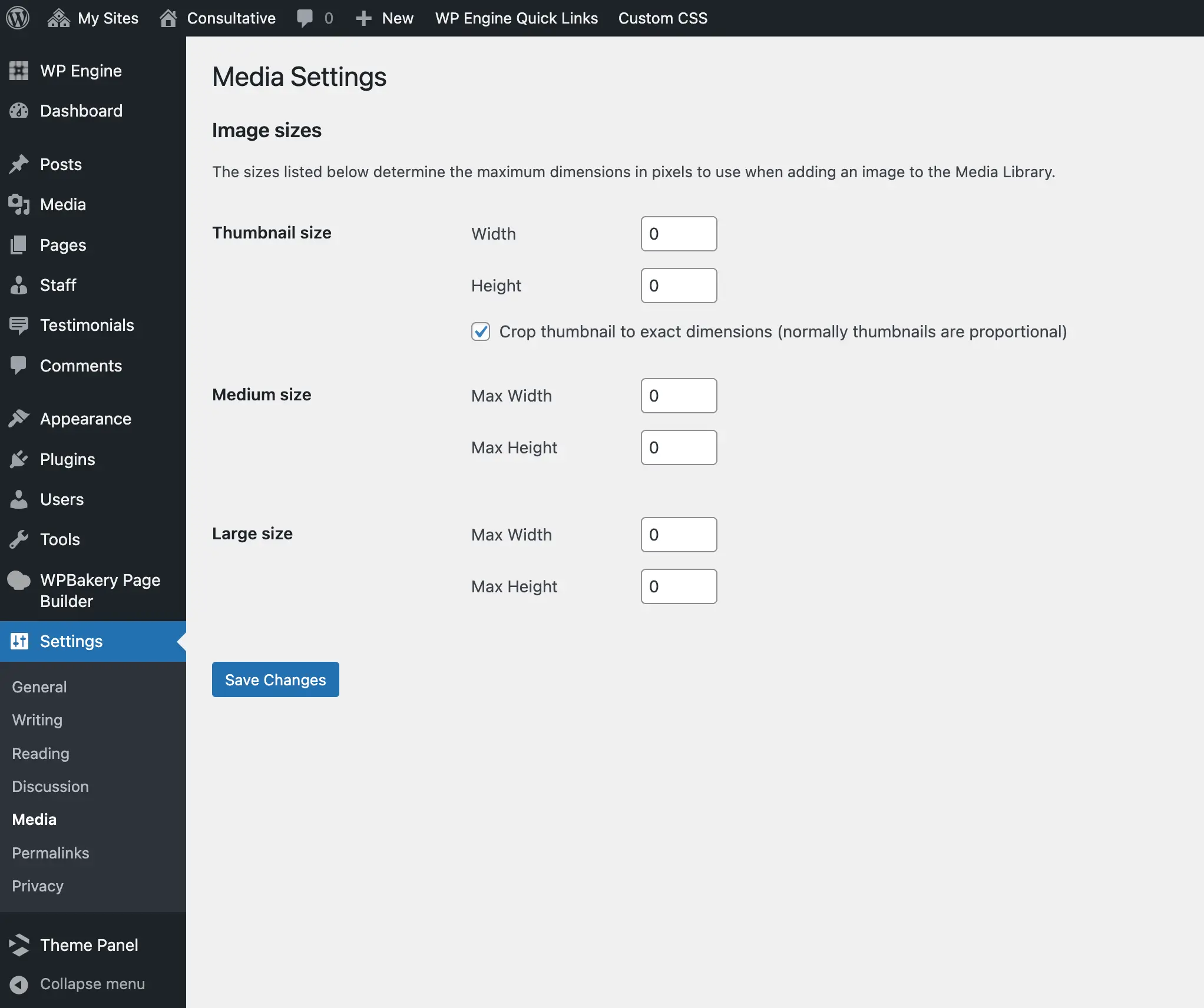
Implementing solutions to prevent future image generation involves both administrative settings and code-based interventions. Within the WordPress admin, navigating to Settings > Media allows users to configure the dimensions for Thumbnail, Medium, and Large sizes. Setting the width and height of these fields to 0 will prevent WordPress from generating these specific extra images. This is a foundational step recommended for most sites but is not a comprehensive solution for disabling all unwanted resized images, especially those introduced by themes or plugins, or the internal responsive sizes.
For a complete code-based solution to prevent WordPress from creating any cropped versions of uploaded images, two primary filters can be leveraged. The image_resize_dimensions() function is central to WordPress’s image resizing process. By hooking into the image_resize_dimensions filter and returning false, the function exits early, preventing any dimension calculations and, consequently, any extra image generation.
// Return false for calculated resized image dimensions
add_filter( 'image_resize_dimensions', '__return_false' );
A more optimized approach involves the intermediate_image_sizes_advanced filter, which controls the array of image sizes automatically generated upon upload. By returning an empty array, WordPress is explicitly instructed not to generate any additional images when a new file is uploaded.
// Return an empty list of image sizes to generate on upload
add_filter( 'intermediate_image_sizes_advanced', '__return_empty_array' );
Combining these two snippets provides a robust solution, addressing both the initial generation process and any potential "on-the-fly" cropping requests that might bypass the intermediate_image_sizes_advanced filter:
// Full Snippet: Disable all image sizes on upload and prevent general resizing
add_filter( 'image_resize_dimensions', '__return_false' );
add_filter( 'intermediate_image_sizes_advanced', '__return_empty_array' );
For users who prefer a non-code solution, a lightweight plugin like the "WP Disable All Image Sizes Plugin" (available on GitHub) can achieve the same outcome. This plugin typically applies these filters, also including the disabling of the big_image_size_threshold if configured. If, after implementing these solutions, image sizes are still being generated, it indicates a custom, non-core image cropping solution by a theme or plugin that is bypassing standard WordPress filters, requiring further investigation into the specific culprit.
For situations where a complete halt to image generation is undesirable, and only specific sizes need to be excluded, the intermediate_image_sizes_advanced filter can be modified to selectively unset certain dimensions from the array of generated sizes. This offers granular control, allowing essential image sizes to remain while removing redundant ones:
// Exclude certain image sizes from being generated on upload
add_filter( 'intermediate_image_sizes_advanced', function( $sizes )
    $sizes_to_exclude = [
        'thumbnail',
        'medium',
        'large',
        'medium_large',
        '1536x1536',
        '2048x2048',
        // Add any custom theme/plugin sizes here
    ];
    foreach ( $sizes_to_exclude as $size_to_exclude )
        unset( $sizes[ $size_to_exclude ] );

    return $sizes;
 );
It is crucial, when using this selective approach, to not use the image_resize_dimensions filter with __return_false, as that would prevent all resizing globally.
While these code snippets prevent new images from being generated, they do not address the potentially vast number of redundant image files already residing on the server from previous uploads. Cleaning up these legacy files requires a separate process. Manually deleting files via FTP is not recommended, as WordPress stores critical metadata about image sizes in the database, which could lead to broken image links and media library inconsistencies. The most reliable and safest method for removing old, unused image sizes is through a dedicated plugin such as "Force Regenerate Thumbnails." This plugin works by iterating through every image attachment, deleting all associated resized versions based on their metadata, and then running the core wp_generate_attachment_metadata() function. Since the site’s image size generation is now controlled by the previously implemented code snippets, only the desired (or no) new image sizes will be created. This process is resource-intensive, particularly for large media libraries, and is best handled by an AJAX-based plugin to prevent server timeouts. As with any significant site modification, a full backup of the WordPress installation and database is an indispensable prerequisite before undertaking such a cleanup.
Adopting a proactive approach to WordPress image management offers numerous benefits and aligns with modern web development best practices. By disabling unnecessary image sizes, websites can achieve significant savings in server storage, leading to potentially lower hosting costs and more efficient resource utilization. Smaller media libraries also translate to faster and more manageable backup and restoration processes. From an SEO perspective, while the direct impact of having many duplicate image sizes on Google Image Search Optimization is a subject of ongoing debate, ensuring that only necessary, optimized images are served aligns with core performance metrics that search engines prioritize. Reducing server load, improving backend performance, and maintaining a streamlined media library all contribute to a healthier website ecosystem. Best practices include pre-optimizing images for web before upload (compressing and setting appropriate maximum dimensions), leveraging responsive image attributes (srcset, sizes) to serve the correct image to users, implementing lazy loading, and utilizing Content Delivery Networks (CDNs) for global delivery. Ultimately, a lean and optimized media library is fundamental to a high-performing, cost-effective, and easily maintainable WordPress website.