Local vs XAMPP: A Comprehensive Analysis for Modern Web Development Environments

When establishing a local development environment, the sheer volume of available choices can present both significant advantages and perplexing challenges for web developers. This extensive guide delves into a comparative analysis of two prominent solutions, Local and XAMPP, examining their methodologies, features, and suitability for various development workflows. This detailed exploration aims to provide a clear understanding for individuals and teams seeking to build and test websites on their personal machines efficiently and effectively.
The Crucial Role of Local Development Environments
In the contemporary landscape of web development, local environments are indispensable tools that enable developers to construct, test, and debug websites offline, mimicking a live server setup without the need for an internet connection or public hosting. This isolation provides a safe sandbox for experimentation, code iteration, and the identification of issues before deployment to a production server. The benefits are manifold: enhanced productivity, reduced hosting costs during development, improved security by minimizing exposure of incomplete projects, and the flexibility to work from any location.
Historically, developers manually configured individual server components such as Apache, MySQL, and PHP on their operating systems. This process, while offering granular control, was often time-consuming, prone to configuration errors, and required a deep understanding of server administration. The emergence of bundled software packages and, more recently, specialized applications has significantly streamlined this process, making local development accessible to a broader audience. The evolution of these tools reflects a broader industry shift towards greater automation and specialization, driven by the increasing complexity of web applications and the demand for faster development cycles.
Introducing the Contenders: XAMPP’s Legacy and Local’s Modern Approach
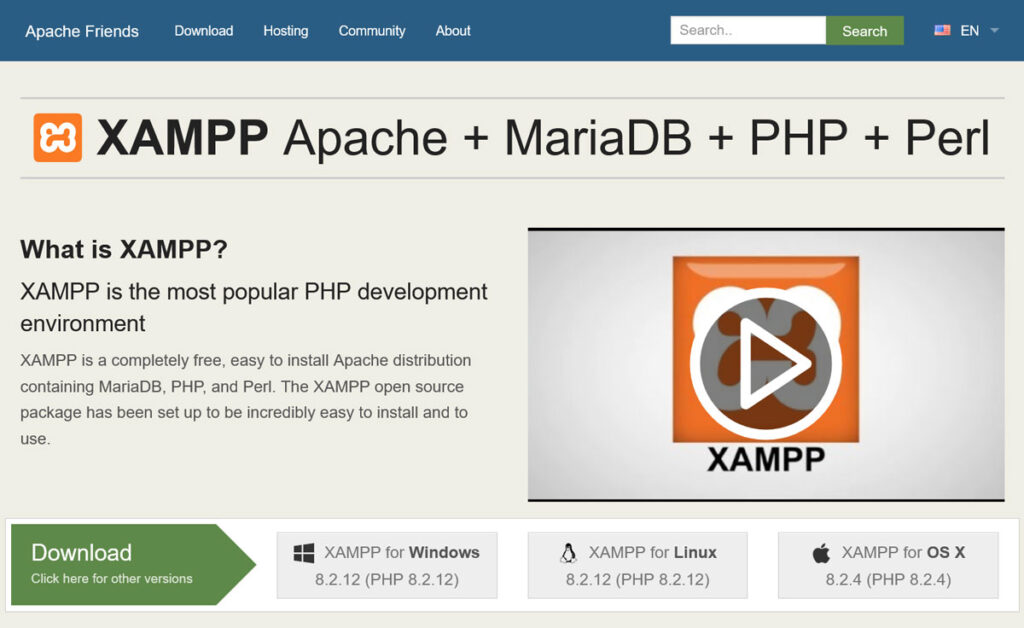
XAMPP, an acronym for Apache, MySQL (or MariaDB), PHP, and Perl, has been a cornerstone of local web development for over two decades. Developed by Apache Friends, it provides a comprehensive, free, and open-source cross-platform web server solution. Its strength lies in its versatility, allowing developers to host various types of web applications and databases, making it a general-purpose tool for diverse programming needs. XAMPP’s enduring popularity stems from its ability to offer a complete "stack" (server, database, scripting language) in a single, manageable package, reflecting a more traditional approach to server setup. It first gained significant traction in the early 2000s, becoming a go-to for setting up Apache on Windows, macOS, and Linux systems. Its design philosophy emphasizes providing raw server components that developers can then configure as needed for any project.
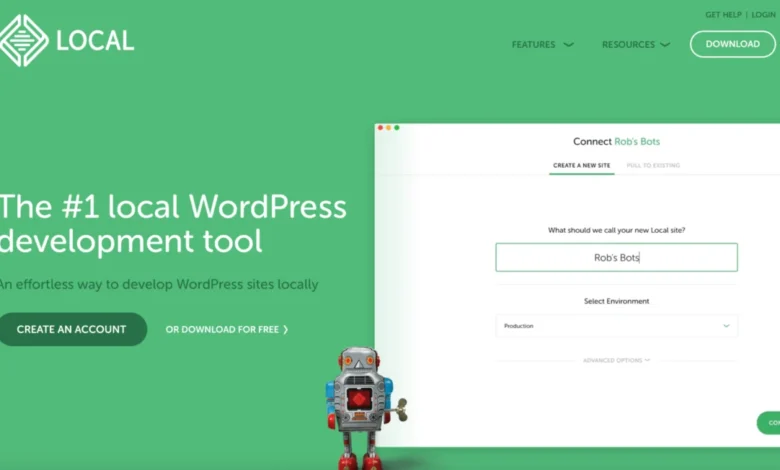
In contrast, Local (formerly Local by Flywheel) represents a newer, more specialized entry into the local development arena. Launched in the mid-2010s and later acquired by WP Engine, Local is specifically tailored for WordPress development. It abstracts much of the underlying server complexity, offering a graphical user interface (GUI) and a suite of WordPress-centric features designed to optimize the workflow for designers, developers, and agencies working exclusively with the world’s most popular content management system. Local leverages modern containerization technologies, often using Docker under the hood, to create isolated environments for each WordPress site, a significant philosophical departure from XAMPP’s monolithic installation. This approach, which gained prominence with the rise of Docker, allows for greater project isolation and easier environment replication, catering to the demands of modern development practices.
Installation and Initial Setup: The Gateway to Development
The initial setup process is often the first point of differentiation for developers evaluating local environments, setting the tone for the overall user experience and indicating the level of technical proficiency required.
Local’s Streamlined Onboarding:
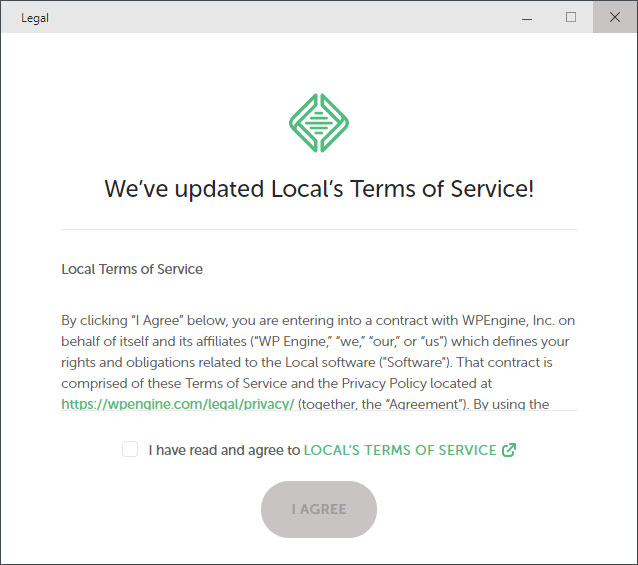
Local prioritizes a rapid and intuitive installation experience. Users begin by downloading the appropriate installer from the official Local website (localwp.com) for their operating system (Windows, macOS, Linux). The installation wizard is a familiar, step-by-step process, typical of standard desktop applications. Post-installation, Local guides the user through minimal initial configurations, such as accepting terms and conditions and potentially choosing default settings for site creation. This simplicity is a deliberate design choice, aimed at minimizing the technical barrier to entry and allowing developers to quickly move to site creation rather than server configuration. The entire process, from download to a fully operational application, can often be completed in mere minutes, making it highly appealing for beginners or those seeking efficiency. This ease of entry has contributed significantly to its rapid adoption within the WordPress community, where many users may not have extensive server administration backgrounds.
XAMPP’s Hands-On Configuration:
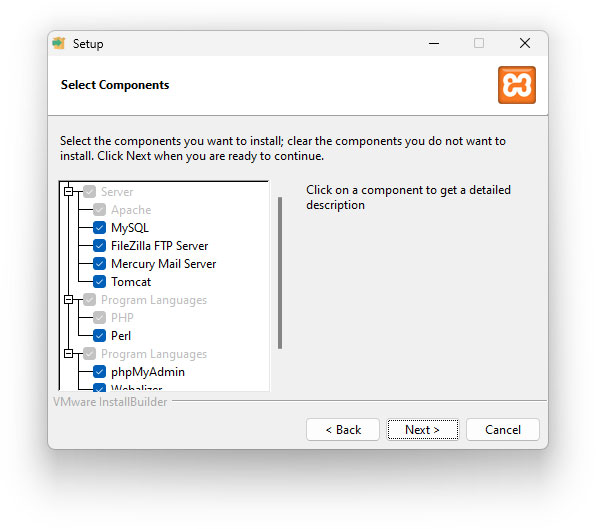
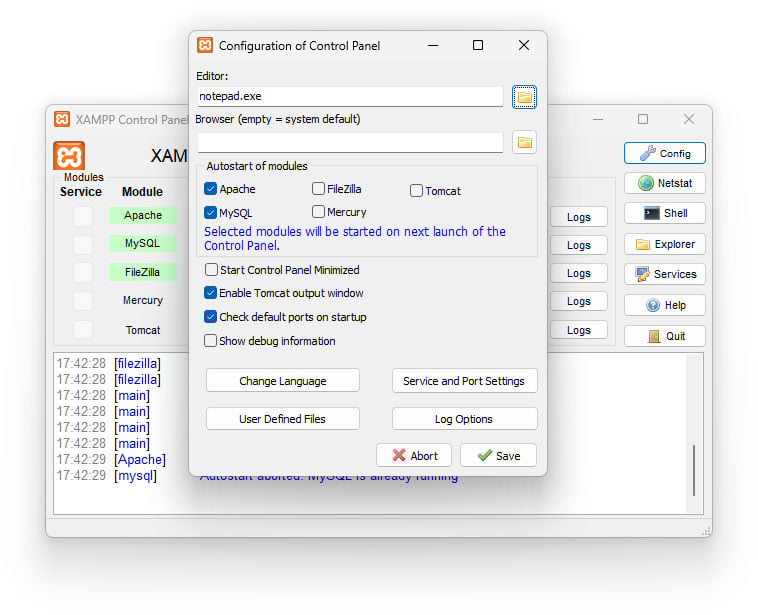
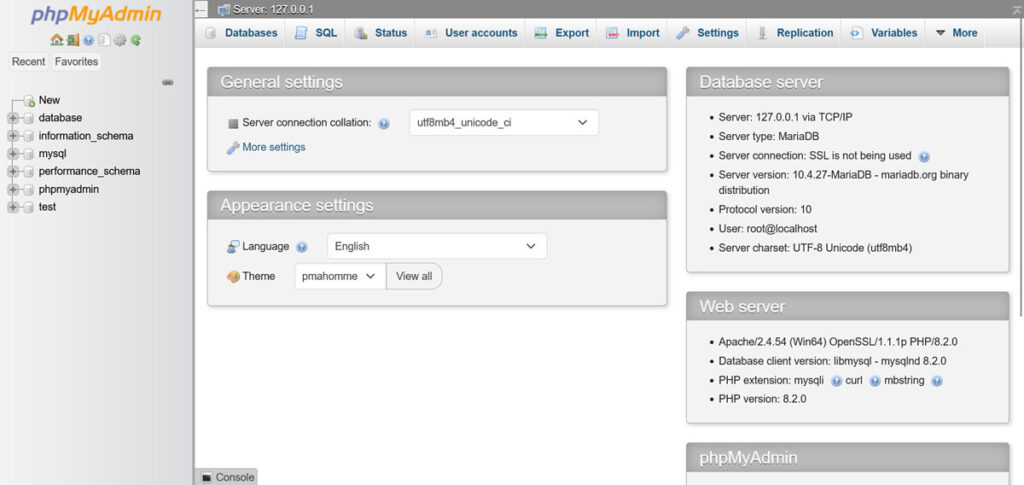
XAMPP’s setup, while also straightforward, requires a slightly more engaged approach. Users download the XAMPP installer from apachefriends.org, selecting the version compatible with their operating system. During the installation, XAMPP presents options for selecting specific components to install, including Apache HTTP Server, MySQL (MariaDB), PHP, Perl, phpMyAdmin, and others like FTP server (FileZilla) or webalizer. This choice grants developers greater control over their server stack, allowing them to install only what is necessary for their projects. However, it also demands a basic understanding of these components and their roles. For instance, a developer might choose to exclude Perl if they are only working with PHP, or include FileZilla if they need a local FTP server. After installation, the XAMPP Control Panel serves as the central hub for managing services. Developers must manually start Apache and MySQL services to activate their local server environment. This hands-on method, while offering flexibility, inherently requires more technical involvement compared to Local’s largely automated setup. For instance, configuring ports or enabling specific PHP extensions might be a common post-installation task for XAMPP users, requiring edits to configuration files like httpd.conf or php.ini.
Crafting Development Sites: From Blank Canvas to Live Preview
Once the environment is set up, the next critical step is creating new development sites. This process highlights the differing philosophies of Local and XAMPP in how they approach project initiation.
Local’s WordPress-Centric Site Creation:
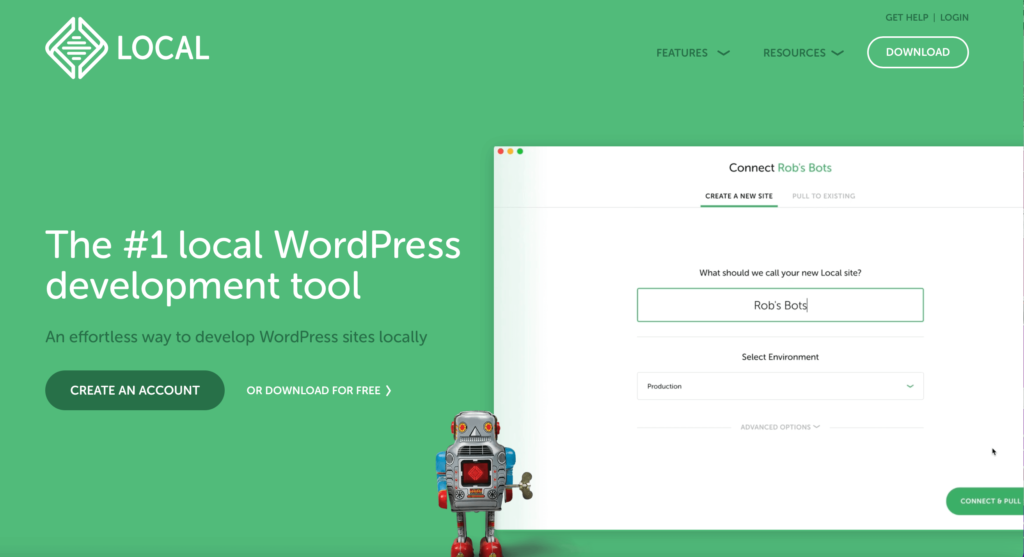
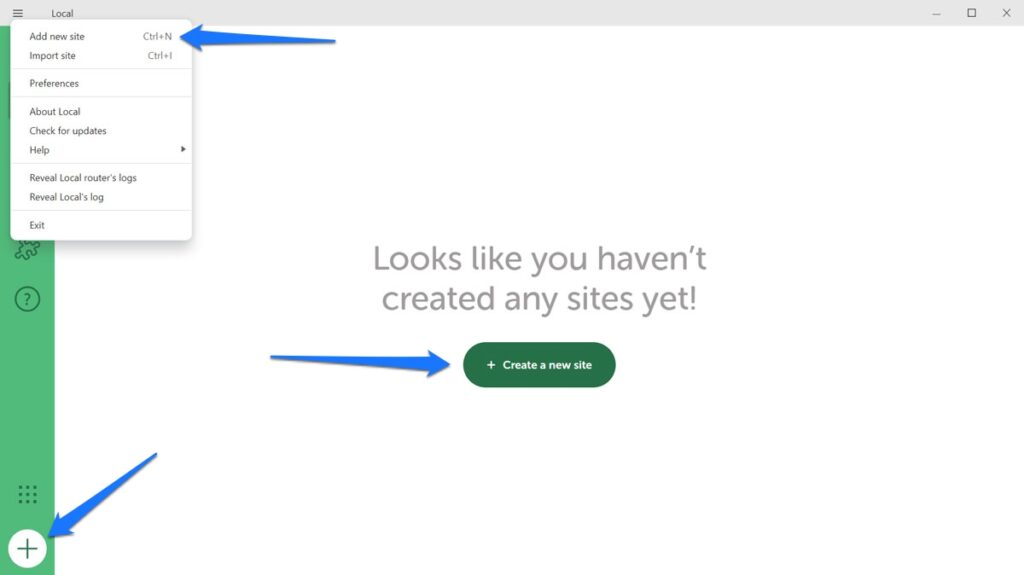
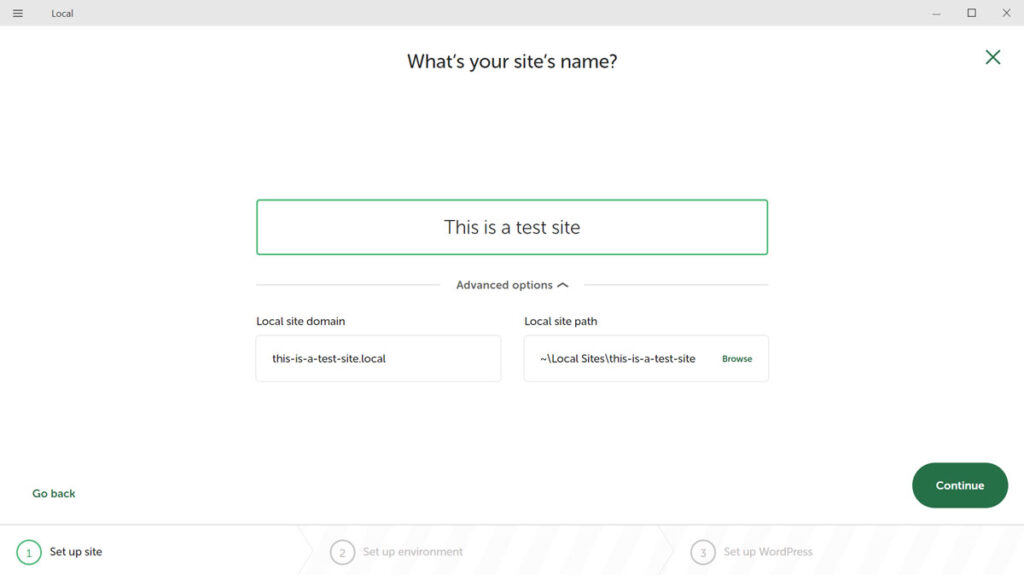
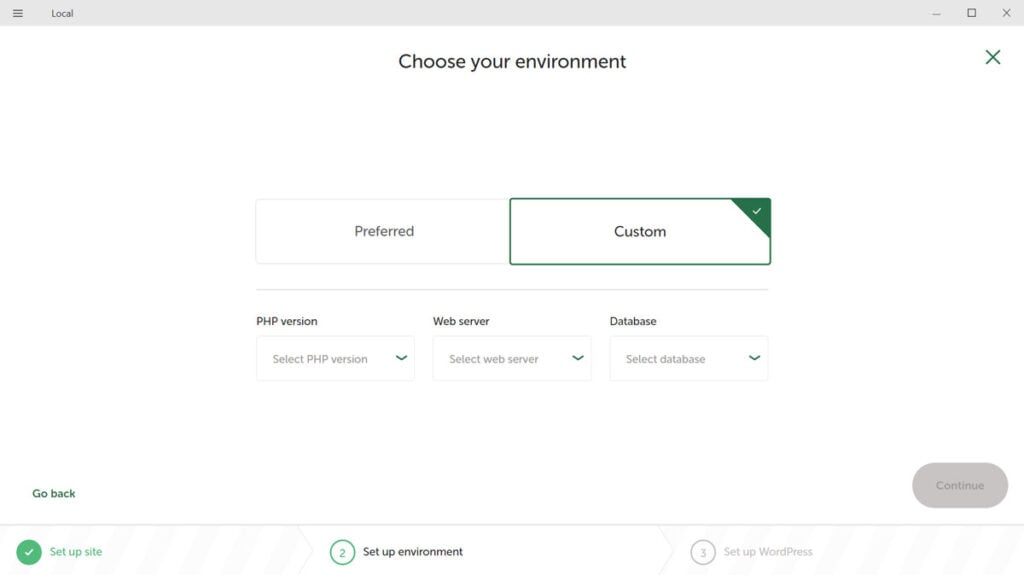
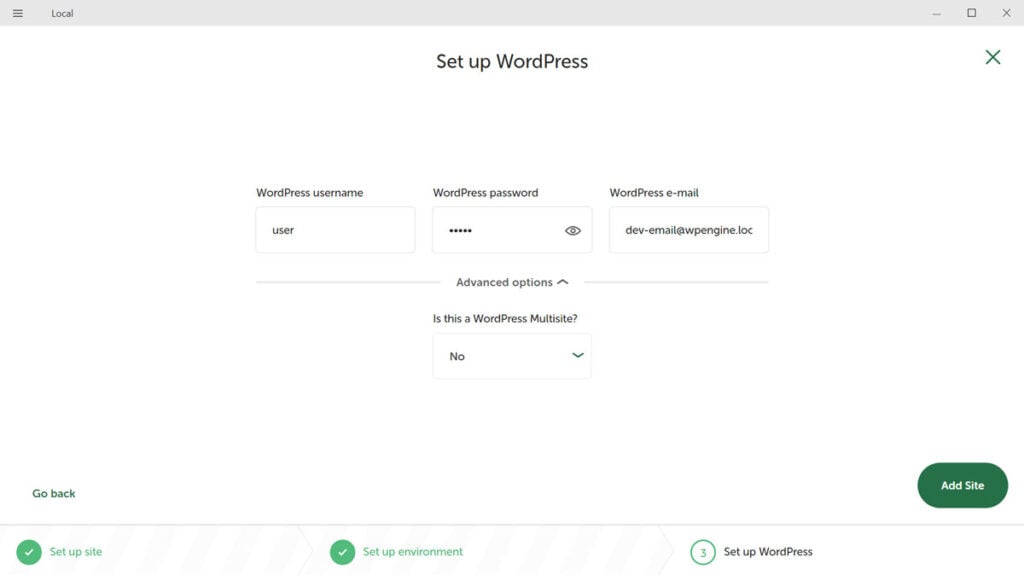
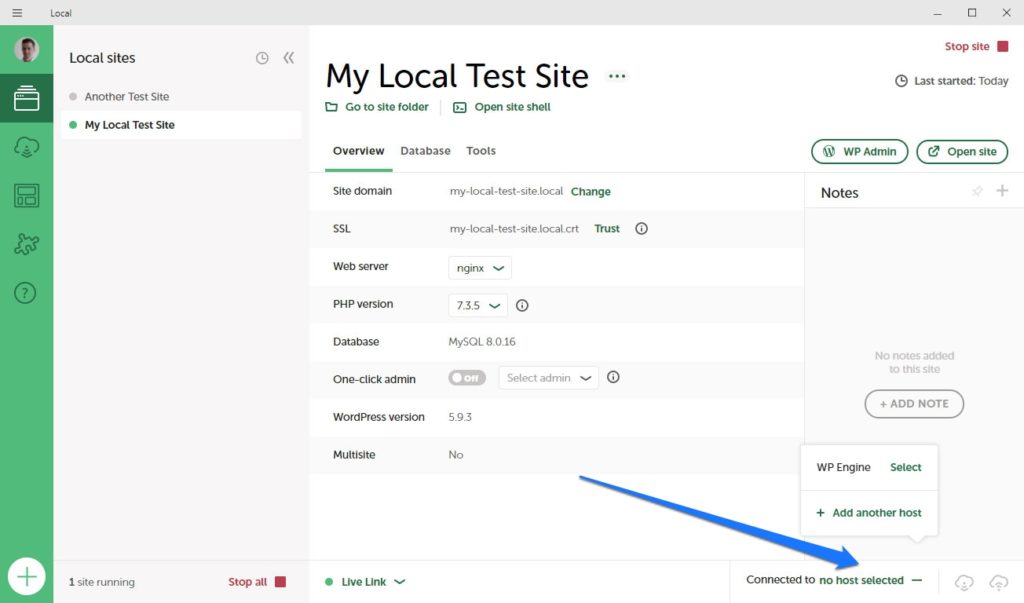
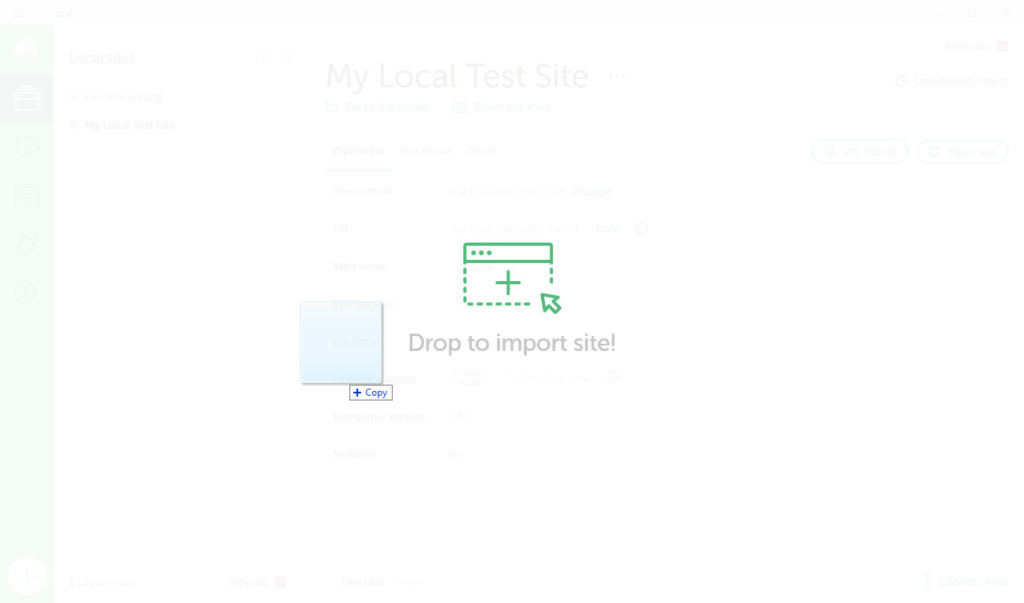
Local excels in its WordPress-specific site creation workflow. Initiating a new site is as simple as clicking a "Create a New Site" button within the application’s clean interface. Users are prompted to enter a site name, which Local then uses to automatically generate a local domain (e.g., mysite.local) and a file path. The next step allows choosing between a "Preferred" environment (a pre-configured, optimized stack of NGINX, PHP, and MySQL) or a "Custom" environment, offering flexibility to select specific PHP versions, web servers (Apache or NGINX), and MySQL versions. Crucially, Local automatically handles the installation of WordPress itself, including database creation and configuration. Developers only need to provide admin credentials for the WordPress dashboard, and within moments, a fully functional WordPress site is ready. This one-click installation for WordPress dramatically accelerates the initial development phase, making it incredibly efficient for professionals who frequently spin up new WordPress projects. This feature alone saves developers valuable hours, allowing them to focus on content and customization rather than tedious setup procedures.
XAMPP’s General Web Project Setup:
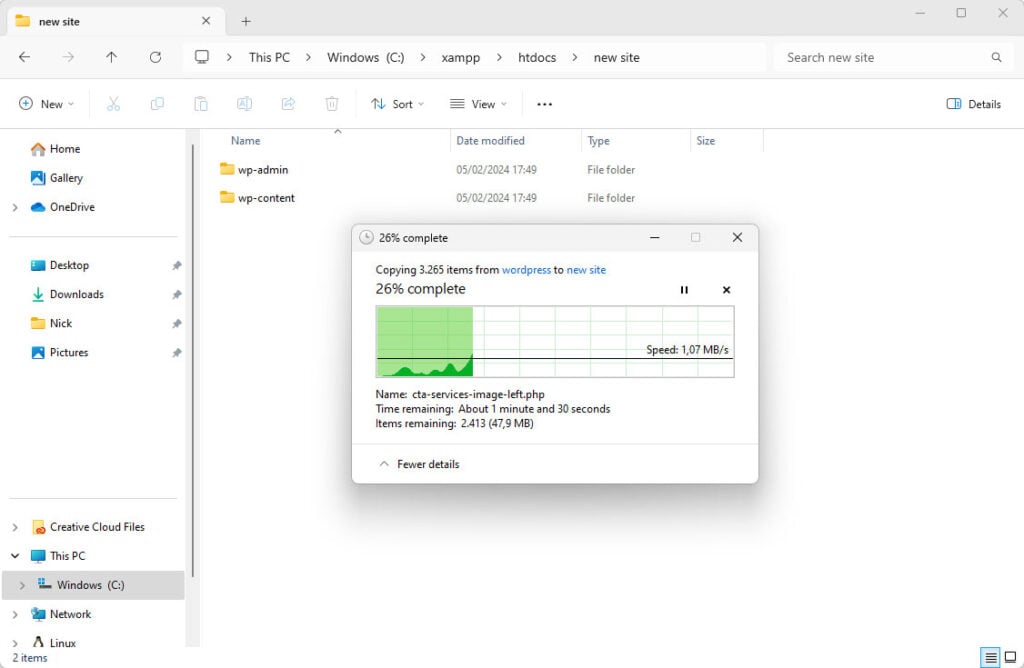
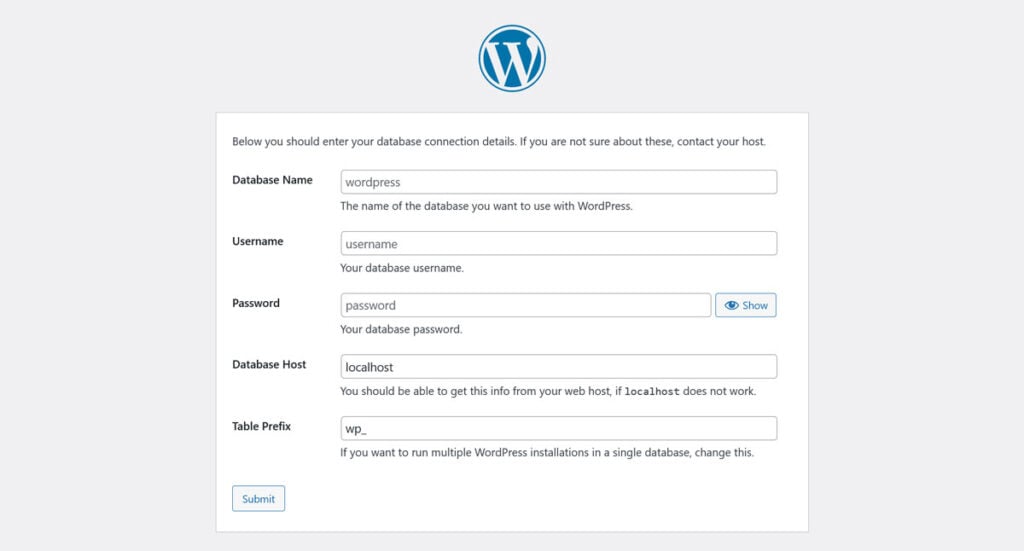
XAMPP, being a general-purpose server stack, requires a more manual approach for setting up any web project, including WordPress. After ensuring Apache and MySQL services are running via the XAMPP Control Panel