How to Stop WordPress from Creating Extra Cropped Image Sizes to Optimize Server Performance and Storage

Every time a content creator uploads an image to a WordPress media library, the core software automatically generates multiple additional scaled and cropped versions of that file. While this functionality is designed to serve responsive layouts and high-pixel-density (HDPI) retina screens natively, it frequently results in severe server bloat. Sites that rely on custom-coded themes or specific page builders often bypass these default sizes entirely, rendering the automatically generated files redundant. Consequently, gigabytes of server storage can be consumed by unused media assets, which in turn drastically inflates the size and duration of database and file backups. Understanding how to manage, audit, and disable these extra image generation processes is an essential technical procedure for web administrators aiming to optimize resource consumption and streamline site maintenance.
Background and Technical Context of WordPress Image Generation
To comprehend why server bloat occurs, administrators must examine the evolution of image handling within the WordPress ecosystem. Historically, the platform generated a standard set of variants upon upload: thumbnails, medium sizes, and large sizes. Over successive core updates, particularly with the introduction of responsive design standards and retina displays, WordPress expanded these default dimensions.
As of recent software iterations, the core platform defines up to seven distinct variations for a single uploaded asset, ranging from standard thumbnail grids to high-resolution 2048×2048 pixel formats. Furthermore, when an original upload exceeds the "Big Image Size Threshold"—set by default to 2560 pixels on either axis—WordPress forces a downscaled master file into circulation before generating all subsequent dependent sub-sizes.
Beyond core defaults, third-party extensions compound the issue. Classic themes, block themes, e-commerce suites, learning management systems, and directory plugins frequently register their own custom image dimensions via programmatic functions like add_image_size(). When multiple plugins operate simultaneously, a single uploaded photograph can easily spawn a dozen or more derivative files across the hosting environment.

Chronology of Core Features and Threshold Adjustments
The management of image processing has evolved significantly alongside web performance standards.
- Pre-2019: WordPress relied strictly on rigid thumbnail generation rules, requiring developers to write custom functions or rely on specialized third-party plugins to intercept unwanted scaling.
- November 2019 (WordPress 5.3): Developers introduced the Big Image Size Threshold. This protocol aimed to prevent users from uploading massive, uncompressed camera files (such as 6000×4000 pixel photographs) that historically crippled server memory limits during processing. While beneficial for preventing fatal PHP memory exhaustion errors, it institutionalized the automated creation of scaled master assets.
- Current Standards: Modern deployment strategies increasingly favor CSS-based responsive sizing (such as
srcsetandsizesattributes) over server-side physical cropping, prompting many senior developers to disable automated intermediate image generation entirely on specialized builds.
Auditing Registered Image Sizes on Your Infrastructure
Before implementing global blocks on image generation, site administrators must audit their current environments to identify which dimensions are active. Because WordPress lacks a built-in visual inventory for all registered sub-sizes, developers must utilize programmatic inspection techniques.
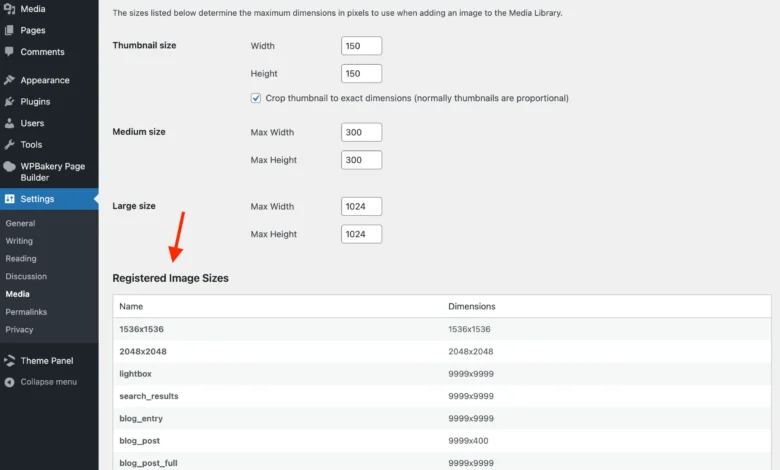
One common method involves inserting a temporary query into the site’s functions file to output all active sub-sizes directly to the front-end header using the wp_get_registered_image_subsizes() function. Alternatively, administrators can inject a custom settings section into the standard WordPress Media administration panel (Settings > Media). By hooking into the admin_init action, developers can render a comprehensive tabular breakdown of every custom dimension registered by active themes and plugins. This dashboard visibility ensures that newly activated plugins do not silently reintroduce resource-heavy image processing loops.
Programmatic Solutions and Code Implementation
For administrators seeking to halt unnecessary file creation, code-based filters offer a precise and lightweight alternative to bulky plugin suites. By targeting core WordPress hooks, developers can completely disable intermediate image generation or selectively filter out specific dimensions.
To completely prevent the system from calculating and writing resized versions upon upload, developers utilize the intermediate_image_sizes_advanced filter, returning an empty array:

// Return an empty list of image sizes to generate on upload
add_filter( 'intermediate_image_sizes_advanced', '__return_empty_array' );
In conjunction with this, filtering the image_resize_dimensions function by returning false ensures that any on-the-fly cropping requests initiated by themes or plugins are safely aborted before executing resource-intensive GD or Imagick library processes:
// Return false for calculated resized image dimensions
add_filter( 'image_resize_dimensions', '__return_false' );
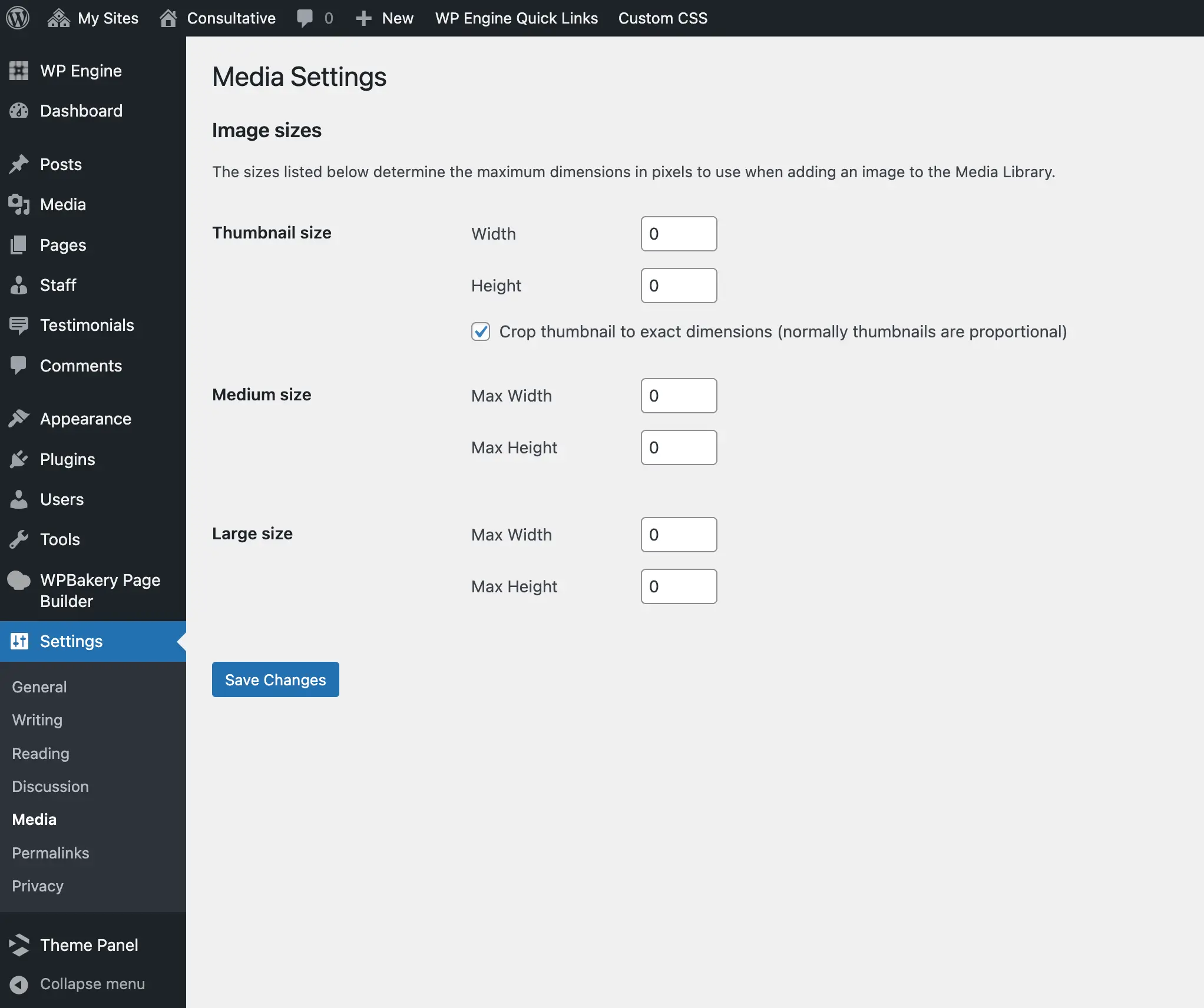
Administrators who wish to retain certain core sizes—such as standard thumbnails—while purging larger, resource-intensive retina formats can modify the filter parameters to target specific array keys:
// Exclude specific image sizes from being generated on upload
add_filter( 'intermediate_image_sizes_advanced', function( $sizes )
    $sizes_to_exclude = [
        'thumbnail',
        'medium',
        'large',
        'medium_large',
        '1536x1536',
        '2048x2048',
    ];
    foreach ( $sizes_to_exclude as $size_to_exclude )
        unset( $sizes[ $size_to_exclude ] );

    return $sizes;
 );
Cleaning Up Legacy Server Files
Implementing code filters or administrative restrictions only prevents future asset bloat; it does not retroactively remove historical files already occupying server disk space. Cleaning up legacy image assets requires careful execution to avoid breaking attachment metadata references within the database.
While terminal-based command-line utilities (such as WP-CLI) offer rapid file deletion, they frequently leave orphaned metadata or fail to purge specialized plugin crops correctly. Web hosting and WordPress maintenance experts generally recommend utilizing dedicated database-aware utilities, such as the Force Regenerate Thumbnails plugin, for legacy cleanups. These tools systematically parse image attachment metadata, safely strip out obsolete sub-size files from the server directories, and rebuild only the essential metadata required by the active site architecture.
Crucial Precaution: Database modifications and mass file deletions carry inherent risks. System administrators must execute comprehensive file and database backups prior to initiating any legacy media cleanup procedures.
Broader Impact and Implications for Web Operations
The strategic limitation of automated image scaling yields measurable benefits across multiple operational vectors:
- Storage and Backup Efficiency: Eliminating redundant files routinely reduces total media library storage footprints by 40% to 70%. Consequently, remote backup archives decrease significantly in physical size, accelerating upload and restoration times during disaster recovery procedures.
- Server Resource Conservation: Processing large image uploads consumes substantial CPU cycles and RAM. Halting unnecessary GD library transformations prevents HTTP 504 Gateway Timeouts and memory limit exhaustion on shared or budget cloud hosting tiers.
- SEO and Performance Considerations: While modern responsive design relies heavily on varying image scales for optimal viewport delivery, excessive duplication can complicate asset management. Streamlining media libraries ensures that search engine crawlers index only intentional, high-value visual assets, minimizing server response overhead during media queries.
Ultimately, transitioning from an automated, default-heavy image processing model to a lean, audited architecture provides long-term stability and cost-efficiency for high-traffic and resource-sensitive WordPress deployments.