WordPress Revolutionizes Collaboration: In-Editor Feedback Notes Streamline Content and Design Workflows

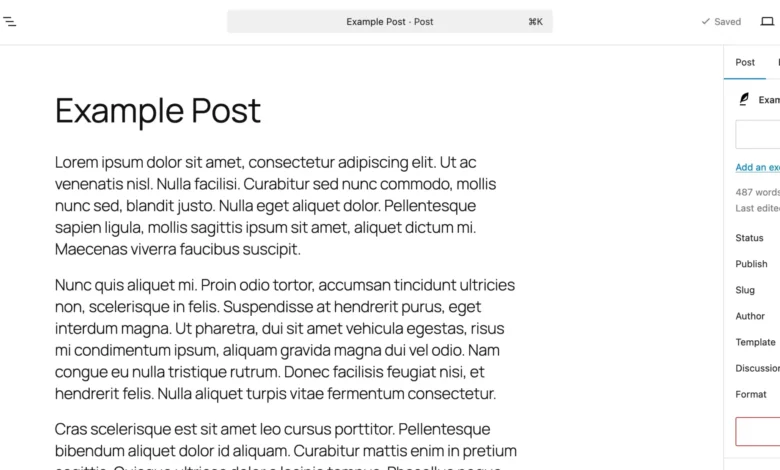
For years, the intricate dance of content and design collaboration within the WordPress ecosystem presented a persistent challenge for teams worldwide. The fragmented workflow, often necessitating a juggle between external tools like Google Docs for text edits, Figma for design annotations, and endless email threads for consolidated feedback, frequently led to inefficiencies, lost context, and prolonged publication cycles. This common scenario, marked by the constant copying and pasting of content and designs across platforms, underscored a critical need for a more integrated solution. Today, April 7, 2026, marks a pivotal moment as WordPress officially entrenches its built-in feedback mechanism, "Notes," directly within the editor, fundamentally transforming how content and design teams operate.
This significant update, rolled out as a core feature, allows users to embed feedback directly onto specific blocks—be it a paragraph of text, an image, or a layout element—right where the content resides. This innovation eradicates the cumbersome process of exchanging screenshots or navigating through lengthy, detached comment threads, offering a singular, cohesive environment for review and revision. This guide delves into the intricacies of WordPress Notes, exploring their functionality, the streamlined workflow they enable, and their profound implications for the future of digital content creation.

The Historical Landscape of WordPress Collaboration Challenges
Before the advent of in-editor Notes, content and design workflows within WordPress were often characterized by a series of disconnected steps. A typical project might involve a content writer drafting an article in WordPress, exporting it to a Google Doc for editorial review, incorporating design feedback from Figma mockups, and then consolidating all comments via email. This multi-platform approach, while functional, was inherently inefficient. Teams grappled with version control issues, the risk of misinterpreting feedback due to a lack of visual context, and the sheer time spent shuttling information between disparate applications.
The absence of a native, block-level commenting system within the WordPress editor meant that feedback was often generic, applying to an entire page rather than specific elements, or required meticulous manual referencing. This friction point was particularly acute for agencies managing numerous client projects, where clear, contextualized communication is paramount to meeting deadlines and client expectations. The demand for a more integrated, intuitive feedback loop had been a recurring theme within the WordPress community for years, with many third-party plugins attempting to bridge this gap, albeit with varying degrees of success and often introducing their own complexities.

Introducing WordPress Notes: A Paradigm Shift in Feedback
WordPress Notes represents a direct response to these long-standing challenges. Integrated seamlessly into the Gutenberg block editor, this feature allows users to attach contextual feedback directly to any content block. Whether it’s a heading needing refinement, an image requiring a different alt-text, or a paragraph needing a factual correction, a note can be precisely placed.
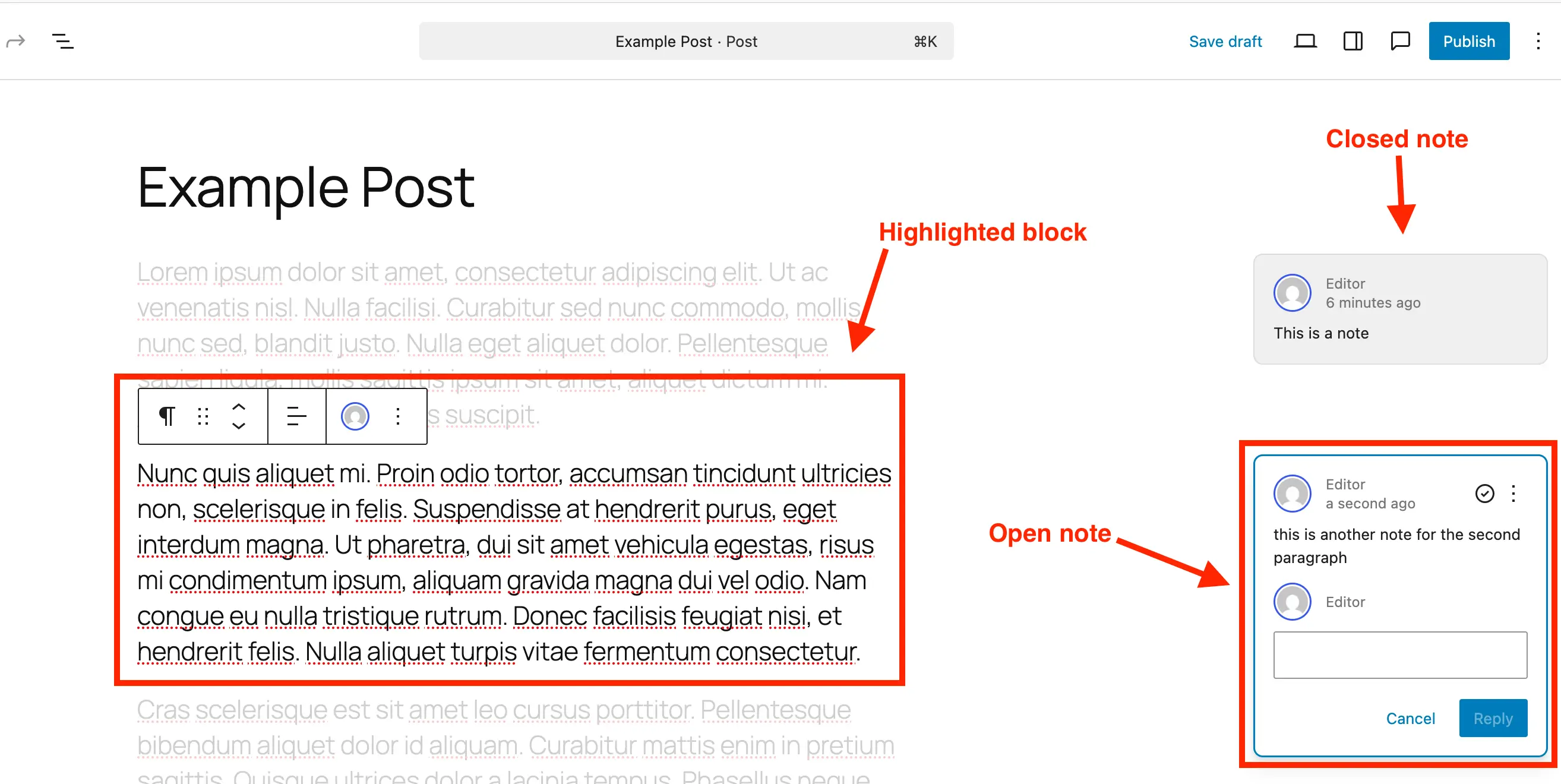
Visually, a note appears as a comment bubble on the right-hand side of the editor, mirroring familiar commenting interfaces found in modern document collaboration tools. Each note clearly displays the author’s name and the date it was left, fostering transparency and accountability within the team. The ability to reply directly to notes creates a self-contained conversation thread around each specific piece of content, ensuring all discussions remain relevant and easily trackable. A particularly intuitive aspect of Notes is its focus mechanism: clicking on a note automatically highlights the associated block while subtly fading the rest of the content. This visual cue ensures that reviewers and editors can immediately pinpoint the exact element being discussed, minimizing ambiguity and maximizing focus.
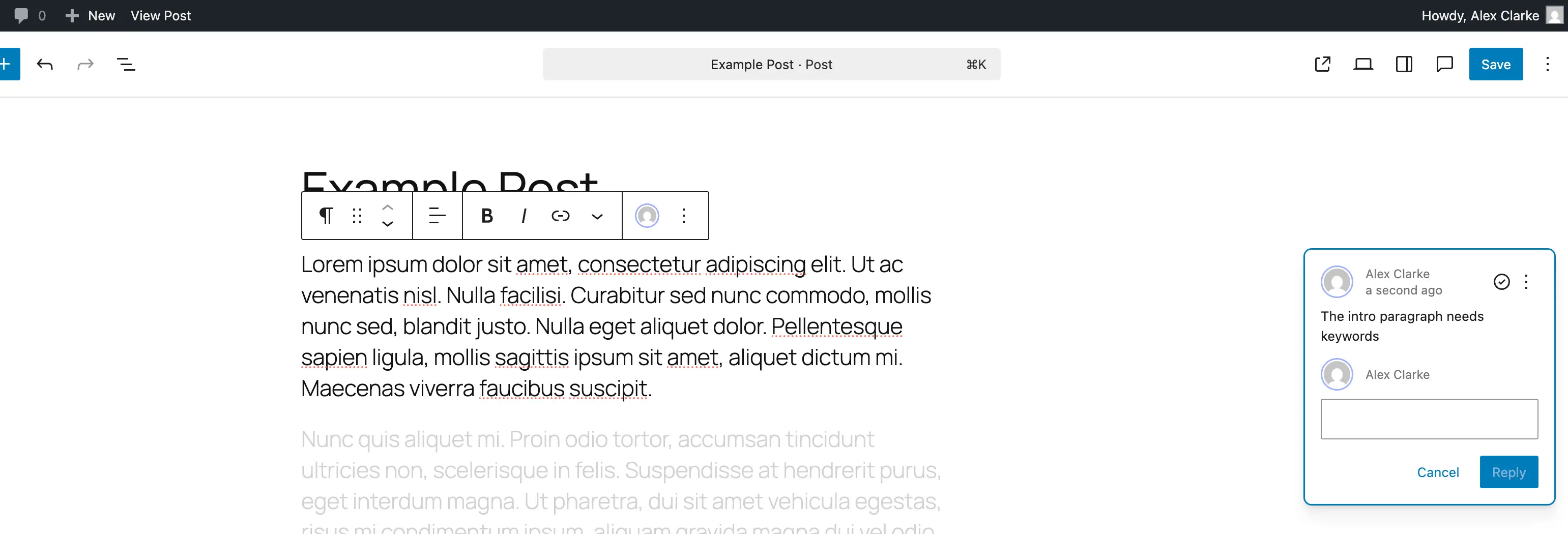
In essence, Notes transforms the Gutenberg editor from a mere content creation interface into a robust collaborative workspace. It eliminates the necessity for external tools for the primary review process, consolidating editing and feedback within a single environment. This simplification is not just about convenience; it’s about enhancing the accuracy and efficiency of content production by keeping all contextual information precisely where it’s needed.
Step-by-Step Guide to Utilizing WordPress Notes
The implementation of Notes is designed to be user-friendly, ensuring a minimal learning curve for existing WordPress users.
-
Adding Notes in the WordPress Editor:
- Access the Content: Navigate to the desired post or page within the WordPress block editor that requires review.
- Select the Target Block: Click on the specific block—be it a paragraph, heading, image, or custom block—where feedback is to be applied.
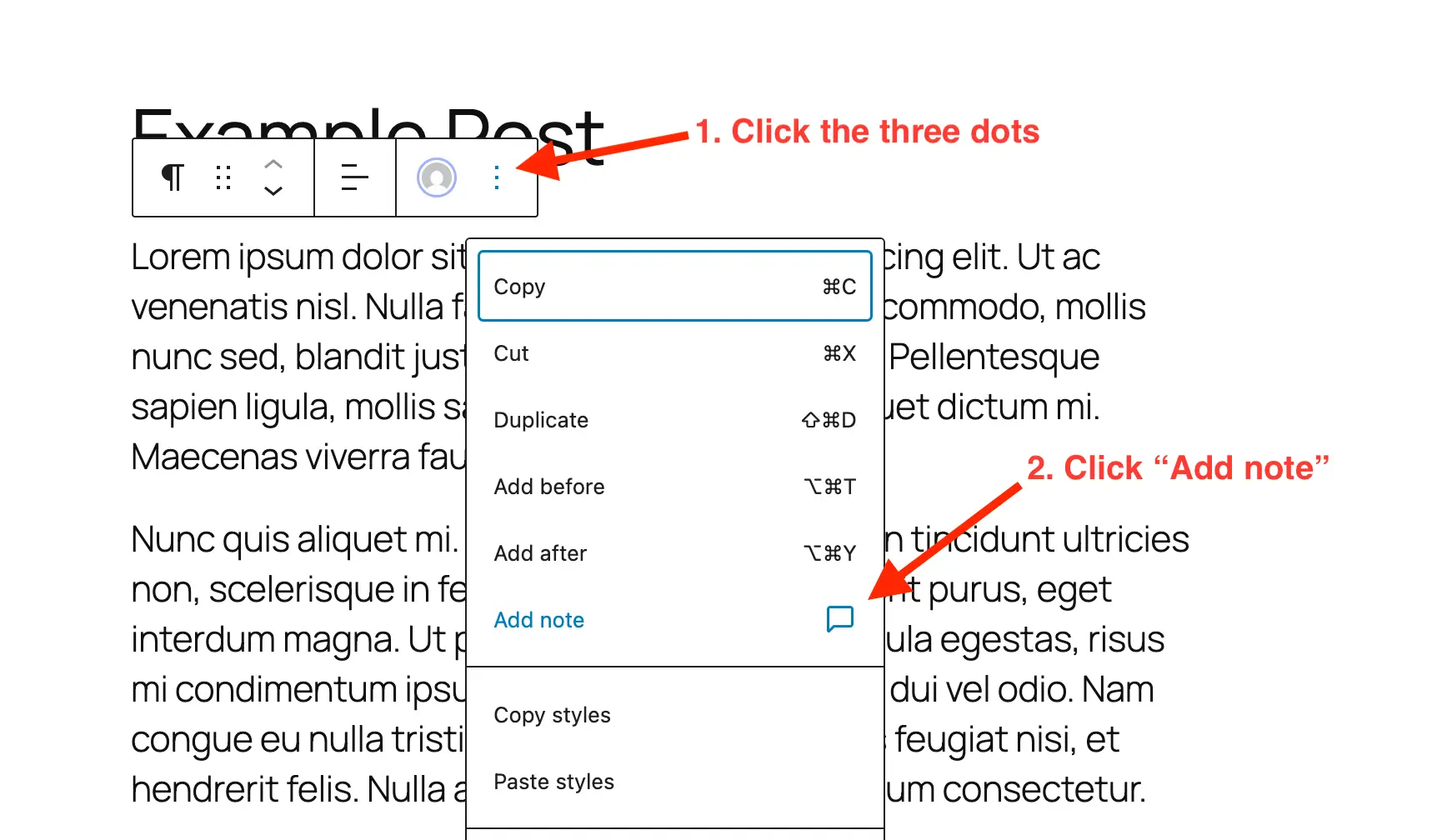
- Initiate Note Creation: Locate the three-dot menu (block options) that appears when a block is selected. From the dropdown, choose "Add Note." This action will prompt a panel to appear, ready for input.
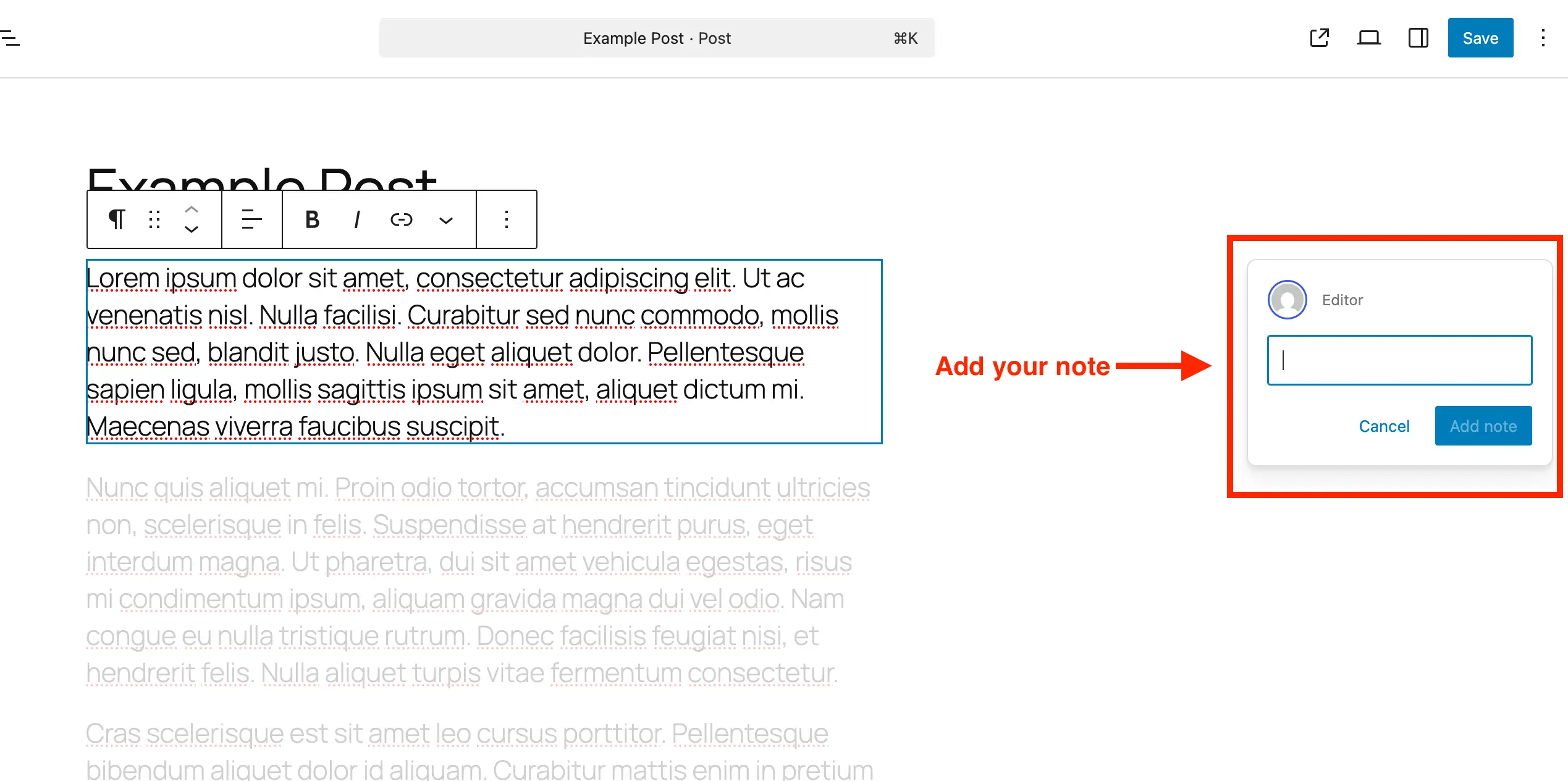
- Compose and Submit Feedback: A dedicated input box will emerge on the right-hand side of the editor. This box is dynamic; it expands automatically as text is entered, accommodating extensive feedback. Users can also press "Enter" to add line breaks, facilitating structured comments. Once the feedback is typed, it is submitted, attaching directly to the chosen block.
-
Editing and Reviewing Notes:
- Open the Relevant Content: Access the post or page containing the notes earmarked for review.
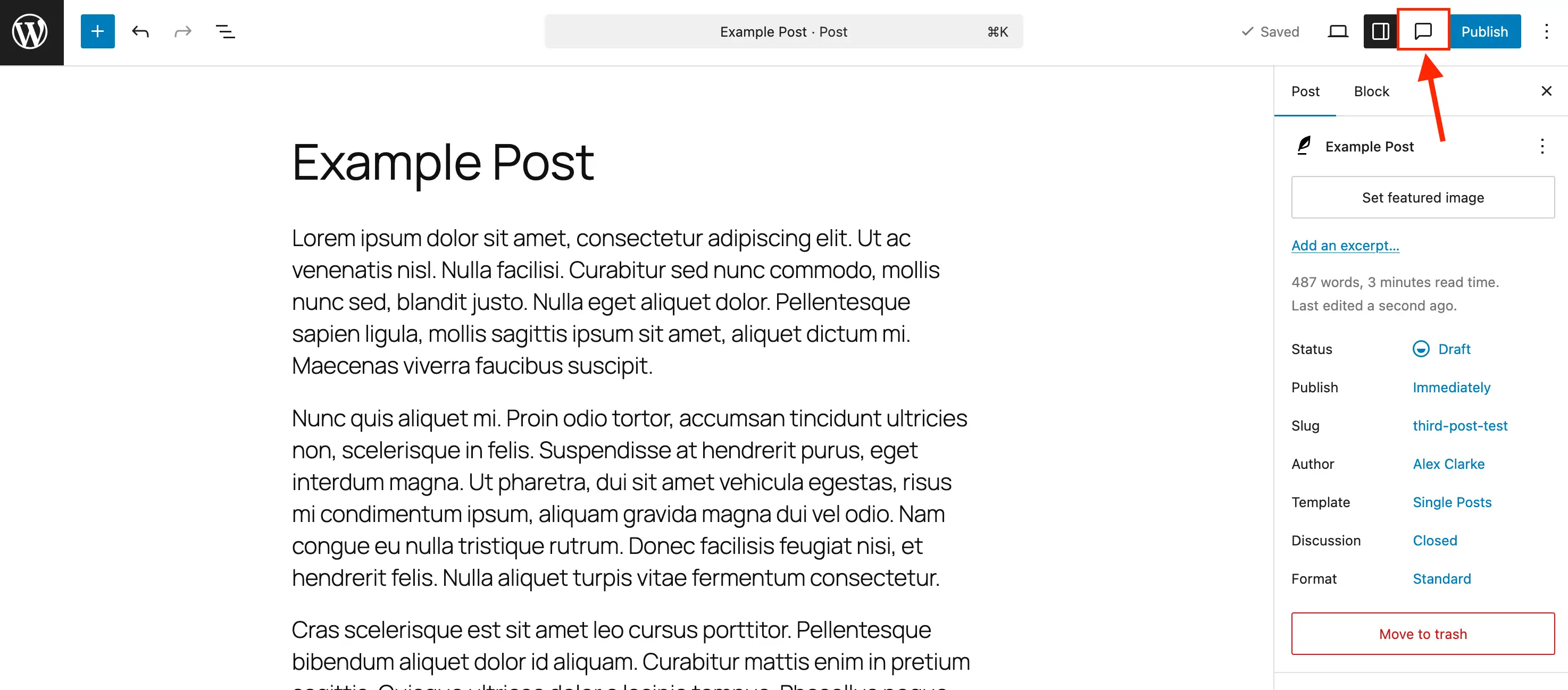
- Activate the Notes Side Panel: While notes appear next to their respective blocks when the default settings sidebar is closed, for comprehensive management, it is recommended to click the "Notes icon" (resembling a comment bubble) in the editor toolbar. This action opens a dedicated Notes sidebar, presenting all active notes in a stacked, easy-to-manage list.
- Engage with a Specific Note: Clicking on any note, either within the sidebar or directly on its bubble next to a block, will highlight the corresponding block in the main editor area, fading out surrounding content to maintain focus.
- Reply to Feedback: Within the selected note’s interface, a reply field is available. Type your response and click "Reply" to contribute to the ongoing discussion, keeping all related communication centralized.
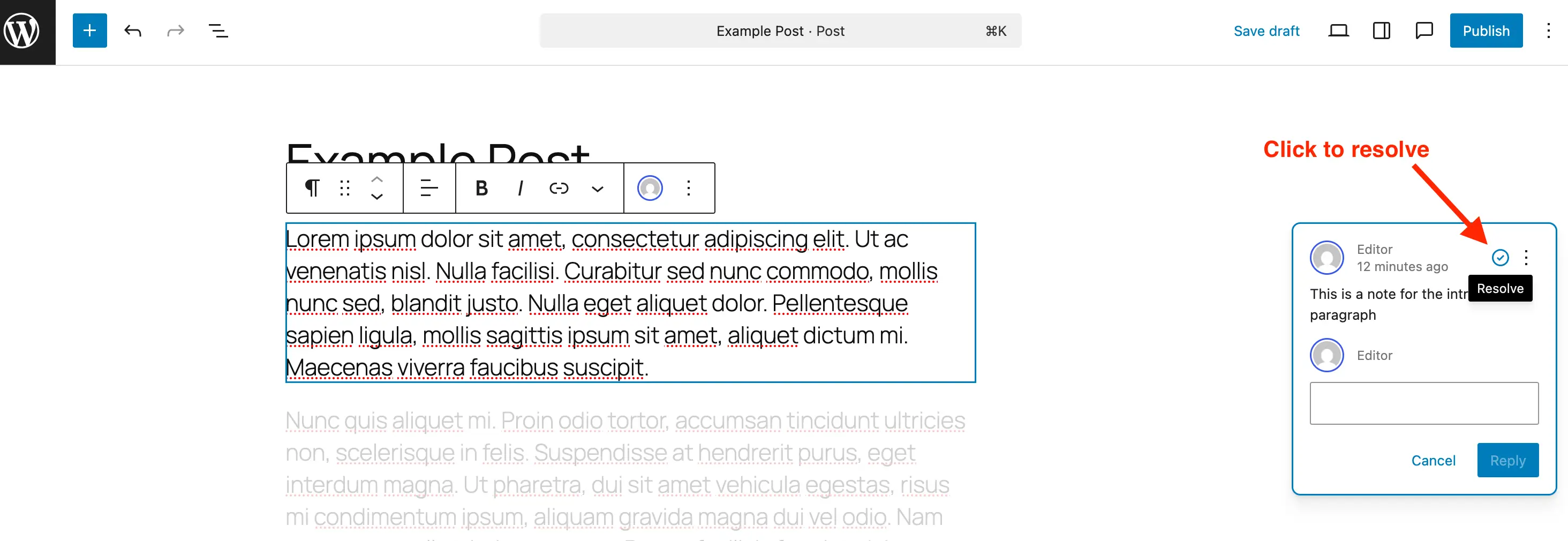
- Resolve Completed Notes: Once the feedback contained within a note has been addressed and implemented, click the "Resolve" icon (typically a checkmark). This marks the note as complete, removing its active visual presence on the right-hand side when the main sidebar is closed. However, resolved notes remain visible within the dedicated Notes panel, allowing for a complete historical record and the option to reopen them if further discussion becomes necessary.
- Delete Unnecessary Notes: For notes that are no longer relevant or have served their purpose, users can opt to delete them entirely. This is done by clicking the three-dot menu on the note and selecting "Delete." This action permanently removes the note and its associated discussion from the post, contributing to a cleaner database, particularly beneficial for large-scale websites.
- Reopen Notes: Should a previously resolved issue require further attention, a note can be reopened via its three-dot menu, restoring it to an active status.
Enabling and Disabling Notes for Custom Post Types
While WordPress Notes are enabled by default for standard posts and pages, their utility extends significantly to custom post types (CPTs), which are prevalent in complex WordPress implementations. For developers and site administrators, understanding how to manage Notes for CPTs is crucial.
-
Enabling Notes for Custom Post Types:
- Using Plugins: For those utilizing plugins like "Post Types Unlimited" to register CPTs, enabling Notes is as simple as checking a dedicated box within the plugin’s settings, under "Supports."
- Manual Code Integration (New CPTs): When registering a new custom post type programmatically, developers must include
"notes" => truewithin theeditorparameter of thesupportsargument. For example:register_post_type( 'book', [ 'label' => 'Books', 'public' => true, 'show_in_rest' => true, 'supports' => [ 'title', 'editor' => [ 'notes' => true ], // Crucial addition for Notes support 'author', ], ] ); - Manual Code Integration (Existing CPTs): For pre-existing custom post types, Notes support can be merged into the existing editor supports using a PHP snippet. This ensures that other vital editor features remain active while adding Notes functionality.
/**
 * Enable editor notes for custom post types.
 */
add_action( 'init', function()
    $post_types = [ 'MY_POST_TYPE_1', 'MY_POST_TYPE_2' ]; // Modify with your CPT slugs
    foreach ( $post_types as $post_type )
        $supports = get_all_post_type_supports( $post_type );
        $editor_supports = array( 'notes' => true );
        if ( is_array( $supports['editor'] ) && isset( $supports['editor'][0] ) && is_array( $supports['editor'][0] ) )
            $editor_supports = array_merge( $editor_supports, $supports['editor'][0] );

        add_post_type_support( $post_type, 'editor', $editor_supports );

 );
This snippet allows administrators to specify an array of custom post type slugs for which Notes should be activated.
-
Disabling Notes:
- While WordPress does not offer a global toggle for Notes, they can be selectively disabled for specific post types to reduce visual clutter where the feature is not required. This is achieved by using a filter:
/**
 * Disable Notes via post type args filter.
 */
add_filter( 'register_post_type_args', function( $args, $post_type )
    $post_types = [ 'post', 'page' ]; // Modify to include/exclude post types
    if ( in_array( $post_type, $post_types, true ) && isset( $args['supports']['editor']['notes'] ) )
        unset( $args['supports']['editor']['notes'] );

    return $args;
, 10, 2 );
By modifying the
$post_typesarray, users can specify which post types (e.g.,post,page, or custom post types) should have the Notes feature removed.
- While WordPress does not offer a global toggle for Notes, they can be selectively disabled for specific post types to reduce visual clutter where the feature is not required. This is achieved by using a filter:
The Transformative Impact of WordPress Notes
The integration of Notes into the WordPress core is more than just a new feature; it represents a significant leap forward in collaborative content management. Its benefits extend across various roles and workflows:
- Enhanced Efficiency: By centralizing feedback within the editor, teams drastically reduce the time spent switching between applications, copying content, and consolidating comments. Industry analysts suggest that streamlined collaboration tools can cut review cycles by as much as 30%, directly translating to faster content delivery.
- Improved Clarity and Context: The block-specific nature of Notes ensures that feedback is always directly tied to the relevant content or design element. This eliminates ambiguity, reduces misinterpretations, and accelerates the revision process, leading to higher quality outputs.
- Seamless Team Collaboration: Notes fosters a more cohesive environment for content creators, editors, designers, and project managers. Everyone can contribute to and track the feedback loop in real-time, promoting a shared understanding of project progress and requirements. This is particularly vital for distributed teams operating across different time zones.
- Reduced Friction for Clients: For agencies and freelancers, Notes simplifies the client review process. Clients can now provide direct feedback within a familiar WordPress interface, rather than navigating complex external tools. This user-friendly approach enhances client satisfaction and streamlines project approvals.
- Data Integrity and Workflow Consistency: Keeping feedback within WordPress maintains a single source of truth for content development. This minimizes the risk of losing critical comments or working with outdated feedback versions, a common pitfall in multi-tool workflows.
- Strengthening WordPress’s Position: With over 43% of the internet powered by WordPress, this feature significantly bolsters its appeal as an enterprise-grade content management system. It directly addresses a historical weakness when compared to some SaaS content platforms that have long offered integrated collaboration. This move solidifies WordPress’s competitive edge and reduces the incentive for businesses to migrate to alternative solutions solely for advanced collaboration features.
Expert Perspectives and Future Outlook
The introduction of WordPress Notes has been met with widespread acclaim from the web development community. Sarah Chen, a leading content strategist at a prominent digital agency, remarked, "Notes is a game-changer. We’ve seen an immediate reduction in our review cycles and a noticeable improvement in the clarity of feedback. It’s the kind of feature that makes you wonder how we ever managed without it." Similarly, Michael Davis, a long-time WordPress core contributor, commented, "This feature is a natural evolution of the Gutenberg project, pushing WordPress further towards a truly holistic content creation and management platform. It’s exciting to see the community’s vision for integrated collaboration come to fruition."
Looking ahead, the foundation laid by Notes opens doors for further enhancements. Future iterations might include more sophisticated notification systems, integration with project management tools, or even AI-powered suggestions for common editorial fixes based on accumulated feedback patterns. The focus on a modular, block-based approach means that Notes can be continually refined and expanded, adapting to the evolving needs of content creators and digital publishers.
In conclusion, WordPress Notes represents a pivotal advancement in the platform’s journey towards becoming an even more robust and user-friendly content management system. By providing a direct, contextual, and efficient method for in-editor feedback, it significantly streamlines content and design workflows, fosters clearer communication, and ultimately empowers teams to produce higher quality digital experiences with greater ease. This integration is not merely an improvement; it’s a fundamental shift that solidifies WordPress’s role as a leading innovator in the digital landscape, ensuring it remains at the forefront of collaborative content creation for years to come.