The landscape of local web development environments presents a dichotomy of choice, offering both robust versatility and streamlined specialization. In this detailed analysis, we delve into two prominent solutions for setting up local servers: Local, a modern, WordPress-centric application, and XAMPP, a long-standing, comprehensive open-source package. This comparison aims to provide a clear understanding of their respective offerings, enabling developers and designers to make informed decisions tailored to their project requirements and workflow preferences.
The Evolving Landscape of Local Development Environments
Local development environments are crucial tools for web professionals, allowing them to build, test, and debug websites on their personal computers before deploying them to live servers. This isolation provides a safe sandbox for experimentation, reducing the risk of errors on production sites and significantly accelerating the development cycle. Historically, setting up a local server involved manually configuring components like Apache, MySQL, and PHP – a process that could be complex and time-consuming, particularly for beginners.
XAMPP emerged as a solution to this challenge, simplifying the installation of a full AMP (Apache, MySQL, PHP) stack, with the ‘X’ denoting its cross-platform compatibility (Windows, macOS, Linux, Solaris) and the second ‘P’ standing for Perl. Launched in 2002 by Apache Friends, XAMPP quickly became a popular choice due to its ease of setup compared to individual component installations, bundling essential server software into a single, user-friendly installer. Its longevity and widespread adoption underscore its reliability and comprehensive feature set for general web development.
In contrast, Local (formerly Local by Flywheel) represents a newer generation of local development tools, specifically designed with the WordPress ecosystem in mind. Introduced in 2016, Local was developed to address the growing demand for a more intuitive and integrated experience for WordPress developers. It abstracts away much of the underlying server configuration, focusing on a seamless workflow for creating, managing, and sharing WordPress sites locally. This specialization has positioned Local as a favored tool for those whose primary work revolves around the world’s most popular content management system.
The divergence between these two platforms highlights a broader trend in software development: the balance between general-purpose tools offering maximum flexibility and specialized tools optimizing for a particular use case. Understanding this fundamental difference is key to appreciating their distinct advantages and disadvantages.
Installation and Initial Configuration: Bridging Simplicity and Control
The initial setup process often sets the tone for a developer’s experience with a local environment. Local prioritizes a streamlined, graphical approach, while XAMPP offers a more traditional, component-based installation.
Local’s Streamlined Onboarding
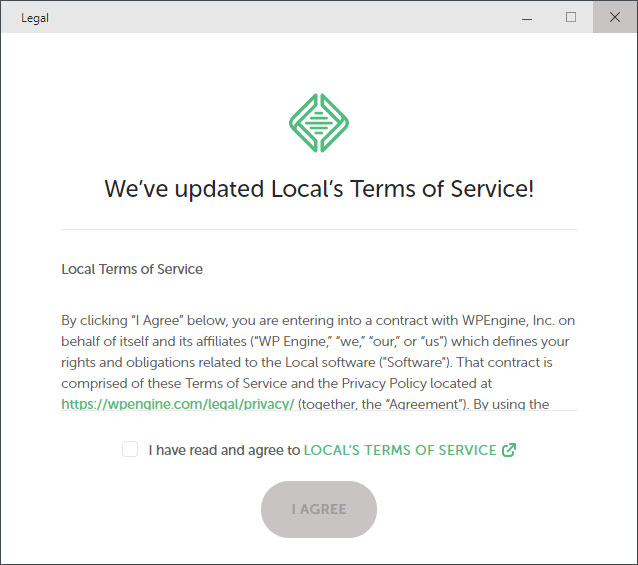
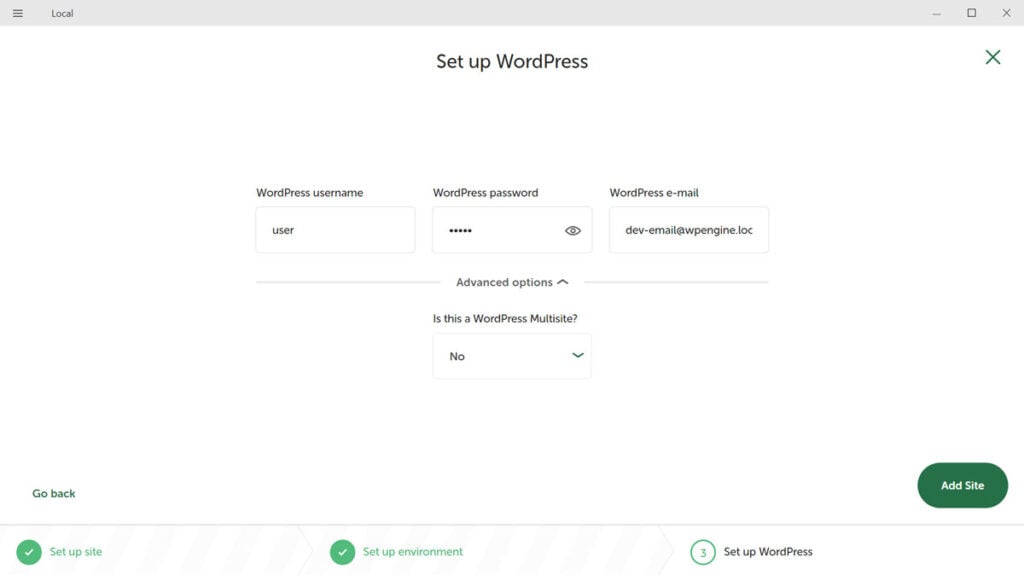
For Local, the installation is akin to installing any standard desktop application. Users download the version compatible with their operating system (Windows or macOS) from the official website. The installer guides them through a few straightforward steps, primarily involving agreeing to terms and selecting installation preferences. Crucially, Local handles the complex configurations of web servers (Apache or Nginx), PHP, and MySQL (or MariaDB) automatically in the background. This "black box" approach means developers can get a functional WordPress environment up and running with minimal technical input, often within minutes. This ease of entry is particularly beneficial for new developers or those who prefer to focus solely on WordPress development without delving into server intricacies.
XAMPP’s Comprehensive Setup
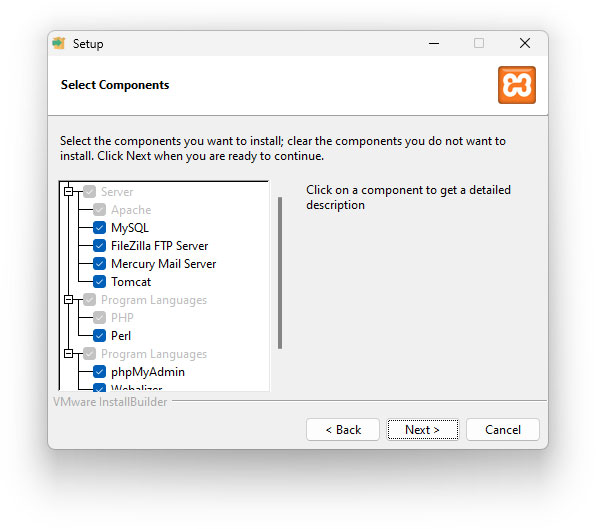
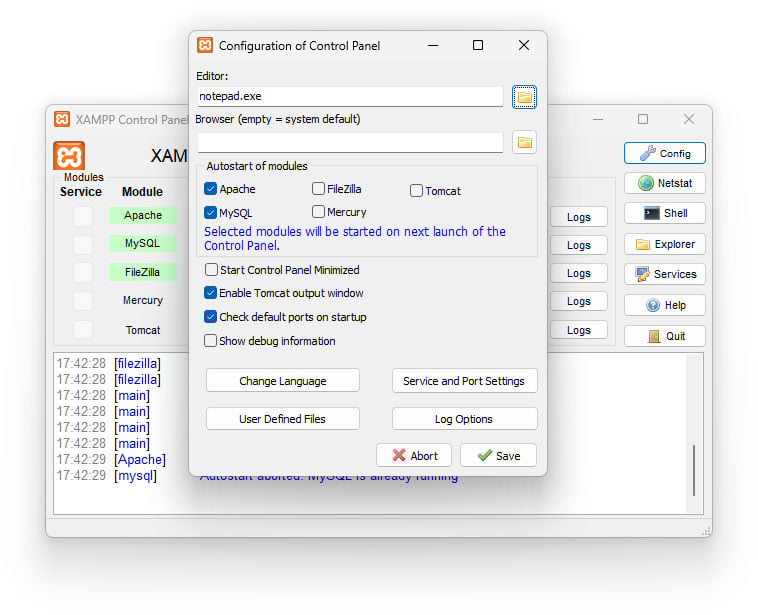
XAMPP, by contrast, requires a slightly more hands-on approach. After downloading the appropriate installer from the Apache Friends website, users are presented with options to select specific components for installation, including Apache, MySQL, PHP, and Perl, along with optional tools like phpMyAdmin, FileZilla FTP server, and Mercury Mail server. While the installer is still guided, this component selection phase demands a basic understanding of what each component does. Post-installation, the XAMPP Control Panel becomes the central hub for managing the server. Users must manually start and stop individual services like Apache and MySQL, providing granular control over their local server environment. This level of control, while potentially daunting for novices, is often appreciated by experienced developers who need to fine-tune server settings or work with diverse web technologies beyond WordPress. The cross-platform nature of XAMPP, supporting Windows, macOS, Linux, and even Solaris, further extends its appeal to developers working across various operating systems.
Site Creation and Management: From Blank Canvas to Operational Website
The process of creating and managing individual development sites reveals the core philosophies of Local and XAMPP. Local excels in automating the WordPress site creation workflow, while XAMPP provides the foundational server stack upon which users manually build their projects.
Local’s WordPress-Centric Workflow
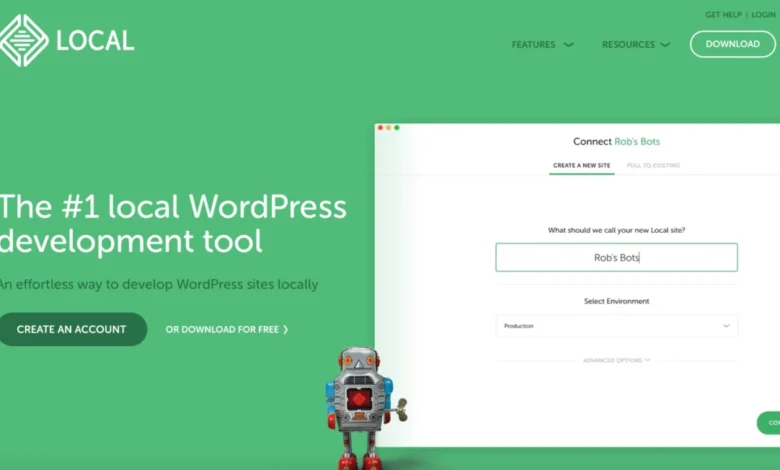
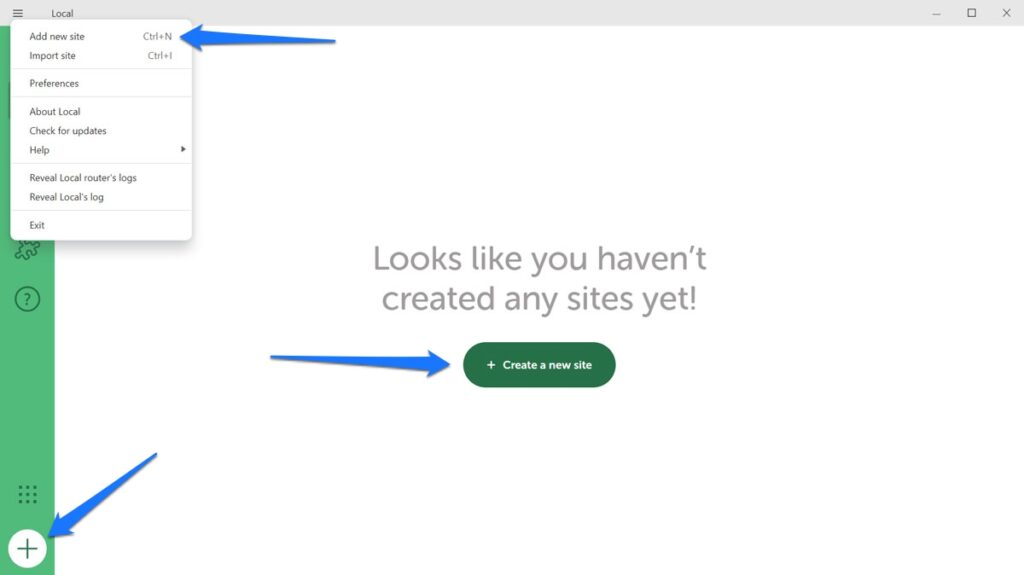
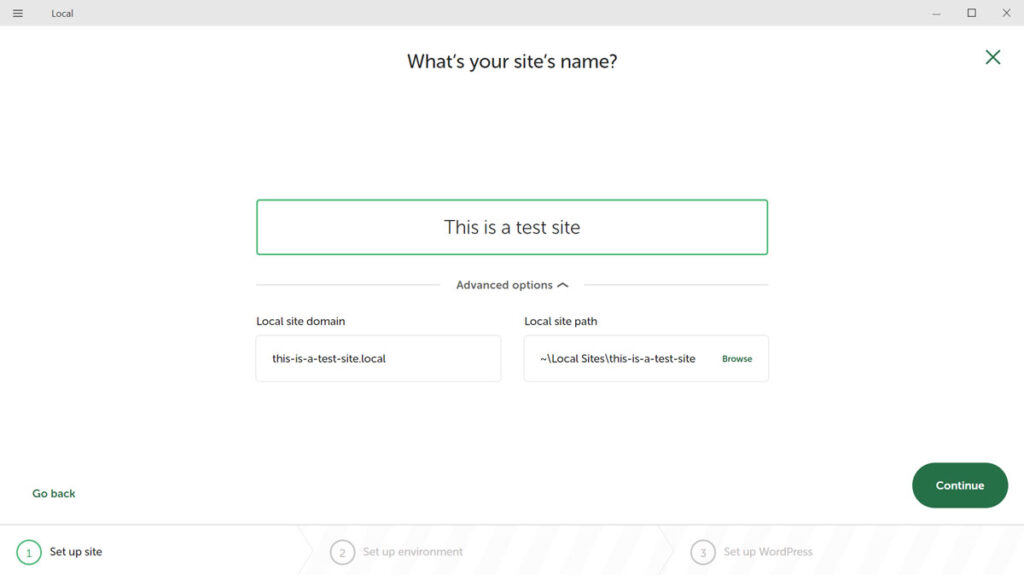
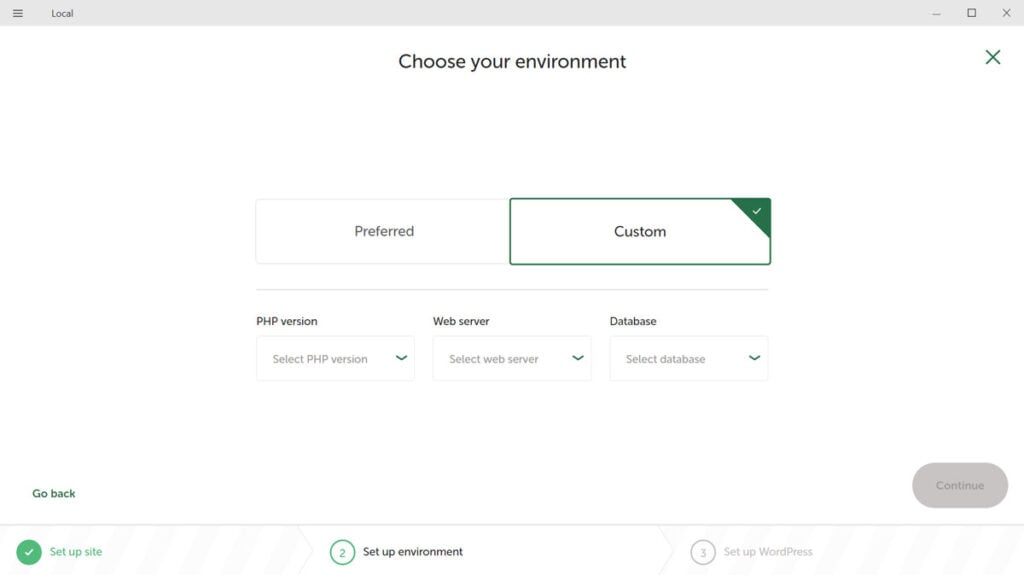
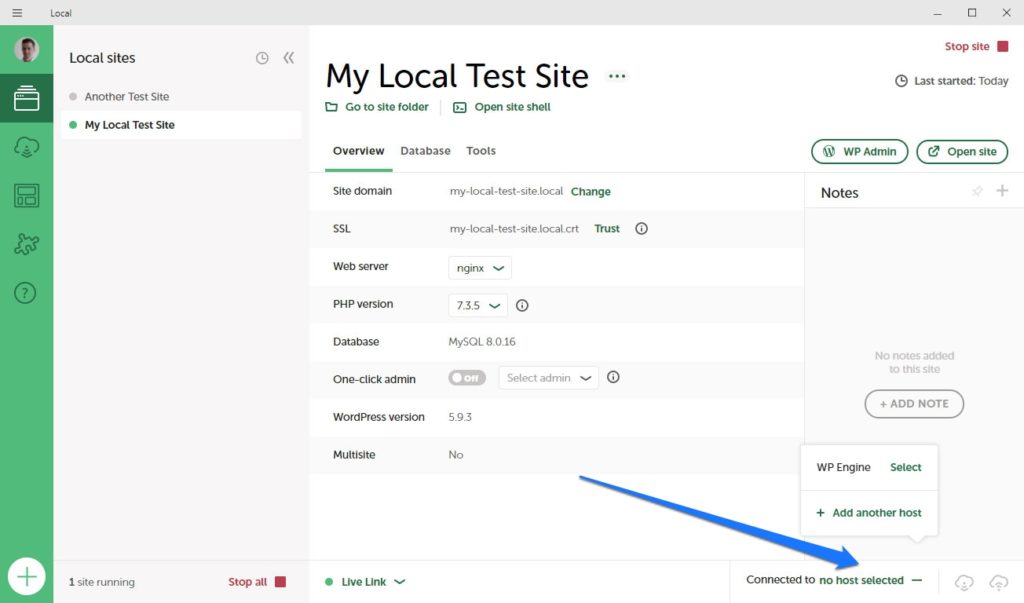
Local’s primary strength lies in its "one-click" WordPress installation. To create a new site, users simply click a button, provide a site name, and Local automatically handles the domain setup, database creation, and WordPress core installation. Developers can choose between "Preferred" environments (optimized settings) or "Custom" environments, allowing them to select specific PHP versions, web servers (Apache or Nginx), and MySQL versions for each site. This flexibility, combined with automation, makes spinning up multiple WordPress sites incredibly efficient.
Once a site is created, Local provides an intuitive interface for managing it. Quick access buttons allow users to jump directly to the WordPress admin dashboard or view the live site. The platform also features "Blueprints," which are reusable templates of WordPress sites (including themes, plugins, and content) that can be instantly deployed, saving significant time on repetitive setups. For collaborative efforts, "Live Links" enable developers to share their local sites with clients or team members via a temporary, public URL, eliminating the need for staging environments for initial feedback. Additionally, Local integrates tools like MailHog for email testing and offers easy access to SSH and command-line interfaces for advanced operations.
XAMPP’s Manual Project Setup
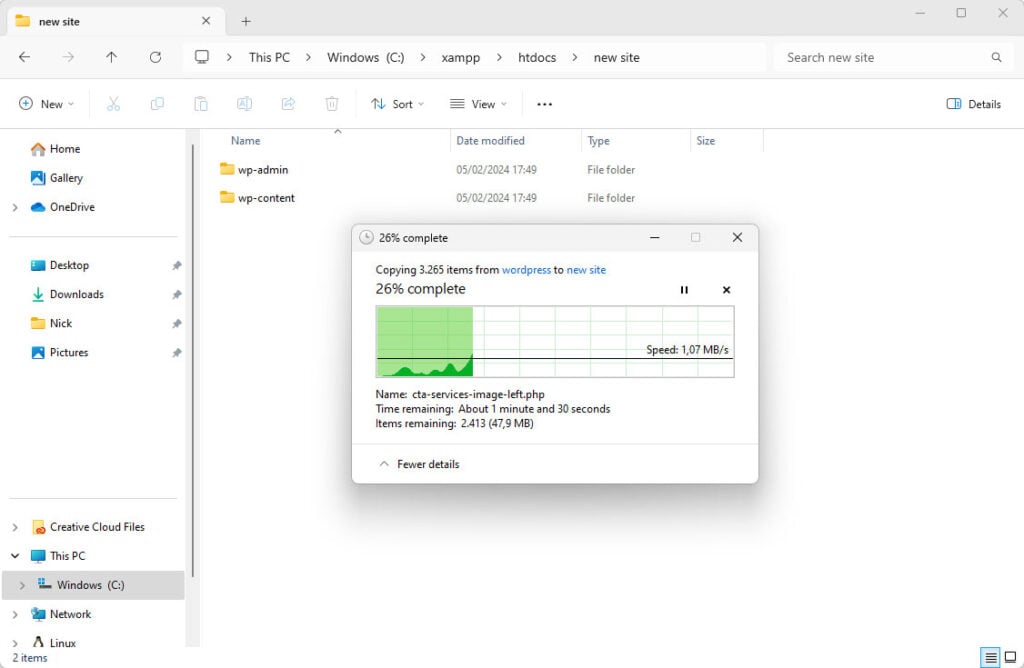
With XAMPP, the process of setting up a new website, particularly a WordPress site, is entirely manual, mirroring the steps one would take on a remote web server. After activating Apache and MySQL from the XAMPP Control Panel, developers must manually download the WordPress core files. These files are then placed into a subdirectory within XAMPP’s htdocs folder (e.g., C:xampphtdocsmysite).
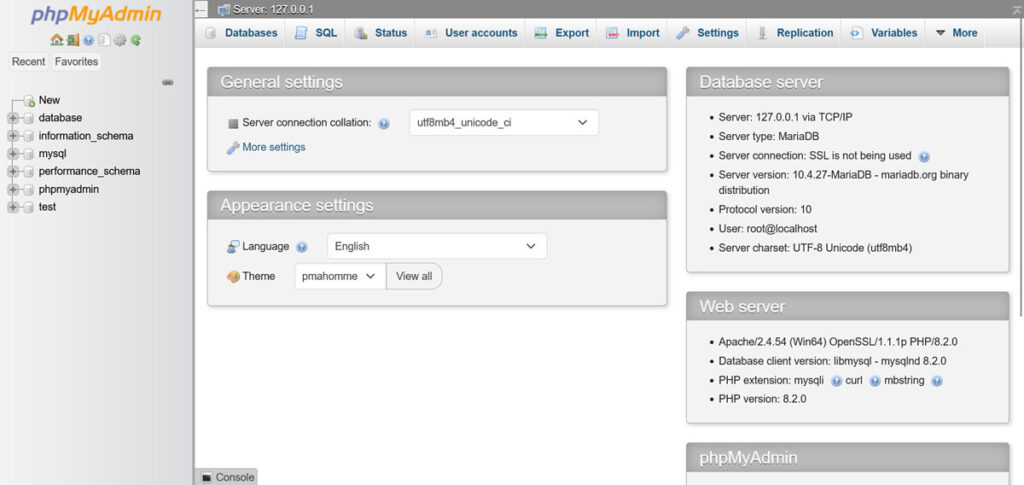
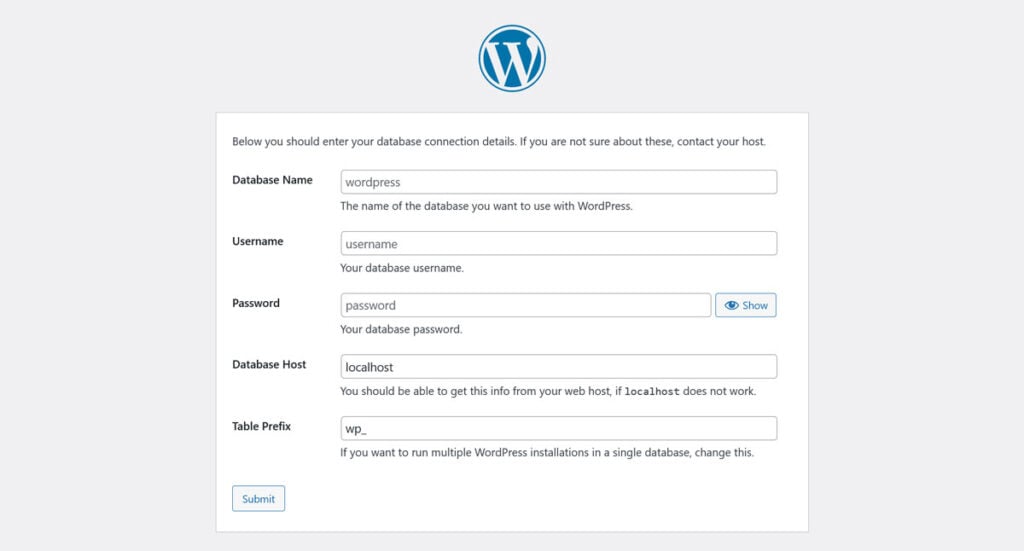
The next critical step involves database creation. Developers navigate to http://localhost/phpmyadmin in their browser, create a new database, and then proceed with the standard WordPress installation wizard by accessing http://localhost/mysite. During this wizard, they connect WordPress to the manually created database. While this process requires more steps and a deeper understanding of WordPress installation mechanics, it offers unparalleled control. Developers can customize every aspect of the installation, choose specific file structures, and integrate other frameworks or applications alongside WordPress, demonstrating XAMPP’s broad applicability beyond a single CMS.
Importing and Migrating Existing Projects: Seamless Transitions vs. Granular Control
Migrating existing websites to a local development environment is a common task, and here too, Local and XAMPP offer divergent experiences.
Local’s Integrated Import Capabilities
Local simplifies site importation through two primary methods. For users of WP Engine or Flywheel hosting, the "Connect" feature provides direct integration. Developers can log into their hosting account from within Local and effortlessly pull down a live site to their local machine or push a local site to their host. This synchronization, often enhanced by "MagicSync" for incremental updates, is a significant time-saver and reduces migration errors.
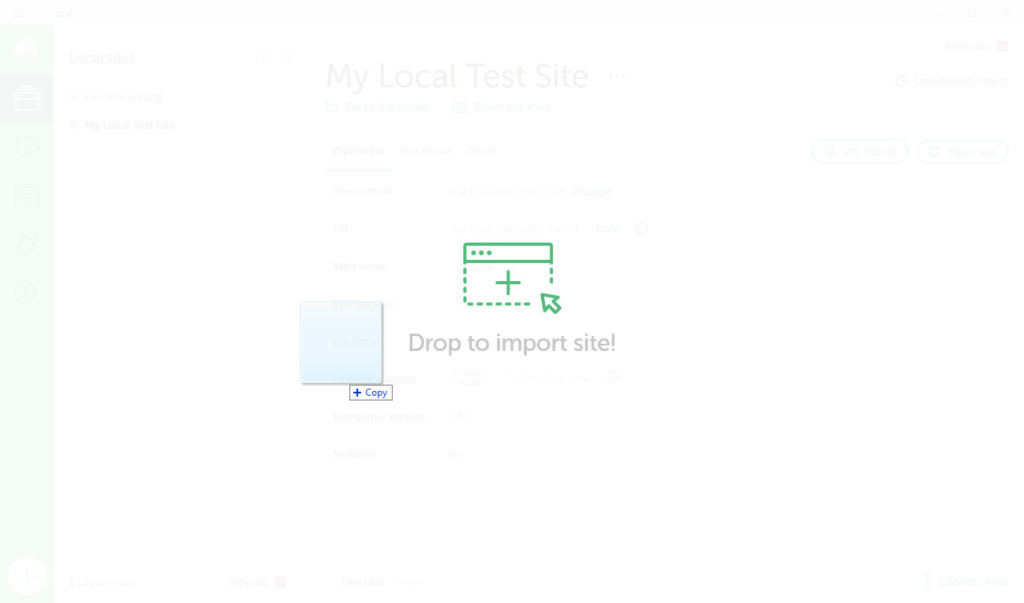
For sites hosted elsewhere, Local supports manual import via a zipped archive containing the WordPress database (.sql file) and the wp-content directory. Developers simply drag and drop this zip file into Local, or use the import option, and Local intelligently unpacks it, sets up the database, and configures the WordPress environment, automatically handling URL rewrites and other necessary adjustments. This automated process minimizes potential issues often associated with manual migrations, such as broken links or incorrect database prefixes.
XAMPP’s Comprehensive Manual Migration
Migrating an existing site to XAMPP involves a series of manual steps that require a good grasp of server administration and database management. The process begins with preparing the WordPress site for migration, typically by exporting the database (e.g., using phpMyAdmin or a plugin like WP Migrate DB) and compressing the WordPress files, especially the wp-content folder.
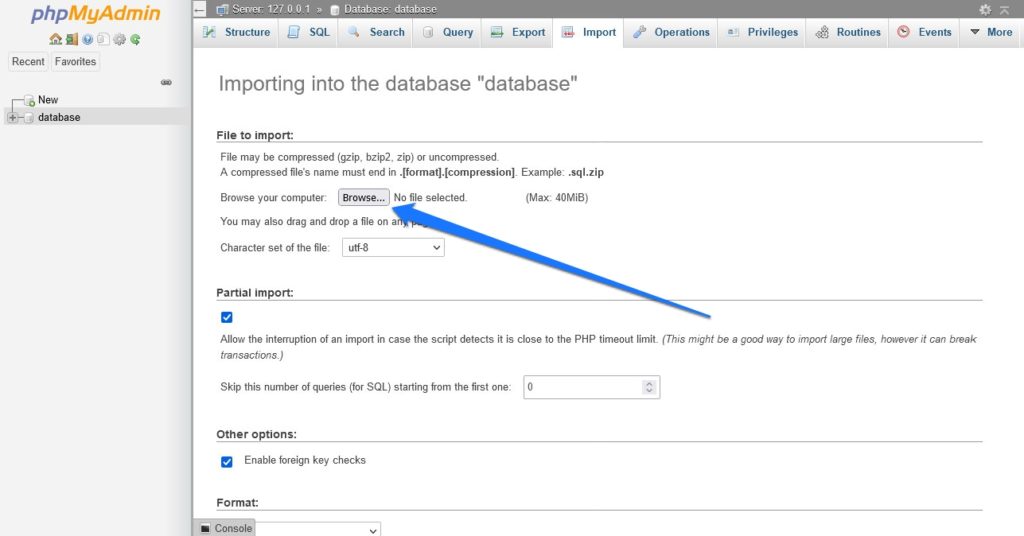
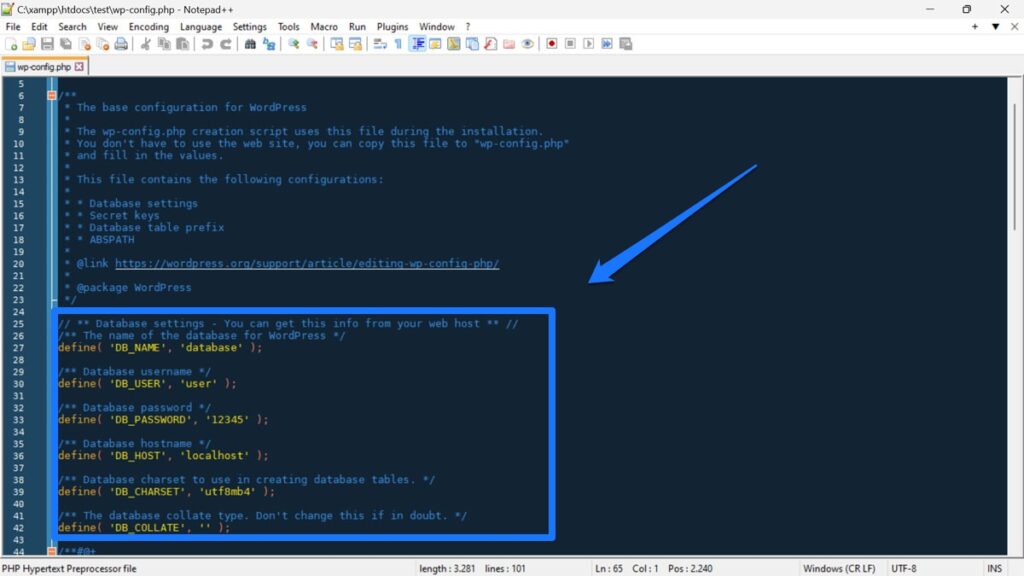
Once XAMPP is running, a new database must be created via phpMyAdmin, and the exported SQL file is imported into it. The compressed WordPress files are then extracted into a new subdirectory within XAMPP’s htdocs folder. A critical manual step involves editing the wp-config.php file to update database credentials (name, user, password) to match the XAMPP setup. Finally, the site’s URLs within the database must be updated from the live domain to the local localhost address. This can be done directly through SQL queries in phpMyAdmin or by using a database search-and-replace tool (e.g., the Better Search Replace plugin after installing WordPress manually on XAMPP).
While more arduous, this manual process offers complete transparency and control, allowing developers to understand every component of their site’s migration. It’s a valuable learning experience for those who need to troubleshoot complex migration scenarios or work with sites that require specific, non-standard configurations. Alternatively, migration plugins like All-in-One WP Migration or Duplicator can automate much of this for XAMPP users, streamlining the transfer of files and databases, including URL updates.
User Interface and Experience: Accessibility vs. Command-Line Familiarity
The user interface (UI) and overall user experience (UX) are significant differentiators, catering to different developer preferences and skill levels.
Local’s Intuitive Graphical Interface
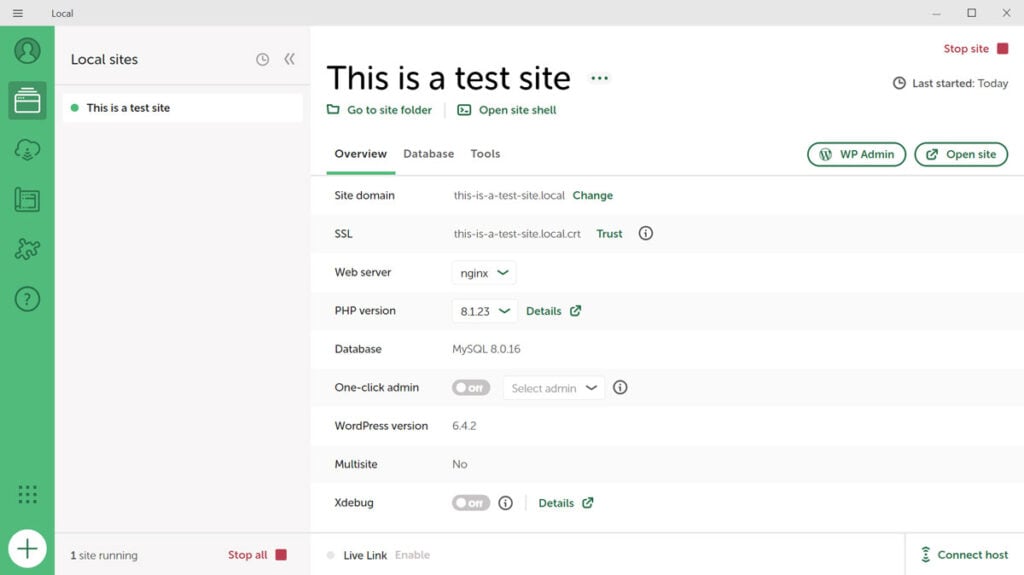
Local boasts a modern, visually appealing, and intuitive graphical user interface (GUI). It’s designed to be self-explanatory, with sites listed clearly on the sidebar and detailed configuration options available through tabs (Overview, Database, Tools). The interface provides quick access to essential information like PHP version, web server type, and SSL status. Beyond basic server management, Local integrates a suite of developer tools directly into its UI, such as Xdebug for debugging PHP code, an integrated terminal for command-line operations, and simple toggles for SSL certificates and Live Links. This integrated approach creates a cohesive development environment where most tasks can be accomplished without leaving the application. The focus on a smooth, visually-driven workflow makes it highly accessible for beginners and efficient for experienced WordPress developers.
XAMPP’s Functional Control Panel
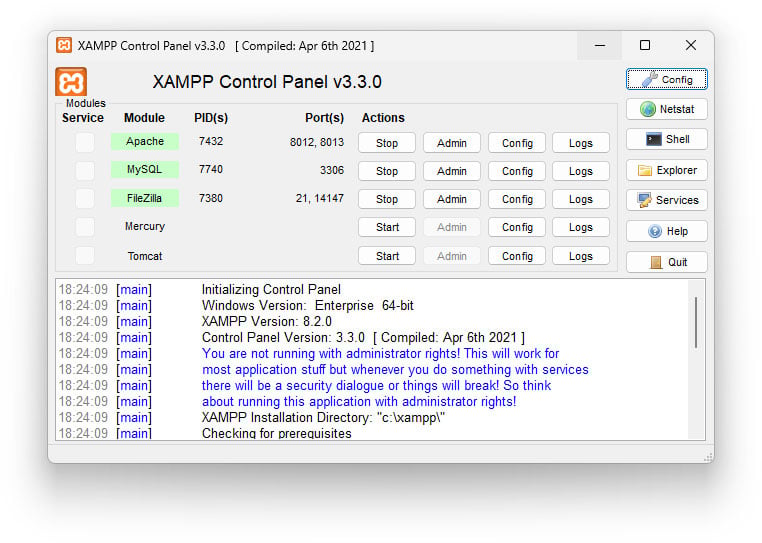
XAMPP’s user interface is primarily centered around its Control Panel, which is a minimalist window designed for starting and stopping the Apache and MySQL services. It offers basic logging information and quick buttons to access configuration files and the shell. Beyond the Control Panel, interaction with XAMPP largely occurs through web-based tools like phpMyAdmin for database management, or directly via the file system and command line. There isn’t a unified GUI for managing individual websites or integrated developer tools in the same way Local provides. XAMPP’s UI reflects its nature as a foundational server stack; it provides the components, and the developer uses external tools and command-line commands to interact with them. This approach appeals to developers who are comfortable with command-line interfaces, manual configuration files, and integrating their preferred external tools. It offers less hand-holding but greater direct control over the underlying server environment.
Feature Set and Ecosystem Integration: Specialized Tools vs. Broad Compatibility
Both Local and XAMPP offer a robust set of features, but their emphasis and integration differ significantly.
Local’s WordPress-Optimized Feature Suite
Local’s feature set is meticulously crafted for WordPress development:
- Flexible Environment: Easily switch between Apache and Nginx web servers, and manage multiple PHP versions on a per-site basis, crucial for testing compatibility.
- One-Click SSL: Generate and install local SSL certificates for HTTPS development, simulating a secure live environment.
- Live Links: Share local sites with external stakeholders via public URLs, simplifying feedback loops.
- MailHog: A built-in email capture tool for testing email functionality without sending actual emails.
- Xdebug: Integrated PHP debugging for efficient code inspection.
- SSH Access: Direct command-line access to the site’s server environment.
- Add-ons: An ecosystem of extensions to further enhance functionality, such as image optimization, code linting, and more.
- Host Integration: Deep connectivity with WP Engine and Flywheel for seamless push/pull deployments.
Local’s "batteries-included" approach means developers have a comprehensive toolkit optimized for WordPress, reducing the need for external configurations or additional software installations.
XAMPP’s General-Purpose Server Package
XAMPP, as a general-purpose AMP stack, provides a broader, foundational set of tools:
- Core Components: Apache HTTP Server, MariaDB (a fork of MySQL), PHP, and Perl. These are the building blocks for most dynamic web applications.
- Cross-Platform Support: Operates seamlessly across Windows, macOS, Linux, and Solaris, making it a versatile choice for diverse development teams or individual preferences.
- phpMyAdmin: A powerful, web-based tool for managing MySQL/MariaDB databases, allowing for creation, editing, and querying of databases.
- FileZilla (Server): An optional FTP server for local file transfers, though less relevant for single-developer local setups.
- Mercury Mail Transport System: An optional mail server for basic local email testing.
- Configurability: Direct access to configuration files for Apache (
httpd.conf), PHP (php.ini), and MySQL, allowing for granular server adjustments.
XAMPP’s strength lies in its ability to host virtually any web application that runs on a LAMP/WAMP stack, including WordPress, Joomla, Drupal, custom PHP frameworks, and more. It provides a complete, self-contained server environment, giving developers the freedom to configure it precisely to their needs, even if it requires more manual effort.
Community and Support: Dedicated Resources vs. Broad Open-Source Network
The availability of support and community resources can significantly impact a developer’s productivity, especially when encountering issues. Both Local and XAMPP benefit from active communities, albeit with different focuses.
Local’s Dedicated Support Ecosystem
Local, being a product of WP Engine/Flywheel, benefits from a more centralized and focused support ecosystem:
- Official Documentation: A comprehensive knowledge base and detailed guides covering installation, usage, troubleshooting, and advanced features.
- Community Forums: An active forum where users can ask questions, share solutions, and connect with other Local users and official support staff.
- Tutorials and Blog Posts: A wealth of online tutorials, both official and community-contributed, specifically addressing WordPress development workflows with Local.
- Direct Support (Indirectly): While direct 1-on-1 support is not typically offered for the free Local application, its affiliation with WP Engine/Flywheel means there’s a professional team behind its development and maintenance, often contributing to forum responses and documentation.
The support for Local is tailored to its WordPress-centric nature, providing targeted solutions and a community well-versed in WordPress-specific challenges.
XAMPP’s Global Open-Source Community
XAMPP, as an open-source project from Apache Friends, relies on a vast, global, and diverse community for support:
- Apache Friends Forum: The primary official support channel, featuring sections in multiple languages. This forum is a vibrant hub for troubleshooting, sharing configurations, and discussing various web development topics.
- Extensive Online Resources: Due to its long history and widespread adoption, XAMPP has an immense presence across general web development forums, Stack Overflow, and countless blogs and tutorials. Solutions to common XAMPP issues are often readily found through a quick search.
- Community-Driven Solutions: The open-source nature means that users often contribute directly to solving problems, sharing insights, and even contributing to the project itself.
XAMPP’s support is broader and more general, reflecting its versatility. While less specialized for WordPress, the sheer volume of information and the diverse user base mean that solutions for a wide array of server-related issues are typically available.
Implications and Recommendations: Choosing the Right Tool
The choice between Local and XAMPP ultimately hinges on a developer’s specific needs, technical comfort level, and project focus.
Local: The WordPress Powerhouse
For beginners in web development, especially those starting with WordPress, Local is an unequivocally superior choice. Its intuitive GUI, one-click WordPress installation, and automated server configurations drastically lower the barrier to entry. The integrated developer tools and seamless host integration simplify the entire WordPress development lifecycle, from initial setup to deployment and collaboration. For dedicated WordPress developers, Local offers unparalleled efficiency. Features like Blueprints, Live Links, and easy PHP/server switching make it a highly productive environment for managing multiple WordPress projects, testing themes and plugins, and showcasing work. The specialized focus on WordPress means less time spent on server configuration and more time on actual development.
XAMPP: The Versatile Workhorse

XAMPP remains an excellent choice for general web developers who work with a variety of web technologies beyond WordPress. If a project involves custom PHP applications, Perl scripts, or other database systems alongside MySQL, XAMPP provides the flexible and controllable environment needed. Experienced developers who prefer granular control over their server stack, enjoy delving into configuration files, or need to replicate specific server environments will find XAMPP’s manual approach empowering. Its cross-platform compatibility also makes it suitable for teams with diverse operating system preferences. For those seeking to understand the fundamentals of web server components and how they interact, the manual setup and management inherent in XAMPP offer an invaluable learning experience.
Broader Impact and Future Considerations
The rise of tools like Local also reflects a broader industry shift towards developer experience and specialized tooling. As web development becomes more complex, and technologies like containerization (e.g., Docker) gain traction, the need for user-friendly, abstracted local environments is likely to grow. While XAMPP provides the traditional bare metal server experience, Local offers a glimpse into a future where local development tools are tightly integrated with specific frameworks and hosting providers, offering a more managed and opinionated, yet highly efficient, workflow.
Conclusion
In the perennial debate of Local vs XAMPP, there is no single "better" tool, but rather a more suitable one depending on the context. Local stands out as the ideal solution for WordPress-centric development, offering a highly efficient, user-friendly, and feature-rich environment that significantly streamlines workflows for both novices and seasoned WordPress professionals. Its modern interface, automated processes, and integrated tools are designed to maximize productivity within the WordPress ecosystem.
Conversely, XAMPP retains its value as a robust, general-purpose local server solution. Its cross-platform compatibility and comprehensive stack make it a versatile choice for developers working with a broader range of web technologies and those who prioritize deep control over their server configurations. While it demands a more manual approach, it fosters a deeper understanding of underlying server components and offers the flexibility required for diverse development projects.
Ultimately, the decision should align with the developer’s primary workflow, technical proficiency, and project requirements. For most individuals and agencies heavily invested in WordPress, Local offers a compelling advantage in terms of ease of use and specialized features. For those who require a more foundational, customizable, and broadly compatible server environment, XAMPP continues to be a reliable and powerful option.
Related posts: