Kinsta Launches Integrated File Manager, Revolutionizing WordPress Site Management with Enhanced Security and Efficiency

Kinsta has announced the release of its new file manager, a significant addition to the MyKinsta dashboard designed to streamline WordPress site administration by providing direct, secure access to site files without the need for traditional File Transfer Protocol (FTP) clients or insecure WordPress plugins. This development addresses a long-standing challenge in web hosting: the often cumbersome and security-compromised process of managing website files for routine tasks.

For decades, the standard procedure for interacting with website files has revolved around FTP or its more secure counterpart, SFTP. This workflow, while functional, has remained largely unchanged and notoriously inefficient for quick, targeted actions. Picture the scenario: it’s late at night, a critical client site has an issue, and you suspect a faulty plugin. To deactivate it, you need to rename its folder. However, the wp-admin dashboard is inaccessible. The conventional response involves launching an FTP client like FileZilla, remembering or retrieving lost SFTP credentials, configuring a new connection, enduring the wait for the entire directory tree to load, and finally, executing a five-second task after five minutes of setup. This disproportional overhead for minor adjustments has been a source of frustration for developers, agencies, and site owners alike.
The Evolution of File Access and Persistent Security Challenges
The digital landscape has consistently pushed for more integrated and user-friendly solutions, yet basic file management often lagged. While dedicated FTP/SFTP clients remain indispensable for heavy-duty operations such as bulk migrations, automated deployments, or syncing thousands of files, their utility for everyday, granular tasks is often overshadowed by their inherent friction. The necessity of maintaining separate credentials, managing client software, and navigating complex directory structures introduces unnecessary delays and potential points of failure.
In the absence of integrated hosting-level solutions, many WordPress users have historically turned to file manager plugins installed directly within their WordPress installations. These plugins offer the allure of convenience, allowing users to browse, edit, upload, and delete files from within the familiar wp-admin interface. However, this convenience often comes at a severe security cost. The track record of such plugins is concerning, marked by numerous vulnerabilities that expose sites to significant risks.
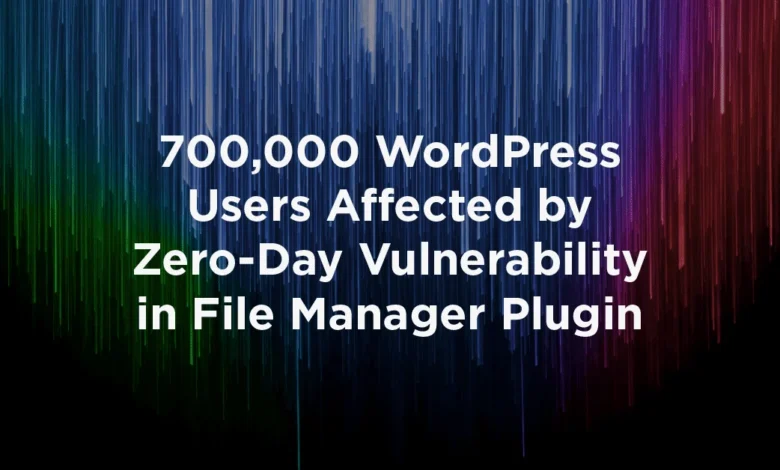
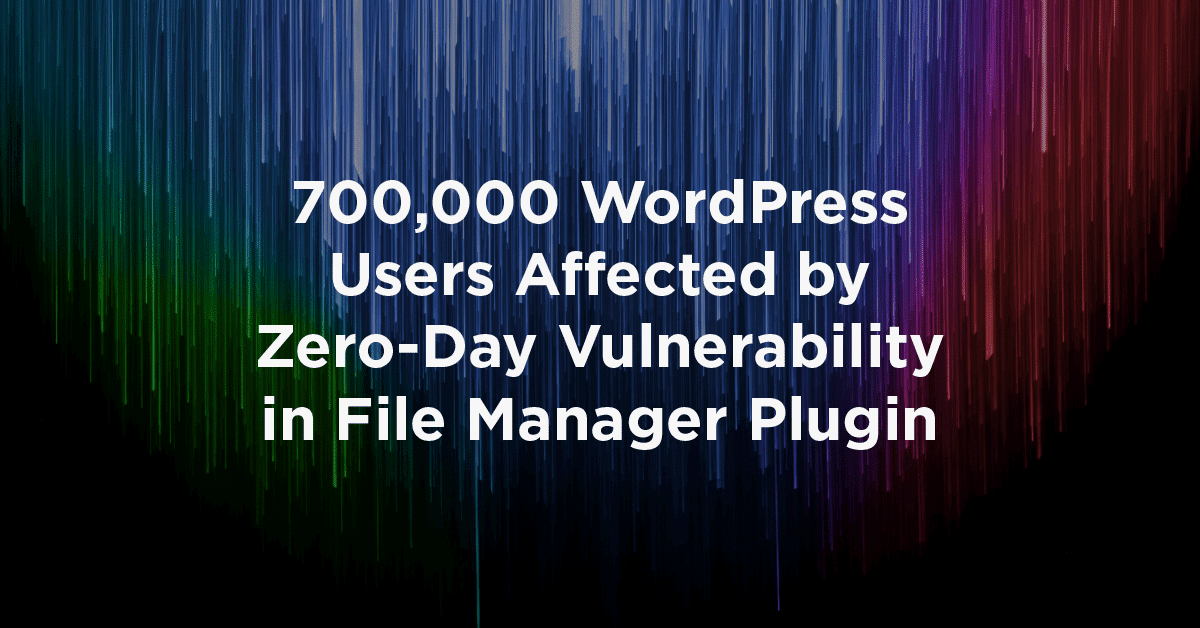
A stark example of this risk emerged in September 2020 with a zero-day vulnerability discovered in WP File Manager, one of the most widely used file manager plugins, affecting over 700,000 WordPress sites globally. This critical flaw, which received the maximum possible CVSS score of 10.0, allowed unauthenticated attackers to upload PHP webshells directly to the server without requiring any login credentials. The vulnerability was actively exploited in the wild on the very day it was disclosed, highlighting the immediate and widespread danger it posed. According to Wordfence, a leading authority in WordPress security, hundreds of thousands of sites were running the affected versions, making them prime targets for malicious actors.
The core issue extends beyond the specific coding of a single plugin; it pertains to the fundamental nature of the category itself. Any plugin requiring extensive read, write, and delete permissions across the entire WordPress installation operates with powerful capabilities. When such power is vested within WordPress, it inherits and expands the site’s overall attack surface. Should an attacker successfully bypass the authentication layer of WordPress, a file manager plugin becomes precisely the tool they desire to escalate privileges, inject malware, or deface the site. This inherent risk makes WordPress-based file managers a problematic solution for robust site security.
Kinsta’s Strategic Response: A Hosting-Level Solution
Recognizing these persistent challenges, Kinsta has developed its new file manager as a secure, integrated, and efficient alternative. By situating the file manager at the hosting level, outside the WordPress application itself, Kinsta effectively sidesteps the security vulnerabilities inherent in WordPress-based plugins. Access to the file manager is protected by the user’s MyKinsta account credentials, leveraging Kinsta’s robust security infrastructure rather than relying on WordPress’s authentication mechanisms. This architectural choice means the file manager adds nothing to the WordPress site’s attack surface, significantly enhancing overall security posture.
"Our goal with the MyKinsta file manager was to eliminate unnecessary friction and bolster security for our users," stated a Kinsta spokesperson, emphasizing the company’s long-standing commitment to both performance and protection. "We observed a critical gap between the cumbersome nature of traditional SFTP and the inherent risks of in-WordPress file managers. This new tool bridges that gap, providing a seamless, secure experience that aligns with the modern demands of managed WordPress hosting." Industry analysts have noted that integrated solutions like Kinsta’s file manager are becoming a key differentiator in the increasingly competitive managed WordPress hosting market, where providers are striving to offer comprehensive toolsets that simplify complex administrative tasks and offer a more consolidated control plane.
Accessing and Utilizing the MyKinsta File Manager
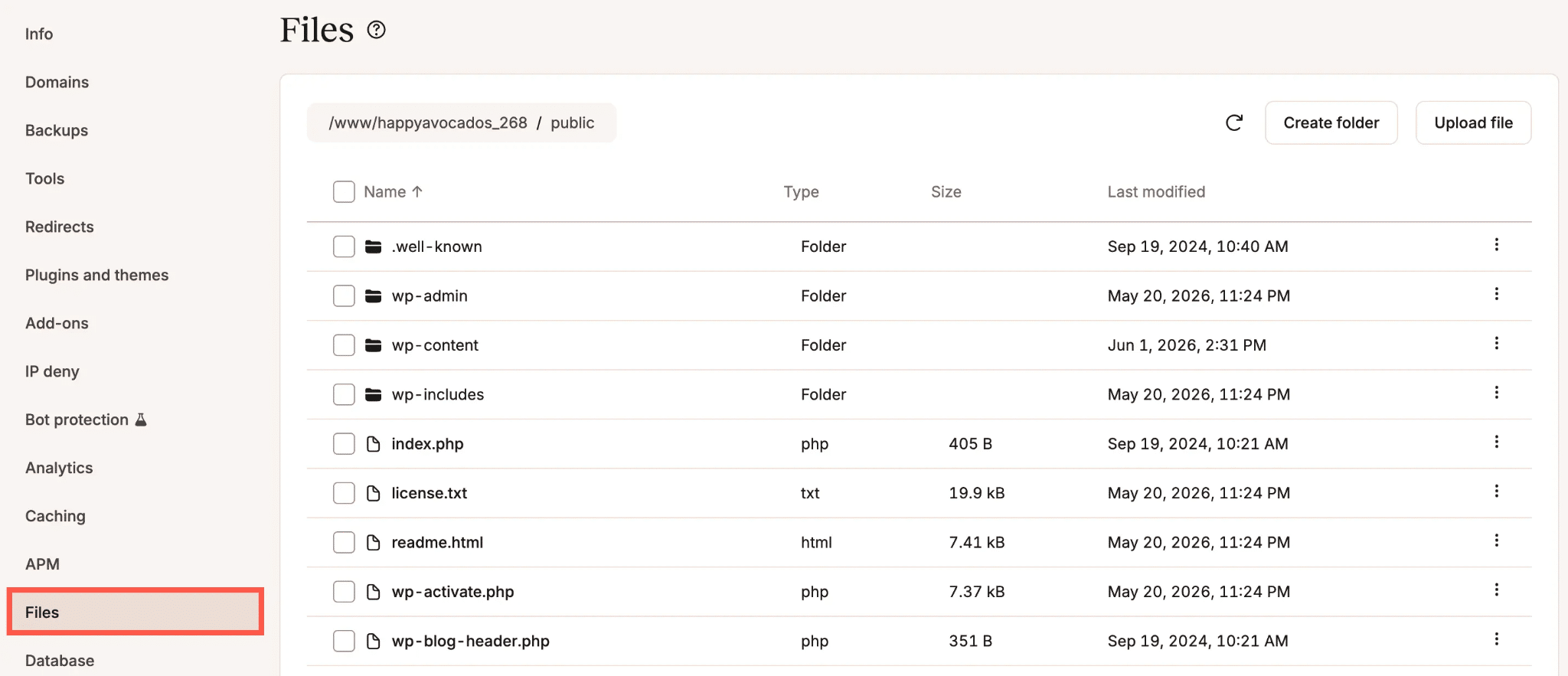
The Kinsta file manager is seamlessly integrated into the MyKinsta dashboard, making it readily accessible. Users can navigate to "Sites" in the MyKinsta sidebar, select the specific environment they wish to manage, and then click on the "Files" tab. By default, the file manager opens to the public directory, which typically houses WordPress installations on Kinsta. If a custom public directory name or location is in use, the manager intelligently adapts to open at that root directory instead.
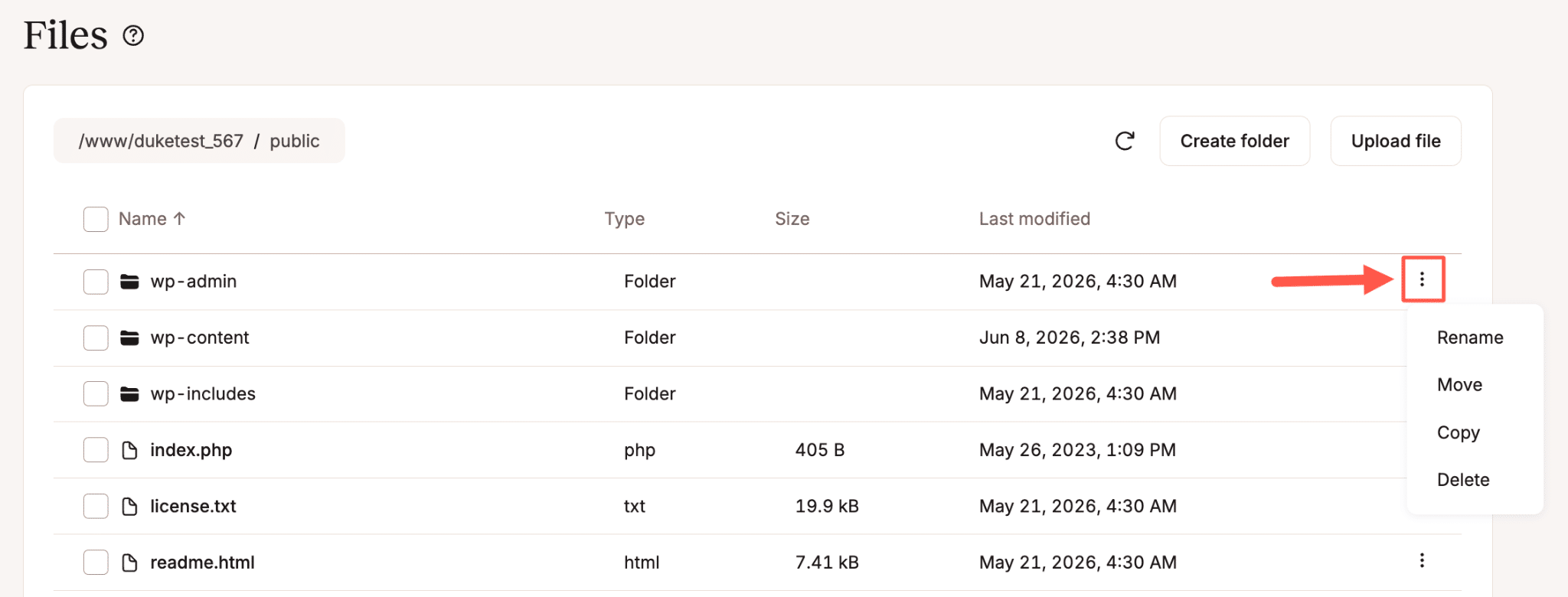
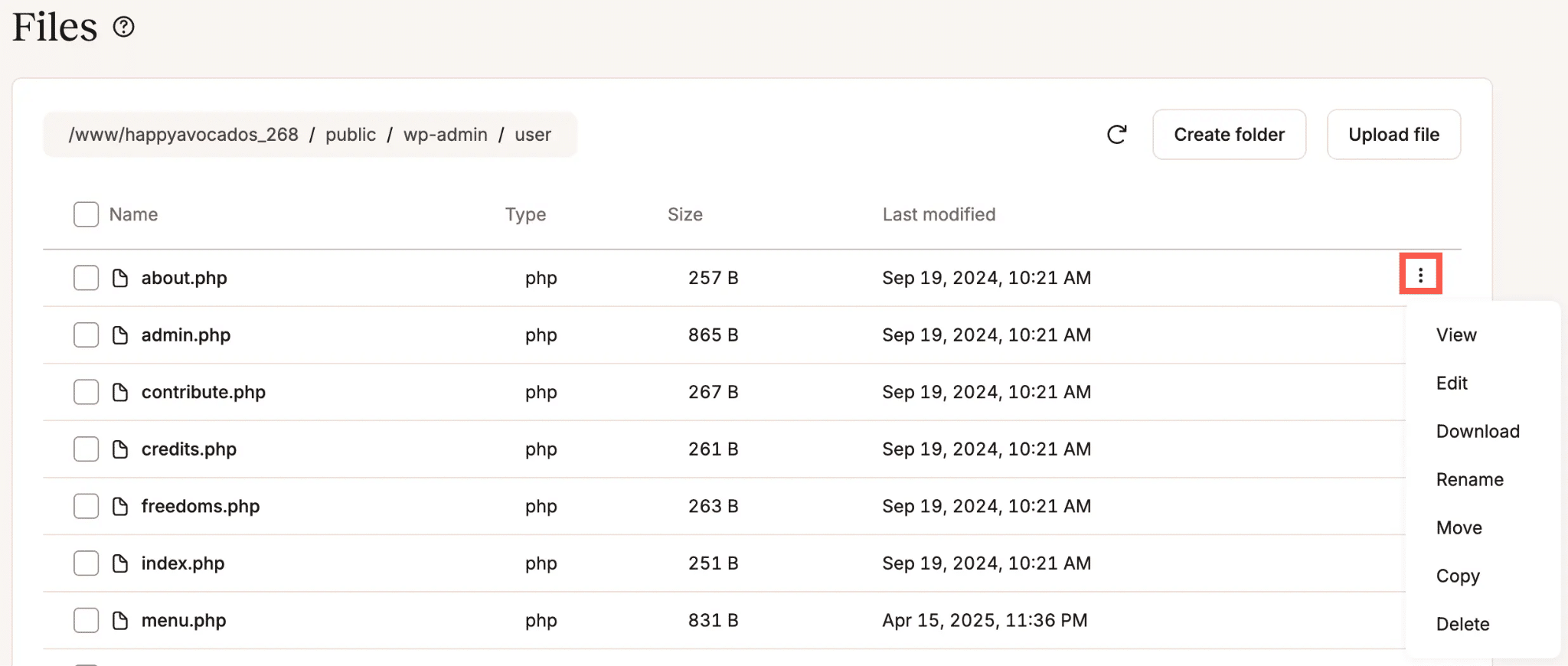
The interface is designed for intuitive use, mirroring the familiar experience of a standard desktop file browser. Users can click on folders to navigate deeper, utilize breadcrumbs at the top of the interface to move back up the directory tree, and scroll through files and folders with ease. A "kebab menu" (three-dot icon) adjacent to each file or folder reveals a context-sensitive list of available options, ensuring that all necessary actions are just a click away.
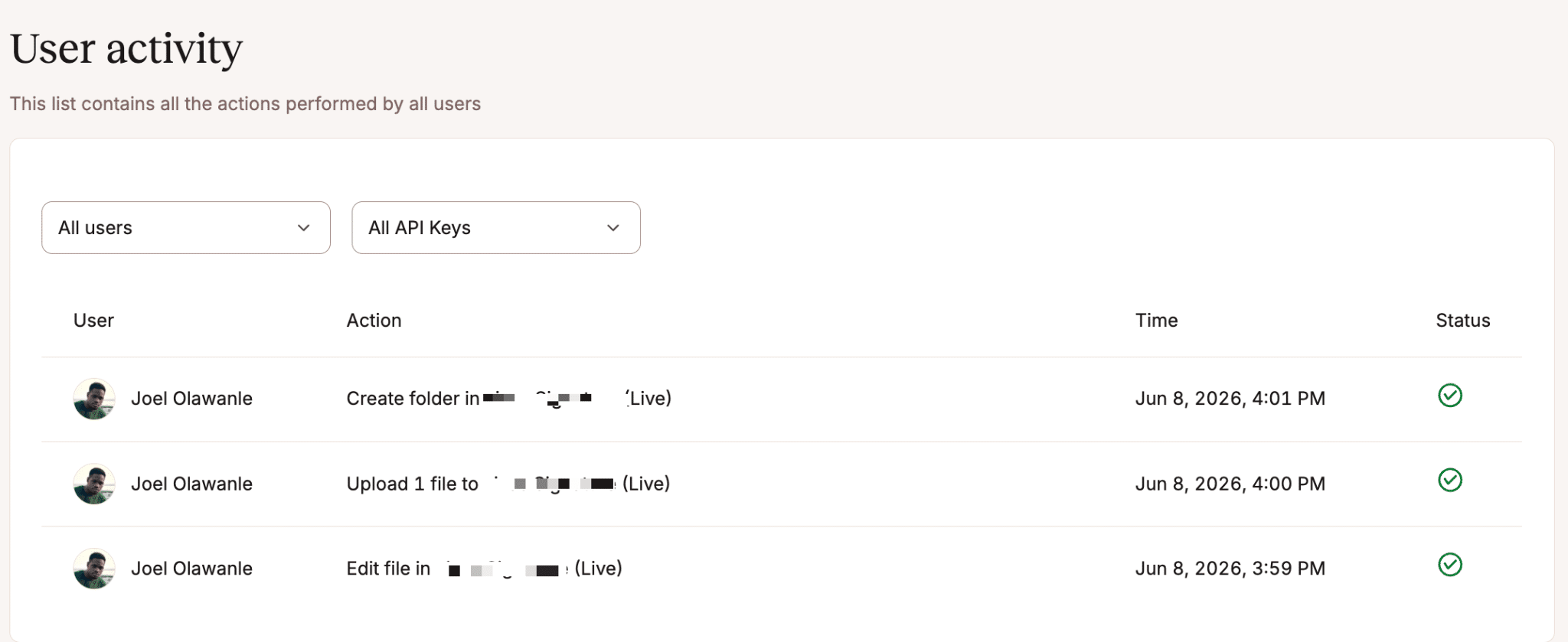
A critical feature for teams and agencies is the integration with Kinsta’s activity log. Every action performed within the file manager—from renaming a file to deleting a folder—is meticulously recorded in the MyKinsta activity log, accessible under "User activity" in the dashboard. This comprehensive logging provides an invaluable audit trail. In scenarios where a file is accidentally renamed or deleted, leading to site breakage, the activity log precisely identifies who made the change and when, facilitating rapid diagnosis and resolution. This level of transparency and accountability is crucial for collaborative environments where multiple individuals may have access to a site and changes need to be tracked.
Comprehensive Capabilities for Everyday Tasks
The MyKinsta file manager boasts a robust set of features designed to handle the full spectrum of file management tasks typically requiring an external client or plugin:
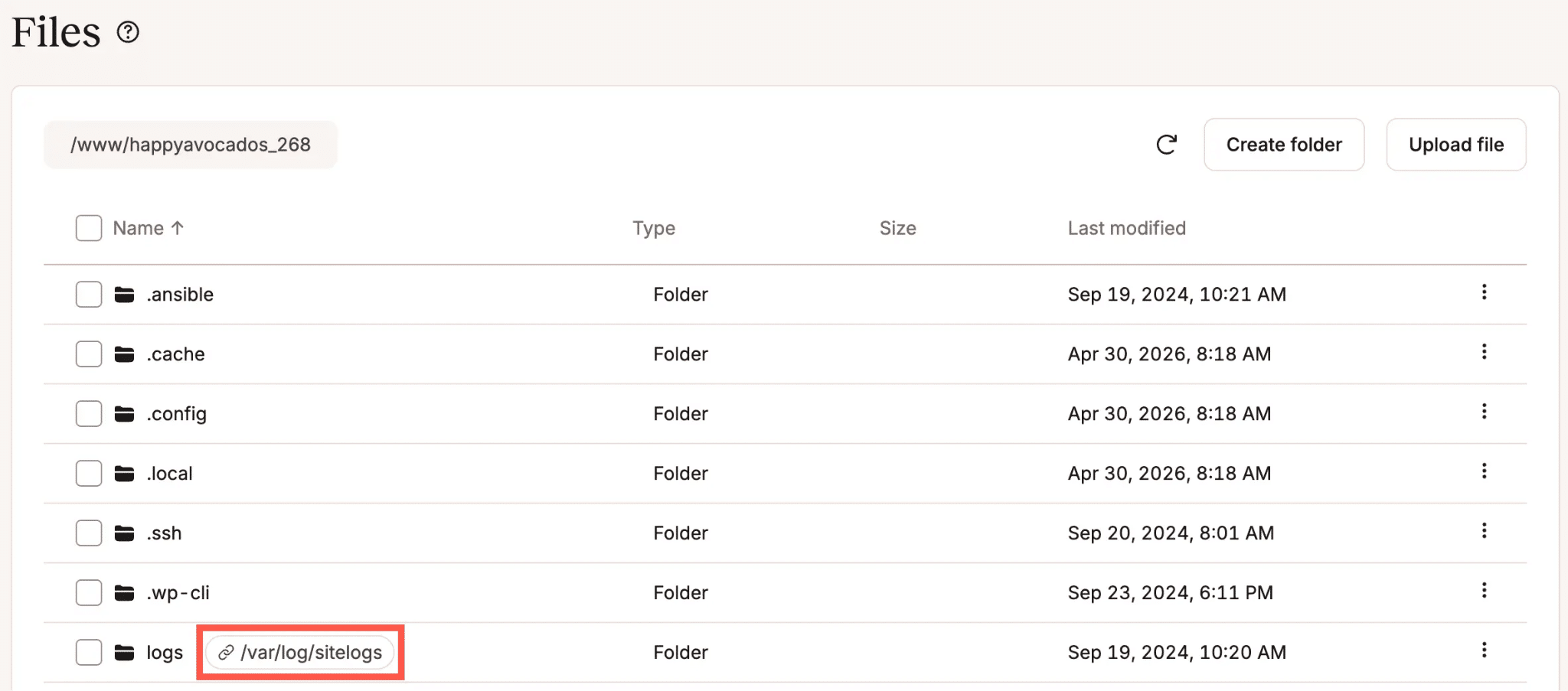
- Browsing and Navigation: Users can effortlessly traverse their file system, with symlinks clearly displayed alongside regular files and directories, indicating their respective targets. This provides full visibility into the site’s structure, including any custom configurations.
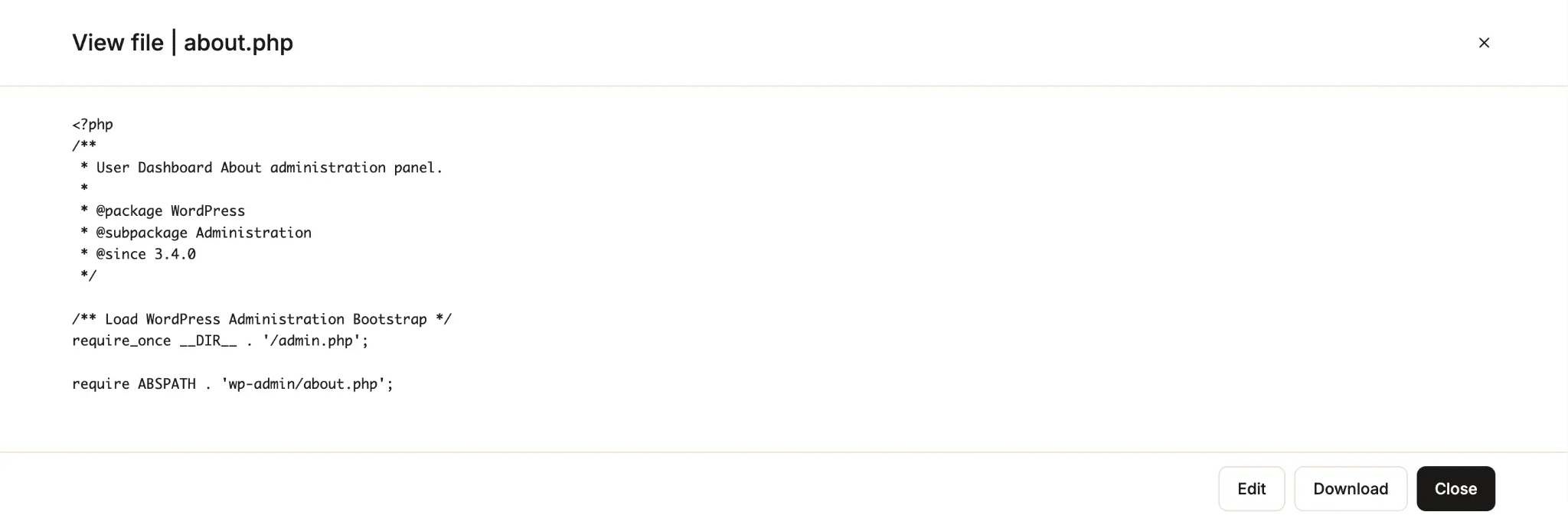
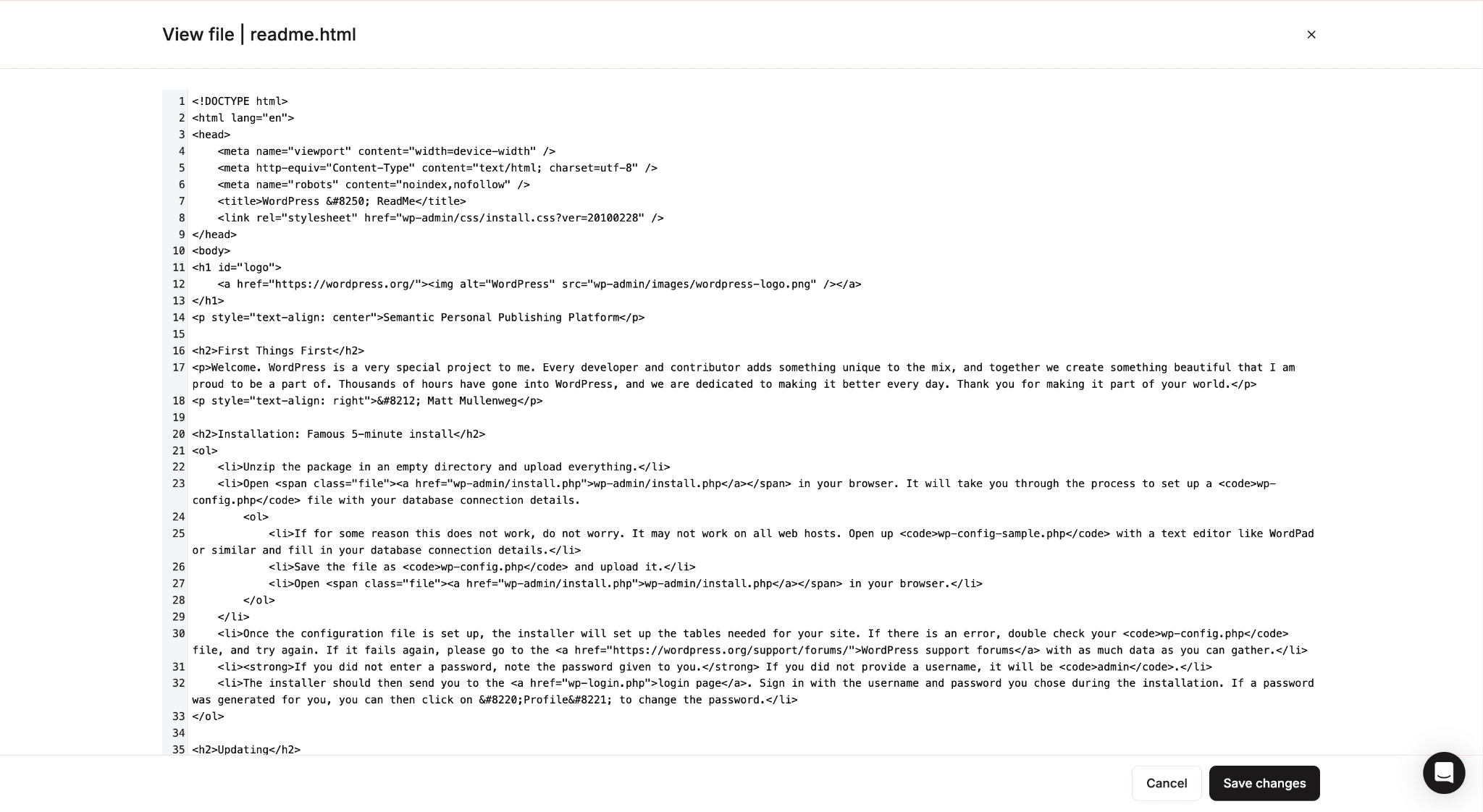
- Viewing and Editing Files: The built-in editor supports a wide array of text-based file types, including PHP, HTML, CSS, JavaScript, JSON, XML, YAML, and SQL. Files can be opened in read-only mode by simply clicking the filename or selecting "View" from the kebab menu. For immediate modifications, an "Edit" button is available within the viewing window, or users can go straight into edit mode from the file list. The editor features numbered lines, a small but significant detail that greatly aids in orienting oneself within lengthy code files and referencing specific lines during debugging sessions. Changes take effect instantly upon clicking "Save changes."
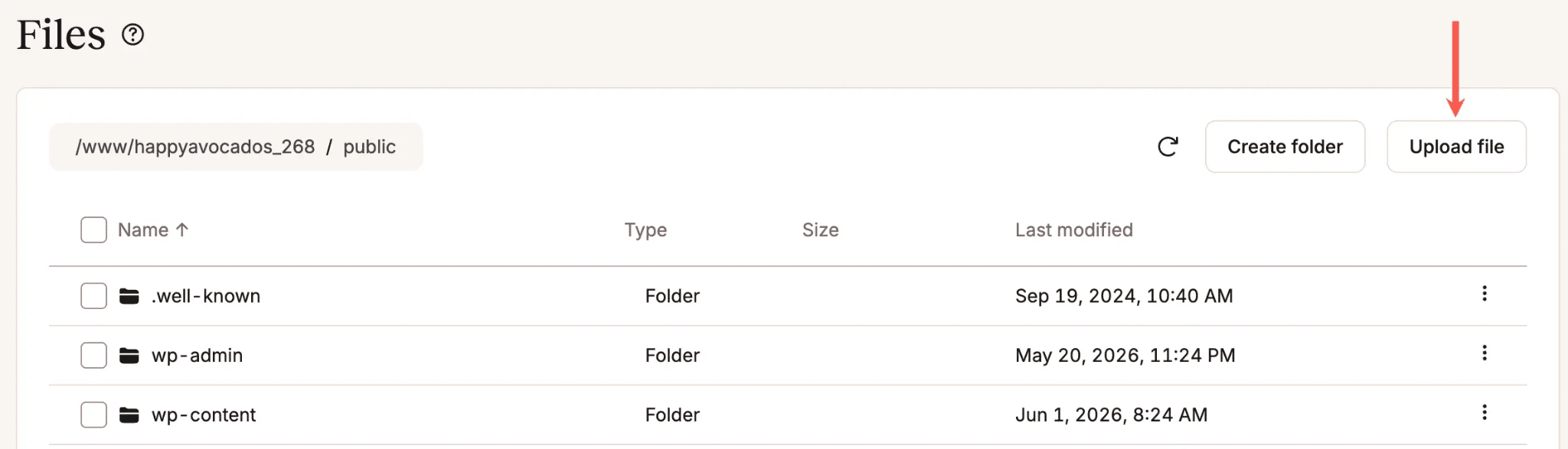
- Uploading Files: Files can be uploaded directly from the user’s computer to any chosen folder. The manager supports multi-file uploads, allowing users to select and transfer several files simultaneously, saving considerable time compared to single-file uploads via traditional methods.
- Downloading Files: Any file can be downloaded to the user’s local machine via the web browser, adhering to the browser’s configured download settings. This eliminates the need to open a separate SFTP client just to retrieve a single file for local inspection or archiving.
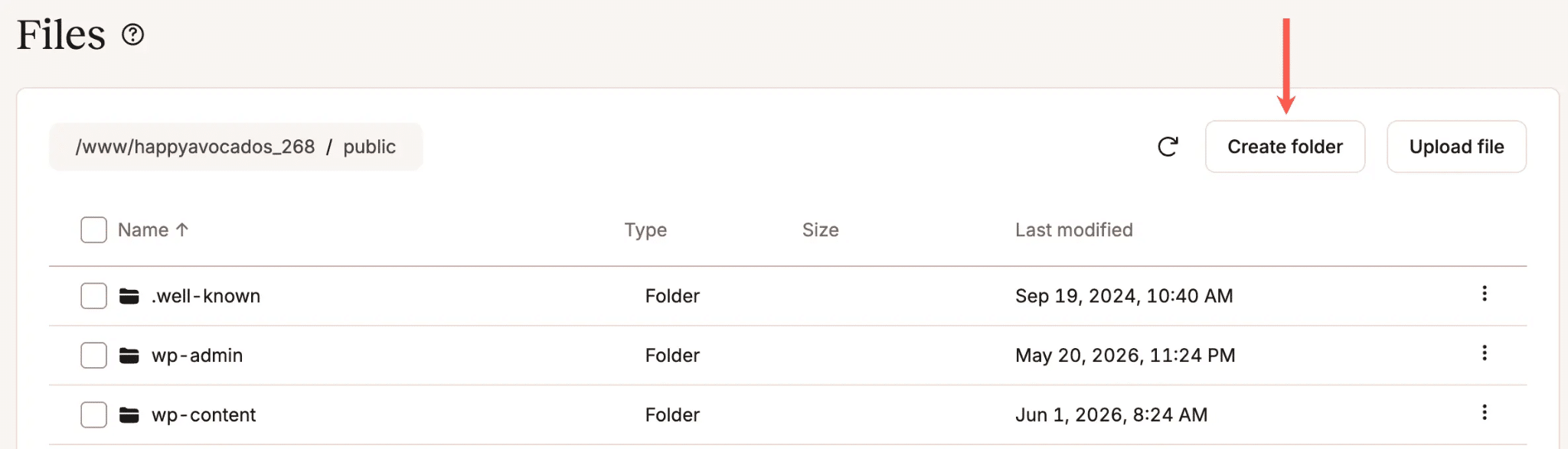
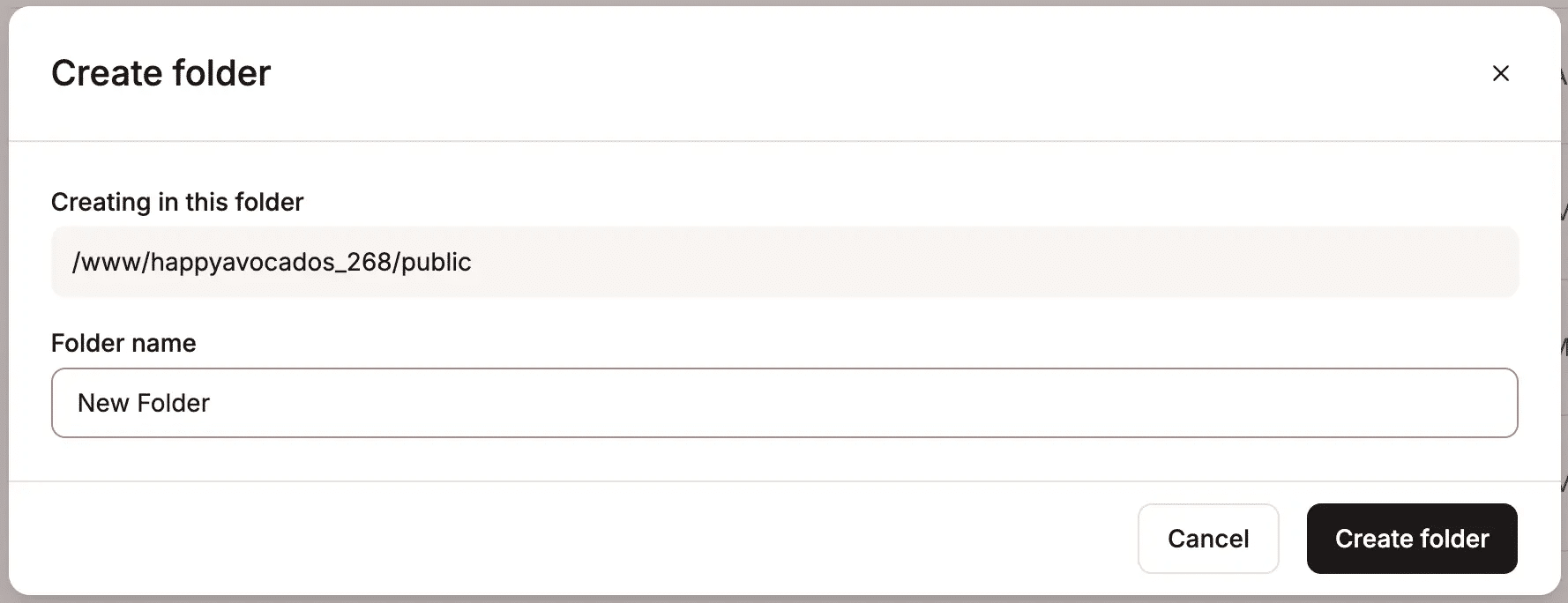
- Creating Folders: New folders can be created with ease in any desired location, with a simple naming interface. The system prevents the creation of identically named folders within the same directory, maintaining file system integrity and preventing conflicts.
- Renaming, Moving, and Copying: All three operations are accessible via the kebab menu. Renaming is an in-place operation, while moving and copying involve browsing to a destination folder for confirmation. A crucial consideration when performing these actions is WordPress’s reliance on exact file paths. Renaming or moving a directory like
wp-content/uploads/2024without updating all references will inevitably lead to broken links and functionalities. Kinsta strongly advises taking a full site backup before implementing any structural changes to the file system, a critical best practice for all users. - Deleting Files and Folders: The delete function is straightforward, with a clear confirmation dialog that alerts users if a folder contains files or subfolders, emphasizing that all contents will be permanently removed. It’s imperative to note that deletions are permanent; there is no recycle bin or undo function, underscoring the importance of backups as a safety net.
- Bulk Operations: For enhanced efficiency, the file manager supports bulk operations. Users can select multiple files and folders within the same directory and then choose to move, copy, or delete them in a single action via the "Actions" menu. This significantly speeds up cleanup and organization tasks, particularly useful for managing media or plugin files.
- Symlinks: Symlinks are treated as first-class citizens within the file manager, appearing alongside regular files and folders with their target paths clearly visible. Users can rename, move, copy, or delete symlinks without affecting the original files or folders they point to, offering precise control over these symbolic connections.
Real-World Scenarios: Where the File Manager Shines
The practical benefits of the MyKinsta file manager become most apparent in critical, time-sensitive situations:
- Fixing a Broken Site When
wp-adminis Inaccessible: This is arguably one of the most compelling use cases. A faulty plugin update, a syntax error inwp-config.php, or a theme conflict can render the WordPress dashboard completely inaccessible. In such emergencies, the file manager bypasses WordPress’s dependency, allowing users to navigate towp-content/plugins/, locate the problematic plugin’s folder, and rename it. WordPress interprets a renamed plugin folder as a missing plugin and automatically deactivates it, bringing the site back online almost instantly, all without ever needing to launch an FTP client. This capability dramatically reduces downtime and recovery efforts. - Editing
wp-config.phpor.htaccess: These two files are cornerstones of any WordPress installation, controlling database credentials, debug settings, security keys, permalink structures, redirects, and access rules. They are frequently edited for maintenance, security hardening, or configuration adjustments. Both are plain text files, opening cleanly and instantly within the built-in editor, allowing for immediate modifications and saves. This direct editing capability ensures that critical configuration changes can be deployed without delay, directly impacting site functionality and security. - Tweaking a Theme File: For quick visual adjustments, adding a new function to
functions.php, or fixing a template error, navigating towp-content/themes/your-theme/and editing the file directly is now a swift process. A key caveat, however, is the ephemeral nature of direct theme file edits; they will be overwritten during the next theme update. For persistent customizations, the use of a child theme remains the recommended best practice. - Removing Problematic Files: Whether it’s a partial file left by a failed upload, an exponentially growing log file from a misbehaving plugin, or a backup script writing to an incorrect directory, quickly locating and deleting these rogue files is simplified. This prevents server space issues, potential security risks, and ensures site cleanliness in under a minute, avoiding the need for a full SFTP session.
- Checking and Downloading Error Logs: While MyKinsta offers a dedicated "Logs" tab for real-time
error.logandaccess.logviewing, the file manager provides access to the entirelogsdirectory. This includes rotated log files spanning several days,cache-purge.logfiles, and compressed.gzarchives. For in-depth historical debugging, tracking issues that began days ago, or sharing specific log files with developers or Kinsta’s support team, this comprehensive access is invaluable, offering a complete picture beyond real-time data. - Uploading Custom Plugins or Themes Manually: For private, custom-built, or premium plugins and themes not available in the WordPress directory, the file manager offers a reliable method for manual upload directly to
wp-content/plugins/orwp-content/themes/. This is particularly advantageous for larger files, where the WordPress dashboard uploader might encounter timeout issues or limitations, ensuring a smoother and more dependable deployment process.
What the File Manager Does Not Replace
While the MyKinsta file manager significantly enhances daily WordPress site management, Kinsta acknowledges that dedicated SFTP clients still hold a vital role for specific, resource-intensive tasks. Operations like initiating bulk migrations of entire websites, orchestrating complex automated deployment pipelines, or syncing thousands of files across multiple directories are examples where the specialized capabilities and raw speed of an SFTP client remain the superior choice. These are workflows that typically involve scripting, large data transfers, and require a different level of control and automation than a dashboard-based interface is designed to provide. The file manager is optimized for efficiency in common, granular tasks, not for wholesale infrastructure management.
Conclusion: A Paradigm Shift in WordPress Management
The introduction of the MyKinsta file manager marks a substantial advancement in how WordPress sites are managed, effectively eliminating numerous trade-offs between convenience and security. It is not merely an auxiliary tool; it is a fully integrated component of the MyKinsta dashboard, residing alongside existing features for managing backups, staging environments, DNS settings, and performance optimization.
This deep integration is particularly impactful because file access is often an unplanned necessity, emerging during urgent incidents, quick client requests, or late-night troubleshooting sessions. Having robust, secure file management capabilities just one click away within an already familiar and active dashboard fundamentally transforms the speed and efficiency with which site owners, developers, and agencies can respond to these critical moments.
Kinsta’s file manager represents a strategic move towards a more holistic and user-centric hosting experience. By consolidating essential tools and prioritizing security, Kinsta is setting a new standard for managed WordPress hosting, empowering users to maintain their sites with greater confidence and significantly reduced operational friction. Users are encouraged to explore this new feature by navigating to Sites > [site name] > Files within their MyKinsta dashboard or to contact Kinsta’s support team for further assistance. The future of WordPress file management is now more intuitive, secure, and integrated than ever before.