How to Stop WordPress from Creating Extra Cropped Image Sizes and Optimize Your Server Storage

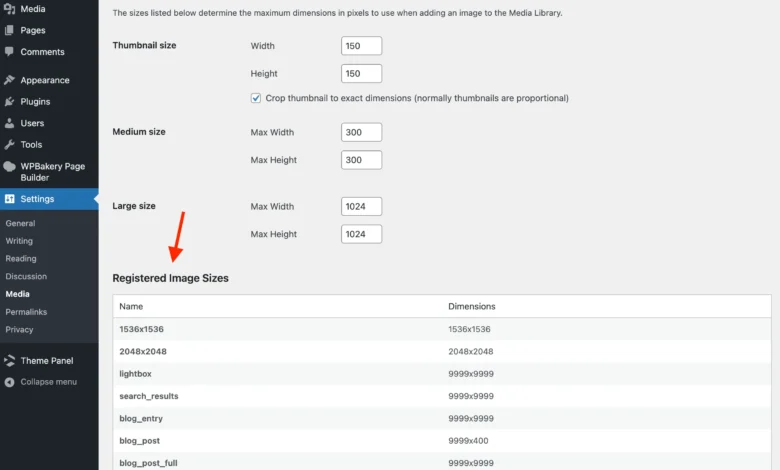
Every time a user uploads an image to a WordPress media library, the core platform automatically initiates a background process to generate and store multiple scaled-down versions of that file. While this feature has historically supported responsive web design by supplying appropriately sized assets for various screen resolutions, it frequently results in unintended server bloat. Sites that do not utilize these specific generated dimensions end up consuming valuable hosting storage, inflating server backup sizes, and potentially degrading overall site performance. Understanding how to manage, restrict, or completely disable these secondary image versions has become an essential aspect of modern WordPress site maintenance and resource optimization.
Background Context and Evolution of WordPress Image Handling
The automated generation of multiple image sizes has been a foundational feature of the WordPress content management system for well over a decade. In earlier iterations of the platform, core requirements were limited to standard thumbnail, medium, and large dimensions designed to fit basic desktop layouts. However, as the web transitioned toward mobile-first consumption and high-pixel-density (Retina and HDPI) displays, WordPress core expanded its default image processing parameters to automatically output a wider array of variants, including medium-large, 1536×1536, and 2048×2048 pixel formats.
Furthermore, the introduction of the Big Image Size Threshold in WordPress 5.3.0 established a safety mechanism designed to prevent users from uploading excessively massive raw photographs—often exceeding 4,000 or 5,000 pixels wide—directly from modern digital cameras and smartphones. By default, any image exceeding a width or height of 2,560 pixels triggers a scaling process, creating a new baseline asset before generating all subsequent sub-sizes. While this prevents unoptimized multi-megabyte files from breaking site layouts, it multiplies the number of files written to the server directory for every single upload. Beyond core defaults, classic themes, block themes, e-commerce extensions, learning management systems, and directory plugins frequently register their own proprietary image sizes, compounding the storage overhead.
Default Image Size Parameters and Core Thresholds

To effectively manage image generation, administrators must first inventory the standard dimensions established by WordPress core. The default configuration includes:
- Thumbnail: 150×150 pixels (user-defined user interface thumbnail)
- Medium: 300×300 pixels (standard content display size)
- Medium-Large: 768 pixels wide with dynamic height adjustments for responsive displays
- Large: 1024×1024 pixels (expanded layout imagery)
- 1536×1536 pixels: High-density Retina display optimization
- 2048×2048 pixels: Ultra-high-resolution screen support
- Scaled: Automatically generated when uploads exceed the 2,560-pixel threshold
- Full: The original uploaded file or the primary scaled-down threshold asset
When factoring in active themes and third-party plugins, a single uploaded photograph can easily spawn between seven and fifteen distinct files on the server’s hard drive. Over the lifespan of a content-heavy publication or portfolio website, this behavior can inflate media directory sizes from a few gigabytes to tens of gigabytes, directly impacting backup generation times, cloud storage costs, and migration windows.
Identifying and Auditing Registered Image Sizes
Because WordPress lacks a comprehensive, native graphical interface dedicated to viewing every active image size registered by external themes and plugins, developers typically rely on code-based inspection methods. Administrators can implement temporary functions within a child theme’s functions.php file or utilize custom administrative dashboard additions to query the wp_get_registered_image_subsizes() function.
For instance, developers frequently deploy administrative hooks to render an explicit table within the Settings > Media screen. This approach aggregates core sizes alongside custom dimensions injected by active plugins—such as e-commerce product grids or real estate listing frameworks. By auditing these dimensions, site administrators can isolate which assets are genuinely required for front-end presentation and which can safely be eliminated.
Technical Implementation: Restricting Image Generation via Code

Site administrators seeking to halt the automated creation of unnecessary cropped versions can utilize targeted programmatic filters. Rather than relying solely on manual media settings—which only disable core dimensions up to certain limits—developers implement hooks targeting the intermediate_image_sizes_advanced filter.
By returning an empty array via this filter, WordPress is instructed to bypass the generation of secondary sub-sizes entirely during the upload sequence:
// Return an empty list of image sizes to generate on upload
add_filter( 'intermediate_image_sizes_advanced', '__return_empty_array' );
In scenarios where themes or plugins utilize custom on-the-fly cropping mechanisms that bypass standard upload hooks, developers may additionally filter the image_resize_dimensions function by returning a boolean false value. This ensures that no computational resources are wasted calculating alternative layout dimensions, restricting server storage strictly to the original master file uploaded by the content creator.
Alternatively, administrators who wish to retain certain core sizes while purging resource-heavy HDPI variations can target specific array keys within the intermediate_image_sizes_advanced filter:
// Exclude specific image sizes from being generated on upload
add_filter( 'intermediate_image_sizes_advanced', function( $sizes )
    $sizes_to_exclude = [
        'medium_large',
        '1536x1536',
        '2048x2048',
    ];
    foreach ( $sizes_to_exclude as $size_to_exclude )
        unset( $sizes[ $size_to_exclude ] );

    return $sizes;
 );
Managing Existing Media Libraries and Server Cleanup
Implementing code-based restrictions on image generation only impacts newly uploaded media assets. Existing installations containing thousands of historical uploads will retain their previously generated cropped files within the server directory and attachment metadata tables.
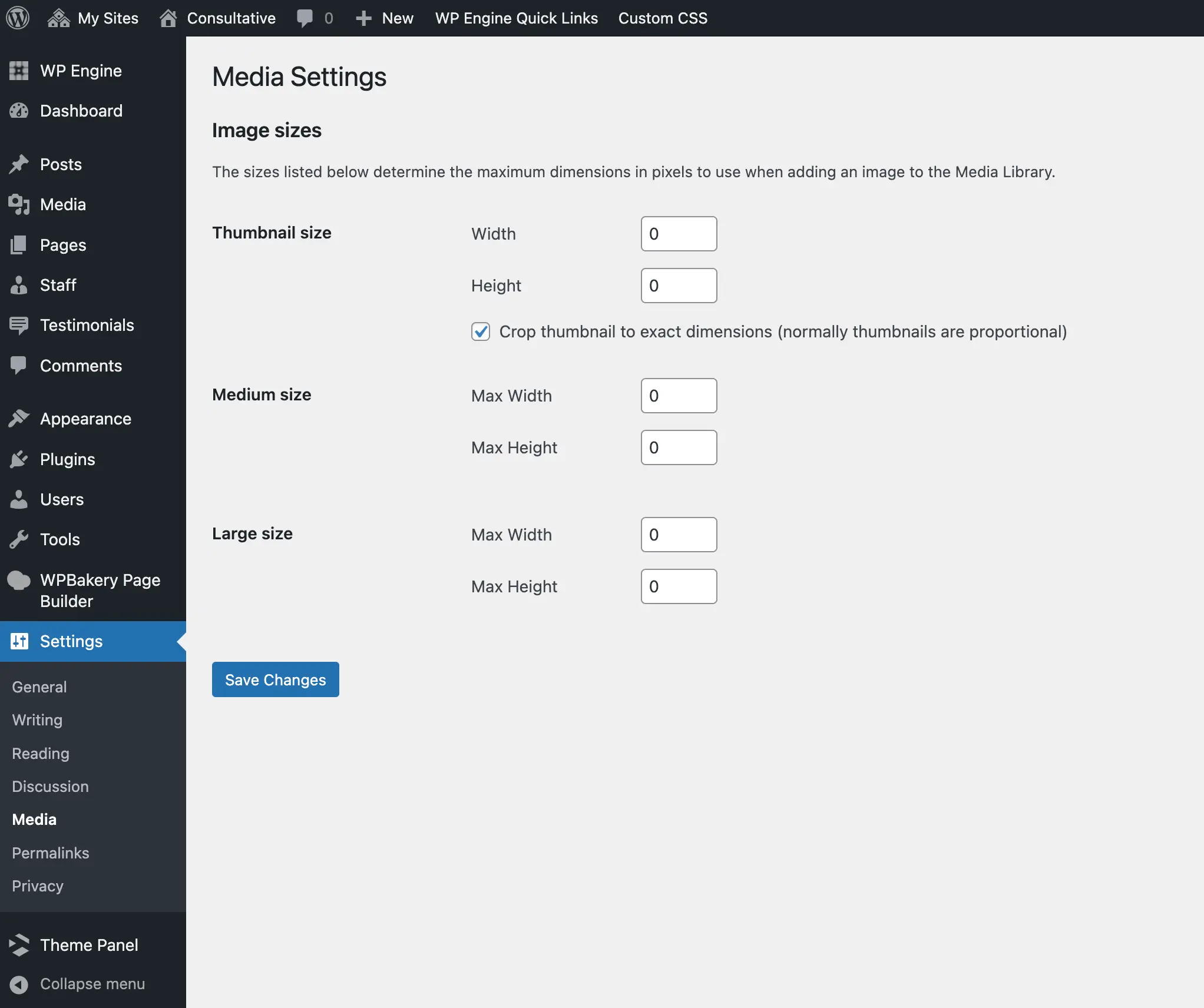
To reclaim server storage on established sites, administrators must purge legacy derivative files. While command-line interface (CLI) utilities offer rapid file deletion, they frequently fail to update internal WordPress attachment metadata properly. Consequently, industry standard practices favor dedicated database-aware utilities, such as the Force Regenerate Thumbnails plugin. These tools systematically parse attachment records, delete obsolete thumbnail files from the hosting environment, and rebuild only the permitted asset configurations based on current site rules. Crucially, comprehensive server backups should always be executed prior to running batch media regeneration routines.
Broader Implications for Server Performance and Storage Economics
Optimizing image storage practices yields measurable benefits across multiple operational vectors. From an infrastructure perspective, reducing redundant file counts directly lowers cloud storage footprints and accelerates nightly backup and migration routines. Furthermore, smaller media directories simplify version control management and staging-to-production synchronization workflows for development teams.
From a technical SEO and performance standpoint, webmasters must carefully balance storage conservation against front-end delivery requirements. While serving raw, unscaled master images across all device viewports can negatively impact page load speeds and Core Web Vitals metrics, eliminating unused server-side crops forces the browser to handle scaling via CSS or relies on modern responsive image markup. Site architects utilizing modern content delivery networks (CDNs) with native edge-resizing capabilities benefit significantly from disabling local WordPress image generation, as the CDN assumes responsibility for generating and caching derivative image assets on demand.
Related posts: