

How to disable Google fonts on your WordPress website? This guide provides a comprehensive walkthrough for removing Google Fonts from your site, covering various methods from simple modifications to using plugins. We’ll explore why you might want to disable them, how to identify the problematic code, and different approaches to achieve your goal, from directly removing the link to modifying your theme’s CSS.
We’ll also look at troubleshooting common issues and best practices for a smooth process.
Integrating Google Fonts into your WordPress site can enhance aesthetics, but sometimes you might want to switch to a different font family or completely remove them. This comprehensive guide will walk you through the process, ensuring your site remains functional and appealing even without Google Fonts.
Introduction to Google Fonts on WordPress
Google Fonts have become a staple in modern web design, offering a vast library of high-quality, typographically diverse fonts. Integrating them into WordPress websites is a common practice, enhancing visual appeal and branding consistency across the site. This integration typically involves a simple process of selecting a font from the Google Fonts library and incorporating its CSS into the website’s style sheets.This process is often automated through plugins or themes, streamlining the implementation for website owners.
Using Google Fonts can significantly elevate the aesthetics of a WordPress site, but it’s important to understand the potential implications of their use.
How Google Fonts are Integrated
Google Fonts provide a comprehensive collection of web-safe fonts. These fonts are hosted on Google’s servers, and websites link to them using a simple CSS declaration. This approach differs from downloading and embedding fonts locally, which can be resource-intensive and impact website performance. WordPress themes and plugins frequently facilitate this integration by automatically adding the necessary CSS code, making it straightforward for users.
Typical Use Cases
Google Fonts are commonly used for various purposes, from enhancing readability to creating a distinctive brand identity. They’re often chosen to create a cohesive visual experience, mirroring the style of a brand’s logo or marketing materials. Furthermore, designers frequently utilize Google Fonts to match the visual theme of a particular industry, like a blog about technology, or a website showcasing artistic works.
This often results in a more visually engaging and appealing experience for users.
Potential Benefits
Utilizing Google Fonts can lead to a visually appealing website. A wider selection of fonts is available compared to relying on the limited fonts provided by default themes. This variety allows for greater design flexibility and caters to diverse preferences, leading to a better user experience. Moreover, the use of Google Fonts can help establish a consistent brand identity across different parts of a website.
Potential Drawbacks
While Google Fonts offer many advantages, there are also potential drawbacks. Overuse of different fonts can lead to a confusing or unfocused visual experience. If the font choices are not well-considered, they can detract from the overall design. Additionally, the reliance on external resources (Google Fonts servers) can occasionally lead to temporary display issues if the connection is interrupted.
However, these drawbacks are often outweighed by the benefits for many websites.
Example of a WordPress Theme Utilizing Google Fonts
Many modern WordPress themes are designed to support Google Fonts seamlessly. A theme often utilizes a plugin or custom CSS to incorporate Google Fonts into its style sheet. For example, a theme might load a specific font, like ‘Roboto’, by including a CSS snippet that includes the font’s `@import` statement. This automatically integrates the chosen font into the website’s design.
Identifying the Google Font Inclusion
Finding the code snippet that loads Google Fonts in your WordPress site is crucial for disabling or modifying them. Knowing where to look saves you time and frustration, especially when dealing with complex themes or multiple plugins. This section details various locations where this code might be hidden, and gives you examples to recognize the inclusion method.Identifying the exact code responsible for including a specific Google Font is often the first step in managing or removing those fonts.
This is vital because if you don’t know where the code resides, you might end up disabling something completely unrelated, or worse, miss the crucial snippet entirely.
Theme Files
Theme files are a common location for Google Font inclusion. Themes often incorporate fonts directly into their stylesheets or functions.php files. Examining the theme’s header.php, functions.php, and style.css files is essential.
Custom CSS
If you’ve added custom CSS to your website, check within this file. This is where you might have manually included Google Fonts using the appropriate linking code.
Ever wanted to fine-tune your WordPress site’s look? Disabling Google fonts can be a surprisingly simple step in optimizing your site, similar to a cybersecurity expert on a mission, like the one detailed in man on a cyber security mission. Just a few clicks in your WordPress dashboard can often make a significant difference. This can make your site load faster and more secure, especially for a website owner trying to improve their site’s performance.
Plugins
Some plugins may also incorporate Google Fonts. Inspecting the plugin’s files, particularly any CSS or PHP files, will reveal whether they load Google Fonts. Keep in mind that many plugins use a combination of methods.
Want to customize your WordPress site’s look? Disabling Google Fonts can be a great way to fine-tune your design. While exploring different no-code platforms for growth strategies, like comparing chameleon vs spekit comparison nocode growth strategies , you might also find that tweaking your font choices is a key part of your website’s visual identity. Once you’ve mastered these strategies, remember to adjust your WordPress settings to manage your fonts effectively.
Sample Code Snippet
A typical Google Font inclusion often involves a ` ` tag within a `
` tag, or a `
` tag with a `@import` statement. This method typically includes a unique font family name, which can be used to identify and target the specific font.“`
@import url(‘https://fonts.googleapis.com/css2?family=Roboto:wght@400;700&display=swap’);
“`This code snippet, for example, imports the Roboto font family, including weights 400 and 700, and ensures the font displays correctly.
Variations in Inclusion Methods
The way Google Fonts are included can vary. Sometimes, the inclusion might be part of a larger CSS file, not necessarily a separate `
` tag. Other times, the code might be within a WordPress action hook, such as `wp_enqueue_scripts`, making it more difficult to locate directly. Sometimes, it might be bundled within a custom JavaScript file.The `wp_enqueue_scripts` action hook is a common location for managing scripts and styles, and Google Fonts can be included there.
Using a Plugin to Find Google Fonts
Consider using a dedicated plugin or tool that specifically scans for and identifies Google Font inclusions on your WordPress site. These tools can automate the process and make it easier to locate the relevant code, especially if you are dealing with a complex website.
Methods for Disabling Google Fonts: How To Disable Google Fonts On Your WordPress Website
Getting rid of Google Fonts on your WordPress website can be crucial for optimizing performance and enhancing security. Removing external dependencies like Google Fonts often leads to a faster loading time, as the website doesn’t need to fetch resources from an external server. This direct control also reduces your reliance on a third-party service, improving your website’s overall stability.A well-structured approach to disabling Google Fonts on your WordPress site is essential.
This involves understanding the various methods available, each with its own set of advantages and considerations. By employing these methods effectively, you can tailor your website to your specific needs and ensure optimal performance.
Removing the Link to the Google Fonts CSS File
Locating and removing the link to the Google Fonts CSS file is a straightforward method, especially if you’re familiar with the WordPress theme’s code structure. This method targets the root cause by eliminating the request for the external font file. This direct approach can lead to significant performance gains, but requires an understanding of the theme’s template files.
- Identify the location of the CSS file inclusion. This usually involves locating the theme’s `style.css` or `functions.php` file, depending on the specific implementation of the theme.
- Locate the line of code that includes the Google Fonts CSS file. This often involves using a search for the relevant Google Fonts URL.
- Remove the line that references the Google Fonts CSS file. Carefully examine the code to ensure you remove only the specific inclusion and not other necessary code.
- Save the changes to the file.
Modifying the Theme’s CSS File to Prevent Display
This method modifies the website’s stylesheet to prevent the application of Google Fonts. This is a more targeted approach to the problem.
- Open the theme’s `style.css` file in a text editor.
- Identify the CSS rules that apply the Google Fonts to elements on the website. This often involves searching for relevant font-family declarations.
- Override the `font-family` declaration with a different font family. This will prevent the application of the Google Font.
- Save the changes to the `style.css` file.
Disabling Specific Fonts in the Theme Customization Panel
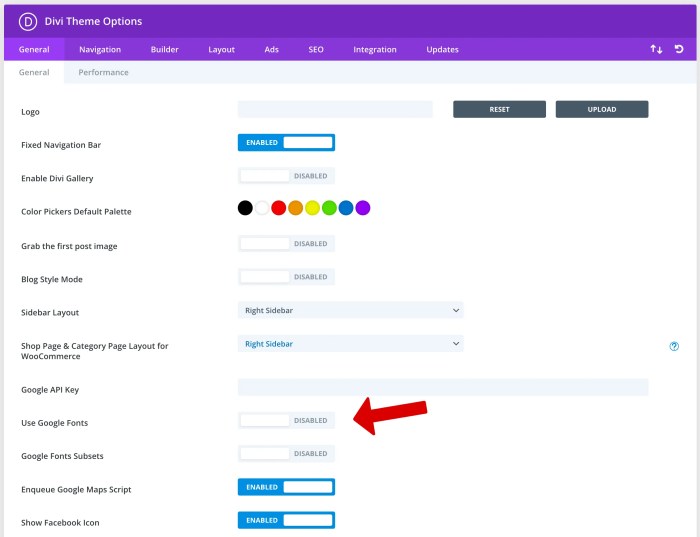
Some themes offer a customization panel that allows direct management of font choices. This method is often the easiest and most convenient for users with less technical knowledge.
- Access the theme customization panel within the WordPress dashboard.
- Navigate to the section for managing fonts.
- Select the desired font for removal.
- Choose a different font from the available options or remove the font selection completely.
Using a Plugin to Manage and Disable Google Fonts
A plugin approach is a user-friendly alternative for managing and disabling Google Fonts. This method provides a centralized point for font management, making it a viable option for less technical users.
- Install and activate a plugin specifically designed for managing fonts (e.g., a plugin designed for font management).
- Use the plugin’s interface to locate and disable the desired Google Fonts.
- Alternatively, some plugins allow you to define custom font families, providing a way to specify alternative fonts without Google Fonts.
| Method | Description | Steps | Considerations |
|---|---|---|---|
| Removing the link | Eliminates the request for the Google Fonts CSS file. | Locate & remove the link in theme files. | Requires code editing knowledge. |
| Modifying CSS | Overwrites font declarations in theme CSS. | Modify `style.css` to use alternative fonts. | Can be complex depending on the theme’s structure. |
| Plugin Usage | Utilizes a plugin to manage and disable fonts. | Install, activate, and manage fonts through plugin interface. | Easy for non-technical users; may introduce additional dependencies. |
| Theme Customization | Directly manage fonts within the theme options. | Access customization panel and manage font choices. | Depends on theme functionality. |
Modifying Theme Files for Disabling
Often, the easiest way to disable Google Fonts is by directly modifying your theme’s CSS file. This approach allows for precise control over which fonts are removed, and it’s generally less prone to conflicts compared to other methods. However, remember that modifying theme files can be risky if not done carefully. Always back up your theme files before making any changes.This method involves editing the CSS file to remove the declarations for the Google Fonts.
By understanding the specific code used to include Google Fonts, you can effectively remove them without affecting other elements of your website’s design. Careful attention to detail and a structured approach are key to successfully disabling Google Fonts in this way.
Editing the Theme’s CSS File
The CSS file often holds the `@import` or ` ` tag for the Google Fonts. Locating this inclusion is crucial to selectively disabling the font. To modify the theme’s CSS file, you need access to the theme’s folder structure. You’ll usually find this file within the ‘style.css’ or similar file, and the theme’s documentation or support website will help you locate the precise file name if needed.
Removing Google Fonts Declarations
To remove the Google Fonts declaration, identify the lines of code that reference the font. This usually involves a ` ` tag, a `@import` statement, or similar code that loads the Google Font files. Removing these lines will prevent the fonts from being loaded onto your website.
Want to optimize your WordPress website’s speed? One simple tweak is disabling Google Fonts. This can significantly impact your site’s performance, and understanding SEO costs for businesses in North Carolina’s service areas, like seo cost north carolina service area businesses , is crucial for knowing how to allocate your budget effectively. Thankfully, disabling Google Fonts is a straightforward process that can boost your site’s loading time, which in turn can positively influence your search engine rankings.
So, get those fonts off your site and start optimizing!
Example Code Changes
This example demonstrates how to remove the Google Font declaration and use comments to mark the disabled code.“`CSS/* Original code (Google Font inclusion) – /@import url(‘https://fonts.googleapis.com/css2?family=Roboto:wght@400;700&display=swap’);/* Removed Google Font inclusion – //*@import url(‘https://fonts.googleapis.com/css2?family=Roboto:wght@400;700&display=swap’);*//* Rest of your theme’s CSS – //* … – /“`In this example, the original `@import` statement is commented out, preventing the font from loading. This approach keeps the original code in the file, but disables it for practical use.
The commented-out code serves as a record of the original inclusion.
Direct Removal vs. Using Comments
Direct removal of the Google Font declaration involves deleting the line entirely. This approach works but removes the historical record of the code. Using comments, on the other hand, preserves the original code for future reference or possible re-inclusion. This is a safer approach, especially when experimenting with theme modifications.
Using Plugins for Font Management
Managing fonts in WordPress can be simplified significantly by leveraging the power of plugins. These tools often offer a user-friendly interface for controlling font families, including Google Fonts, without the need for intricate code modifications. This approach is particularly beneficial for users who are less comfortable with theme file editing, as it provides a more streamlined method to disable or customize font usage.Plugins are often more robust than manual modifications, offering features like caching and optimized loading of fonts.
This can result in faster website loading times and a more enjoyable user experience. They often provide more granular control over font selection, potentially allowing you to choose specific font weights or styles.
Popular WordPress Plugins for Font Management
Several excellent plugins facilitate font management in WordPress. Choosing the right plugin depends on your specific needs and technical proficiency. Here’s a glimpse into some of the popular choices:
- Font Awesome: A highly regarded plugin for managing icons, though not exclusively focused on Google Fonts, Font Awesome often integrates well with theme designs and offers a rich library of icon sets.
- WP Offload Media: This plugin optimizes media files, including fonts. While its primary function is not font management, it contributes to a faster website by efficiently handling font delivery, which can indirectly impact how Google Fonts are displayed.
- Advanced Custom Fields: Although primarily for custom fields, this plugin provides a comprehensive system for managing various aspects of your site, including fonts, through custom field options within your theme.
- ThemeREX Addons: These add-ons often provide specialized features for managing fonts within the context of a specific theme. This option is especially beneficial if you’re using a particular theme that doesn’t natively handle font customization well.
- Custom Font Plugin: Some plugins are specifically designed for font management, often providing features for enabling or disabling Google Fonts or offering other custom font handling options. These can offer extensive control but might not always be necessary.
Using a Sample Plugin for Disabling Google Fonts
Let’s illustrate the process with a hypothetical plugin, “Font Manager.” This plugin is a fictional example, but the installation and configuration steps are similar across most font management plugins.
- Plugin Installation: Download the “Font Manager” plugin from your preferred plugin repository. Upload the plugin files to the ‘plugins’ directory in your WordPress installation. Activate the plugin from the ‘Plugins’ menu in your WordPress dashboard.
- Plugin Configuration: Once activated, the “Font Manager” plugin should have a configuration page. Locate the section dedicated to Google Fonts. This might be labeled as “Google Font Management” or something similar.
- Disabling Google Fonts: Within the plugin’s configuration, identify the specific Google Font you wish to disable. Look for a checkbox or a toggle switch corresponding to the font you want to exclude from use. Toggle the option to disable the font.
- Saving Settings: Save the changes to the plugin settings. The plugin will handle the modifications needed to remove the specified Google Font from your website.
- Testing: Visit your website to confirm that the Google Font has been removed. Inspect the page source code to verify that the corresponding font stylesheet has been excluded.

Plugin Interface and Features
The interface of a font management plugin will vary, but a typical example would include options to:
- Enable/Disable specific fonts: Allows users to selectively exclude Google Fonts or other fonts from use.
- Manage font families: Provides a list of available font families for customization.
- Customize font options: Enables users to adjust font weights, styles (e.g., italic), and other font characteristics.
- Import/Export settings: Facilitates backup and restoration of font settings for future use or for use on different websites.
Customizing CSS for Font Removal
Fine-tuning your WordPress website’s appearance often involves selectively disabling or modifying Google Fonts. Custom CSS offers a powerful way to achieve this, allowing precise control over which fonts are applied and how they’re styled. This method is particularly useful for sites with complex design requirements or those needing to remove specific fonts without impacting other website elements.Custom CSS allows you to target and modify the styles applied to Google Fonts.
This granular control is essential when dealing with a multitude of fonts and styles within a theme. By directly targeting the relevant CSS rules, you can override or completely remove the unwanted fonts without affecting the rest of your website’s design.
Targeting Specific Google Fonts
Custom CSS provides a targeted approach to font removal. Using specific selectors, you can identify and modify the style rules applied to Google Fonts. This is crucial for preventing unintended consequences and ensuring the desired changes are applied only to the relevant font elements.
Disabling Multiple Fonts Simultaneously
To disable multiple Google Fonts at once, you’ll use a CSS rule that targets the font family. You can combine multiple font families in a single rule for easier management.“`CSS@import url(‘https://fonts.googleapis.com/css2?family=Roboto:wght@400;700&family=Open+Sans:wght@400;700&display=swap’);/* Disable Roboto and Open Sans – /h1, h2, h3, p font-family: ‘Arial’, sans-serif !important; /* Replace with your desired default font – /“`This example targets all headings (`h1`, `h2`, `h3`) and paragraphs (`p`).
Instead of the Google Fonts ‘Roboto’ and ‘Open Sans’, the default ‘Arial’ font is used. The `!important` declaration ensures that the custom rule overrides any conflicting styles from the theme or other plugins.
Overriding Default Font Styles
You can also override the default styles of Google Fonts, such as size, weight, and color. By combining selectors and styles, you can achieve a customized look without completely removing the font.“`CSS@import url(‘https://fonts.googleapis.com/css2?family=Lato:wght@400;700&display=swap’);/* Override Lato font styles for specific elements – /h1 font-family: ‘Lato’, sans-serif !important; font-size: 3em !important; color: #333 !important;p font-size: 1.2em !important;“`This example demonstrates how to adjust the size and color of the ‘Lato’ font for headings and paragraphs while preserving its use.
Using Specific CSS Selectors
Using precise CSS selectors is crucial for targeting Google Fonts within your custom CSS. By using elements such as `h1`, `h2`, `span`, `div`, and more, you can apply font changes to specific parts of your page layout.“`CSS/* Target a specific div with a class – /.special-heading font-family: ‘Playfair Display’, serif !important;“`This example uses a class selector to apply a custom font to a specific `div` element.
Troubleshooting Common Issues
Disabling Google Fonts on your WordPress website can sometimes lead to unexpected results. This section details common problems you might encounter and provides solutions. Understanding these issues and their causes is key to successfully removing Google Fonts and achieving the desired outcome.Often, the process of disabling Google Fonts isn’t straightforward, and a few hiccups are typical. These issues can range from the font still appearing, to other minor visual discrepancies.
Knowing how to identify and address these problems will save you time and frustration.
Font Still Appearing After Disabling
Sometimes, even after implementing the methods discussed earlier, the Google Font might still be visible on your website. This is usually due to caching. Your browser or website’s caching system might be holding onto the previously loaded font files.
- Clearing your browser’s cache is a crucial step. This forces your browser to download the latest version of your website’s files, including the updated CSS or files that now exclude the Google Font.
- Checking your website’s caching plugins is equally important. These plugins often store static files, and these might contain the Google Font files. Actively clearing the cache of your caching plugin will also update the files on your site.
- A less common cause could be a stale copy of the website files in a staging or backup environment. Ensure your staging or backup environment is properly updated and cleared to prevent the font from being displayed from these copies.
Other Display Issues
Besides the font still appearing, other display problems might arise. These could involve misalignment, incorrect sizing, or unexpected spacing.
- Review your CSS code thoroughly. Errors in your CSS rules, even minor ones, can result in visual inconsistencies. Double-check the syntax and make sure you’ve correctly targeted the elements affected by the font removal.
- Inspect the site’s theme files. If you’ve modified theme files, ensure that the modifications don’t conflict with other parts of the theme’s functionality or other elements’ styling.
- Ensure that your website’s theme or plugins don’t override the CSS changes you made. A theme or plugin might have conflicting stylesheets that are loaded after your custom CSS. This means the plugin or theme CSS might be applying the Google Font again.
Using Browser Developer Tools for Debugging
The browser’s developer tools are indispensable for diagnosing display issues. These tools provide a detailed view of the website’s code and its interactions with the browser.
- Open the developer tools (usually by pressing F12). Navigate to the “Network” tab. Observe the requests made by your browser when loading the page. If the Google Font files are still being loaded, this indicates a problem with the CSS changes or caching.
- Inspect the HTML and CSS elements. Identify any elements that might be affected by the font removal. Check the styles applied to these elements to ensure the desired changes are implemented.
- Utilize the “Elements” or “Styles” panels to examine the styles applied to the elements and see if any conflicting styles are overriding your custom CSS.
The Role of Caching in Font Display
Caching mechanisms significantly impact how quickly and consistently your website loads. Understanding how caching affects font display is essential for troubleshooting.
- Cached files can persist even after the original files have been updated. This is why clearing your browser’s cache and your website’s cache is vital.
- Websites with extensive caching often need time for the changes to fully propagate. This is particularly important if you’ve made significant CSS changes.
- Implementing appropriate caching strategies and strategies for clearing caches will resolve many issues and ensure your changes are seen quickly.
Best Practices and Considerations
Disabling Google Fonts on your WordPress website can be a straightforward process, but careful consideration of best practices is crucial to maintain website functionality and prevent unexpected issues. Proper planning and execution can save you time and headaches in the long run. This section emphasizes essential steps to ensure a smooth transition.Implementing changes to your website, even seemingly minor ones, can have unforeseen consequences.
Thorough preparation and a methodical approach are vital to a successful outcome.
Backup Procedures
Careful backup procedures are paramount before making any changes to your website’s theme files. A corrupted file can render your site unusable, so safeguarding your current setup is essential. Regular backups, preferably automated, provide a safety net in case something goes wrong. Always store backups in a separate location, ensuring data security.
Testing the Website
Thorough testing after implementing any changes is critical. This includes a comprehensive check of all website functionalities, including page loading times, navigation, and visual elements. Simulate user scenarios and test across various devices and browsers to identify any potential issues. Identify and fix problems before they impact your audience.
Maintaining Functionality
Maintaining website functionality after disabling Google Fonts is crucial. Monitor your site for any performance issues or visual anomalies after the changes. A thorough understanding of the website’s codebase can help pinpoint problems quickly. If you encounter unexpected errors, revert to the previous version of the theme or the original backup to restore the website to its previous state.
Choosing the Right Method, How to disable google fonts on your wordpress website
Different methods for disabling Google Fonts have different implications. Consider the complexity of your theme and your technical skills when selecting a method. For simple themes, modifying theme files might be sufficient. For more complex setups, utilizing plugins could be the preferred approach. Customizing CSS should be used as a last resort, when other methods prove impractical or ineffective.
Using the appropriate method for your specific circumstances is crucial to ensuring a smooth and efficient process.
Ultimate Conclusion
In conclusion, disabling Google Fonts on your WordPress website is achievable through several methods, from simple code modifications to leveraging dedicated plugins. Understanding the specific location of the font inclusion code and the various approaches to removal allows you to tailor the process to your needs. By following the steps Artikeld in this guide, you can confidently disable Google Fonts, optimize your website’s performance, and customize its visual identity.