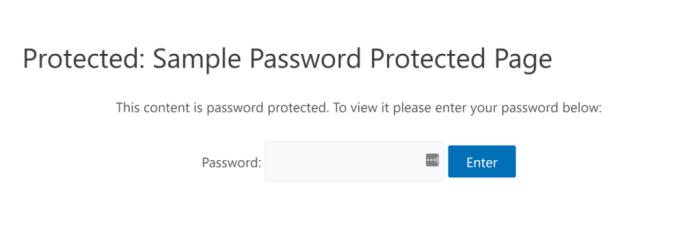
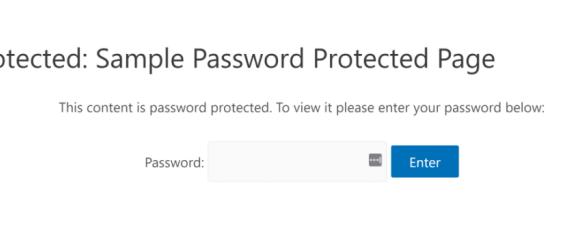

How to customize a password protected page in WordPress is a crucial aspect of website security and user experience. This comprehensive guide will walk you through creating and personalizing password-protected pages on your WordPress site, from basic setup to advanced customization and troubleshooting. We’ll explore different methods, security best practices, and responsive design considerations to ensure your protected pages are both secure and user-friendly.
From choosing the right plugins to fine-tuning the login experience, this guide covers everything you need to know to create a secure and aesthetically pleasing password-protected area on your WordPress website. We’ll delve into the details of each step, providing clear explanations and practical examples to help you master this essential WordPress technique.
Introduction to Password-Protected Pages in WordPress
Password-protected pages in WordPress are a powerful feature that allows you to restrict access to specific content on your website. This functionality is crucial for maintaining control over sensitive information, promoting member-only access, and creating exclusive areas for specific user groups. It’s a simple yet effective way to safeguard content from unauthorized viewers.By implementing password protection, you can maintain control over the distribution of information, ensuring that only authorized users can access specific pages or sections of your website.
This security measure is valuable for various reasons, ranging from sharing exclusive content with paying subscribers to keeping sensitive materials like membership directories or private forums out of the public eye.
Use Cases and Benefits of Password Protection
Implementing password protection in WordPress offers a variety of benefits. It’s a vital tool for safeguarding valuable information, maintaining control over content access, and promoting exclusivity.
- Member-only content: Password-protected pages are perfect for creating exclusive content areas for subscribers, premium members, or registered users. This fosters a sense of community and exclusivity, motivating users to subscribe or become members to access the valuable information behind the password.
- Sensitive information: Protecting sensitive data like membership directories, contact information, or private forum discussions is crucial. Password protection ensures that only authorized individuals can access such information.
- Controlled access to content: Restricting access to specific content, such as research papers, internal documents, or early access to new features, allows for better control over information distribution and prevents unauthorized access.
- Promoting paid subscriptions: Password protection can be strategically used to encourage paid subscriptions. By requiring a password for access, you can encourage users to subscribe for premium content.
Different Ways to Create Password-Protected Pages
WordPress provides several methods for implementing password protection, each with its own advantages and disadvantages.
- Using the built-in WordPress functionality: This is the most straightforward approach. Within the WordPress dashboard, you can directly select the password protection option while editing a page or post.
- Employing plugins: Several plugins extend the functionality of password protection. These plugins often offer more advanced features and options compared to the built-in method, enabling features such as specific user roles or conditional access.
Common Scenarios for Password Protection
Password protection is beneficial in numerous situations. It provides a valuable tool for managing access to sensitive information and exclusive content.
- Membership sites: Restricting access to exclusive content for paid members fosters a sense of community and incentivizes subscriptions.
- Internal documents: Protecting sensitive company documents or research materials from unauthorized access is crucial for maintaining confidentiality.
- Early access programs: Granting access to specific users for early access to new products or features allows for beta testing and feedback gathering, ultimately improving the final product.
Methods for Creating Password-Protected Pages
Protecting sensitive content on your WordPress website is crucial. Password-protected pages allow you to restrict access to specific content, ensuring that only authorized users can view it. This section details various methods to achieve this, from leveraging WordPress’s built-in tools to employing powerful plugins.WordPress offers several ways to create password-protected pages. These methods vary in complexity and features, allowing you to tailor the protection to your specific needs.
Understanding the nuances of each approach will empower you to choose the best solution for your website.
Built-in WordPress Functionality
WordPress provides a straightforward method for password-protecting individual pages. This inherent capability eliminates the need for additional plugins, keeping your site lean and efficient. This built-in method works best for simple password protection needs.Using the WordPress editor, you can directly set a password for a specific page. Within the page’s settings, you’ll find an option to add a password.
Want to create a secure, member-only area on your WordPress site? Customizing a password-protected page involves a few key steps, like selecting a suitable plugin and then configuring the access level. To boost your brand’s visibility and build a stronger online presence, consider utilizing tools like top 5 brand building tools for technology firms for your tech company.
Ultimately, a well-designed, protected page can help you focus on targeted content and build a loyal community around your brand, regardless of your specific industry niche.
This approach is quite simple; you enter the password in the designated field, and the page is protected. This straightforward method is ideal for quickly securing pages.
WordPress Plugins
Plugins offer a more comprehensive approach to password protection, providing various features and customization options beyond WordPress’s built-in functionality. They often offer advanced security features and additional functionality.Several plugins cater to different needs and preferences. Some plugins are specifically designed for user roles and permissions, while others provide more general password protection options. Plugins offer diverse functionalities, including password-protecting entire sections of a website or specific pages.
- General-purpose plugins: These plugins typically offer broader password protection options. They often allow for controlling access based on various factors, such as user roles or specific IP addresses.
- Advanced security plugins: These plugins often integrate with other security measures, providing enhanced protection beyond basic password restrictions. These plugins may offer features like two-factor authentication or other security enhancements.
- Role-based access control plugins: These plugins manage user roles and permissions on your website, including password protection for specific roles. This ensures that only authorized users have access to certain content.
Comparison of Plugin Options
The following table summarizes key features of popular password protection plugins, allowing you to compare and contrast options for your website.
| Plugin | Ease of Use | Customization | Features |
|---|---|---|---|
| Plugin A | High | Medium | Basic password protection, user roles, and some access restrictions. |
| Plugin B | Medium | High | Advanced password protection, custom access rules, and detailed reporting. |
| Plugin C | Low | Low | Limited password protection with limited customization. |
Note: The specific features and ease of use can vary significantly depending on the plugin chosen.
Customizing the Protected Page Experience
Beyond simply creating a password-protected page, WordPress allows for significant customization of the user experience. This enables website owners to tailor the appearance and functionality of the login process to match their site’s design and overall branding. By modifying the login form and messages, website owners can create a seamless and intuitive experience for users attempting to access protected content.Customizing the password-protected page experience goes beyond simply hiding the content; it’s about creating a positive interaction.
This involves making the authentication process both aesthetically pleasing and user-friendly, directly impacting the user’s perception of your website.
Modifying the Appearance and Functionality of the Protected Page
The core of customizing the protected page involves altering the login form’s design and the messages displayed. This offers control over the visual presentation and the user feedback provided during the authentication process. You can adjust the colors, fonts, and layout to match your website’s style, making the protected page feel integrated.
Design and Styling Options for the Login Form
The login form is a crucial element of the password-protected page. Its visual design significantly impacts the user experience. You can customize the form’s elements using WordPress themes and plugins, often offering options for colors, fonts, and input field styles. Using CSS, you can tailor the form’s appearance, aligning it with the overall theme. This also allows you to adapt the form’s position on the page, ensuring optimal visibility and user experience.
Altering the Displayed Message When a User Enters an Incorrect Password
Incorrect password attempts can lead to a negative user experience if handled poorly. Instead of a generic error message, you can display a custom message that guides the user more effectively. This improved feedback enhances user experience and reduces frustration. For instance, a message like “Incorrect password. Please try again” is more helpful than simply showing an error.
A custom message can include a link to a password reset page, making the process smoother.
Displaying a Custom Message Before the Login Form
A custom message displayed before the login form can provide context and enhance user experience. For example, this could be used to introduce the protected content or to highlight its value to the visitor. This introductory message could explain why the page is password-protected or the benefits of accessing the content.
Creating a Unique User Experience
To create a truly unique user experience, you can integrate the password-protected page into your overall design. This involves aligning the protected page’s look and feel with the website’s overall aesthetic, ensuring a cohesive user experience across all pages. This approach can involve custom CSS, plugins, or even developing a dedicated theme for the protected page. The goal is to make the authentication process seamless and enjoyable.
Security Considerations for Password Protection
Protecting password-protected pages in WordPress is crucial for maintaining the integrity and confidentiality of your website’s content. A robust security strategy safeguards your site from unauthorized access and potential data breaches. This section explores best practices for enhancing the security of your password-protected areas.WordPress, while user-friendly, requires active participation in maintaining security. Failing to implement proper security measures can expose your site to vulnerabilities, leading to unwanted consequences.
Understanding and applying these strategies will help you create a secure environment for both your users and your site.
Strong Passwords and Regular Changes
Establishing strong passwords is paramount. Users should be encouraged to create passwords that are difficult to guess. These should incorporate a combination of uppercase and lowercase letters, numbers, and symbols. A strong password is more than just a few characters; it’s a complex mix of different elements.Regular password changes are also essential. Establishing a schedule, such as changing passwords every three months, helps mitigate the risk of persistent breaches.
This practice ensures that even if a password is compromised at one point, it’s unlikely to remain a vulnerability for long.
Brute-Force Attack Prevention
Brute-force attacks are a significant threat. These attacks involve systematically trying various password combinations until the correct one is found. Implementing measures to counter these attacks is crucial for protecting your site.WordPress plugins and built-in options often provide features to mitigate brute-force attempts. These features may include temporarily blocking accounts after a certain number of failed login attempts or using CAPTCHAs to differentiate human users from automated bots.
Security Measures in Plugins and Built-in Options
Many WordPress plugins and themes offer enhanced security features beyond the basic password protection. These plugins often incorporate additional layers of security to safeguard your password-protected pages.These plugins may include:
- Login Security Enhancements: Plugins often offer more granular control over login attempts, such as setting time limits between attempts, implementing lockout periods for failed logins, and using CAPTCHAs to thwart automated attacks. These features significantly strengthen your site’s defenses against brute-force attacks.
- Two-Factor Authentication (2FA): 2FA adds an extra layer of security by requiring users to provide a second form of verification, like a code from a mobile app, alongside their password. This significantly reduces the risk of unauthorized access even if a password is compromised.
- Regular Security Audits: Some plugins offer the ability to conduct regular security audits to identify vulnerabilities and potential threats in your system. These audits can be scheduled to run automatically, helping you stay proactive in maintaining security.
Password Complexity Requirements
Setting password complexity requirements is a fundamental security measure. Enforcing password complexity mandates that users create passwords that meet specific criteria, such as minimum length, required character types (uppercase, lowercase, numbers, symbols), and avoidance of easily guessed terms.This approach strengthens the overall security posture of your password-protected pages by making brute-force attacks significantly more challenging. Password complexity guidelines should be clearly communicated to users to ensure they understand the importance of creating strong passwords.
Troubleshooting Common Issues
Password-protected pages in WordPress can sometimes present unexpected challenges. Understanding potential problems and their solutions is crucial for maintaining a smooth user experience. This section will detail common issues users might encounter when accessing password-protected pages, and offer step-by-step troubleshooting guides.
Potential Problems Implementing Password Protection, How to customize a password protected page in wordpress
Issues often stem from misconfigurations, plugin conflicts, or theme incompatibilities. Careful review of these factors can prevent many problems. A faulty plugin or theme update could break the password protection mechanism, requiring a rollback or a replacement. Likewise, improper configuration of the password protection settings can cause the page to fail to load or display error messages.
Common Issues and Solutions
- Incorrect Password Entry: Users frequently enter incorrect passwords, leading to access denial. Ensure users have the correct password, and verify that capitalization and special characters are handled correctly by the system.
- Page Not Loading or Displaying Error Messages: This issue often arises from conflicts between plugins or themes. Temporarily disable plugins or revert to a previous theme version to identify the source of the problem.
- Access Denied Without an Apparent Reason: This can result from incorrect file permissions or database issues. Check file and directory permissions for the WordPress installation, and ensure the database is properly configured and accessible.
- Password Protection Not Activating: The password protection feature may not be working as expected. Double-check the page’s settings in the WordPress admin dashboard to verify that the protection is enabled and configured correctly. If the problem persists, consult the plugin documentation for specific instructions.
Troubleshooting Guide
This troubleshooting guide provides detailed steps for resolving common issues:
- Verify Password Correctness: Carefully review the password. Ensure there are no typos and that capitalization and special characters are precisely matched.
- Check for Plugin Conflicts: Disable plugins one by one, starting with the most recently installed, to see if a plugin is causing the issue.
- Revert to a Previous Theme Version: If the issue appears after a theme update, try reverting to a previous version of the theme.
- Inspect File Permissions: Ensure that the necessary files and directories have the correct permissions for the WordPress installation. Consult WordPress documentation for recommended file permissions.
- Database Check: If the problem persists, check the WordPress database for any errors or inconsistencies. A database error could hinder access.
- Review Plugin Documentation: Consult the documentation of the password protection plugin for specific troubleshooting steps and configuration settings.
- Contact Support: If the issue persists after trying these steps, reach out to WordPress support for assistance or consult the relevant plugin or theme support forums.
Error Messages and Solutions
- Error Message: “Access Denied”: Verify the password, check for typos, and ensure case sensitivity is handled correctly. Review the plugin’s configuration for possible errors.
- Error Message: “Internal Server Error”: Check for server issues and ensure the server is configured correctly. Disable any plugins or themes that might be causing conflicts.
- Error Message: “404 Page Not Found”: The password-protected page may be missing or misconfigured. Double-check the page URL and its settings in the WordPress dashboard.
Advanced Customization Options
Beyond the basic setup, WordPress offers significant flexibility in tailoring the password-protected page experience. This involves modifying the login form’s appearance, crafting unique error messages, and integrating with other core WordPress functionalities. Understanding these advanced options allows you to create a more user-friendly and visually appealing protected area.
Customizing the Login Form
The default WordPress login form is functional but can be visually unappealing. You can customize its appearance using CSS and even modify its layout with custom HTML structures. This includes changing colors, fonts, button styles, and positioning elements. Modifying the layout can help match the theme’s design or introduce a distinct aesthetic for the protected content.
Custom Error Messages and Redirection
Instead of the standard WordPress error messages, you can craft personalized error messages to guide users. This enhanced feedback helps users understand why their login attempt failed, such as incorrect password format or insufficient permissions. You can also customize the redirection after successful login. This allows you to send users to a specific page, like the content itself or a thank-you page, enhancing the user experience.
Integrating with Other WordPress Features and Plugins
WordPress’s modular design enables integration with various plugins. Password-protected pages can leverage features like user roles, custom fields, or membership plugins. For instance, a membership plugin might require users to complete a registration form before accessing password-protected content, enhancing the security and organization of your site.
Advanced Plugin Features
Many plugins extend the functionality of password-protected pages. These plugins often offer additional features like custom login forms, advanced security measures, or unique display options for restricted content.
| Plugin | Feature | Description |
|---|---|---|
| WPForms | Custom Login Forms | Allows creating custom login forms with various input fields and validation rules, beyond the standard form. |
| MemberPress | Membership Levels | Provides options to restrict access to password-protected pages based on defined membership levels, charging for access or offering tiered access. |
| Restrict Content Pro | Advanced Access Control | Enables more intricate access control methods, such as setting user roles and custom conditions for viewing password-protected content. |
| Paid Memberships Pro | Premium Access | Facilitates creating premium access levels to password-protected content. |
Responsive Design Considerations: How To Customize A Password Protected Page In WordPress
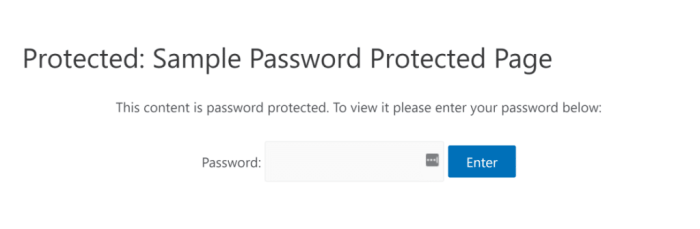
Ensuring your password-protected WordPress page functions flawlessly across all devices is crucial for user experience. A responsive design adapts automatically to different screen sizes, from tiny mobile phones to large desktop monitors, providing a consistent and intuitive experience regardless of the user’s device. This is vital for maintaining a professional image and avoiding frustrating usability issues.Responsive design techniques are particularly important for the login form on a password-protected page.
Want to lock down a specific page on your WordPress site? Customizing a password-protected page is surprisingly straightforward. Knowing how to do this effectively is key, especially if you’re looking to share exclusive content. Plus, learning about online visibility, like in the recent becoming a visible expert sm online webinar recap , can help you target your audience with more targeted content.
The webinar’s insights will likely inspire more strategies for effectively handling your password-protected content, ultimately making your WordPress site more secure and engaging.
A poorly designed login form on a smaller screen can be difficult to navigate, making it harder for users to log in. A well-designed responsive form ensures a smooth and user-friendly experience on all devices.
Ever wanted to create a password-protected area on your WordPress site? It’s surprisingly straightforward. You can adjust things like the layout and content to make it feel exclusive. Understanding why emails sometimes end up in your Gmail Promotions tab, however, is a different beast entirely. For a deeper dive into email deliverability issues, check out this helpful resource on why do emails get delivered to Gmail’s Promotions tab.
Once you’ve got your email setup sorted, you can confidently focus on further refining your password-protected page design, perhaps with custom CSS for a polished look.
Responsive Design Techniques for Login Forms
Effective login forms on password-protected pages should seamlessly adjust to different screen widths. This involves carefully structuring the form elements, using appropriate spacing, and ensuring clear labels and buttons. This also involves optimizing the layout for different screen sizes. Key considerations include the arrangement of form fields, button sizes, and overall spacing.
Use of CSS Frameworks and Media Queries
CSS frameworks like Bootstrap and Foundation provide pre-built styles and responsive grid systems that simplify the process of creating responsive designs. These frameworks provide a robust structure, ensuring consistency across devices. Media queries allow you to target specific screen sizes and apply different styles accordingly. This ensures the form looks good and works well on various screen resolutions.
Responsive CSS Code Examples for Login Form
The following table demonstrates how to use media queries to adjust the login form’s layout for different screen sizes. These examples target common breakpoints.
| Screen Size | CSS Code | Description |
|---|---|---|
| Mobile (up to 768px) |
@media (max-width: 768px)
  .login-form
    width: 90%;
    margin: 0 auto;

  .login-form input[type="text"],
  .login-form input[type="password"]
    width: 100%;
    margin-bottom: 15px;

  .login-button
    width: 100%;
|
Reduces form width for smaller screens, adjusts input fields and button to full width. |
| Tablet (769px to 992px) |
@media (min-width: 769px) and (max-width: 992px)
  .login-form
    width: 75%;
|
Adjusts form width for tablet screens. |
| Desktop (993px and above) |
@media (min-width: 993px)
  .login-form
    width: 50%;
|
Adjusts form width for larger desktop screens. |
Demonstrating Responsiveness
Testing the responsiveness of your password-protected page on various devices is essential. Using browser developer tools, you can simulate different screen sizes to see how the login form adapts. Tools like responsive design checkers can also be employed to test on a variety of devices and screen sizes, providing visual confirmation of the responsiveness of the page.
Integration with Other WordPress Features
Password protection in WordPress isn’t an isolated feature. It can seamlessly integrate with various other aspects of your website, allowing for more granular control over access. This integration is key to managing different levels of user access and tailoring your site’s functionality to specific user roles and permissions.
Password protection can enhance the functionality of your WordPress site beyond basic page access restrictions. By integrating with user roles and membership plugins, you can build more sophisticated access control systems, allowing for features like tiered content delivery, exclusive access to resources, and more.
User Roles and Permissions
WordPress’s built-in user roles system is a fundamental part of managing website access. The default roles (administrator, editor, author, contributor, subscriber) provide different levels of access. You can leverage these roles to control which pages or sections of your site are visible to specific users. For example, an editor role might have access to all pages, but not the ability to edit the password-protected content.
Restricting access based on roles ensures that only authorized users can view sensitive information. This granular control is crucial for maintaining website security and organization.
Integration with Membership Plugins
Several WordPress plugins enable membership-based access. These plugins often integrate well with password protection. For example, a membership plugin might allow you to create different tiers of membership, each with varying access privileges. This enables creating a tiered content delivery system. A password-protected page could be part of a premium membership, ensuring that only paying members can access it.
Such plugins provide a robust framework for handling paid content and access control.
Linking Password Protection to User Accounts and Roles
Linking password protection to user accounts and roles provides a powerful way to tailor access based on individual user profiles. This is commonly implemented through plugins. These plugins often offer options to assign specific user roles to different password-protected pages or sections of your site. The user’s role then determines their access. This method allows for a more dynamic and user-specific access control system.
For instance, a plugin could assign a specific role to a user to access a password-protected section.
Comparison of Different Plugins
Different password protection plugins may offer varying integration options. Some plugins might provide more comprehensive integration with user roles, while others might be better suited for specific types of membership systems. The most important factor in selecting a plugin is its compatibility with your existing WordPress setup and desired level of control. Carefully consider the features and options each plugin provides before making a choice.
Research and read reviews to determine the best fit for your site’s needs.
Example of a Plugin Integration
A common scenario involves using a membership plugin like “MemberPress” alongside a password-protection plugin. This combination would allow you to create a tiered membership system where only members of a specific tier have access to certain password-protected content. The integration would link user accounts with membership levels, enabling dynamic access control.
Final Summary
In conclusion, customizing password-protected pages in WordPress is a multifaceted process that combines security, usability, and aesthetics. By understanding the various methods, security considerations, and customization options, you can create a protected area that enhances your website’s security and user experience. Remember to prioritize security best practices and responsive design for a seamless user journey across all devices.
This comprehensive guide has equipped you with the knowledge to confidently build and manage your password-protected pages, unlocking a new level of control and security for your WordPress site.