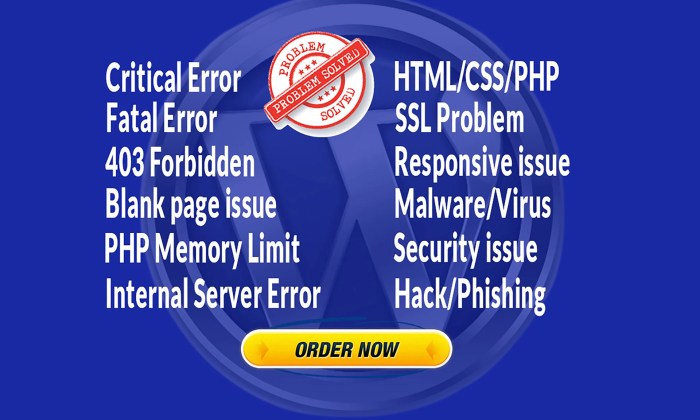

How to fix the critical error in WordPress? This comprehensive guide dives into the intricate world of WordPress troubleshooting. We’ll explore various causes of critical errors, from database issues to plugin conflicts, and equip you with practical solutions to get your site back online. We’ll dissect common error messages, offer detailed diagnostics, and equip you with the knowledge to confidently resolve any WordPress problem.
Understanding the root cause of a critical error is crucial. This guide will help you pinpoint the specific problem, whether it’s a faulty plugin, a corrupted database, or an outdated theme. We’ll also address security concerns and ensure your site is not vulnerable to malware or breaches. Armed with the insights from this guide, you’ll navigate the complexities of WordPress error resolution with confidence and efficiency.
Identifying the Error
WordPress critical errors can be frustrating, but understanding their nature and causes is key to fixing them. These errors, often cryptic, can stem from various sources, including theme conflicts, plugin incompatibilities, or even database issues. Thorough examination of error messages and logs is crucial for pinpointing the root of the problem.A deep dive into the error messages is essential.
These messages, while often technical, contain clues to the specific problem. By understanding the patterns and common error codes, you can swiftly diagnose and resolve the issue. A systematic approach to examining error logs and employing debugging tools is vital to troubleshooting effectively.
Common WordPress Error Messages
WordPress displays a range of error messages, each hinting at a specific problem. Understanding these messages is critical for efficient troubleshooting. Examples include “Fatal error,” “500 Internal Server Error,” “SQL error,” or “Error establishing database connection.” “Fatal error” typically indicates a serious issue, potentially requiring immediate intervention, while a “500 Internal Server Error” signifies a broader server problem.
Specific SQL errors often point to database corruption or structure issues. Identifying the error code and its context is crucial to understanding the problem.
Troubleshooting a critical WordPress error often boils down to examining the underlying code. One crucial aspect to consider is the structure of your HTML, particularly the semantic elements. Understanding how to correctly use semantic HTML, like ensuring proper headings and content organization, is vital for a website’s overall health and functionality. This directly impacts how search engines read and interpret your site.
For more detailed insights on the importance of semantic HTML for websites, check out this helpful guide: the importance of semantic html for websites. Ultimately, fixing that WordPress error often involves careful review and potential adjustments to the website’s HTML structure to ensure proper functionality.
Error Code Analysis
Different error codes reveal various underlying problems. For instance, a database error, such as “SQLSTATE[HY000] [2002] Connection refused,” typically points to a connectivity issue with the database server. A “PHP Fatal error” may suggest a problem with the server’s PHP configuration or a plugin’s faulty code. By recognizing these patterns, you can swiftly isolate the problematic area.
Error Type Analysis
A table outlining common error types and their typical symptoms can be extremely helpful in diagnosing issues.
| Error Type | Typical Symptoms | Potential Causes |
|---|---|---|
| Database Errors | “SQL error,” connection failures, slow loading times, database corruption. | Corrupted database, incorrect database credentials, insufficient server resources. |
| Plugin Conflicts | Unclear error messages, site malfunctions, unexpected behaviors. | Incompatible plugins, outdated plugins, conflicting plugin functionalities. |
| Theme Issues | Visual glitches, broken functionality, errors relating to templates or styles. | Corrupted theme files, theme compatibility problems, theme configuration errors. |
| PHP Errors | “Fatal error,” “Parse error,” “Notice,” unexpected behavior. | Incorrect PHP configuration, outdated PHP version, server-side problems, plugin or theme bugs. |
Locating the Source of the Error
Finding the source of a critical error requires a systematic approach.
- Examine Error Logs: WordPress error logs often contain detailed information about the error, including the time, the file involved, and the specific error message. Examining these logs is the first step in locating the source of the error.
- Use Debugging Tools: Browser developer tools or WordPress debugging plugins can provide valuable insights into the error. These tools can display HTTP requests, server responses, and JavaScript errors, aiding in the identification of the problem.
- Isolate the Problem: Deactivate plugins or switch to a default theme to determine if a plugin or theme is causing the error. If the problem resolves, the culprit has been identified.
- Analyze Error Messages: Pay close attention to error messages. These messages often provide crucial information about the specific file, function, or line of code causing the issue.
Interpreting Error Messages
Understanding how to interpret error messages is critical for pinpointing the source of the problem. For instance, if an error message indicates a problem with a specific file, such as “Error on line 123 of /wp-content/themes/mytheme/functions.php,” you know the problem lies within that theme’s functions file. Careful examination of these messages allows for targeted troubleshooting.
Troubleshooting Database Issues

WordPress relies heavily on its database to function. Problems within this database can manifest as critical errors, preventing your site from loading or performing its intended tasks. Understanding common database errors and the process for addressing them is crucial for maintaining a healthy and functional website.Database integrity is paramount to WordPress’s smooth operation. Errors within the database can lead to a variety of problems, from minor display issues to complete site unavailability.
A thorough understanding of database management and repair techniques is essential for effectively troubleshooting these issues.
Common Database Errors
Database errors in WordPress often stem from issues with data corruption, incorrect configurations, or insufficient storage space. Some common culprits include:
- Incorrect SQL Queries: Malfunctioning plugins or themes can introduce SQL queries that are syntactically incorrect or that attempt operations that the database cannot handle. This can lead to errors like “Error establishing database connection” or “SQL query error”.
- Data Corruption: A sudden server outage, a plugin malfunction, or even a user error can lead to corrupted database tables. This corruption can cause a variety of errors, including database connection failures and unexpected data loss.
- Insufficient Disk Space: If the database server runs out of storage space, WordPress operations will fail. This often results in errors like “Out of disk space” or “Insufficient storage” during database operations.
- Permissions Issues: If the WordPress user account lacks the necessary permissions to access or modify the database, various errors may arise, like connection refusals or query restrictions.
Backing Up Your WordPress Database
A crucial first step in troubleshooting any database issue is creating a backup. This allows you to revert to a working state if your troubleshooting attempts fail.
- Using WordPress Tools: Many hosting providers offer built-in tools to create database backups. Utilize these tools if available.
- Manual Backups with phpMyAdmin: If you manage your hosting, use phpMyAdmin (a web-based MySQL administration tool) to create a complete backup of the WordPress database. Export the entire database in a format that is easily importable.
Repairing or Restoring a Corrupted Database
Once you’ve backed up your database, you can explore options for repairing or restoring it.
- Repairing the Database: Use phpMyAdmin’s repair tools to attempt to fix the database structure. This is often a less risky approach than complete restoration.
- Restoring from Backup: If repair fails, restore the database from your backup. Carefully select the appropriate backup and follow the restoration instructions provided by your hosting platform or phpMyAdmin.
Using Database Management Tools
Database management tools like phpMyAdmin allow you to examine database tables and data integrity.
- Checking Table Structures: Examine table structures for anomalies, like missing columns or incorrect data types.
- Inspecting Data Integrity: Look for inconsistencies or corrupted data within tables. Check for missing or incorrect values.
Database Repair Options
The following table Artikels various database repair options and their associated risks and benefits.
| Repair Option | Risk | Benefit |
|---|---|---|
| Using phpMyAdmin’s Repair Tools | Potential data loss if the repair process is not handled carefully | Generally safer than complete restoration, can often fix minor corruption |
| Restoring from Backup | Data loss if the backup is incomplete or outdated | Restores the database to a known working state |
Examining Plugin and Theme Conflicts
WordPress critical errors can stem from conflicts between plugins and themes. Identifying these conflicts is crucial for effective troubleshooting. Often, a seemingly innocuous plugin or theme update can introduce compatibility issues, leading to unexpected errors. Understanding the causes and how to resolve them is key to restoring your site’s functionality.
Common Causes of Plugin and Theme Conflicts
Plugin and theme conflicts arise from various factors. Incompatible code, conflicting functionalities, or updates that break existing integrations are common culprits. A poorly coded plugin or theme can introduce errors that disrupt the overall system. Furthermore, updates to either a plugin or theme might not always be compatible with the other elements of your site, creating conflicts.
Disabling Plugins and Themes to Isolate the Problem
Disabling plugins and themes temporarily allows you to pinpoint the problematic component. This methodical approach is vital for isolating the source of the error. Begin by disabling plugins one by one, refreshing your site after each disablement. Monitor the error log for changes. Repeat this process with themes if the problem persists after disabling plugins.
Step-by-Step Guide to Updating Plugins and Themes
Regular updates are essential for security and compatibility. Following a structured approach minimizes the risk of introducing errors. First, back up your entire website. Then, update plugins individually, activating each one after a successful update. Monitor your website closely for any errors.
Proceed similarly with theme updates, ensuring compatibility with your plugins. Thorough testing after each update is critical.
Common Plugin and Theme Incompatibility Issues
Several common problems contribute to plugin and theme conflicts. Issues with database interactions, incompatibility with WordPress versions, or outdated dependencies can cause errors. Incorrectly implemented functions or conflicting file structures are also frequent sources of problems.
Troubleshooting a critical WordPress error often involves digging into the code, and sometimes, a deeper understanding of SEO principles can help. For instance, a poorly optimized website structure, often a factor in on-page vs off-page SEO, can sometimes trigger issues. Fixing the underlying problem with your website’s code structure will often fix the critical error, and that often improves SEO as well.
Ultimately, resolving the core issue with the WordPress code is key to fixing the problem and getting back to a smooth-running website. on page vs off page seo is often overlooked when fixing such issues.
| Issue | Description |
|---|---|
| Conflicting functionalities | Plugins or themes with overlapping features can cause errors when both are active. |
| Outdated dependencies | Plugins and themes might rely on libraries or components that are no longer compatible with your WordPress version. |
| Incompatible code | Changes in plugin or theme code might not be compatible with the core WordPress system or other plugins. |
| Database interactions | Plugins that modify the database without proper checks or handling can lead to inconsistencies. |
Checking Plugin and Theme Documentation for Known Conflicts
Thorough examination of plugin and theme documentation is essential. Often, developers document known compatibility issues or recommended configurations. Checking this documentation for potential conflicts helps avoid unnecessary troubleshooting. Referencing the official documentation ensures you’re aware of any known compatibility problems.
Server Configuration and File Permissions: How To Fix The Critical Error In WordPress
WordPress often encounters critical errors due to underlying server issues. These issues can stem from misconfigurations in server settings or inadequate file permissions for WordPress files. Understanding these server-side factors is crucial for effective troubleshooting and resolving these errors. A well-configured server environment plays a vital role in ensuring a smooth and stable WordPress experience.Proper server configuration and file permissions are fundamental for WordPress’s functionality.
Ignoring these aspects can lead to unexpected errors, impacting website performance and user experience. Addressing these elements often involves technical adjustments to the server environment, necessitating a careful approach to avoid further complications.
Common Server Configuration Problems
Server configuration issues can manifest in various ways, leading to WordPress errors. These problems can involve limitations in server resources like memory, CPU, or disk space. Exceeding these limits can cause critical errors, hindering the website’s operation. Incorrect server settings or outdated configurations can also contribute to these issues. For example, an outdated PHP version might not be compatible with a recent WordPress update, resulting in errors.
- Insufficient Server Resources: A server lacking sufficient resources (memory, CPU, disk space) can lead to timeouts, crashes, and critical errors. Websites experiencing high traffic or complex functionalities may need increased server resources to function without issues. For example, a website with many images and videos might require more disk space or memory.
- Incorrect PHP Configuration: Incompatibility between the PHP version installed on the server and the WordPress version or specific plugins can trigger critical errors. Ensuring the correct PHP version and related modules are installed and configured is essential. Upgrading PHP to a newer version might resolve compatibility problems.
- Incorrect File System Permissions: Inadequate file permissions for WordPress directories and files can prevent access or modifications, leading to errors. Correct permissions are vital for WordPress to operate smoothly.
Importance of File Permissions
WordPress files and directories need appropriate permissions to function correctly. Incorrect permissions can hinder access to essential files, causing errors in various operations. The correct permissions allow WordPress to read, write, and execute files as required. Maintaining the proper permissions is crucial for security and functionality.
- Read Permissions: WordPress needs read permissions to access files and directories to retrieve data. Insufficient read permissions can result in errors when loading content or retrieving files.
- Write Permissions: WordPress needs write permissions to create, modify, or delete files and directories. Insufficient write permissions can prevent changes to files, updates, or database operations. This is essential for plugin updates and other crucial operations.
Checking Server Resource Limitations
Identifying server resource limitations is vital to pinpoint potential bottlenecks. Regular monitoring of server resources can reveal usage patterns and predict potential issues. Using server management tools or monitoring dashboards provides insights into CPU usage, memory allocation, and disk space.
- Monitoring Server Resources: Tools for monitoring server resources (CPU, memory, disk space) can identify bottlenecks and potential problems.
- Analyzing Resource Usage Patterns: Observing how server resources are utilized over time can highlight trends and potential problems.
Optimizing Server Performance
Optimizing server performance is crucial for a smooth WordPress experience. Strategies like caching, compression, and efficient database management contribute to improved performance.
- Caching: Caching frequently accessed content can reduce server load and improve response times.
- Compression: Compressing files can reduce file sizes and improve download speeds.
- Database Optimization: A well-optimized database can enhance performance by improving query execution.
Modifying File Permissions
Modifying file permissions requires careful attention to avoid unintended consequences. Specific tools and commands are available to adjust permissions effectively.
- Using Command-Line Tools: Tools like `chmod` in Linux or equivalent tools in other operating systems can be used to modify file permissions.
- Understanding Permission Values: Understanding the meaning of different permission values (read, write, execute) is crucial for adjusting permissions correctly.
- Applying Correct Permissions: Applying the appropriate permissions for WordPress files and directories is crucial for avoiding errors.
File Corruption and Missing Files
WordPress websites, like any digital entity, are susceptible to file corruption and missing files. This often arises from unexpected server issues, plugin conflicts, or even user errors. Understanding the causes and remedies is crucial for restoring functionality and preventing data loss. Identifying and addressing these problems promptly is essential for maintaining a healthy and reliable website.Corrupted or missing files can manifest in various ways, from broken images and links to complete page malfunctions.
These issues disrupt the website’s normal operation, impacting user experience and potentially causing significant business losses. Knowing how to diagnose and fix these problems is a vital skill for any WordPress administrator.
Causes of Corrupted or Missing Files
Several factors can contribute to file corruption or missing files in a WordPress installation. These include server-side errors like hard drive failures, sudden power outages, or improper file system operations. Furthermore, issues with plugins or themes can inadvertently corrupt or delete files. User actions, such as accidental file deletions or improper uploads, also play a significant role.
Lastly, malicious attacks can also corrupt or remove critical files, requiring immediate attention and restoration.
Using File Repair Tools, How to fix the critical error in wordpress
Various tools can assist in repairing corrupted WordPress files. Some tools offer a straightforward repair process, while others might involve more complex procedures. These tools may involve checking file integrity, identifying and fixing errors, or even recreating damaged files. The choice of repair tool depends on the nature of the corruption and the specific tool’s capabilities. Thorough testing and verification are essential after using these tools to ensure the repair was successful.
The Significance of Backups
Backups are an indispensable aspect of WordPress maintenance, offering a crucial safeguard against data loss. They provide a snapshot of your website’s files, databases, and configurations, allowing you to revert to a previous state in case of corruption, accidental deletions, or other unforeseen events. Regular backups are essential to minimizing downtime and ensuring data recovery. The importance of testing backups frequently to confirm their efficacy cannot be overstated.
Identifying and Replacing Missing Files
Identifying missing files typically involves a comparison between the expected file structure and the actual file structure on the server. Tools like file explorers and FTP clients can be used to locate missing files. Replacing missing files often involves downloading the correct versions from backups, previous copies, or the official source. Verification of the replacement file’s integrity is paramount to avoid introducing further issues.
File Repair Methods and Effectiveness
| Method | Description | Effectiveness |
|---|---|---|
| File System Check | Running a file system check (e.g., `fsck`) on the server. | Effective for minor errors, but may not fix severe corruption. |
| File Repair Tools (e.g., specific WordPress repair plugins) | Using tools designed to repair corrupted WordPress files. | Often effective for common corruption types, but effectiveness depends on the tool and the extent of the damage. |
| Manual File Restoration from Backups | Restoring files from a recent backup. | Highly effective if a recent backup exists. |
| Downloading Correct Files | Downloading the missing files from official sources. | Effective for missing files that have known replacements. |
Security Issues and Malware
WordPress, despite its popularity, remains a target for malicious actors. Security breaches can lead to critical errors, ranging from minor disruptions to complete website takedowns. Understanding the potential threats and how to mitigate them is crucial for maintaining a functional and trustworthy website.Malware infections and security vulnerabilities can manifest in various ways, disrupting WordPress functionality. Compromised accounts, malicious plugins or themes, and exploit kits are common vectors.
These attacks can inject malicious code, steal sensitive data, or redirect users to fraudulent sites. The resulting errors might include unexpected page displays, slow loading times, or even complete website unavailability.
Identifying Malware
Malware often leaves traces on your website, making detection possible. Suspiciously modified files, unusual error messages, or sudden changes in website behavior are all potential indicators. Furthermore, a sudden spike in server resource consumption can signal a compromised system. Regularly monitoring website activity and server logs is essential for identifying anomalies.
Scanning for Malware and Vulnerabilities
Scanning WordPress sites for malware and vulnerabilities is a proactive measure. Tools like Sucuri, Wordfence, and similar security plugins provide automated scans. These scans look for malicious code, known vulnerabilities in plugins and themes, and potential security misconfigurations. Manual checks of file integrity and database structures are also valuable. These scans should be part of a regular website maintenance schedule.
Cleaning an Infected WordPress Site
Cleaning a WordPress site infected with malware is a meticulous process. First, isolate the infected site to prevent further damage. Then, carefully identify and remove all malicious code from the files and database. Using a backup is paramount. Restore from a clean backup after thoroughly removing the malicious elements.
Consider using a security plugin to assist with the cleanup process.
Best Practices for WordPress Security
Maintaining strong WordPress security involves multiple layers of protection. Keeping WordPress core, plugins, and themes updated is critical. Use strong passwords for all accounts and enable two-factor authentication (2FA) wherever possible. Limit access to the server and website files to authorized users. Employ a robust firewall and regular security audits to identify and fix vulnerabilities.
Role of Security Plugins
Security plugins are essential tools for protecting WordPress websites. They offer automatic updates, malware scans, and vulnerability checks. Security plugins can help prevent critical errors caused by security breaches by acting as a proactive defense mechanism. For example, they often detect and block malicious activities in real-time, reducing the impact of attacks. Using reputable and well-maintained security plugins is an integral part of a comprehensive security strategy.
This includes frequently updating these plugins.
WordPress Core Issues
WordPress core files, the fundamental components of your website, can sometimes become corrupted or damaged. This can stem from various factors, impacting the functionality and performance of your entire site. Understanding these issues and how to address them is crucial for maintaining a healthy and operational WordPress installation.Often, these problems are subtle, initially manifesting as minor glitches or seemingly random errors.
They can range from simple display issues to complete site crashes, making accurate diagnosis and swift resolution vital for maintaining user experience and avoiding significant downtime.
Causes of WordPress Core File Corruption
Various factors can lead to the corruption or damage of WordPress core files. These include but aren’t limited to:
- Sudden server outages or power failures during file operations can lead to file corruption.
- Faulty or improperly executed WordPress updates can result in core file damage.
- Malicious attacks or accidental file manipulation by users with insufficient permissions can cause unforeseen issues.
- Inconsistent or incompatible plugins can introduce conflicts that corrupt core files.
Restoring from a Backup
A crucial step in addressing corrupted core files is having a recent and reliable backup. A backup provides a snapshot of your website’s state at a specific point in time.
- Locate your most recent backup. This backup should ideally encompass all WordPress core files.
- Carefully restore the backup onto your server. Follow the instructions provided with your backup solution.
- Verify the functionality of your website after the restoration. Check all essential pages and features to ensure everything works correctly.
- If the restoration is unsuccessful, consult with a web hosting provider or a WordPress support specialist for further assistance.
Upgrading WordPress
Regular WordPress updates often include security patches and performance improvements.
- Verify that your hosting environment supports the latest WordPress version.
- Download the latest WordPress release from the official WordPress website.
- Carefully follow the upgrade instructions provided by WordPress.
- Thoroughly test your website after the update to ensure everything works as expected. Pay close attention to any error messages or unexpected behavior.
Troubleshooting Common WordPress Core Errors
A variety of errors can arise from core WordPress issues. Addressing these promptly is crucial for preventing further problems.
- 500 Internal Server Error: This indicates a server-side problem within WordPress, often stemming from core file corruption or database conflicts.
- Fatal Error: These errors often point to critical issues in the WordPress core files. A detailed examination of the error message is necessary to identify the root cause.
- White Screen of Death (WSOD): This is a common WordPress issue. The core files might be corrupted, plugins might be conflicting, or there might be server configuration problems.
Performing a Clean WordPress Installation
A clean installation can often resolve issues stemming from corrupted core files.
Troubleshooting WordPress critical errors can be a real headache, but don’t worry! Sometimes, the solution lies in simple things like checking your plugins or server configurations. However, if the issue persists, remember to leverage effective content marketing strategies like the top nine tips found at top nine content marketing tips for small businesses. These techniques can boost your website’s visibility and help you attract more customers, ultimately giving you more time to focus on the WordPress fix! After all, a well-optimized site will make troubleshooting far less daunting.
- Download the latest WordPress release from the official WordPress website.
- Create a new database in your hosting environment.
- Upload the WordPress files to the designated directory on your server.
- Configure your WordPress database settings using the installation wizard.
- Thoroughly test the website functionality after the installation.
Cache Issues and Caching Plugins
Caching plugins are crucial for WordPress performance, but they can also be a source of critical errors. They speed up page loading by storing frequently accessed data, but misconfigurations or conflicts can lead to issues like broken pages, missing content, or even complete site outages. Understanding how caching plugins function and how to troubleshoot problems is essential for maintaining a healthy and responsive WordPress site.Caching plugins work by storing static versions of your website’s content, including HTML, CSS, and JavaScript files.
This cached data is then served to visitors instead of dynamically generating it every time. While this significantly improves loading times, it can also introduce complications if the cache isn’t managed properly.
Role of Caching Plugins and Potential Errors
Caching plugins play a vital role in website performance by reducing server load and improving response times. However, improperly configured caching plugins can lead to various issues, such as static content displaying incorrectly, dynamic content not being shown, or errors in specific pages. These problems can stem from outdated plugins, incompatible themes, or conflicts with other plugins.
Troubleshooting Cache Issues
Troubleshooting cache issues requires systematic steps to identify and resolve the problem. First, ensure that your caching plugin is compatible with your WordPress version and theme. Next, check for conflicts with other plugins. A common culprit is a mismatch between different caching plugins, which can lead to errors or unpredictable behavior.
Clearing Caches and Invalidating Files
Clearing the cache and invalidating cache files is a fundamental step in resolving many caching-related issues. Each caching plugin has its own method for clearing the cache. Usually, there’s a dedicated option within the plugin’s settings or a button for clearing the cache. It’s important to check the plugin’s documentation for specific instructions. Additionally, invalidating cache files can help prevent cached data from interfering with updates to content or design elements.
Optimizing Caching Settings
Optimizing caching settings is crucial for performance. Factors to consider include caching frequency, expiration times, and the types of content to cache. Caching settings should be tailored to the specific needs of your website, considering factors such as content update frequency, expected traffic volume, and the complexity of your site’s design. For instance, a site with frequent content updates might require shorter cache expiration times compared to a static site.
Common Caching Plugin Conflicts
Conflicts between caching plugins and other plugins or themes are common. These conflicts can manifest as errors, missing elements, or unpredictable behavior on your website. When diagnosing conflicts, systematically disable or deactivate other plugins one at a time to isolate the problematic plugin. This method helps identify if a particular plugin is causing the caching issue.
Disabling or Removing Caching Plugins for Diagnosis
Temporarily disabling or removing caching plugins allows you to diagnose whether the plugin is the source of the error. Disabling a caching plugin can reveal if the errors disappear, indicating the plugin was the root cause. Carefully review the plugin’s documentation for instructions on disabling or removing it. It’s also crucial to back up your website before making significant changes to plugins or configurations.
WordPress Updates and Versions
WordPress updates are crucial for security and functionality. Regular updates patch vulnerabilities and introduce new features, but they can also cause unexpected issues if not handled carefully. Understanding the process and potential pitfalls is key to keeping your site running smoothly.Updating WordPress to newer versions is a significant step that often improves security and performance. However, this process can lead to compatibility problems with existing plugins and themes, necessitating careful planning and execution.
Updating WordPress
The WordPress update process typically involves downloading and installing the new version, and then activating it. A core update generally involves updating the WordPress core files. Plugin and theme updates are typically handled similarly, though often in separate processes. It is important to always back up your website before updating any component.
Backing Up Before Updating
A critical step in the update process is creating a full backup of your website. This ensures you can revert to a working version if something goes wrong during or after the update. Backing up involves creating a copy of your website’s files, database, and configurations. This backup should be stored securely, ideally in a different location, to protect against data loss.
Comparing WordPress Versions and Compatibility
Different WordPress versions can have varying levels of compatibility with plugins and themes. Older versions might not support newer features or functionality. Conversely, plugins and themes designed for newer versions might not work on older versions. A compatibility checker or plugin can help identify potential conflicts. For instance, a theme designed for WordPress 5.8 might not function correctly on WordPress 4.7.
Potential Update Issues
Several issues can arise during or after a WordPress update. These include plugin conflicts, theme malfunctions, database errors, and functionality loss. Careful planning, testing, and monitoring are vital to minimize these risks. For example, a plugin that was functional in a previous version may not be compatible with the new version, leading to a critical error.
Testing Updates on a Staging Site
Before updating your live website, testing the update on a staging site is strongly recommended. A staging site is a replica of your live website, allowing you to perform updates and test their impact without affecting your live visitors or users. This process helps to identify potential issues and conflicts before implementing the changes on your live site.
This is a crucial step in avoiding critical errors.
Ultimate Conclusion

In conclusion, fixing critical WordPress errors requires a systematic approach. This guide has walked you through the process of identifying the error source, troubleshooting database issues, examining plugin and theme conflicts, and checking server configurations. By understanding these factors and implementing the suggested solutions, you can regain control of your WordPress site and prevent future problems. Remember, thorough backups and a proactive approach to maintenance are key to minimizing downtime and ensuring a smooth website experience.